
Introduction
This manual provides detailed instructions for the Ewin Bluetooth Wireless Keyboard (Model: EW-BK012). Please read this manual thoroughly before use to ensure proper operation and to maximize the product's features. This keyboard is designed for use with iOS devices, specifically iPad and iPhone.
Package Contents
Verify that all items listed below are included in your package:
- Ewin 10-inch Bluetooth Keyboard for iPad/iPhone x 1
- Type-C Charging Cable x 1
- Smartphone/Tablet Stand x 1
- Japanese Instruction Manual x 1
Specifications
| Feature | Detail |
|---|---|
| Model Number | EW-BK012 |
| Connectivity | Bluetooth 5.1 |
| Operating Voltage | 3.3 - 4.2V |
| Charging Current | 150mA |
| Operating Current (without touchpad) | <6.5mA |
| Operating Current (with touchpad) | <15mA |
| Standby Current | 2.5 - 3.1mA |
| Sleep Current | <60μA |
| Auto-Sleep Time | 10 minutes of inactivity |
| Battery Capacity | 180mAh |
| Keys | 80 (JIS Japanese Layout) |
| Dimensions | 25 cm (L) x 18 cm (W) x 0.6 cm (H) |
| Weight | 265g |
| Communication Distance | Up to 10m (Max) |
| Compatibility | iOS devices (iPad/iPhone) running iOS 13.4 or later for full touchpad functionality. |
Setup
1. Charging the Keyboard
Before initial use, fully charge the keyboard. Connect the provided Type-C charging cable to the keyboard's charging port and to a USB power source. The charging indicator light will illuminate during charging and turn off when fully charged.

Image: The Ewin Bluetooth Keyboard connected to a Type-C charging cable. The image also shows battery life indicators and auto-sleep feature details.
Full charge typically takes 2-3 hours. A full charge provides approximately 35 days of continuous use (based on 2 hours/day) and 120 days of standby time.
2. Pairing with an iOS Device
- Turn on the keyboard by sliding the power switch to the "ON" position. The Bluetooth indicator light will flash.
- On your iPad or iPhone, go to Settings > Bluetooth.
- Ensure Bluetooth is enabled.
- The device will search for available Bluetooth devices. Select "Bluetooth Keyboard" or a similar name from the list.
- If prompted, enter the pairing code displayed on your screen using the keyboard and press Enter.
- Once paired, the Bluetooth indicator light on the keyboard will stop flashing and remain solid for a moment, then turn off to save power. The keyboard will now be connected.

Image: The Ewin Bluetooth Keyboard connected to both an iPad and an iPhone, demonstrating its multi-pairing capability.
Note:
- For full touchpad functionality, your iOS device must be running iOS 13.4 or later.
- Some gestures may not be available on iPhone models.
Operating Instructions
Keyboard Layout and Multimedia Keys
The keyboard features a JIS Japanese layout and includes multimedia keys for convenient control of your device.
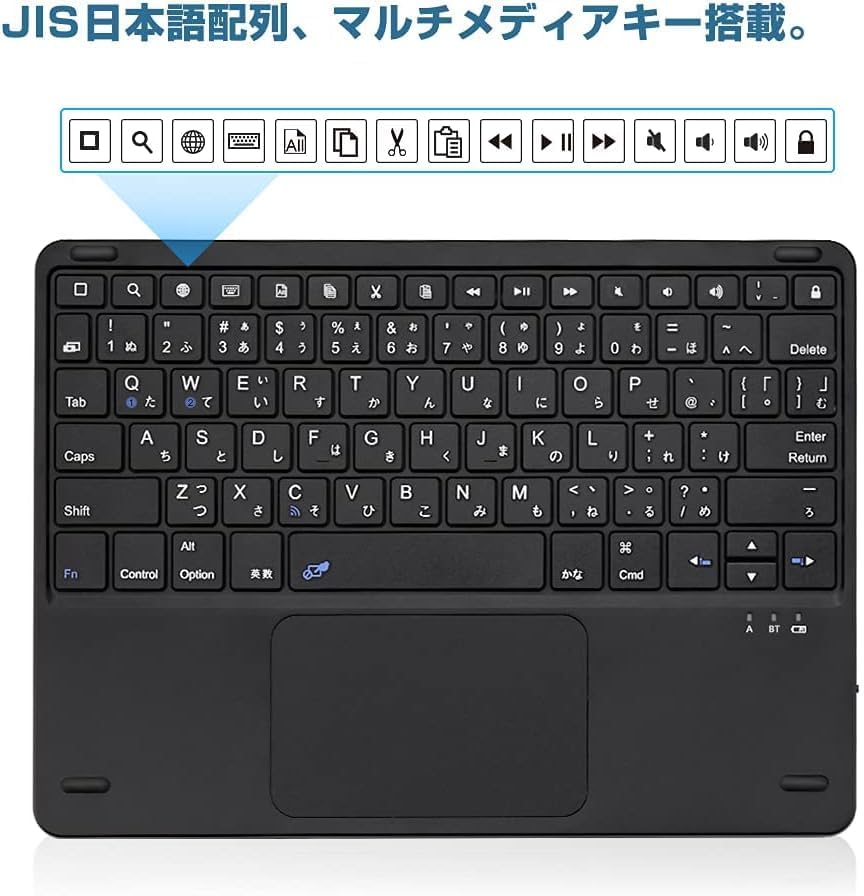
Image: Close-up of the Ewin Bluetooth Keyboard showing the JIS Japanese key layout and the row of multimedia function keys at the top.
Use the Fn key in combination with the function keys (F1-F12, etc.) to access multimedia controls such as volume adjustment, media playback, and screen lock.
Touchpad Functionality
The integrated touchpad supports multi-touch gestures, allowing for intuitive navigation on your iPad. To lock or unlock the touchpad, press Fn + Space.

Image: An iPad connected to the Ewin Bluetooth Keyboard, demonstrating multi-touch gestures on the touchpad. Instructions for locking the touchpad (Fn + Space) are also shown.
Multi-Pairing Feature
This keyboard can be paired with two iOS devices simultaneously. Switch between connected devices by pressing the dedicated device switching buttons (usually labeled 1 and 2 or similar Bluetooth icons).
Image: The Ewin Bluetooth Keyboard connected to both an iPad and an iPhone, illustrating the ability to switch between two paired iOS devices with a single button press.
Auto-Sleep Function
To conserve battery life, the keyboard will automatically enter sleep mode after 10 minutes of inactivity. To wake it up, simply press any key.
Image: The Ewin Bluetooth Keyboard with an illustration indicating the auto-sleep function after 10 minutes and details on battery duration.
Maintenance
To ensure the longevity and optimal performance of your Ewin Bluetooth Keyboard, follow these maintenance guidelines:
- Cleaning: Use a soft, dry, lint-free cloth to clean the keyboard surface. For stubborn dirt, slightly dampen the cloth with water or a mild cleaning solution. Avoid excessive moisture.
- Storage: Store the keyboard in a cool, dry place away from direct sunlight and extreme temperatures.
- Avoid Liquids: Do not expose the keyboard to liquids. In case of accidental spills, immediately power off the keyboard and allow it to dry completely before attempting to use it again.
- Handle with Care: Avoid dropping the keyboard or subjecting it to strong impacts, as this can damage internal components.
Troubleshooting
If you encounter issues with your Ewin Bluetooth Keyboard, refer to the following common solutions:
Keyboard Not Connecting/Pairing
- Check Power: Ensure the keyboard is turned on and has sufficient battery charge. Recharge if necessary.
- Bluetooth On: Verify that Bluetooth is enabled on your iPad/iPhone.
- Re-pair: Delete the keyboard from your device's Bluetooth list ("Forget This Device") and attempt to pair it again following the "Pairing with an iOS Device" instructions.
- Distance: Ensure the keyboard is within the 10-meter operating range of your iOS device.
- Interference: Move away from other wireless devices that might cause interference.
- iOS Version: Confirm your iOS device is running iOS 13.4 or later for full compatibility, especially for touchpad functions.
Touchpad Not Working
- Check Lock: Ensure the touchpad is not locked. Press Fn + Space to toggle the touchpad lock.
- iOS Version: Verify your iOS device is running iOS 13.4 or later. Touchpad functionality requires this version.
- Re-pair: Try unpairing and re-pairing the keyboard.
Keys Not Responding
- Recharge: The battery might be low. Charge the keyboard fully.
- Re-pair: Disconnect and reconnect the keyboard via Bluetooth.
- Restart Device: Restart your iPad/iPhone.
Keyboard Typing Incorrect Characters (JIS Layout)
- Ensure your iOS device's keyboard settings are set to "Japanese (JIS)" or the appropriate layout. Go to Settings > General > Keyboard > Hardware Keyboard and select the correct layout.
Warranty and Support
For product inquiries or support, please contact Ewin customer service. Refer to the contact information provided in the included Japanese Instruction Manual or visit the official Ewin website.
This product comes with a standard manufacturer's warranty. Please retain your proof of purchase for warranty claims.
Contact Information:
- Brand: Ewin
- Manufacturer: -Ewin
- Seller: Desheng-JP (via Amazon.co.jp)
- Amazon Store Link: Ewin Official Store on Amazon.co.jp
