
SilverStone SST-ST1300-TI-X
SilverStone Technology ST1300-TI 1300W Power Supply
User Manual
Introduction
This manual provides detailed instructions for the installation, operation, maintenance, and troubleshooting of your SilverStone Technology ST1300-TI 80 Plus Titanium 1300W Fully Modular ATX/PS2 Power Supply. Please read this manual thoroughly before installation and operation to ensure proper functionality and safety.

An overview of the SilverStone ST1300-TI 1300W power supply, showcasing its design and the product packaging.
Safety Information
Always observe the following safety precautions to prevent injury or damage to the power supply and connected components:
- Do not open the power supply unit. High voltages are present inside, even when disconnected from power.
- Ensure the power supply is disconnected from the AC outlet before installation or maintenance.
- Install the power supply in a well-ventilated area.
- Use only the modular cables provided with the power supply. Using incompatible cables may cause damage.
- Avoid exposing the power supply to moisture or extreme temperatures.
- If the power supply is damaged or malfunctions, discontinue use immediately and contact SilverStone support.
Package Contents
Verify that all items are present in the package:
- SilverStone ST1300-TI Power Supply Unit
- Modular Cable Set (ATX 20+4 pin, EPS/ATX 4+4 pin, PCIe 6+2 pin, SATA, 4-pin Peripheral)
- AC Power Cord
- Mounting Screws
- User Manual (this document)
- Cable Ties (optional, may be included)
Setup and Installation
Follow these steps for proper installation of your power supply:
- Prepare Your System: Ensure your computer case is compatible with ATX/PS2 form factor power supplies. Disconnect all power from your system and open the computer case.
- Mount the Power Supply: Carefully slide the ST1300-TI into the power supply bay of your computer case. Align the screw holes and secure the power supply with the provided mounting screws.
- Connect Modular Cables:

This image provides an angled perspective of the ST1300-TI power supply, highlighting the array of modular cable connection ports on the front panel and the top-mounted cooling fan.
Connect only the necessary modular cables to the power supply. The ST1300-TI is fully modular, allowing for cleaner cable management.
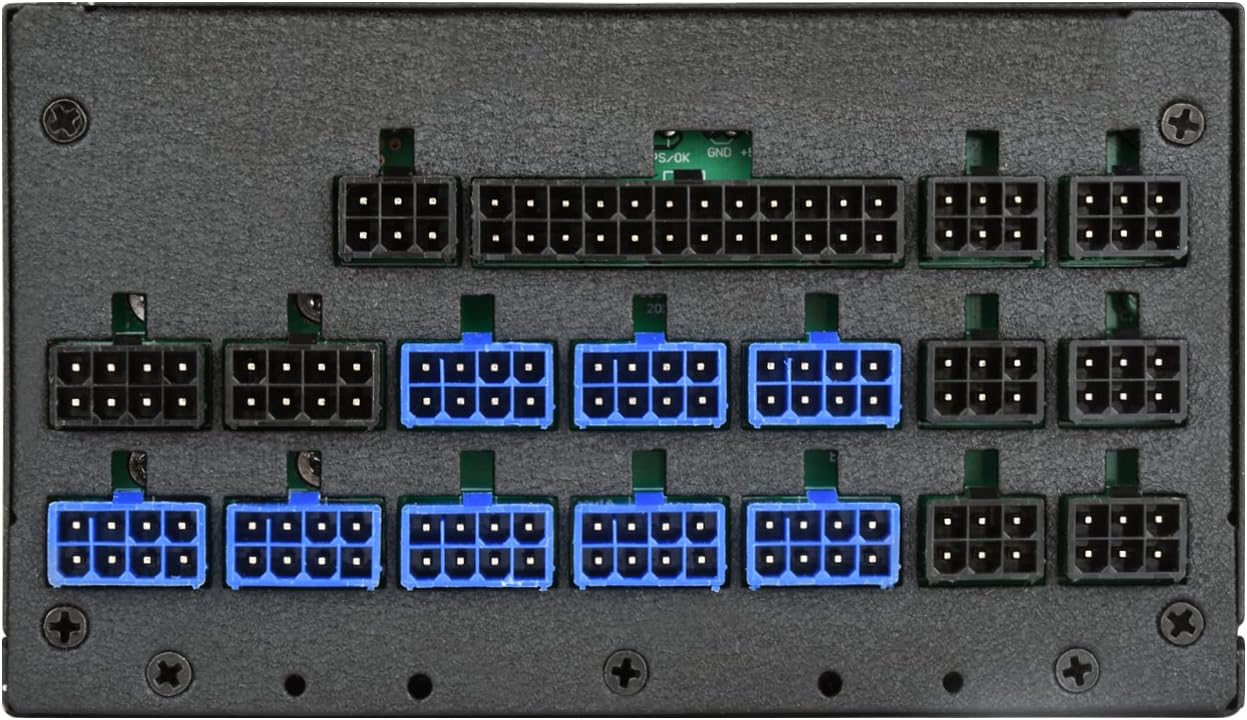
A detailed view of the modular cable connection ports on the SilverStone ST1300-TI power supply, indicating various types of connectors for different components.
- 20+4 Pin ATX Motherboard Cable: Connect to the main power connector on your motherboard.
- 4+4 Pin EPS/ATX 12V Cable: Connect to the CPU power connector on your motherboard.
- 6+2 Pin PCIe Cables: Connect to your graphics cards (GPUs) as required.
- SATA Power Cables: Connect to SATA devices such as SSDs, HDDs, and optical drives.
- 4-pin Peripheral (Molex) Cables: Connect to older peripherals or case fans if needed.
- Cable Management: Route cables neatly to improve airflow and aesthetics within your case.
- Close Case: Once all connections are secure, close your computer case.
- Connect AC Power: Plug the provided AC power cord into the power supply's AC inlet and then into a wall outlet or surge protector.
Operating Instructions
To power on your system:
- Ensure the power switch on the back of the ST1300-TI power supply is in the "ON" (I) position.
- Press the power button on your computer case.
The ST1300-TI features an ultra-silent 135mm fan with intelligent semi-fanless operation. The fan may not spin at low loads to minimize noise, activating only when necessary to maintain optimal temperatures.
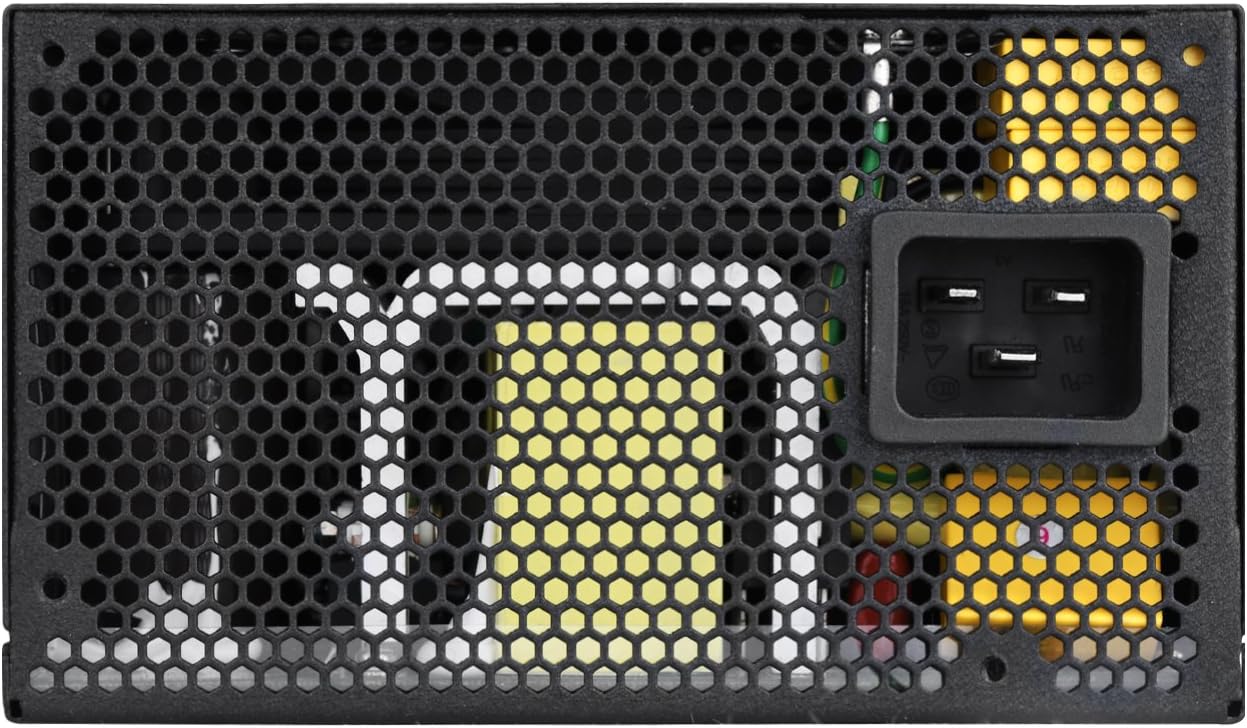
A direct overhead view of the 135mm cooling fan and its protective grille on the SilverStone ST1300-TI power supply.
Maintenance
Regular maintenance helps ensure the longevity and optimal performance of your power supply:
- Cleaning: Periodically clean the exterior of the power supply and its fan grille using a soft, dry cloth. For deeper cleaning, use compressed air to remove dust from the fan and internal components, ensuring the system is powered off and unplugged.
- Inspection: Regularly inspect cables for any signs of wear, fraying, or damage. Ensure all connections are secure.
- Ventilation: Ensure that the power supply's intake and exhaust vents are not obstructed to allow for proper airflow.
Troubleshooting
If you encounter issues with your ST1300-TI power supply, refer to the following common problems and solutions:
| Problem | Possible Cause | Solution |
|---|---|---|
| System does not power on. |
|
|
| System powers on but shuts down immediately. |
|
|
| Fan is not spinning. |
|
|
For further assistance, please refer to the support section or SilverStone's official website.
Specifications
Key specifications for the SilverStone ST1300-TI power supply:

The product label on the SilverStone ST1300-TI power supply, displaying electrical specifications such as AC input, DC output voltages, and maximum power ratings.
| Feature | Detail |
|---|---|
| Model Name | SST-ST1300-TI-X |
| Brand | SilverStone |
| Form Factor | ATX |
| Output Wattage | 1300W |
| Efficiency Rating | 80 Plus Titanium |
| Modularity | Fully Modular |
| Cooling Method | Air (135mm fan with intelligent semi-fanless operation) |
| Operating Temperature | 24/7 continuous power output with 50℃ operating temperature |
| Capacitors | Japanese electrolytic capacitors |
| Voltage Regulation | Strict ±3% voltage regulation and low ripple & noise |
| Dimensions (LxWxH) | 7.09 x 5.91 x 3.39 inches (180 x 150 x 86 mm) |
| Weight | 8.7 pounds (3.95 kg) |
Warranty and Support
For detailed warranty information, please refer to the official SilverStone Technology website or the warranty card included with your product. SilverStone provides technical support for their products.
Online Support: Visit the official SilverStone Technology website for FAQs, driver downloads, and support contact information. www.silverstonetek.com
Ask a question about this manual
Ask about setup, troubleshooting, compatibility, parts, safety, or missing instructions. Manuals+ will review the question and use this page’s manual context to help answer it.