1. Introduction
This user manual provides essential information for the safe and efficient operation of your SAMSUNG Business WM75A 75-inch 4K UHD LED Display. Please read this manual thoroughly before using the product and retain it for future reference. The WM75A is designed for business environments, offering a 75-inch interactive display with 4K UHD resolution (3840 x 2160 pixels) for clear and engaging visuals.

Figure 1.1: Front view of the SAMSUNG Business WM75A 75-inch 4K UHD LED Display. This image shows the large display with a minimalist black bezel, indicating its primary function as an interactive screen.
2. Safety Information
Observe the following safety precautions to prevent damage to the product or injury to yourself and others:
- Do not block ventilation openings.
- Do not expose the display to rain or moisture.
- Ensure proper grounding for electrical connections.
- Handle the display with care due to its size and weight (approximately 128.5 pounds).
- Only use accessories specified by the manufacturer.
3. Package Contents
Verify that all components are present in the package:
- SAMSUNG Business WM75A 75-inch LED Display
- Power Cable
- Remote Control (with batteries)
- Stylus Pen
- Quick Setup Guide
- Warranty Card
4. Setup
4.1 Physical Installation
Due to the display's size and weight, a minimum of two people is recommended for installation. Ensure the mounting surface or stand can support the display's weight of 128.5 pounds (58.3 kg).

Figure 4.1: Side profile of the SAMSUNG Business WM75A display. This image highlights the slim design of the display, measuring 2.96 inches in depth.
4.2 Connecting Devices
The WM75A offers versatile connectivity options. Locate the input ports on the rear of the display.

Figure 4.2: Rear view of the SAMSUNG Business WM75A display, illustrating the location of various input and output ports for connectivity.
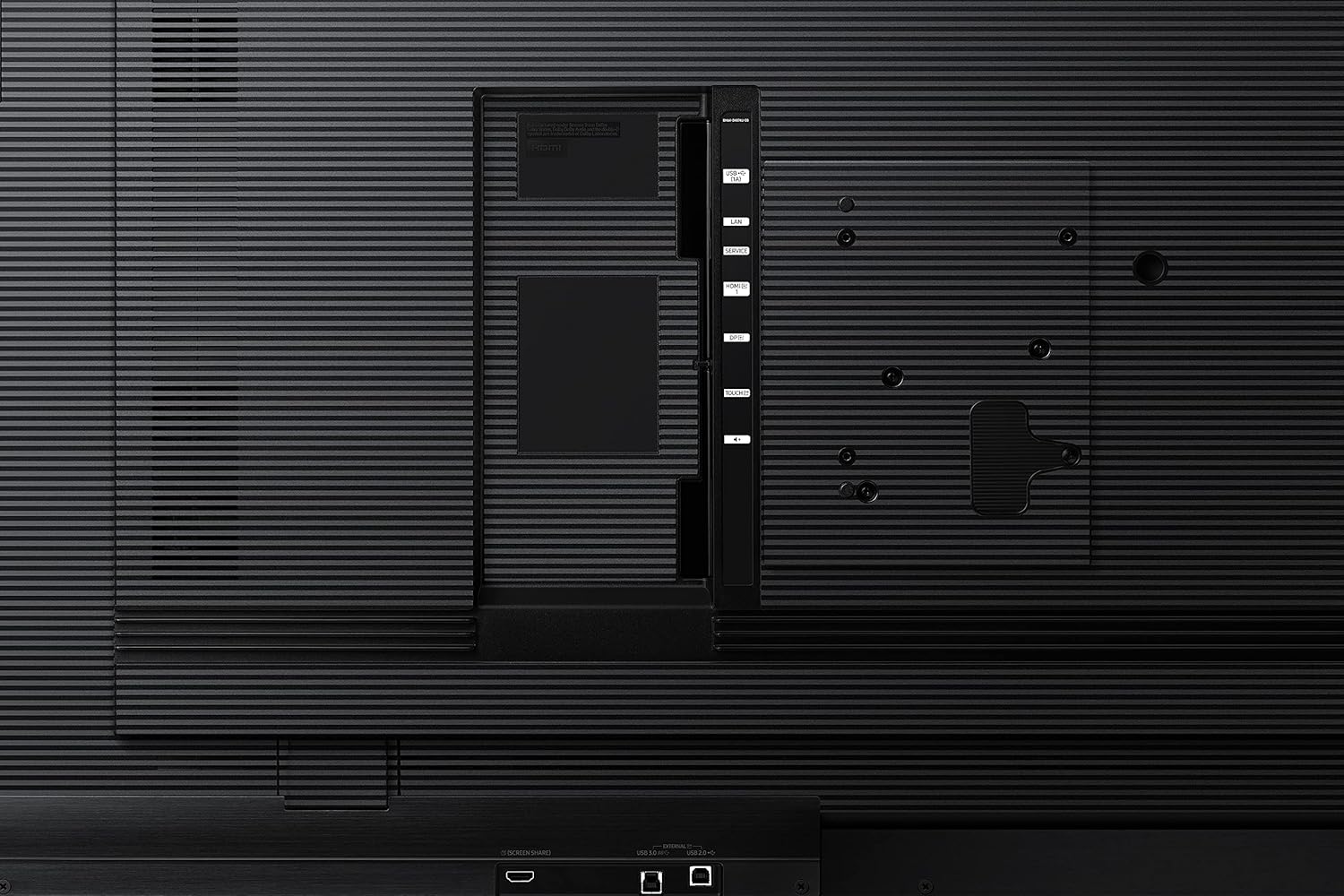
Figure 4.3: Close-up view of the connectivity panel on the SAMSUNG Business WM75A, detailing ports such as HDMI, USB, and the OPS slot.
- HDMI: Connect external video sources such as laptops or media players.
- USB: Connect USB devices for media playback or touch functionality. The display features 2 USB ports.
- DisplayPort (DP): Another option for video input.
- NFC: For quick device pairing.
- OPS Slot: An Open Pluggable Specification slot allows for the integration of an optional PC module, enhancing computing power and functionality.
- Wi-Fi: Connect to a wireless network for internet access and screen sharing.

Figure 4.4: Visual representation of the versatile connectivity options including HDMI, USB, DisplayPort, NFC, OPS slot, and screen sharing capabilities.

Figure 4.5: Illustration of the Open Pluggable Specification (OPS) slot, which allows for the integration of an optional PC to enhance the display's computing capabilities.
4.3 Initial Power On
- Connect the power cable to the display and a power outlet.
- Press the power button located on the display or the remote control.
- Follow the on-screen instructions for initial setup, including language selection and network configuration.
5. Operating Instructions
5.1 Basic Functions and User Interface
The display features an intuitive user interface designed for ease of use. Navigate through menus using touch gestures or the remote control.

Figure 5.1: The intuitive user interface of the Samsung Interactive Display, showing easy navigation and quick access tools for content management.
5.2 Interactive Features
The WM75A offers advanced touch and writing capabilities for dynamic interaction.
- Immersive Touch Technology: Experience smooth, natural writing with a low latency of 34ms and 2,048 levels of pressure sensitivity.
- Natural Drawing: Distinguish between thin and thick objects to simulate on-screen writing or highlighting. Erase content with your finger or palm.
- Annotation: Annotate directly onto photos, documents, web browsers, and applications.
- Multi-touch: Supports up to 20 simultaneous touches, enabling multiple users to write or edit at the same time.
- Creative Tools: Utilize various brush and color medium options, including water painting, oil painting, and color mixing.

Figure 5.2: This image highlights the display's immersive touch technology, featuring 34ms latency and 2,048 levels of pressure sensing for precise and responsive interaction.

Figure 5.3: Demonstrates the intuitive and natural drawing capabilities, including passive pen input, highlighting, and flexible erasing with a finger or palm.

Figure 5.4: An example of the display's annotation feature, allowing users to take notes and highlight details directly on various content types.

Figure 5.5: Multiple users engaging with the display simultaneously, demonstrating its multi-touch capabilities for collaborative work.

Figure 5.6: An artistic representation of the display's creative tools, including water painting, oil painting, brush recognition, and color mixing options.
5.3 Software Features
- Document Viewer: Open Microsoft Word, PowerPoint, Excel, and Adobe PDF files directly.
- Web Browser: Access the internet directly from the display for on-the-spot collaboration and research.
- Image Editing: Quickly move, crop, capture, and edit images within your notes.

Figure 5.7: The intuitive document viewer, capable of opening various file formats including DOC, PPT, PDF, and XLSX directly on the display.

Figure 5.8: The integrated web browser feature, allowing users to access and annotate web content directly on the display for collaborative browsing.

Figure 5.9: Demonstrates the image editing capabilities, allowing users to easily move, crop, capture, and erase elements within images on the display.
5.4 Collaboration Features
- Multi-Device Casting: Simultaneously mirror up to 4 devices regardless of operating system (Chromebook, iPhone, iPad, MacBooks, Android, Windows PC).
- Remote Control: Control and annotate lessons from your own device, allowing freedom of movement.
- Camera Integration: Seamlessly integrate cameras for hybrid learning environments.
- Note Distribution: Easily distribute meeting recaps and notes via email, printer, USB, network storage, or Wi-Fi direct.

Figure 5.10: Multi-device casting feature, showing content from various devices mirrored onto the display for enhanced collaboration.

Figure 5.11: Illustrates the ability to control and annotate content on the display remotely from a personal device, providing flexibility for presenters.

Figure 5.12: Demonstrates plug-and-play camera integration, facilitating hybrid learning by connecting remote students to the classroom.

Figure 5.13: Options for effortlessly recapping and distributing notes, including email, printer, USB, network storage, and Wi-Fi direct.
5.5 Security and Remote Management
- Content Protection: Secure confidential information with a reinforced 6-digit lock and file security features.
- Remote Management: Control display settings, power, network, and USB ports remotely. Automatic firmware updates are also managed remotely.

Figure 5.14: Illustrates the secure content protection features, including a 6-digit lock and file security to safeguard sensitive information.

Figure 5.15: Remote management options, allowing administrators to control display settings and manage firmware updates from a central location.
6. Maintenance
6.1 Cleaning the Display
To clean the display, gently wipe the screen with a soft, lint-free cloth. For stubborn marks, use a screen-cleaning solution specifically designed for LED displays. Avoid abrasive cleaners or solvents.
The screen surface features an antimicrobial coating to protect the panel from degradation and shatter-resistant glass for durability.

Figure 6.1: Visual representation of the antimicrobial coating and shatter-resistant glass, enhancing the display's durability and hygiene.
6.2 Firmware Updates
Ensure your display's firmware is up to date for optimal performance and security. Firmware updates can be managed remotely or manually through the display's settings menu.
7. Troubleshooting
If you encounter issues with your display, refer to the following common troubleshooting steps:
- No Power: Check the power cable connection and ensure the power outlet is functional.
- No Image: Verify that the input source is correctly connected and selected. Try a different HDMI or DP cable.
- Touchscreen Unresponsive: Restart the display. Ensure no foreign objects are on the screen.
- Wi-Fi Connection Issues: Check network settings and ensure the display is within range of the Wi-Fi router.
- Image Quality Issues: Ensure the resolution of the input source matches the display's native resolution (3840 x 2160).
For further assistance, contact Samsung customer support.
8. Specifications
| Feature | Specification |
|---|---|
| Model Number | LH75WMAWLGCXZA |
| Screen Size | 75 Inches |
| Resolution | 3840 x 2160 Pixels (4K UHD) |
| Aspect Ratio | 16:9 |
| Image Brightness | 350 cd/m² |
| Product Dimensions (W x H x D) | 67.75 x 40.12 x 2.96 inches |
| Item Weight | 128.5 pounds |
| Total USB Ports | 2 |
| Screen Surface Description | Flat |
| Connectivity | HDMI, USB, DisplayPort, NFC, Wi-Fi, OPS Slot |
| Country of Origin | Viet Nam |
9. Warranty and Support
For warranty information and technical support, please refer to the warranty card included with your product or visit the official Samsung support website. Keep your purchase receipt for warranty claims.