
EASWEL USB Programming Cable Cord User Manual
For Motorola DGP-4150, DGP-4150+, DGP-5050, DGP-5550 Radios
1. Introduction
This manual provides detailed instructions for the proper installation, operation, and maintenance of your EASWEL USB Programming Cable. This cable is designed to facilitate communication between a computer and compatible Motorola two-way radios for programming purposes. Please read this manual thoroughly before use to ensure optimal performance and prevent damage.
2. Package Contents
Verify that all items are present in your package:
- 1 x EASWEL USB Programming Cable
- 1 x Driver Installation CD (may be included for older systems, drivers are often available online)

Figure 1: Overview of the EASWEL USB Programming Cable. This image displays the complete cable, showing the USB-A connector on one end and the multi-pin radio connector on the other, with an inline component.
3. Compatibility
This programming cable is compatible with the following Motorola radio models:
- Motorola DGP-4150
- Motorola DGP-4150+
- Motorola DGP-5050
- Motorola DGP-5550
Ensure your radio model is listed above for proper functionality. Compatibility with other models is not guaranteed.
4. Setup
4.1 Driver Installation
- Insert Driver CD: If a driver CD is included, insert it into your computer's CD/DVD drive.
- Locate Drivers: Browse the CD for the appropriate driver package for your operating system (e.g., Windows 10, macOS). If no CD is provided, or for updated drivers, visit the EASWEL support website or contact the seller.
- Install Drivers: Follow the on-screen instructions to install the USB drivers. Administrator privileges may be required.
- Verify Installation: After installation, connect the USB cable to your computer. Open your computer's Device Manager (Windows) or System Information (macOS) and check for the newly installed USB Serial Port or similar entry under 'Ports (COM & LPT)' or 'USB Devices'. Note the assigned COM port number, as this will be needed for the radio programming software.
4.2 Connecting the Cable
- Connect to Computer: Plug the USB-A end of the programming cable into an available USB port on your computer.
- Connect to Radio: Ensure your Motorola radio is powered off. Carefully align the multi-pin connector of the programming cable with the accessory port on your radio. Gently push until it is securely seated. Do not force the connection.
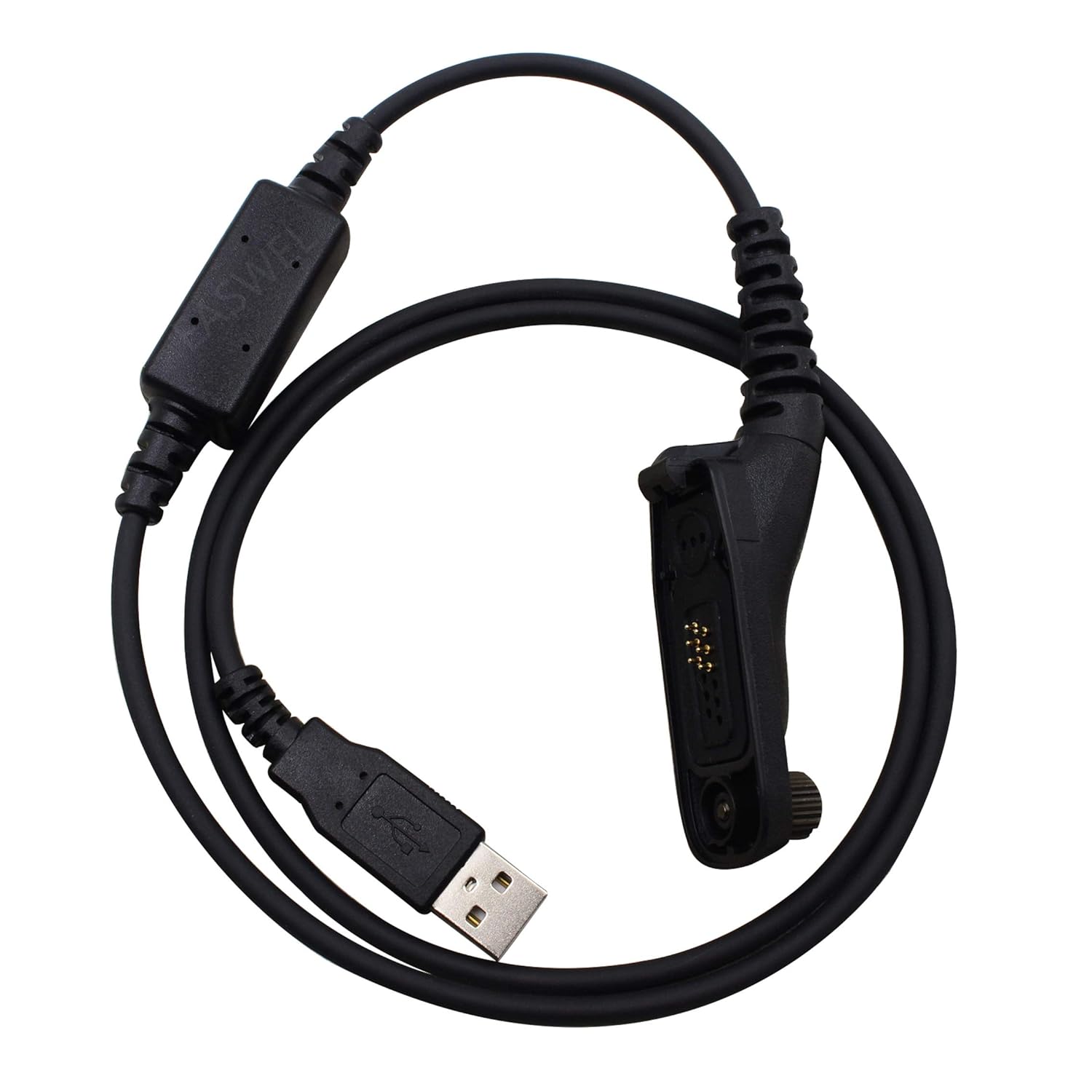
Figure 2: Close-up of the radio connector. This image shows the multi-pin connector designed to interface with compatible Motorola radios.
5. Operating Instructions
This programming cable acts as an interface. The actual programming of your radio requires specific radio programming software (CPS - Customer Programming Software) provided by Motorola or a licensed vendor. This software is not included with the EASWEL USB Programming Cable.
- Power On Radio: With the cable connected, power on your Motorola radio.
- Launch Programming Software: Open the appropriate Motorola CPS on your computer.
- Configure Software: Within the CPS, navigate to the communication settings or port selection. Select the COM port number identified during driver installation (e.g., COM3, COM4).
- Read/Write Radio Data: Follow the instructions within the CPS to read the current configuration from your radio, make necessary changes, and then write the updated configuration back to the radio.
- Disconnect: Once programming is complete, safely close the CPS, power off the radio, and then disconnect the cable from both the radio and the computer.
6. Maintenance
To ensure the longevity and reliable performance of your programming cable, follow these maintenance guidelines:
- Storage: Store the cable in a cool, dry place away from direct sunlight and extreme temperatures.
- Cleaning: Use a soft, dry cloth to clean the cable and connectors. Avoid using harsh chemicals or abrasive materials.
- Handling: Do not bend the cable sharply or pull on the cable itself to disconnect it. Always grasp the connector ends firmly.
- Inspection: Periodically inspect the cable for any signs of damage, such as frayed wires, bent pins, or cracked insulation. Discontinue use if damage is observed.
7. Troubleshooting
If you encounter issues while using the programming cable, refer to the following common problems and solutions:
| Problem | Possible Cause | Solution |
|---|---|---|
| Cable not recognized by computer | Missing or incorrect drivers; faulty USB port | Reinstall drivers; try a different USB port; check Device Manager for errors. |
| Programming software cannot connect to radio | Incorrect COM port selected; radio not powered on; loose cable connection; incompatible software version | Verify COM port in Device Manager and CPS; ensure radio is on; re-seat cable; confirm CPS version compatibility with radio. |
| Error during read/write operation | Radio battery low; incorrect radio model selected in software; corrupted radio data | Ensure radio battery is fully charged; verify radio model in CPS; consult radio's service manual for data recovery if applicable. |
8. Specifications
- Brand: EASWEL
- Connector Type: USB Type A (to computer), Multi-pin (to radio)
- Cable Type: USB
- Color: Black
- Compatible Radio Models: Motorola DGP-4150, DGP-4150+, DGP-5050, DGP-5550
9. Warranty and Support
Specific warranty information for this product is not provided in the available data. For warranty claims, technical support, or further assistance, please contact the seller or manufacturer directly through your purchase platform or their official website.