1. Introduction
This user manual provides detailed instructions for the proper setup, operation, maintenance, and troubleshooting of your new Emporia Active Glam 4G mobile phone. Please read this manual carefully before using the device to ensure optimal performance and longevity. Keep this manual for future reference.

Figure 1.1: Emporia Active Glam 4G mobile phone, closed view displaying both front and back panels.
2. Setup
2.1 Unboxing and Components
Verify that all components are present in the package:
- Emporia Active Glam 4G Mobile Phone
- Lithium-ion Battery
- Charging Cradle
- USB Type-C Cable
- Power Adapter
2.2 Battery Installation
- Carefully remove the back cover of the phone.
- Align the contacts of the Lithium-ion battery with the contacts in the battery compartment.
- Gently press the battery into place until it is securely seated.
- Replace the back cover, ensuring it clicks into position.
2.3 SIM Card Insertion
The Emporia Active Glam 4G uses a standard SIM card. Ensure the phone is powered off before inserting or removing the SIM card.
- Remove the back cover and battery (if not already done).
- Locate the SIM card slot.
- Insert the SIM card with the gold contacts facing down and the cut corner aligned with the slot.
- Gently push the SIM card until it locks into place.
- Reinstall the battery and back cover.
2.4 Charging the Device
Before first use, fully charge the phone. The charging cradle provides a convenient way to charge your device.

Figure 2.1: The Emporia Active Glam 4G phone securely placed in its dedicated charging cradle.
- Connect the USB Type-C cable to the charging cradle and the power adapter.
- Plug the power adapter into a wall outlet.
- Place the phone into the charging cradle, ensuring it is properly seated and the charging indicator appears on the screen.
- A full charge typically takes approximately 2-3 hours.
2.5 Powering On/Off
- To Power On: Press and hold the Power/End Call button until the screen lights up.
- To Power Off: Press and hold the Power/End Call button, then select 'Power Off' from the options on the screen.
3. Operating Instructions
3.1 Making and Receiving Calls

Figure 3.1: The Emporia Active Glam 4G phone opened, revealing its clear display and large, easy-to-use keypad.
- To Make a Call: Dial the number using the keypad and press the Green Call button.
- To Answer a Call: Press the Green Call button when the phone rings.
- To End a Call: Press the Red End Call button.
3.2 Sending and Receiving Messages
- Navigate to the 'Messages' menu using the navigation keys.
- Select 'New Message' to compose a text message.
- Enter the recipient's number or select from contacts, then type your message.
- Press 'Send' to transmit the message.
3.3 Using the Camera
The phone is equipped with a 3 Megapixel camera.
- Open the phone and navigate to the 'Camera' application.
- Frame your subject using the display.
- Press the designated camera button or 'OK' to capture a photo.
3.4 SOS Emergency Call Function
The Emporia Active Glam 4G features a dedicated SOS button for emergencies, located on the back of the device.
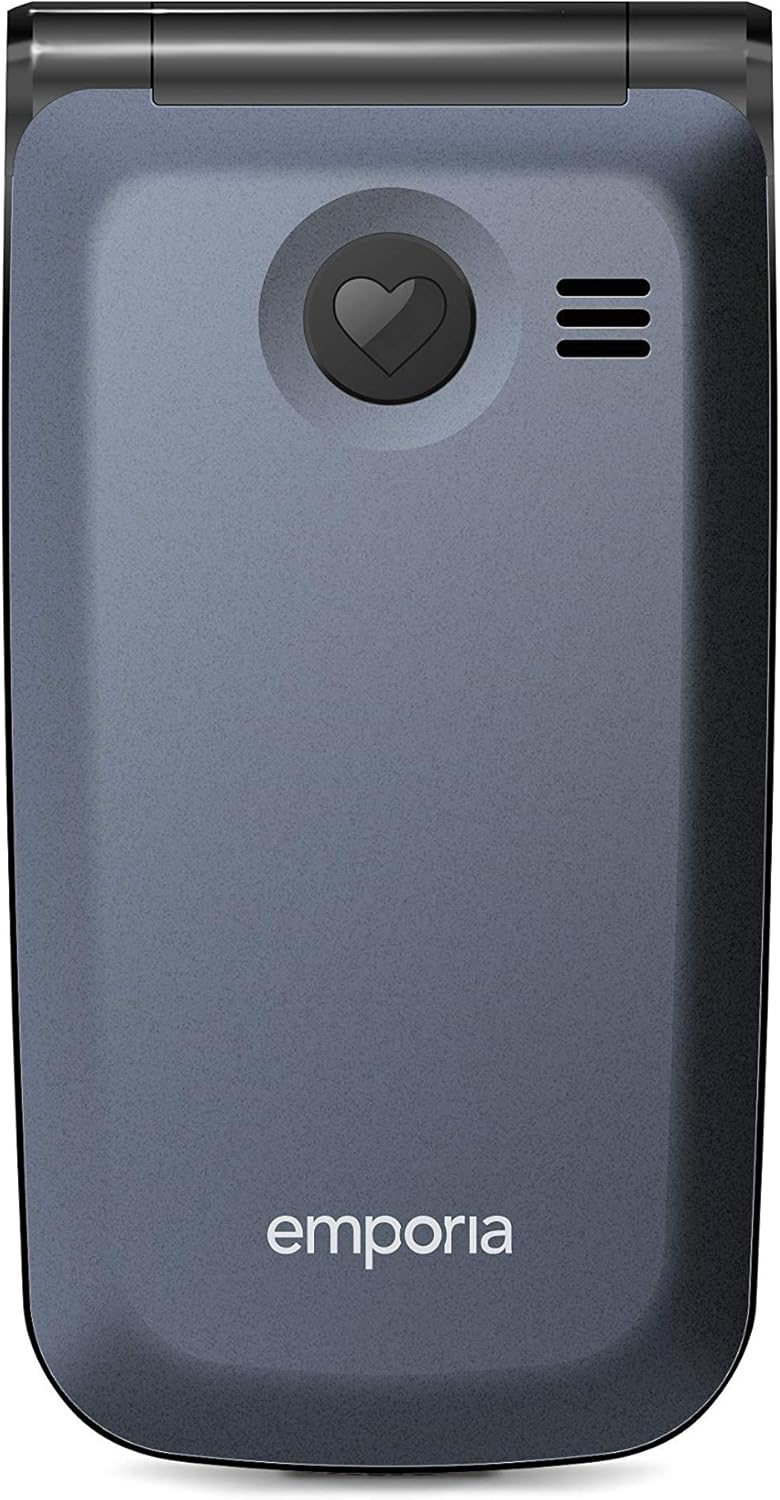
Figure 3.2: Rear view of the Emporia Active Glam 4G, highlighting the prominent SOS emergency call button.
- Setup: Before using, configure up to five emergency contacts in the 'SOS Settings' menu. These contacts will be called sequentially until one answers.
- Activation: In an emergency, press and hold the SOS button on the back of the phone for a few seconds.
- The phone will automatically dial the pre-set emergency numbers and send an emergency SMS message to them.
3.5 Keypad and Display Navigation
The phone features a clear display and a tactile keypad for easy navigation.
- Use the directional navigation keys (up, down, left, right) to move through menus and options.
- Press the 'OK' or 'Select' button in the center of the navigation keys to confirm a selection.
- The 'Back' or 'Clear' button (often marked with an arrow or 'C') allows you to return to the previous screen or delete characters.
3.6 Connectivity (Bluetooth, Wi-Fi)
The phone supports Bluetooth and Wi-Fi connectivity.
- Bluetooth: Go to 'Settings' > 'Bluetooth' to enable, search for, and pair with other Bluetooth devices like headsets or car kits.
- Wi-Fi: Go to 'Settings' > 'Wi-Fi' to enable, scan for available networks, and connect to a Wi-Fi network by entering the password if required.
4. Maintenance
4.1 Cleaning Your Device
To keep your phone in good condition:
- Use a soft, lint-free cloth to wipe the screen and body of the phone.
- Avoid using harsh chemicals, cleaning sprays, or abrasive materials.
- Do not expose the phone to excessive moisture.
4.2 Battery Care
Proper battery care can extend its lifespan:
- Avoid extreme temperatures, both hot and cold.
- Do not leave the phone charging for extended periods after it is fully charged.
- If the phone will not be used for a long time, store it with a partial charge (around 50%).
4.3 Software Updates
While specific software update information is not available, it is generally recommended to keep your device's software updated to ensure optimal performance, security, and access to new features. Check the phone's settings periodically for any available updates.
5. Troubleshooting
If you encounter issues with your Emporia Active Glam 4G, refer to the following common problems and solutions:
| Problem | Possible Solution |
|---|---|
| Phone does not power on | Ensure the battery is correctly installed and charged. Connect the phone to the charger and try again. |
| No network signal | Check if the SIM card is properly inserted. Move to an area with better network coverage. Restart the phone. |
| Cannot make or receive calls | Verify network signal strength. Check if call barring is enabled. Ensure sufficient credit/plan if applicable. |
| Poor audio quality during calls | Adjust the call volume. Ensure the microphone and speaker are not obstructed. Move to a quieter environment. |
| Battery drains quickly | Reduce screen brightness. Close unused applications. Limit background data usage. Consider replacing the battery if it's old. |
If the problem persists after trying these solutions, please contact Emporia customer support for further assistance.
6. Specifications
Key technical specifications for the Emporia Active Glam 4G (Model: V221-4g_001):
| Feature | Detail |
|---|---|
| Brand | Emporia |
| Model Number | V221-4g_001 |
| Color | Blueberry |
| Product Type | Flip Phone |
| Operating System | Android 10.0 |
| Screen Size | 2.2 Inches |
| Resolution | 320 x 240 pixels |
| RAM Size | 512 MB |
| CPU Speed | 1.3 GHz |
| Connectivity | Bluetooth, USB Type-C, Wi-Fi |
| Cellular Technology | 4G |
| Effective Still Resolution | 3 Megapixels |
| Battery Composition | Lithium-ion (1 included) |
| Special Features | USB, Camera, Keypad, Flash, Touch (implied by OS), Wi-Fi |
7. Warranty and Support
7.1 Warranty Information
Your Emporia Active Glam 4G mobile phone is covered by a manufacturer's warranty. Please refer to the warranty card included in your product packaging or visit the official Emporia website for detailed terms and conditions regarding warranty coverage, duration, and claims procedures.
7.2 Customer Support
For technical assistance, troubleshooting beyond this manual, or warranty inquiries, please contact Emporia customer support. Contact details can typically be found on the official Emporia website or in the product documentation.
Online Resources: Visit the official Emporia website for FAQs, updated manuals, and support forums.
Contact Number: Refer to your regional Emporia support contact information.