
1. Introduction
Thank you for choosing the TOMZON A 4K Camera Drone. This manual provides essential information for the safe operation, setup, and maintenance of your drone. Please read this manual thoroughly before operating the device to ensure proper function and to prevent damage or injury.
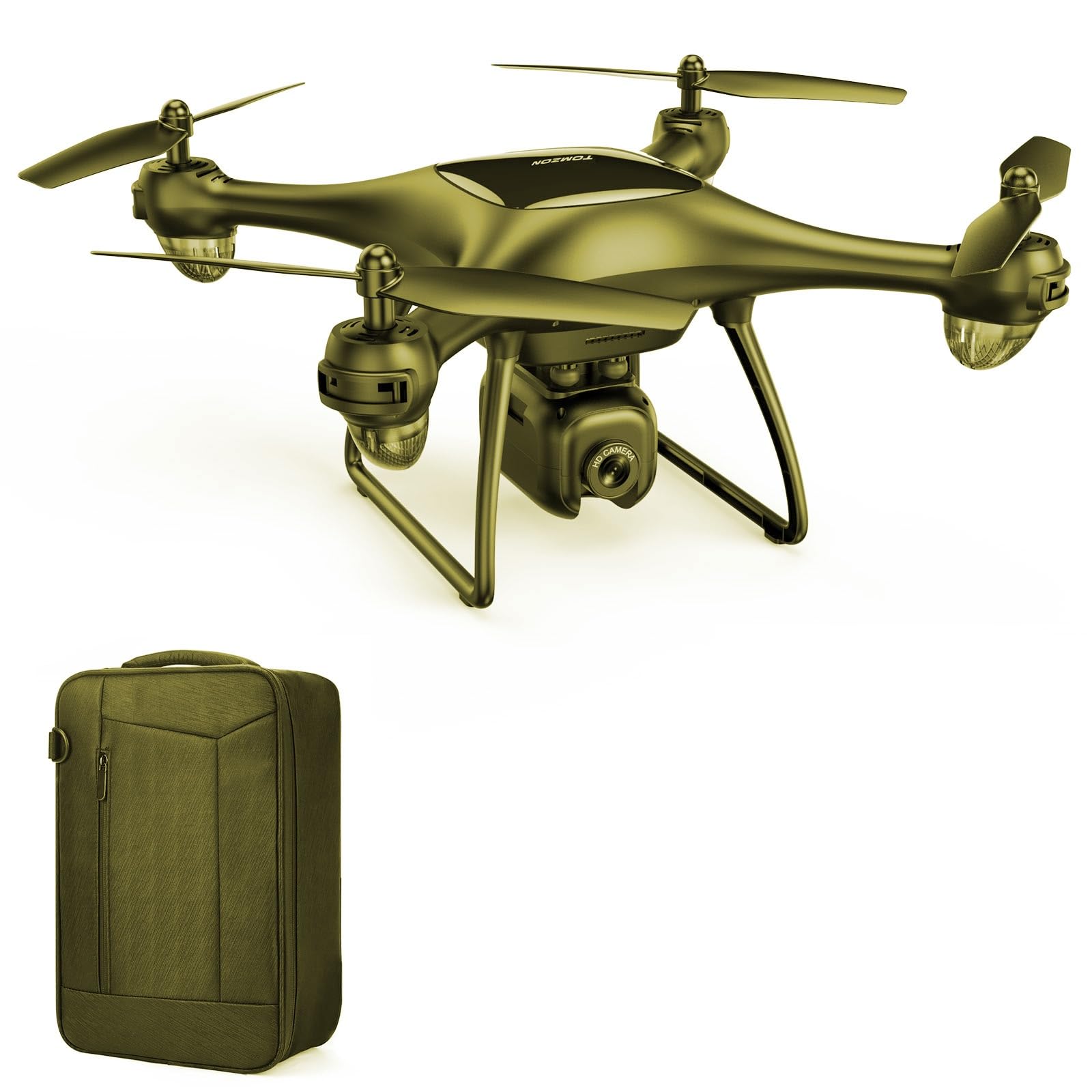
Image 1.1: The TOMZON A 4K Camera Drone. This image displays the drone from a slightly elevated angle, showcasing its compact design and camera.
2. Safety Guidelines
Adhering to these safety guidelines is crucial for safe operation and to prevent damage to the drone or injury to individuals.
- Pre-Flight Check: Always inspect the drone, propellers, and battery for any damage before each flight.
- Environmental Conditions: Fly in open areas, away from people, animals, buildings, and power lines. Avoid flying in strong winds, rain, or snow.
- Battery Safety: Use only original TOMZON batteries and chargers. Do not overcharge or puncture batteries. Discontinue use if batteries show signs of swelling or damage.
- Line of Sight: Maintain visual line of sight with the drone at all times during flight.
- Age Restriction: This product is intended for adult use.
- Propeller Safety: Keep hands, face, and loose clothing away from rotating propellers.
- Local Regulations: Be aware of and comply with all local laws and regulations regarding drone operation.
3. Package Contents
Verify that all items listed below are included in your package:
- TOMZON A 4K Camera Drone (1 unit)
- Remote Controller (1 unit)
- Drone Battery (Quantity may vary by package, typically 1-2)
- USB Charging Cable (1 unit)
- Spare Propellers (4 units)
- Propeller Guards (4 units)
- Carry Bag (1 unit)
- Instruction Manual (This document)

Image 3.1: TOMZON A 4K Camera Drone and included accessories. This image shows the drone, spare propellers, and propeller guards, providing a visual reference for the package contents.
4. Product Overview and Components
Familiarize yourself with the main components of your TOMZON A 4K Camera Drone.
4.1 Drone Components
- Propellers: Four rotating blades that provide lift.
- Motors: Drive the propellers.
- Camera: Integrated 4K camera for photo and video capture.
- Battery Compartment: Houses the drone battery.
- LED Indicators: Provide status information (e.g., power, pairing, low battery).
- Power Button: To turn the drone on/off.
4.2 Remote Controller Components
- Left Joystick: Controls altitude (up/down) and rotation (yaw left/right).
- Right Joystick: Controls forward/backward and left/right movement.
- Takeoff/Landing Button: One-key takeoff and landing.
- Photo/Video Button: Activates camera functions.
- Speed Switch: Adjusts flight speed (low/medium/high).
- Power Button: To turn the remote controller on/off.
5. Setup
5.1 Charging the Drone Battery
- Connect the USB charging cable to the drone battery.
- Plug the USB end of the cable into a USB power adapter (not included) or a computer's USB port.
- The indicator light on the charging cable will show charging status (e.g., red for charging, green for fully charged).
- Charging typically takes approximately 60-90 minutes. Do not leave batteries unattended while charging.

Image 5.1: TOMZON Drone Batteries and USB Charging Cable. This image illustrates the drone batteries and the USB charging cable used for recharging.
5.2 Installing the Drone Battery
- Ensure the drone is powered off.
- Open the battery compartment cover on the drone.
- Insert the fully charged battery into the compartment, ensuring it is securely seated.
- Close the battery compartment cover.
5.3 Attaching Propellers and Propeller Guards
- Identify the correct propellers (marked A or B) and match them to the corresponding motor shafts.
- Gently push the propellers onto the motor shafts until they are secure. Do not force them.
- Attach the propeller guards by snapping them into place around each motor arm. Ensure they are firmly attached to protect the propellers during flight.

Image 5.2: TOMZON Drone Propellers. This image shows a set of four drone propellers, indicating their design and material.

Image 5.3: TOMZON Drone Propeller Guards. This image displays four propeller guards, designed to protect the drone's propellers from impact.
5.4 Pairing the Remote Controller with the Drone
- Place the drone on a flat, level surface.
- Press and hold the power button on the drone until the LED indicators begin to flash.
- Turn on the remote controller. The remote's indicator light will also flash.
- Push the left joystick up to its maximum position, then pull it down to its minimum position.
- The drone and remote indicator lights will become solid, indicating successful pairing.
6. Operating Instructions
6.1 Basic Flight Controls
- Takeoff: After pairing, press the One-Key Takeoff/Landing button, or push both joysticks simultaneously outwards and downwards to start the motors, then push the left joystick up to ascend.
- Ascend/Descend: Push the left joystick up to ascend, pull down to descend.
- Forward/Backward: Push the right joystick up to fly forward, pull down to fly backward.
- Left/Right Sideways Flight: Push the right joystick left to fly left, push right to fly right.
- Turn Left/Right (Yaw): Push the left joystick left to rotate left, push right to rotate right.
- Landing: Press the One-Key Takeoff/Landing button, or slowly pull the left joystick down until the drone lands.
6.2 Camera Operation (4K Camera)
- Taking Photos: Briefly press the Photo/Video button on the remote controller to capture a single photo. The drone's LED indicators may flash once to confirm.
- Recording Video: Press and hold the Photo/Video button for approximately 2 seconds to start video recording. Press and hold again to stop recording. The drone's LED indicators may flash continuously during recording.
- Storage: Photos and videos are typically stored on a microSD card (not included) inserted into the drone's camera slot. Ensure a card is inserted before flight.
- Viewing Media: Remove the microSD card from the drone and insert it into a card reader to view files on a computer or compatible device.
6.3 Special Features
- Altitude Hold: The drone maintains a stable altitude automatically, making it easier to control.
- Headless Mode: In this mode, the drone's orientation is relative to the pilot, regardless of the drone's front direction. Activate via the remote controller (refer to remote diagram for specific button).
- 3D Flips: For advanced users, the drone can perform 360-degree flips. Ensure sufficient altitude and clear surroundings before attempting.
7. Maintenance
Regular maintenance ensures the longevity and optimal performance of your drone.
- Cleaning: Use a soft, dry cloth to clean the drone body and camera lens. Avoid using liquids or solvents.
- Propeller Replacement: If propellers are damaged or bent, replace them immediately with spare propellers. Ensure correct A/B propeller placement.
- Battery Care: Store batteries in a cool, dry place. Do not fully discharge batteries for extended periods. Charge them to about 50-60% for long-term storage.
- Motor Inspection: Periodically check motors for debris or obstructions.
8. Troubleshooting
| Problem | Possible Cause | Solution |
|---|---|---|
| Drone does not respond to remote. | Not paired; low battery in drone or remote. | Re-pair the drone and remote. Charge drone battery; replace remote batteries. |
| Drone drifts during flight. | Not calibrated; uneven surface at takeoff; strong wind. | Calibrate the drone on a flat surface. Fly in calm conditions. |
| Propellers do not spin. | Obstruction; damaged motor; low battery. | Check for obstructions. Ensure battery is charged. Contact support if motor is damaged. |
| Camera not recording/taking photos. | No microSD card; card full; card error. | Insert a formatted microSD card. Check card capacity. Try a different card. |
9. Specifications
| Feature | Detail |
|---|---|
| Brand | TOMZON |
| Model Name | A 4K |
| Part Number | T-P5G-B-US |
| Video Capture Resolution | 4K |
| Skill Level | Professional |
| Product Dimensions (L x W x H) | 8.07" x 8.07" x 4.13" |
| Color | Yellow |
| Age Range (Description) | Adult |
| Batteries Included | No (referring to initial purchase, but drone uses rechargeable battery) |
10. Warranty and Support
TOMZON products are designed for quality and reliability. For warranty information, technical support, or any inquiries regarding your TOMZON A 4K Camera Drone, please contact TOMZON customer service. The brand offers 24/7 consulting services.
Please retain your proof of purchase for warranty claims.


