
LONGRUF 7072
LONGRUF GPS Navigator for Car - User Manual
Model: 7072
1. Introduction
This manual provides comprehensive instructions for the LONGRUF 7-inch HD Display GPS Navigator. It covers setup, operation, maintenance, and troubleshooting to ensure optimal performance and a smooth navigation experience. Your LONGRUF GPS Navigator is designed to make your journeys smarter, safer, and more enjoyable with its advanced features and user-friendly interface.
2. Package Contents
Before you begin, please ensure all items are present in your package:
- GPS Navigator Unit
- Car Charger
- USB Cable
- Suction Cup Mount
- Clip Holder
- Sunshade
- User Manual (this document)
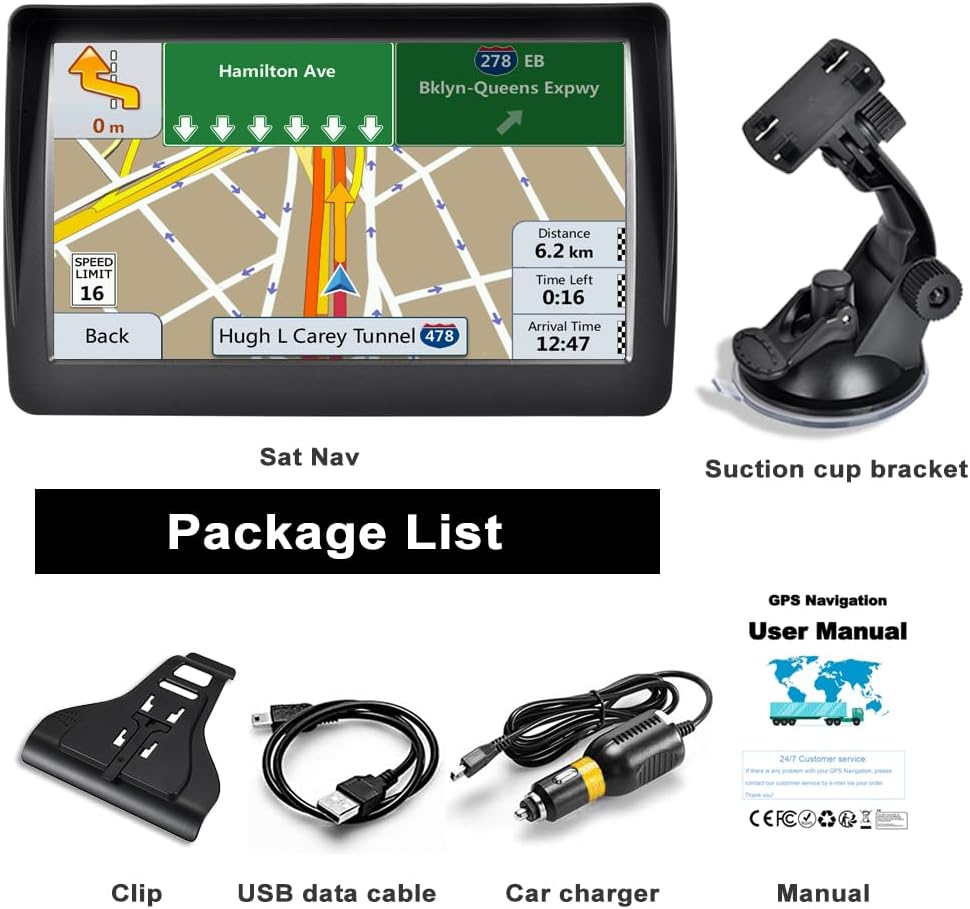
Figure 2.1: Included accessories and main unit.
3. Setup
3.1 Assembling the Mount
The GPS unit comes with a three-piece mounting system: the main mount, the clamp, and the suction cup. Follow these steps to assemble:
- Attach the clamp to the back of the GPS unit.
- Connect the main mount to the clamp.
- Attach the suction cup to the main mount. Ensure all connections are secure.
3.2 Mounting the GPS in Your Car
To securely mount your GPS Navigator to the windshield:
- Ensure the handle on the suction cup is in its released position (perpendicular to the pad). This is crucial before attempting to mount.
- Press the suction cup firmly against a clean, smooth area of your car's windshield. You do not need to push excessively hard.
- Flip the handle to the locked position (parallel to the pad) to create a strong vacuum seal.
- Adjust the angle of the GPS unit using the screw on the mount for optimal viewing. Once the desired angle is set, tighten the screw to secure it.
To remove the GPS from the windshield, push the handle back to the released position. If it's still sticking, use the small extension piece on the pad to gently peel it off.

Figure 3.1: GPS Navigator mounted on the windshield.
3.3 Charging the Device
Refer to the caution label on the back of the device for charging guidelines:
- For normal use: Charge 2 hours with car charger.
- For quick use: Charge 20 minutes with car charger.
Video 3.1: Demonstrates how to install and remove the GPS Navigator mount and unit in a car.
4. Operating Instructions
4.1 Powering On/Off
Press and hold the power button located on the side of the unit to turn the device on or off. A brief press will put the device into sleep mode or wake it up.
4.2 Navigating the Interface
The 7-inch HD touch screen provides a responsive and intuitive interface. Tap icons to access different functions such as navigation, settings, media player, and tools.
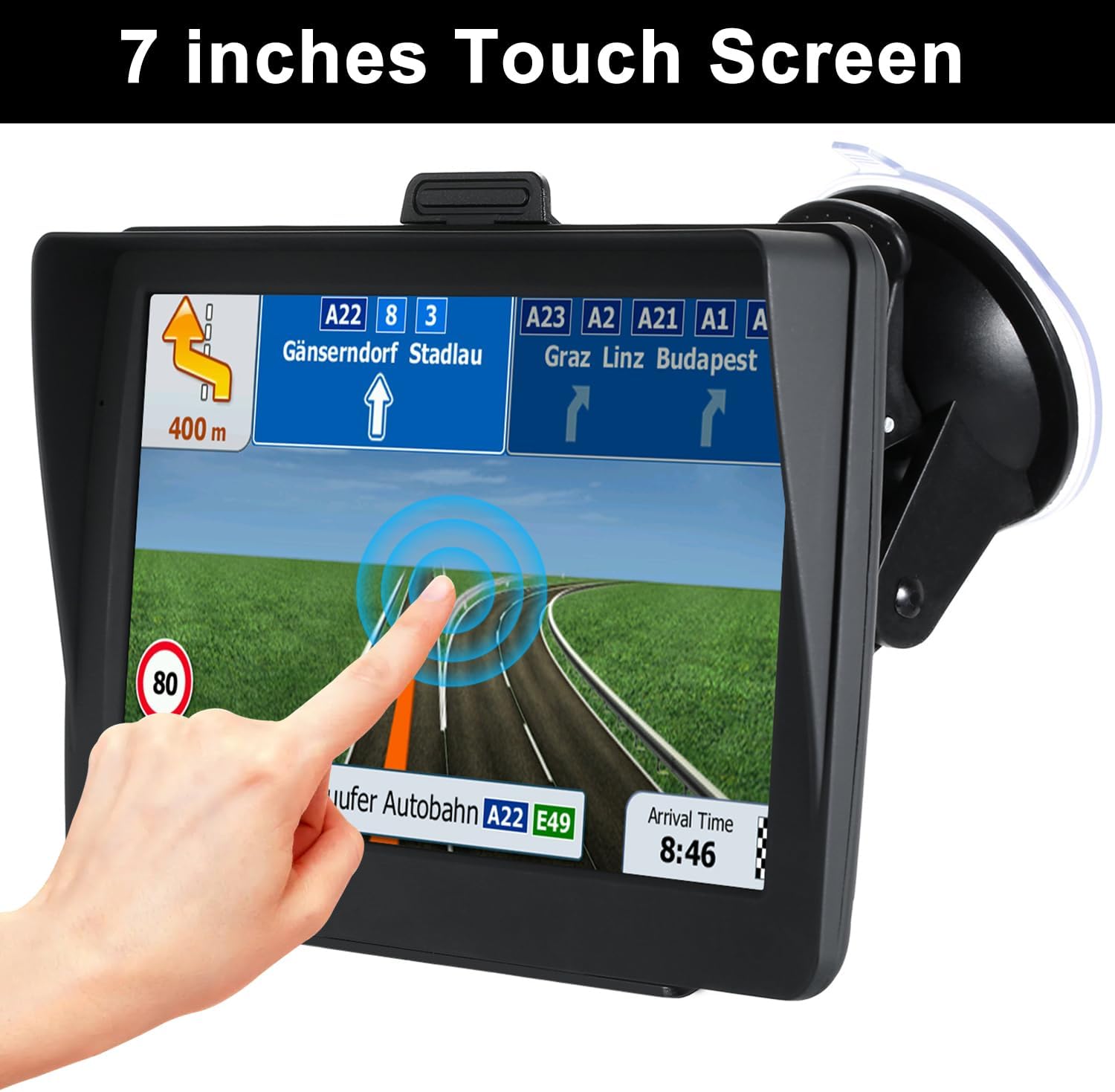
Figure 4.1: Responsive 7-inch touch screen.
4.3 Setting a Destination and Route Guidance
From the main menu, select "Navigation" to enter the map interface. You can input your destination by address, point of interest (POI), or coordinates. The system provides turn-by-turn voice navigation with multi-language support.
- Real-Time Voice Broadcast: Receive clear voice prompts for turns, safety warnings, and progress updates.
- Intelligent Error Correction: If you deviate from the route, the system will automatically recalculate and generate new directions.
- 2D/3D Map Views: Choose between 2D and 3D map displays. 3D maps help visualize your location in the real world, simplifying navigation through complex intersections.

Figure 4.2: Voice Broadcast features for enhanced navigation.
4.4 Points of Interest (POI) Quick Search
Easily find nearby points of interest such as gas stations, hotels, restaurants, schools, parks, markets, coffee shops, and cinemas directly from the navigation interface.

Figure 4.3: POI Quick Search interface.
4.5 Vehicle Modes
The GPS Navigator supports 7 different vehicle modes, allowing for customized routing based on your vehicle type (e.g., car, truck, ambulance, bus, bicycle, pedestrian). This ensures optimal routes and avoids restrictions for larger vehicles.

Figure 4.4: Customizable vehicle modes.
4.6 Sunshade Functionality
The uniquely designed sunshade helps to effectively block sunlight during the day, reducing glare and improving screen visibility. It also helps avoid reflection at night, ensuring clear viewing in various lighting conditions.

Figure 4.5: Sunshade for improved screen visibility.
5. Maintenance
- Keep the screen clean using a soft, lint-free cloth. Avoid abrasive cleaners.
- Store the device in a cool, dry place when not in use.
- Avoid exposing the device to extreme temperatures or direct sunlight for prolonged periods.
- Ensure the suction cup and mount are clean before each use to maintain a strong grip.
6. Troubleshooting
6.1 Cannot Find Satellite Signals
When a brand new device is turned on for the first time, it will take some time to search for satellite signals. For optimal signal acquisition, find an open and unobstructed place to search for satellite signals.
6.2 Map Updates
LONGRUF provides lifetime free map updates. Maps are typically updated once a year, usually in March-April. You can find the map update address on page 9 of the user manual (referring to the original manual, not this generated one). Alternatively, you can contact LONGRUF support via Amazon for assistance with map updates.

Figure 6.1: Permanent free map updates are available.
7. Specifications
| Feature | Detail |
|---|---|
| Model Name | 7072 |
| Display Size | 7 Inches |
| Processor | Built-In 256MB 16GB Cache (Sirf-Atlas5 Chip Technology) |
| Item Weight | 1.5 pounds |
| Product Dimensions | 6.89 x 4.28 x 5.51 inches |
| Batteries | 1 Lithium Polymer battery required (included) |
| Battery Life | 5 years |
| Connectivity Technology | USB |
| Map Type | North America (US, Canada, Mexico) pre-installed; Worldwide available |
| Special Features | Touchscreen, Free Lifetime Update Maps, Custom Truck Routing, Road Warnings, Lane Assist |
| Manufacturer | LONGRUF |
| Country of Origin | China |
8. Warranty and Support
8.1 Warranty Information
The LONGRUF GPS Navigator comes with a 12-month warranty from the date of purchase. This warranty covers manufacturing defects and ensures the product meets its specified performance standards.
8.2 Customer Support
For any questions, technical assistance, or warranty claims, please contact LONGRUF customer service through the Amazon platform. Our team is committed to providing prompt and helpful support.
Ask a question about this manual
Ask about setup, troubleshooting, compatibility, parts, safety, or missing instructions. Manuals+ will review the question and use this page’s manual context to help answer it.