
Introduction
This manual provides essential instructions for the proper use and care of your Samsung Silicone Smart S View Wallet Flip Cover, designed specifically for the Samsung Galaxy A52 and Galaxy A52s. This cover offers robust protection and convenient smart features to enhance your smartphone experience.
Setup
Installing the Cover
- Ensure your Samsung Galaxy A52 or A52s is clean and free of dust or debris.
- Align your phone with the back shell of the cover, ensuring the camera cutout and ports match.
- Gently press your phone into the cover, starting from one side and working your way around, until all corners are securely seated.
- Verify that all ports, buttons, and camera lenses are correctly aligned with the cover's cutouts for full functionality.
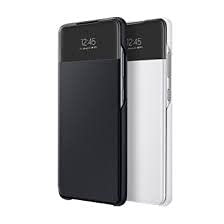
Image: The Samsung Smart S View Wallet Cover securely installed on a compatible smartphone, displaying the front view with the transparent S View window. This image illustrates the proper fit and appearance of the cover when in use.
Operating Instructions
Using the S View Window
The Smart S View Wallet Flip Cover features a transparent window on the front flap, allowing you to view important information and interact with your phone without fully opening the cover. Information typically displayed includes:
- Time and Date
- Notifications (missed calls, messages, alarms)
- Battery Status
- Controlling music playback (play/pause, skip)
- Answering or rejecting calls (swipe gestures may apply depending on phone settings)
Wallet Functionality
The inside of the front flap includes a dedicated slot for storing a single card, such as an ID or credit card. This provides convenient access to essential items while keeping them secure.
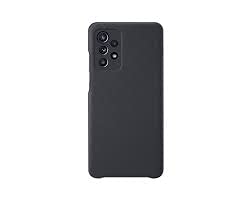
Image: The Samsung Smart S View Wallet Cover opened, revealing the interior of the front flap with a dedicated slot for a single card. This highlights the wallet functionality of the cover.
Antimicrobial Protection
This cover is designed with an antimicrobial coating to help protect against microbial degradation. This feature contributes to keeping your cover clean and hygienic.
Maintenance
Cleaning Instructions
- To clean the silicone exterior, gently wipe with a soft, slightly damp cloth.
- Avoid using harsh chemicals, abrasive cleaners, or solvents, as these may damage the material or the antimicrobial coating.
- For the S View window, use a clean, dry microfiber cloth to prevent scratches and maintain clarity.
- Ensure the cover is completely dry before reattaching your phone to prevent moisture damage.
Troubleshooting
- Issue: S View window not displaying information or responding.
Solution 1: Ensure your phone is properly seated within the cover. A loose fit might prevent the smart features from activating correctly.
Solution 2: Check your phone's settings for


