
Introduction
This manual provides detailed instructions for the setup, operation, maintenance, and troubleshooting of your Wantek 602-USB Type-C Wired Headset. Please read this manual thoroughly before using the product to ensure proper functionality and to maximize your user experience.
Product Overview
The Wantek 602-USB Type-C Wired Headset is designed for clear communication in various professional and personal settings. It features a noise-cancelling microphone, comfortable ear pads, and versatile connectivity.
Key Features
- Clear Calls: Business-grade broadband headset with a noise-cancelling microphone and Digital Signal Processing (DSP) for clear voice transmission. Acoustic Shock Protection (ASP) safeguards hearing.
- Advanced Noise-Cancelling Microphone: Effectively suppresses ambient noise and breathing sounds, ensuring your voice is heard clearly by the other party.
- Ultra-Comfortable Design: Lightweight construction with an adjustable headband to fit various head sizes. Features soft ear pads and a flexible microphone boom for extended wear comfort.
- Durable Construction: Precision-engineered with high-quality plastic components and a robust headband structure for enhanced durability.
- Convenient In-line Audio Control: Easy access to volume adjustment and mute functions for both the microphone and speaker.

Image: The headset features a noise-cancelling microphone for clear communication.

Image: The headset is ultra-lightweight and ultra-comfortable, featuring both USB and Type-C plugs for versatile connectivity.

Image: Diagram illustrating the upgraded speaker technology designed to restore natural sound and protect hearing.
Package Contents
Verify that all items are present in the package:
- Wantek 602-USB Type-C Wired Headset
- USB-A Adapter
- User Manual (this document)

Image: The package includes the headset, USB-A adapter, and user manual.
Setup
The Wantek 602-USB Type-C Wired Headset offers plug-and-play functionality, requiring no additional software installation for most operating systems.
Connecting the Headset
- Identify the appropriate port on your device: USB Type-C or standard USB-A.
- If your device has a USB Type-C port, plug the headset's Type-C connector directly into the port.
- If your device has a standard USB-A port, attach the provided USB-A adapter to the headset's Type-C connector, then plug the adapter into the USB-A port.
- Once connected, your operating system should automatically detect the headset and configure it for use.

Image: The headset connects via USB or Type-C to devices like PCs, laptops, smartphones, and Macs.
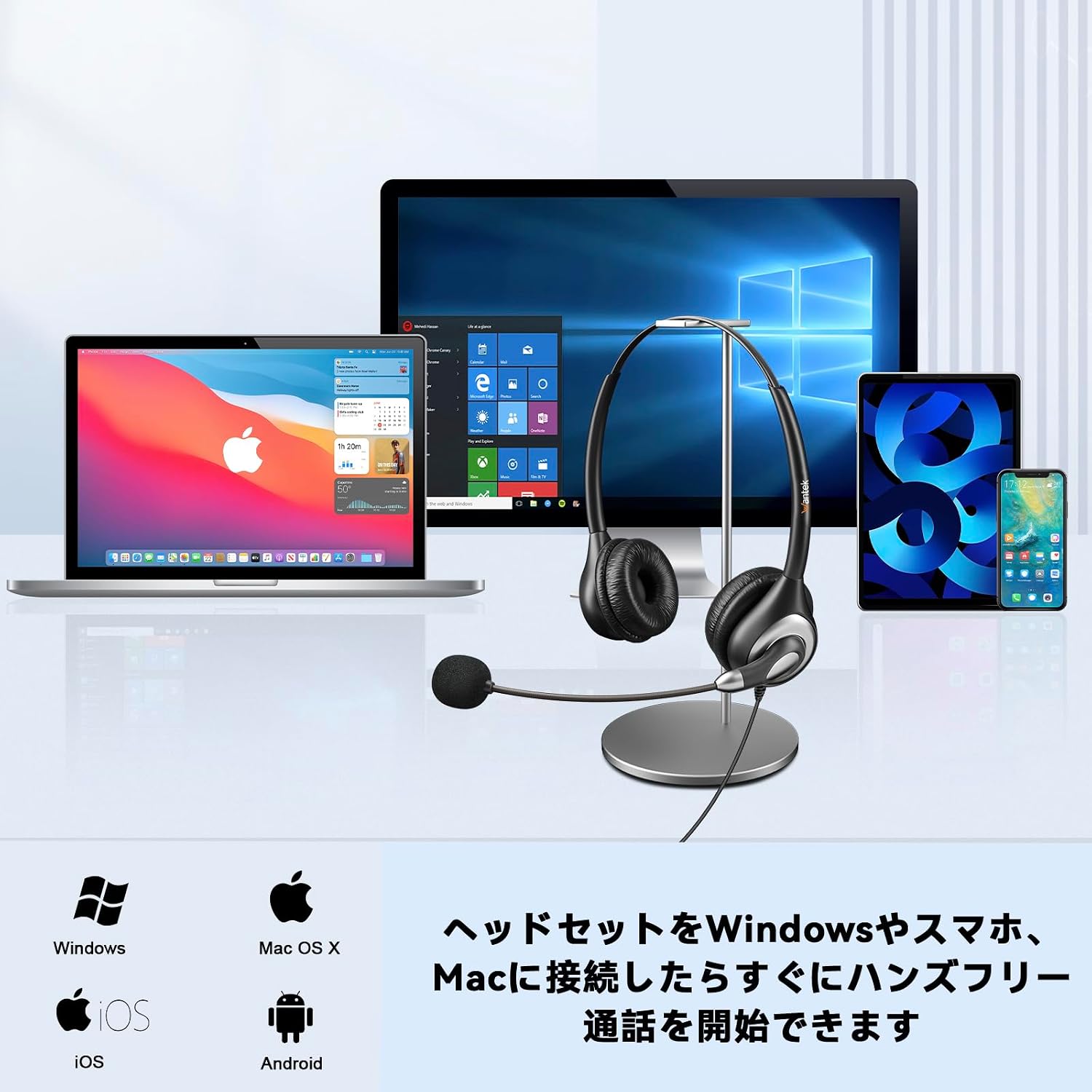
Image: Connect the headset to Windows, smartphone, or Mac to immediately begin hands-free calls.
Operating Instructions
The headset features an in-line control unit for easy management of audio functions.
In-line Control Functions

Image: The in-line control unit provides professional volume and mute controls.
- Power Indicator: A light indicating the headset's power status.
- Mic Mute Indicator: A light indicating when the microphone is muted.
- Speaker ON/OFF: Press to toggle the speaker audio on or off.
- Volume +: Press to increase the listening volume.
- Volume -: Press to decrease the listening volume.
- Mic ON/OFF: Press to mute or unmute the microphone.

Image: Easily adjust volume and control the microphone and speaker using the in-line controls.
Adjusting the Headset
The headset is designed for a comfortable fit for various head sizes and preferences.
- Headband Adjustment: Extend or retract the headband to fit your head comfortably.
- Ear Cup Swivel: The ear cups can swivel to align with the angle of your ears for a better fit.
- Microphone Rotation: The microphone boom can rotate up to 330 degrees, allowing you to position it on either the left or right side and adjust its proximity to your mouth.

Image: The multi-functional adjustable headset allows you to find the most comfortable position for your head size.

Image: Designed for comfort, the headset can be worn all day without ear pain, providing a focused audio experience.
Maintenance
Proper maintenance ensures the longevity and optimal performance of your headset.
- Cleaning: Use a soft, dry cloth to clean the headset. Do not use liquid cleaners or aerosols.
- Storage: Store the headset in a cool, dry place when not in use. Avoid extreme temperatures.
- Cable Care: Avoid sharp bends or excessive pulling on the cable to prevent damage.
- Ear Pads: Periodically check ear pads for wear and tear. Replacement ear pads may be available from the manufacturer.
Troubleshooting
If you encounter issues with your headset, refer to the following common problems and solutions.
| Problem | Possible Cause | Solution |
|---|---|---|
| No sound from headset | Headset not properly connected; Volume too low; Speaker muted; Incorrect audio output device selected. | Ensure the USB/Type-C connector is fully inserted. Increase volume using the in-line control or device settings. Unmute the speaker. Select the headset as the default audio output device in your computer's sound settings. |
| Microphone not working | Microphone muted; Incorrect audio input device selected; Microphone boom not positioned correctly. | Unmute the microphone using the in-line control. Select the headset as the default audio input device in your computer's sound settings. Adjust the microphone boom closer to your mouth. |
| Poor sound quality | Loose connection; Interference; Device audio settings. | Ensure the connection is secure. Avoid using near other electronic devices that may cause interference. Check and adjust audio settings on your device. |
| Headset is uncomfortable | Improper adjustment. | Adjust the headband length and ear cup swivel to fit your head. Reposition the microphone boom as needed. |
Specifications
| Brand | Wantek |
| Model Number | 602-USB (Wantek-602) |
| Color | Silver-Black |
| Connectivity | Wired (USB / Type-C) |
| Headphone Style | On-ear, Dual Ear |
| Noise Control | Active Noise Cancellation (Microphone) |
| Control Method | In-line Touch Controls |
| Compatible Devices | Tablets, Desktop PCs, Laptops, Mobile Phones |
| Recommended Use | Office Meetings, Calls, Business, Professional |
| Product Material | Plastic |
| Product Weight | 0.2 kg |
| Country of Origin | China |
Warranty and Support
Wantek provides the following warranty and support for this product:
- Warranty: 45-day money-back guarantee and a 24-month quality guarantee.
- Customer Support: For technical assistance, warranty claims, or further inquiries, please contact Wantek customer support through the retailer's platform or the official Wantek website.