
1. Introduction
The DrayTek Vigor 167 is a high-performance VDSL2/ADSL2+ modem designed to provide reliable and fast internet connectivity. It supports Supervectoring technology, making it suitable for high-speed DSL lines. This device functions as a pure modem, converting DSL signals for use with a separate router, and is pre-configured for use in Germany, Austria, and Switzerland.
2. Package Contents
Before proceeding with the setup, please ensure all items are present in the package:
- DrayTek Vigor 167 Modem
- Power Adapter
- Ethernet Cable
- DSL Cable
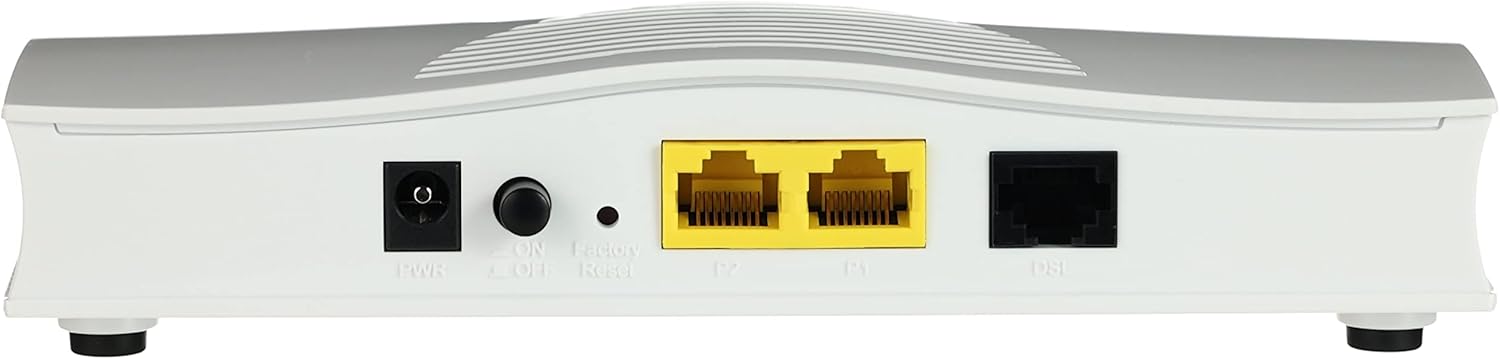
Image: The DrayTek Vigor 167 modem shown with its power adapter, Ethernet cable, and DSL cable.
3. Setup Instructions
Follow these steps to set up your DrayTek Vigor 167 modem:
- Connect the DSL Line: Connect one end of the DSL cable to the 'DSL' port on the rear of the Vigor 167 modem and the other end to your telephone wall socket or DSL splitter.
- Connect to your Router: Use an Ethernet cable to connect one of the 'LAN' ports (P1 or P2) on the Vigor 167 to the WAN/Internet port of your separate router.
- Power On: Connect the power adapter to the 'PWR' port on the modem and then plug it into an electrical outlet. Turn on the modem using the power switch.
- Observe LED Indicators: Allow a few minutes for the modem to initialize. The 'DSL' LED should become solid green, indicating a stable DSL connection. The 'ACT' LED will flash to show data activity.
- Configure your Router: The Vigor 167 is pre-configured as a pure modem with VLAN Tag 7 enabled by default. Your router must be configured for PPPoE dial-in and have VLAN tagging disabled (or set to 'no VLAN tagging') to avoid double tagging the connection. Refer to your router's manual for specific PPPoE configuration steps.

Image: The rear panel of the Vigor 167, highlighting the power input, two Ethernet LAN ports (P1, P2), and the DSL port.
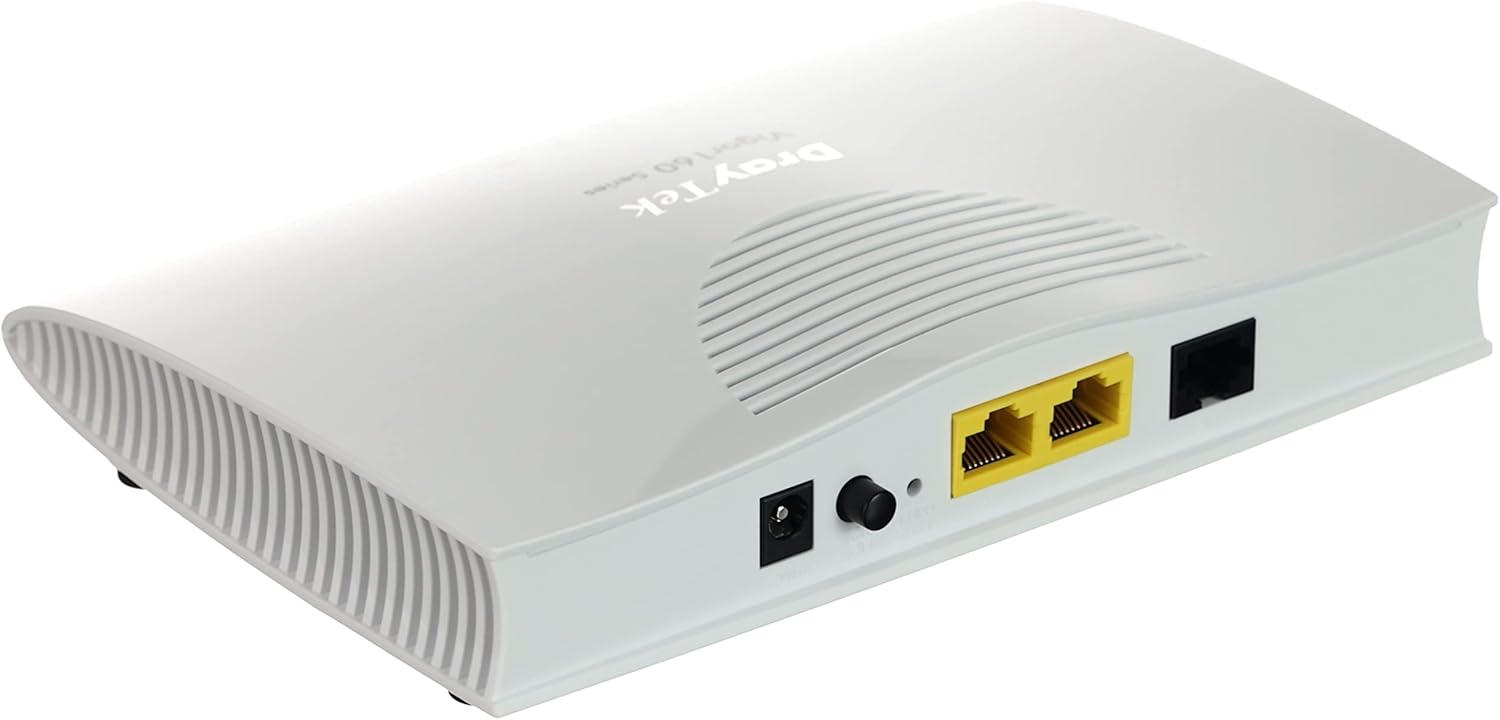
Image: The front panel of the Vigor 167, displaying the ACT, P1, P2, and DSL LED indicators.
4. Operating the Modem
The DrayTek Vigor 167 operates as a transparent bridge, passing DSL traffic directly to your connected router. It does not perform routing, Wi-Fi, or firewall functions. Its primary role is to establish and maintain a stable DSL connection.
LED Indicators:
- ACT: Flashes when data is being transmitted or received.
- P1/P2: Indicates link status and activity for Ethernet ports 1 and 2.
- DSL: Solid green when a stable DSL connection is established. Flashing indicates synchronization in progress.
Supported Technologies:
The Vigor 167 supports a wide range of DSL standards, including:
- ITU-T G.992.1 ADSL G.dmt, G.992.3 ADSL2 G.dmt.bis, G.992.5 ADSL2+
- G.993.1 VDSL, G.993.2 VDSL2, G.993.5 Vectoring
- VDSL Profiles: 8a, 8b, 8c, 8d, 12a, 12b, 17a, 30a, 35b
- ANSI T1.413 Issue 2
- Automatic fallback to ADSL2/2+ standard if VDSL is not available.
5. Maintenance
To ensure optimal performance and security of your Vigor 167 modem, regular maintenance is recommended.
Firmware Updates:
Firmware updates for the Vigor 167 are typically released to improve performance, add features, or address security vulnerabilities. These updates must be downloaded manually from the DrayTek website and installed via the modem's web interface. Consult the DrayTek support portal for the latest firmware and detailed update instructions.
General Care:
- Keep the modem in a well-ventilated area to prevent overheating.
- Avoid exposing the device to direct sunlight, moisture, or extreme temperatures.
- Clean the exterior with a soft, dry cloth. Do not use liquid cleaners.
6. Troubleshooting
If you encounter issues with your DrayTek Vigor 167 modem, refer to the following common troubleshooting steps:
- No DSL Connection (DSL LED off/flashing):
- Ensure the DSL cable is securely connected to both the modem and the wall socket.
- Check if your DSL service is active. Contact your Internet Service Provider (ISP) if necessary.
- Try restarting the modem by unplugging the power adapter for 10 seconds and then plugging it back in.
- No Internet Access via Router:
- Verify that the Ethernet cable connects the Vigor 167 to your router's WAN/Internet port.
- Confirm your router is correctly configured for PPPoE dial-in with your ISP credentials.
- Ensure VLAN tagging is disabled on your router's WAN interface, as the Vigor 167 already applies VLAN Tag 7.
- Check for IP address conflicts. The Vigor 167 typically uses 192.168.1.1. If your router also uses this IP, you may need to access the modem's web interface (connect a PC directly to the modem, set PC IP to 192.168.1.x, then browse to 192.168.1.1) to change its LAN IP address to avoid conflict (e.g., 192.168.1.254).
- Slow Speeds or Instability:
- Access the modem's web interface to check the DSL line statistics.
- Ensure the correct DSL protocol is selected for your line type. Some users report better performance by manually selecting specific protocols (e.g., 5.12.24.0 B) if available and applicable to their ISP.
- Minimize interference by keeping the modem away from other electronic devices.
- Factory Reset: If all else fails, you can perform a factory reset. Locate the 'Factory Reset' button (often a small pinhole) on the rear of the modem. With the modem powered on, use a paperclip to press and hold the button for about 5-10 seconds until the LEDs flash. This will restore the modem to its default settings, including VLAN Tag 7.
7. Specifications
| Feature | Description |
|---|---|
| Brand | DrayTek |
| Model Number | Vigor 167 |
| Modem Type | DSL (VDSL2/ADSL2+ Supervectoring) |
| Connectivity Technology | Ethernet, DSL, VDSL |
| Compatible Devices | Personal Computer, Laptop, Router |
| Ethernet Ports | 2 |
| Max. Downstream Data Rate | Up to 300 Megabit per Second |
| Max. Upstream Data Rate | Up to 30 Megabit per Second |
| Product Dimensions (L x W x H) | 31.8 x 18.3 x 9.8 cm |
| Color | White |
| Pre-configuration | Pure modem, VLAN Tag 7 enabled (DE-AT-CH) |
8. Warranty and Support
Warranty Information:
The DrayTek Vigor 167 modem is covered by a manufacturer's warranty. Please refer to the warranty card included in your product packaging or visit the official DrayTek website for detailed warranty terms and conditions specific to your region.
Technical Support:
For technical assistance, firmware downloads, or further inquiries, please visit the official DrayTek support website. You can typically find FAQs, knowledge base articles, and contact information for their support team there.
- DrayTek Official Website: www.draytek.com
- Support Portal: Refer to the support section on the official website for your region.


