
NEWMEN GM610
NEWMEN GM610 Mechanical Gaming Keyboard User Manual
Model: GM610
1. Product Overview
The NEWMEN GM610 is a versatile 60% mechanical gaming keyboard designed for both gaming and professional use. It offers multiple connectivity options, customizable RGB backlighting, and hot-swappable switches for personalized typing experiences. Its compact design retains full functionality through intuitive key combinations.
Key Features:
- Dual Connectivity: Supports wired USB-C and wireless Bluetooth 3.0 + 5.0, allowing connection to up to 3 different devices simultaneously.
- Compact 60% Layout: Optimized design that saves desk space while providing 100% of essential keyboard functions.
- Dynamic RGB Backlighting: Features 20 chromatic backlight effects with adjustable speed and brightness. Users can also customize or disable the RGB lighting.
- Hot-Swappable Switches: Allows for easy replacement of switches (OUTEMU compatible) without soldering, enabling full customization of typing feel.
- Customizable Keycaps: Includes an additional set of keycaps for aesthetic personalization.
- Programmable & Macro Support: Firmware is upgradeable, adding functions like volume control and Win/Mac switching. Supports macro recording via dedicated software.
- Wide Compatibility: Compatible with Windows, Mac, and Android operating systems.
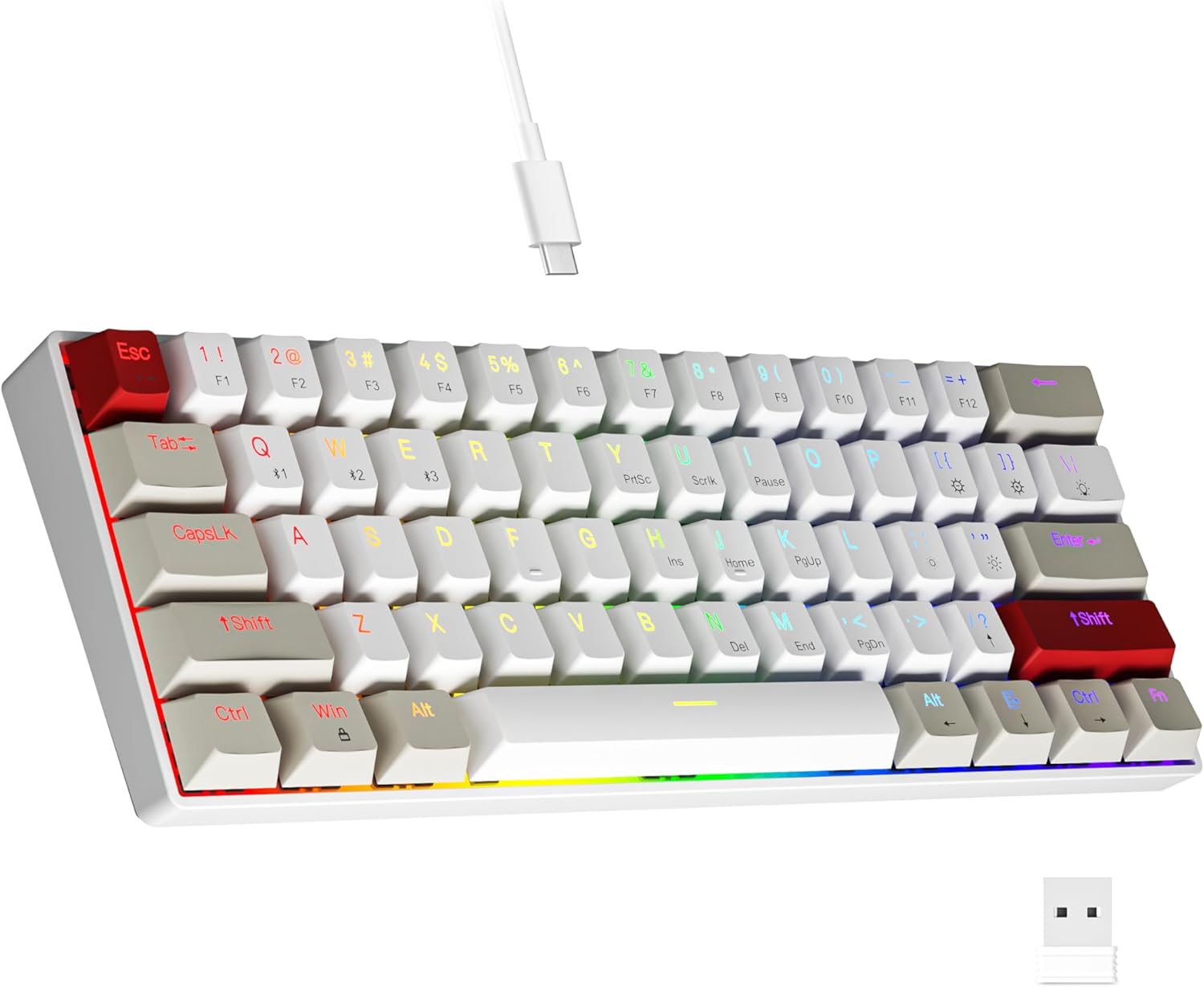
Image: The NEWMEN GM610 mechanical gaming keyboard, showcasing its compact layout and RGB backlighting.
2. Setup and Connectivity
2.1 Initial Charging
Before first use, connect the keyboard to a power source using the provided USB-C cable to ensure it is fully charged. The charging indicator light will show battery status: 20% (red), 40% (yellow), 60% (green), 80% (blue), 100% (white). The red light will flash when the battery is low.
2.2 Wired Connection
To use the keyboard in wired mode, connect the USB-C cable from the keyboard to an available USB port on your computer. The keyboard will automatically switch to wired mode. To manually switch to wired mode from Bluetooth, press and hold FN + Tab for 3 seconds.
2.3 Bluetooth Connection
The GM610 keyboard supports connecting to up to three different Bluetooth devices.
- Ensure the keyboard is in Bluetooth mode. If in wired mode, press and hold FN + Tab for 3 seconds to switch to Bluetooth mode.
- To pair with a new device, press and hold FN + Q, FN + W, or FN + E for 3 seconds. The corresponding key (Q, W, or E) will flash rapidly, indicating pairing mode.
- On your device (computer, laptop, mobile phone, iPad), enable Bluetooth and search for
Related documentsGM610


Ask a question about this manual
Ask about setup, troubleshooting, compatibility, parts, safety, or missing instructions. Manuals+ will review the question and use this page’s manual context to help answer it.