
SilverStone ST1000-PTS
SilverStone ST1000-PTS 1000W 80 PLUS Platinum Fully Modular Power Supply User Manual
Model: ST1000-PTS
1. Safety Information
Please read these safety instructions carefully before installing or operating your SilverStone ST1000-PTS power supply unit (PSU). Failure to follow these instructions may result in electric shock, fire, or damage to the product and connected components.
- Hazardous Area: This device is not designed to be user serviceable and contains high voltage inside that can be dangerous when opened. In the event of malfunction, please notify your dealer or local distributor for service.
- Power Disconnection: Always disconnect the AC power cord from the wall outlet before installing, removing, or cleaning the PSU or any other computer components.
- Proper Grounding: Ensure the PSU is properly grounded to prevent electrical hazards.
- Ventilation: Do not block any ventilation openings of the PSU. Ensure adequate airflow around the unit to prevent overheating.
- Moisture: Do not expose the PSU to water or moisture. Operate in a dry environment.
- Voltage: Ensure the input voltage matches the specifications of your region (100-240V).
2. Product Overview
The SilverStone ST1000-PTS is a 1000W 80 PLUS Platinum certified fully modular power supply designed for high-performance personal computers. Its compact 140mm depth allows for easy integration into various chassis sizes.
Key Features:
- 80 PLUS Platinum Efficiency: Reduces heat waste and saves electricity.
- Fully Modular Cabling: Allows for easy cable management and removal, improving airflow within the PC case.
- Compact Design: 140mm depth for versatile installation.
- Quiet Operation: Integrated 120mm fan provides excellent airflow with low noise.
- Stable Power Delivery: Features ±3% regulation and low ripple noise.
- Single +12V Rail: Powerful single +12V rail for high-end components and overclocking.
- Flat 24-pin Cable: Offers increased flexibility for cable routing.
- Included Fan Filter: FF122 fan filter with integrated magnets for dust reduction and easy installation/removal.

Figure 2.1: Front and side view of the SilverStone ST1000-PTS power supply, showing the 120mm fan and modular cable connectors.

Figure 2.2: Top view of the SilverStone ST1000-PTS power supply, highlighting the fan grille and product branding.
3. Package Contents
Verify that all items are present in your package:
- SilverStone ST1000-PTS Power Supply Unit
- Modular Cable Set (including 24-pin ATX, EPS, PCIe, SATA, Peripheral cables)
- AC Power Cord
- Mounting Screws
- FF122 Fan Filter
- Cable Ties / Velcro Straps
- User Manual / Warranty Information

Figure 3.1: All components included with the SilverStone ST1000-PTS power supply, showing the PSU, modular cables, and accessories.
4. Setup and Installation
Follow these steps to properly install your SilverStone ST1000-PTS power supply:
- Preparation:
- Ensure your computer is completely powered off and unplugged from the wall outlet.
- Open your computer case to access the PSU mounting area.
- Mounting the PSU:
- Carefully place the ST1000-PTS into the designated PSU bay in your computer case.
- Align the screw holes on the PSU with those on the case.
- Secure the PSU using the provided mounting screws.

Figure 4.1: Rear view of the SilverStone ST1000-PTS, showing the AC power inlet, power switch, and exhaust grille for proper mounting orientation.
- Connecting Modular Cables:
- Identify the necessary cables for your components (motherboard 24-pin, CPU EPS, PCIe for graphics cards, SATA for drives, Peripheral for fans/accessories).
- Connect the required modular cables to the corresponding ports on the PSU. Ensure a firm connection.
- Route the cables neatly through your case for optimal airflow and aesthetics.

Figure 4.2: Close-up view of the modular cable connection ports on the SilverStone ST1000-PTS power supply, indicating different types of connectors.
- Connecting to Components:
- Connect the other end of the modular cables to your motherboard, graphics card(s), storage drives, and other peripherals.
- Double-check all connections to ensure they are secure and correctly seated.
- Cable Management:
- Use the included cable ties or Velcro straps to organize cables, improving airflow and reducing clutter.
- Final Steps:
- Close your computer case.
- Connect the AC power cord to the PSU's inlet and then to a wall outlet.
- Ensure the power switch on the back of the PSU is in the 'OFF' (O) position before plugging into the wall, then switch to 'ON' (I) before powering on your computer.
5. Operating Instructions
Once the SilverStone ST1000-PTS is correctly installed and all connections are secure:
- Power On: Flip the power switch on the back of the PSU to the 'ON' (I) position.
- System Start-up: Press the power button on your computer case to start your system.
- Normal Operation: The PSU will provide stable power to your components. The integrated 120mm fan will operate to maintain optimal temperatures.
- Power Off: To shut down your system, perform a normal shutdown through your operating system. For complete power disconnection, flip the PSU switch to 'OFF' (O) and unplug the AC cord.
6. Maintenance
Regular maintenance helps ensure the longevity and optimal performance of your ST1000-PTS PSU.
- Dust Cleaning: Periodically clean dust from the PSU's fan and vents. Always disconnect the AC power cord before cleaning. Use compressed air to gently blow dust out of the unit.
- Fan Filter: The included FF122 fan filter can be easily removed due to its integrated magnets for cleaning. Clean the filter regularly to prevent dust buildup and maintain airflow.
- Cable Inspection: Occasionally inspect all modular cable connections to ensure they remain secure and free from damage.
- Environment: Operate the PSU in a clean, dry, and well-ventilated environment to prevent dust accumulation and overheating.
7. Troubleshooting
If you encounter issues with your SilverStone ST1000-PTS PSU, refer to the following common problems and solutions:
| Problem | Possible Cause | Solution |
|---|---|---|
| System does not power on. | AC power cord not connected or loose. PSU power switch is OFF. Faulty power outlet. Loose internal cable connections. | Ensure AC power cord is securely plugged into PSU and wall outlet. Flip PSU power switch to 'ON' (I). Test the outlet with another device. Check all modular cable connections (24-pin, EPS, PCIe). |
| System powers on but shuts down immediately. | Overload or short circuit. Overheating. Faulty component. | Disconnect non-essential components to check for overload. Ensure proper ventilation and clean dust from PSU and case. Consult a qualified technician if problem persists. |
| Fan is noisy or not spinning. | Dust buildup. Fan obstruction. Fan malfunction. | Clean dust from the fan and fan filter. Ensure no cables or objects are obstructing the fan. If fan still does not spin or is excessively noisy, contact support. |
| Unstable system operation. | Loose power connections. Insufficient power for components. PSU malfunction. | Verify all power connections are secure. Ensure your system's power requirements do not exceed 1000W. If issues persist, contact SilverStone support. |
If the problem cannot be resolved using the above steps, please contact SilverStone customer support or your dealer for assistance. Do not attempt to open or repair the PSU yourself.
8. Specifications
Detailed technical specifications for the SilverStone ST1000-PTS power supply:
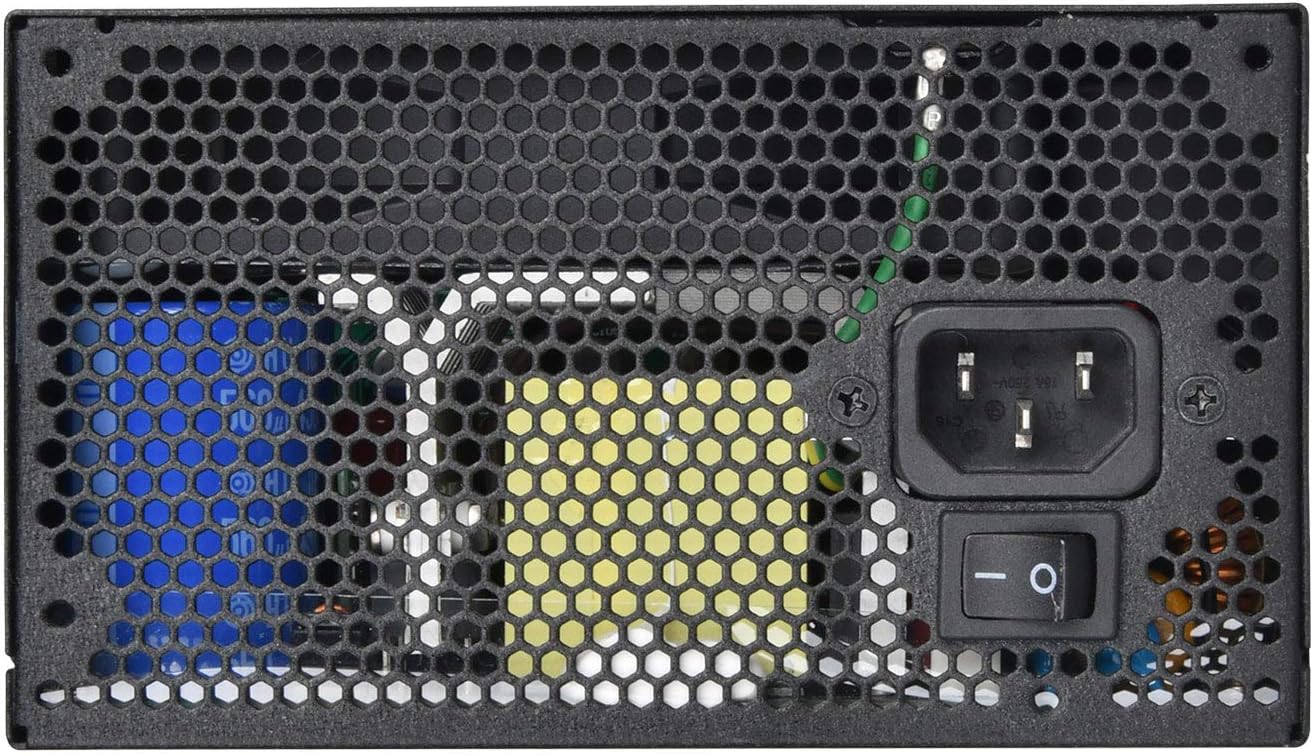
Figure 8.1: Product label of the SilverStone ST1000-PTS, displaying detailed electrical specifications and certifications.
| Feature | Specification |
|---|---|
| Model Number | PS-ST1000-PTS-X |
| Max. DC Output | 1000W |
| Efficiency | 80 PLUS Platinum |
| Form Factor | ATX |
| Modular | Fully Modular |
| Cooling System | 120mm Fan |
| Operating Temperature | 0℃ to 40℃ |
| Dimensions (L x W x H) | 140mm x 150mm x 86mm (5.51" x 5.91" x 3.39") |
| Weight | 3.84 kg (8.47 lbs) |
| Input Voltage | 100-240V |
| Input Frequency | 50Hz - 60Hz |
| PFC | Active PFC |
| MTBF | 100,000 hours |
DC Output Table:
| Rail | +3.3V | Max. Current | Max. Combined Power |
|---|---|---|---|
| +3.3V | 25A | 22A | 120W |
| +5V | 22A | 22A | 120W |
| +12V | 83A | 996W | 996W |
| -12V | 0.3A | 3.6W | 3.6W |
| +5Vsb | 3A | 15W | 15W |
9. Warranty and Support
SilverStone Technology provides a limited warranty for the ST1000-PTS power supply. Please refer to the warranty information included in your package for specific terms and conditions, including warranty period and coverage details.
Customer Support:
For technical support, troubleshooting assistance, or warranty claims, please contact SilverStone Technology customer service through their official website or the contact information provided in your warranty documentation.
Manufacturer: SilverStone Technology
Model Number: PS-ST1000-PTS-X
UPC/GTIN: 844761022747
Related documentsST1000-PTS


Ask a question about this manual
Ask about setup, troubleshooting, compatibility, parts, safety, or missing instructions. Manuals+ will review the question and use this page’s manual context to help answer it.