Introduction
This manual provides comprehensive instructions for the Govee Bluetooth Indoor Hygrometer Thermometer, Model H5075001IT. This device is designed to accurately monitor temperature and humidity in various indoor environments, offering real-time data, smart alerts, and historical data storage via the Govee Home app. Please read this manual thoroughly before use to ensure proper operation and to maximize the device's functionality.
Key Features:
- Clear LCD Display: Provides real-time temperature and humidity readings, including max/min records, with large numbers and comfort indicators (dry, comfort, humid).
- High Accuracy: Temperature accuracy of ±0.3°C (±0.5°F) and humidity accuracy of ±3% RH, with a response speed of 2 seconds for up-to-date readings.
- Bluetooth Connectivity: Remote monitoring of temperature and humidity via the Govee Home App within a 60m range.
- Smart Notification Alerts: Receive alerts on your phone when temperature or humidity levels fall outside preset ranges.
- Data Storage & Export: Device stores data for 20 days, while the app stores data for up to 2 years, with support for CSV data export.
- Long Battery Life: Powered by 2 AAA batteries (included), offering up to 12 months of use.
Package Contents
- Govee Bluetooth Indoor Hygrometer Thermometer (1)
- AAA Batteries (2)
- User Manual (1)
Product Overview
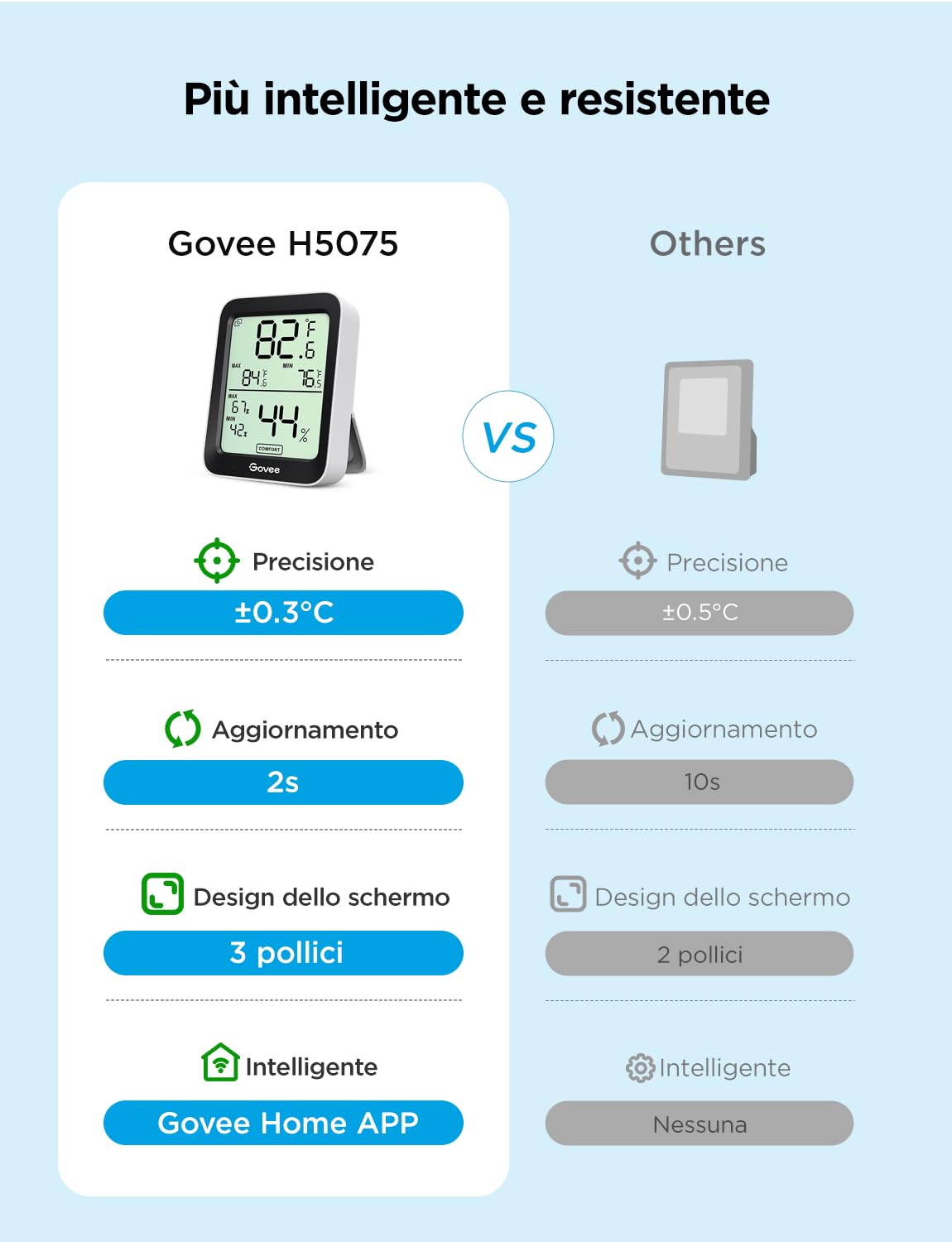
Image: Front view of the Govee Bluetooth Indoor Hygrometer Thermometer, showing the LCD display with temperature, humidity, and comfort level indicators.

Image: Icons representing key features: Temperature, Humidity, App Control, Bluetooth Connection, Alarm Function, Data Export, and 2-second Update Rate. The device is shown on a wooden table in the background.

Image: Illustration of the device's internal components and its display, highlighting real-time monitoring with high precision. Details on temperature range (-20°C to 60°C) and humidity range (0-99% RH) are provided.

Image: Three views of the Govee thermometer, demonstrating its versatility for placement: freestanding on a surface, mounted on a wall, and a close-up of the display.
Setup
1. Battery Installation
- Locate the battery compartment on the back of the device.
- Open the battery cover.
- Insert two AAA batteries, ensuring correct polarity (+/-).
- Close the battery cover securely. The device display will activate.

Image: Illustration showing the battery compartment of the Govee thermometer, emphasizing the long battery life of up to 12 months with reasonable use.
2. Govee Home App Download and Pairing
- Download the "Govee Home" app from the App Store (iOS devices) or Google Play (Android devices).
- Enable Bluetooth on your smartphone.
- Open the Govee Home app and register or log in.
- Tap the "+" icon in the top right corner of the app to add a device.
- Search for "H5075" or select the Hygrometer Thermometer from the device list.
- Follow the on-screen instructions to complete the pairing process.

Image: A smartphone displaying the Govee Home App interface, showing real-time temperature and humidity readings from the connected device.
Operating Instructions
1. Reading the Display
The LCD display shows current temperature, humidity, and maximum/minimum recorded values. A comfort indicator (dry, comfort, humid) provides a quick visual reference for environmental conditions.
- Temperature: Displays in Celsius (°C) or Fahrenheit (°F).
- Humidity: Displays as a percentage (RH%).
- MAX/MIN: Shows the highest and lowest recorded temperature and humidity since the last reset or power cycle.
- Comfort Indicator:
- DRY: Humidity below 30%
- COMFORT: Humidity between 30% and 60%, Temperature between 20°C and 26°C (68°F and 78.8°F)
- WET: Humidity above 60%
2. Using the Govee Home App
The Govee Home app extends the functionality of your hygrometer thermometer:
- Real-time Monitoring: View current temperature and humidity readings remotely within Bluetooth range (up to 60m).
- Smart Alerts: Set custom temperature and humidity ranges. The app will send notifications to your phone if readings exceed or fall below these thresholds.
- Historical Data: Access graphs of temperature and humidity trends over time (hourly, daily, weekly, monthly, yearly). The app stores data for up to 2 years.
- Data Export: Export historical data in CSV format for further analysis.
- Unit Switching: Change temperature units between Celsius and Fahrenheit within the app.

Image: An illustration showing a smartphone displaying the Govee Home app with a graph of environmental data, and the hygrometer thermometer placed in a multi-story house, indicating a maximum Bluetooth connection distance of 60 meters for smart alerts.

Image: A person holding a smartphone displaying graphs of temperature and humidity data, with a laptop showing a CSV data export, illustrating the 2-year data storage and export capabilities.
3. Device Placement
Place the hygrometer thermometer in the desired location. It can be placed on a flat surface using its integrated stand or mounted on a wall. Ensure it is not exposed to direct sunlight, heat sources, or extreme drafts, which can affect accuracy.

Image: The Govee thermometer placed on a wooden bedside table, showing its compact size and clear display in a home environment.

Image: A collage showing the Govee thermometer in different settings: a baby's room, a garden/plant area, a wine cellar, and a reptile terrarium, demonstrating its versatility for environmental monitoring.
Maintenance
1. Cleaning
Wipe the device with a soft, dry cloth. Do not use abrasive cleaners or immerse the device in water.
2. Battery Replacement
When the battery indicator on the display or in the app shows low power, replace the two AAA batteries following the installation steps in the "Setup" section. Dispose of used batteries responsibly.
Troubleshooting
- Device not turning on:
Ensure batteries are inserted correctly with proper polarity. Replace with new AAA batteries if necessary.
- Cannot connect to Govee Home App:
- Ensure Bluetooth is enabled on your smartphone.
- Make sure the device is within the 60m Bluetooth range.
- Restart the Govee Home app and try pairing again.
- Check if the device's batteries are low.
- Inaccurate readings:
- Ensure the device is not placed near heat sources, direct sunlight, or strong drafts.
- Allow the device to stabilize for at least 30 minutes after placement or battery change.
- App alerts not received:
- Verify that notification permissions are enabled for the Govee Home app in your phone's settings.
- Check that the alert thresholds are correctly set within the app.
- Ensure your phone is within Bluetooth range of the device.
Specifications
| Model | H5075001IT |
| Temperature Range | -20°C to 60°C (-4°F to 140°F) |
| Temperature Accuracy | ±0.3°C (±0.5°F) |
| Humidity Range | 0% to 99% RH |
| Humidity Accuracy | ±3% RH |
| Response Speed | 2 seconds |
| Connectivity | Bluetooth |
| Bluetooth Range | Up to 60m (197ft) in open areas |
| Power Source | 2 x AAA Batteries (included) |
| Battery Life | Up to 12 months |
| Dimensions | 10 x 7 x 3 cm (approx.) |
| Weight | 80g (approx.) |
Warranty and Support
Govee products come with a standard warranty. For detailed warranty information, technical support, or customer service inquiries, please visit the official Govee website or contact Govee customer support directly. You can find contact information on the Govee website or within the Govee Home app.
Official Govee Website: www.govee.com


