
Introduction
Thank you for choosing the CATIGA CD-2372 Electronic Calculator. This non-programmable calculator is designed for basic and advanced arithmetic operations, making it ideal for office, school, and general daily use. Its durable construction and user-friendly interface ensure reliable performance. This manual provides detailed instructions for setup, operation, maintenance, and troubleshooting to help you get the most out of your calculator.
Setup
1. Power Source
The CATIGA CD-2372 calculator operates on a dual power system: solar power and one AAA battery. The solar panel provides power in well-lit environments, while the battery ensures operation in low-light conditions.
2. Battery Installation
Your calculator comes with one AAA battery included. To install or replace the battery:
- Turn the calculator over to access the battery compartment on the back.
- Using a small screwdriver, carefully remove the screw securing the battery compartment cover.
- Remove the cover.
- Insert the AAA battery, ensuring the positive (+) and negative (-) terminals align correctly with the markings inside the compartment.
- Replace the battery compartment cover and secure it with the screw.

Image: Back view of the CATIGA CD-2372 calculator, highlighting the battery compartment for installation or replacement.
3. Initial Power On
Press the ON/C-CE button to turn on the calculator. The display should show "0". If the display does not turn on, ensure the battery is correctly installed and charged, or that there is sufficient light for solar operation.
Operating Instructions
This section details the functions of the various keys and how to perform common calculations.
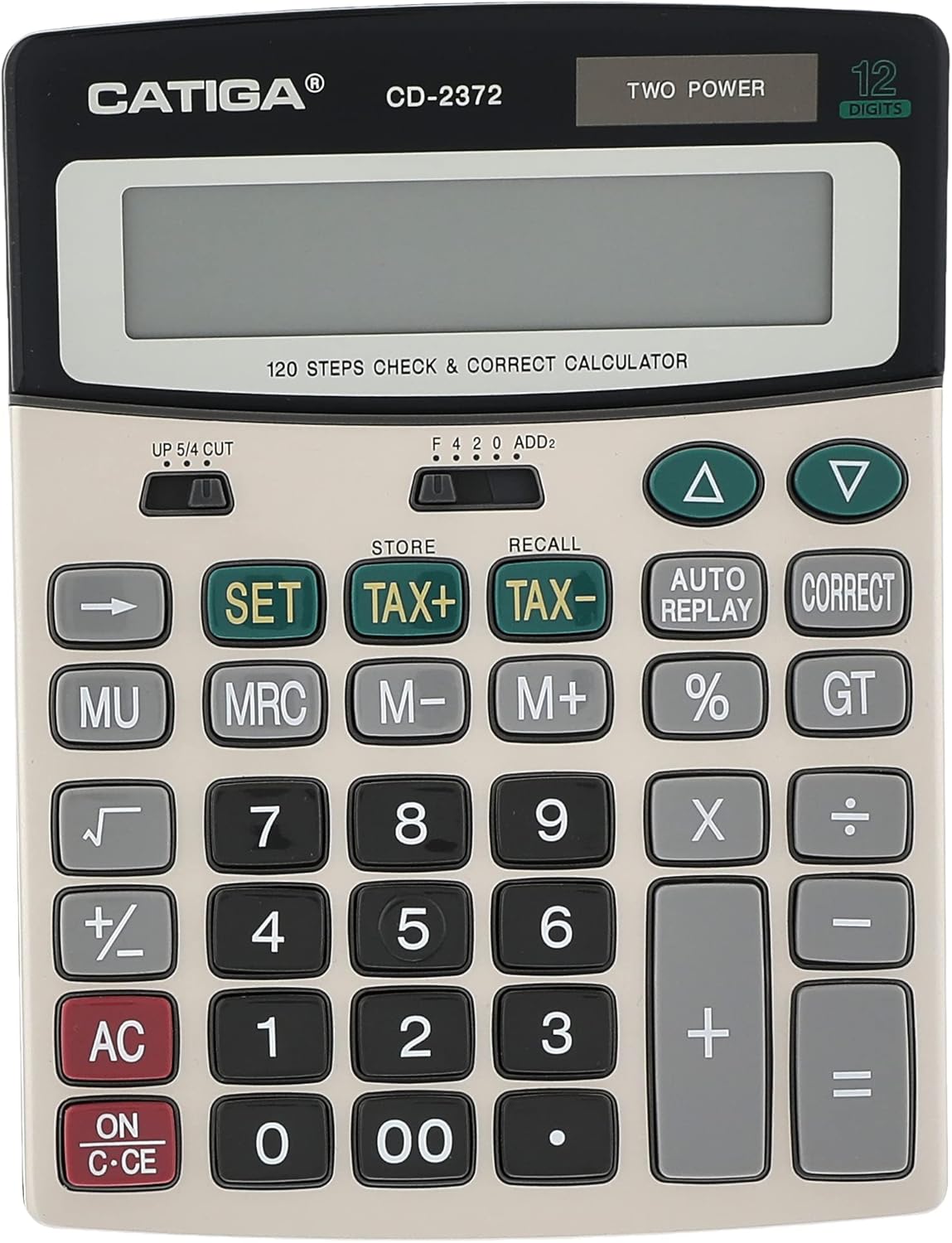
Image: Front view of the CATIGA CD-2372 calculator, displaying the full keypad and LCD screen.
Key Functions Overview
- ON/C-CE: Power On / Clear Entry (press once to clear last entry, press twice to clear all).
- AC: All Clear (clears all entries and memory).
- 0-9, .: Numeric keys and decimal point.
- +, -, ×, ÷: Basic arithmetic operations.
- =: Equals key, displays the result of a calculation.
- %: Percentage key.
- √: Square Root.
- MU: Mark Up calculation.
- M+, M-, MRC: Memory functions.
- M+: Adds the displayed value to memory.
- M-: Subtracts the displayed value from memory.
- MRC: Press once to recall memory value, press twice to clear memory.
- TAX+, TAX-: Tax calculation functions.
- SET: Used to set the tax rate.
- GT: Grand Total. Sums up the results of all previous calculations.
- AUTO REPLAY: Replays the sequence of operations.
- CORRECT: Corrects the last entered digit.
- Δ, ∇: Navigation keys for Check & Correct function.
Decimal and Rounding Settings
The calculator features slide switches at the top to adjust decimal places and rounding modes.
- Decimal Selector (F 4 2 0 ADD2):
- F (Float): Floating decimal point.
- 4, 2, 0: Fixed decimal places (4, 2, or 0).
- ADD2: Adds two decimal places automatically for all results (e.g., for currency calculations).
- Rounding Selector (UP 5/4 CUT):
- UP: Rounds up.
- 5/4: Rounds up if the next digit is 5 or greater, otherwise rounds down.
- CUT: Truncates (cuts off) decimal places without rounding.
Check & Correct Function (120 Steps)
This feature allows you to review and correct up to 120 steps of your calculation history.
- After performing a calculation, press the AUTO REPLAY button.
- Use the Δ (up) and ∇ (down) keys to scroll through the entered operations.
- If you find an incorrect entry, press the CORRECT button to modify it.
- After correction, the calculation will be re-evaluated from that point.
Maintenance
Cleaning
To clean your calculator, use a soft, dry cloth. For stubborn dirt, slightly dampen the cloth with water or a mild, non-abrasive cleaner. Do not use strong chemicals, solvents, or abrasive cleaners, as these can damage the casing or display. Avoid getting moisture into the calculator's internal components.
Battery Replacement
When the display becomes dim or erratic, it's time to replace the AAA battery. Refer to the "Battery Installation" section under Setup for detailed instructions. Ensure proper disposal of used batteries according to local regulations.
Storage
Store the calculator in a cool, dry place away from direct sunlight, extreme temperatures, and high humidity. Prolonged exposure to direct sunlight can affect the solar panel's efficiency and the display's lifespan.
Troubleshooting
| Problem | Possible Cause | Solution |
|---|---|---|
| Display is blank or dim. | Insufficient light for solar power, or low/dead battery. | Move to a brighter area or replace the AAA battery. |
| Calculator does not respond to key presses. | Temporary malfunction or "frozen" state. | Press AC to clear. If unresponsive, remove the battery for a few seconds, then reinsert it. |
| Incorrect calculation results. | Incorrect input, incorrect decimal/rounding settings, or memory error. | Check your input using AUTO REPLAY. Verify decimal and rounding switch settings. Press AC to clear all and restart. |
| "ERROR" displayed. | Calculation overflow (result too large), division by zero, or invalid operation. | Press AC to clear the error. Review your calculation for mathematical errors. |
Specifications

Image: The CATIGA CD-2372 calculator held in a hand, illustrating its compact size and approximate dimensions.
- Model: CD-2372
- Brand: CATIGA
- Display: 12-digit LCD
- Power Source: Dual Power (Solar and 1 x AAA Battery)
- Material: Durable Plastic
- Dimensions (approx.): 19 cm x 14.2 cm x 3.8 cm (7.5 in x 5.6 in x 1.5 in)
- Weight: Approximately 150 g (5.3 oz)
- Key Features: 120 Steps Check & Correct, Auto Replay, Tax Functions, Memory Functions, Grand Total, Mark Up, Square Root, Decimal and Rounding Selectors.
Warranty and Support
For warranty information or technical support regarding your CATIGA CD-2372 calculator, please refer to the documentation provided at the time of purchase or contact your retailer. Keep your purchase receipt as proof of purchase.
While specific warranty details are not provided in this manual, CATIGA products are designed for durability and reliability. Should you encounter any issues not covered in the troubleshooting section, please reach out to the customer service channel of your point of purchase for assistance.