
1. Introduction
The Magewell Ultra Encode SDI (Model 53050) is a versatile live stream encoder designed for professional AV applications. It supports high-quality H.264, H.265 (HEVC), and NDI|HX encoding, along with multiple streaming protocols. This manual provides detailed instructions for setting up, operating, maintaining, and troubleshooting your Ultra Encode SDI device.
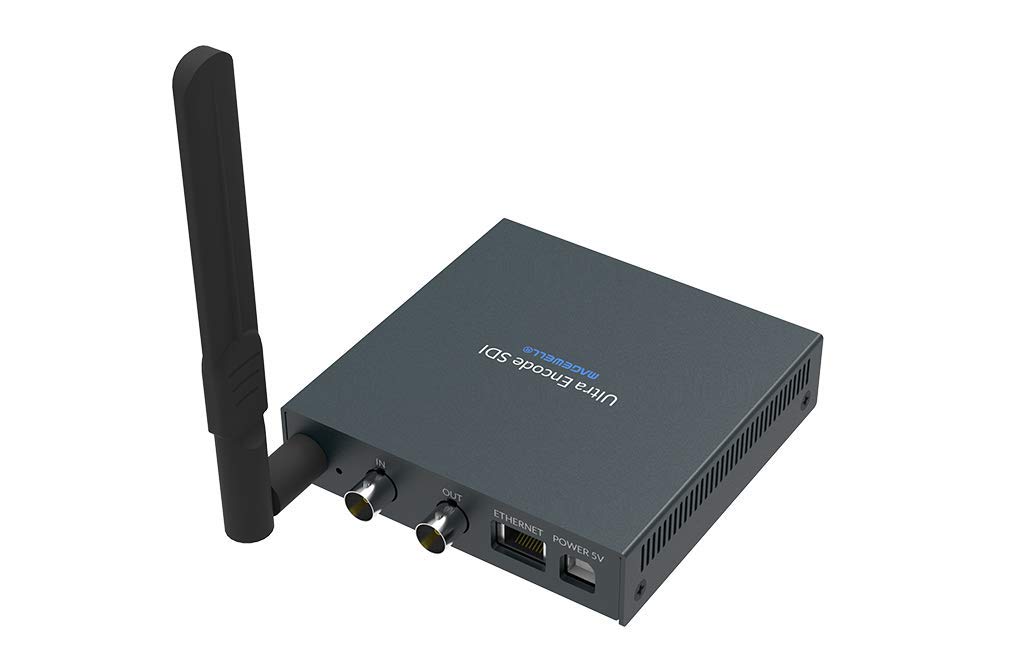
Figure 1.1: Magewell Ultra Encode SDI (Model 53050) device.
2. Package Contents
Please verify that all items listed below are included in your package. If any items are missing or damaged, contact your vendor or Magewell support.
- Magewell Ultra Encode SDI (Model 53050) Unit
- Power Adapter (with regional plugs)
- USB 2.0 Type B cable
- Wi-Fi Antenna
- T-bracket
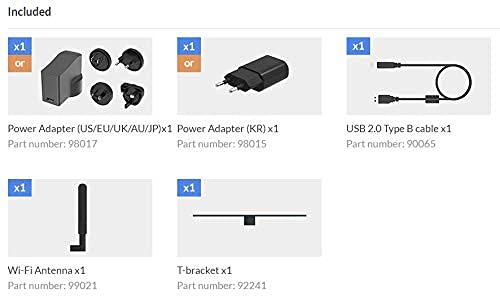
Figure 2.1: Included accessories with the Ultra Encode SDI.
3. Product Overview
The Ultra Encode SDI features various ports and indicators for connectivity and status monitoring. Familiarize yourself with these components before setup.
3.1 Front/Side Panel

Figure 3.1: Front/Side panel with audio ports, status LEDs, and USB port.
- LINE OUT: 3.5mm audio output.
- LINE IN: 3.5mm audio input.
- PWR LED: Power indicator.
- IN LED: Input signal status.
- LIVE LED: Streaming status.
- ETH LED: Ethernet connection status.
- Wi-Fi LED: Wi-Fi connection status.
- OPTION: USB port for optional accessories or configuration.
3.2 Rear Panel

Figure 3.2: Rear panel with video, network, and power connections.
- IN (SDI): SDI/3G video input.
- OUT (SDI): SDI/3G loop-through output.
- ETHERNET: RJ45 port for wired network connection.
- POWER 5V: Power input port.
3.3 Port Diagram

Figure 3.3: Comprehensive port and indicator diagram.
4. Setup
Follow these steps to set up your Magewell Ultra Encode SDI device.
4.1 Physical Connections
- Connect Power: Plug the provided power adapter into the POWER 5V port on the rear panel and then into a power outlet. The PWR LED on the front panel should illuminate.
- Connect Video Input: Connect your SDI/3G video source to the IN (SDI) port on the rear panel. If you need to loop the signal through, connect a cable from the OUT (SDI) port to your monitoring device.
- Connect Audio (Optional): If using analog audio, connect your audio source to the LINE IN port and your audio monitoring device to the LINE OUT port.
- Connect Network:
- Wired: Connect an Ethernet cable from your network router or switch to the ETHERNET port on the rear panel. The ETH LED should illuminate.
- Wireless: Screw the provided Wi-Fi antenna onto the antenna socket. You will configure the Wi-Fi connection via the web interface. The Wi-Fi LED will indicate connection status.
4.2 Initial Configuration (Web Interface)
The Ultra Encode SDI is configured via a web-based interface. To access it:
- Ensure your computer is on the same network as the Ultra Encode SDI.
- Use a network scanning tool or check your router's connected devices list to find the IP address of the Ultra Encode SDI. Alternatively, some devices may have a default IP or a discovery tool.
- Open a web browser and enter the device's IP address in the address bar.
- Log in using the default credentials (refer to the device's quick start guide or Magewell documentation for default username and password).
- From the web interface, you can configure network settings (including Wi-Fi), video/audio input parameters, encoding settings, and streaming destinations.
5. Operating Instructions
The Ultra Encode SDI offers flexible encoding and streaming capabilities.
5.1 Encoding Settings
- The device supports H.264 and H.265 (HEVC) video encoding. Select the desired codec and adjust parameters such as bitrate (up to 16Mbps), resolution, and frame rate via the web interface.
- Audio encoding options are also available for optimal quality and compatibility.
5.2 Streaming Protocols
The Ultra Encode SDI supports various streaming protocols:
- RTMP/RTMPS: Commonly used for live streaming to platforms like YouTube, Facebook, and Twitch. Configure the server URL and stream key in the web interface.
- HLS: HTTP Live Streaming for adaptive bitrate delivery.
- SRT: Secure Reliable Transport protocol for low-latency, high-quality video transport over unreliable networks.
- NDI|HX: NewTek's NDI|HX encoding for IP production workflows. Enable and configure NDI|HX output in the web interface.
5.3 Configurable Presets
The device includes configurable presets for easy streaming to popular platforms:
- Access the presets section in the web interface.
- Select a platform (e.g., Facebook, Twitch, YouTube) and enter your stream key or login details as prompted.
- Activate the preset to begin streaming.
6. Maintenance
Proper maintenance ensures the longevity and optimal performance of your Ultra Encode SDI.
- Cleaning: Use a soft, dry cloth to clean the exterior of the device. Avoid liquid cleaners or abrasive materials.
- Ventilation: Ensure the device is placed in a well-ventilated area to prevent overheating. Do not block ventilation openings.
- Firmware Updates: Periodically check the Magewell official website for firmware updates. Updating the firmware can provide new features, performance improvements, and bug fixes. Follow the instructions provided by Magewell for safe firmware updates.
- Storage: When not in use for extended periods, store the device in a cool, dry place away from direct sunlight and extreme temperatures.
7. Troubleshooting
This section addresses common issues you might encounter.
- No Power:
- Ensure the power adapter is securely connected to the device and a working power outlet.
- Verify the power adapter is the correct one supplied with the device.
- No Video Input:
- Check the SDI cable connection between the source and the device's IN (SDI) port.
- Confirm the video source is active and outputting a compatible SDI signal.
- Check the IN LED status.
- No Network Connection:
- For wired connection, ensure the Ethernet cable is properly connected and the ETH LED is active.
- For Wi-Fi, ensure the antenna is attached, and Wi-Fi settings are correctly configured in the web interface. Check the Wi-Fi LED.
- Verify your network router is functioning correctly.
- Cannot Access Web Interface:
- Ensure your computer is on the same network as the encoder.
- Verify the IP address of the encoder.
- Try clearing your browser's cache or using a different browser.
- Streaming Issues (Buffering, Disconnections):
- Check your internet connection speed and stability.
- Reduce the encoding bitrate in the web interface if your network bandwidth is limited.
- Verify streaming server URL and stream key are correct.
- Check the LIVE LED status.
For further assistance, refer to the Magewell support website or contact their technical support team.
8. Specifications
| Feature | Specification |
|---|---|
| Brand | Magewell |
| Model | 53050 |
| Product Dimensions | 10.5 x 10.6 x 2.5 cm |
| Item Weight | 596 g (0.6 Kilograms) |
| Video Input | SDI/3G Input |
| Video Output | SDI/3G Loop |
| Audio Input | Line-In (3.5mm) |
| Audio Output | Line-Out (3.5mm) |
| Encoding Formats | H.264, H.265 (HEVC), NDI|HX |
| Max Bitrate | Up to 16Mbps |
| Streaming Protocols | RTMP, RTMPS, HLS, SRT |
| Network Connectivity | Ethernet (RJ45), Wi-Fi (802.11ac) |
| Power Supply | 12 Volts (DC) |
| Compatible Devices | Laptop (for configuration) |
| Special Features | Wireless connectivity, Configurable presets for streaming platforms |
9. Warranty and Support
For information regarding product warranty, technical support, and service, please refer to the official Magewell website or contact your authorized Magewell dealer. Keep your purchase receipt as proof of purchase for warranty claims.
Magewell Official Website: www.magewell.com


