
1. Introduction
The EDUP EP-2906 is a compact and versatile wireless USB AP Access Point Adapter designed to provide flexible network connectivity. This device can function as a wireless access point (AP) to share an internet connection or as a wireless client adapter to connect your computer to an existing Wi-Fi network. With a maximum speed of 150Mbps, it offers reliable performance for everyday internet activities.
2. Package Contents
Please verify that all items are present in your package:
- 1 x EDUP EP-2906 Wireless USB AP Access Point Adapter
- 1 x User Manual (this document)
3. Product Overview
The EDUP EP-2906 features a compact design with essential ports and indicators for easy operation.
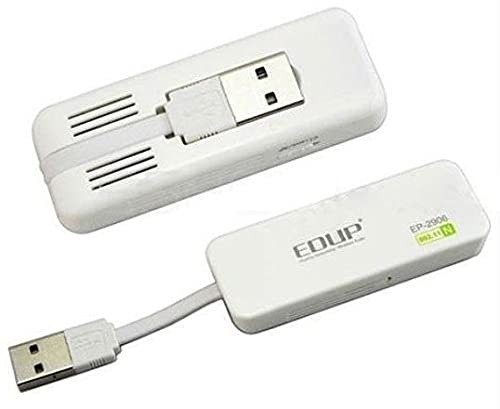
Figure 1: EDUP EP-2906 Wireless USB AP Access Point Adapter. This image shows the compact form factor of the device, highlighting its small size and integrated USB cable.
Physical Features:
- LAN Port: One 10/100Mbps Ethernet port for wired network connection.
- USB Cable: Integrated USB cable for power supply.
- Mode Switch: Button to toggle between different operating modes (e.g., AP, Client).
- Reset/WPS Button: Used to reset the device to factory defaults or activate Wi-Fi Protected Setup (WPS).
- LED Indicator: Displays the status of AP, Client, and LAN connections.
- Antenna: Internal omnidirectional antenna for wireless signal transmission and reception.
4. Setup
4.1 Hardware Installation
- Power Connection: Plug the integrated USB cable of the EP-2906 into an available USB port on your computer or a compatible USB power adapter (DC 5V/500mA). The device will power on.
- Network Connection (for AP Mode): If you intend to use the device as an Access Point, connect an Ethernet cable from your modem or router to the 10/100 LAN port on the EP-2906.
4.2 Driver Installation (if required)
For some operating systems, a driver installation may be necessary. Typically, modern operating systems will automatically detect and install the required drivers. If not, please refer to the manufacturer's website for the latest drivers.
4.3 Initial Configuration
After hardware installation, you will typically access the device's web-based management interface for detailed configuration. The default IP address and login credentials can usually be found in the quick start guide or on a label on the device itself. Connect your computer to the EP-2906 via the LAN port or its default Wi-Fi network (if broadcasting) to access the interface.
5. Operating
5.1 Mode Selection
Use the physical Mode Switch button on the device to select the desired operating mode:
- AP (Access Point) Mode: In this mode, the device creates a wireless network, allowing other Wi-Fi devices to connect to it and share the internet connection provided via its LAN port.
- Client Mode: In this mode, the device acts as a wireless adapter, allowing a wired-only device (like a desktop PC) to connect to an existing Wi-Fi network wirelessly.
5.2 Configuring AP Mode
- Switch the device to AP mode using the Mode Switch.
- Connect the LAN port to your internet source (modem/router).
- Access the web management interface.
- Configure your desired Wi-Fi network name (SSID), security type (WPA2-PSK recommended), and password.
- Save settings and restart the device if prompted.
5.3 Configuring Client Mode
- Switch the device to Client mode using the Mode Switch.
- Connect the LAN port to your computer's Ethernet port.
- Access the web management interface.
- Scan for available Wi-Fi networks and select your desired network.
- Enter the Wi-Fi password for the selected network.
- Save settings and restart the device if prompted.
5.4 Using WPS (Wi-Fi Protected Setup)
If your router supports WPS, you can establish a secure wireless connection without entering a password:
- Press the WPS button on your main router.
- Within two minutes, press the Reset/WPS button on the EDUP EP-2906.
- The devices will automatically establish a secure connection.
6. Maintenance
To ensure optimal performance and longevity of your EDUP EP-2906:
- Keep the device in a cool, dry place, away from direct sunlight and heat sources.
- Avoid exposing the device to water or excessive humidity.
- Clean the device periodically with a soft, dry cloth. Do not use liquid cleaners.
- Ensure proper ventilation around the device.
- Regularly check the manufacturer's website for firmware updates to improve performance and security.
7. Troubleshooting
If you encounter issues with your EDUP EP-2906, try the following solutions:
- No Power: Ensure the USB cable is securely plugged into a working USB port or power adapter. Check if the LED indicator is lit.
- Cannot Connect to Wi-Fi (Client Mode):
- Verify that the device is in Client Mode.
- Double-check the Wi-Fi password.
- Ensure the Wi-Fi signal is strong enough.
- Try restarting both the EP-2906 and your main router.
- No Internet Access (AP Mode):
- Verify that the device is in AP Mode.
- Ensure the Ethernet cable from your modem/router is securely connected to the LAN port of the EP-2906.
- Check if your modem/router has an active internet connection.
- Slow Speed:
- Reduce the distance between the EP-2906 and other wireless devices or the main router.
- Minimize interference from other electronic devices.
- Ensure your computer's network drivers are up to date.
- Cannot Access Web Management Interface:
- Ensure your computer is connected to the EP-2906 (via LAN or its Wi-Fi network).
- Verify the correct IP address is being used.
- Temporarily disable any firewall or antivirus software on your computer.
- Factory Reset: If issues persist, press and hold the Reset/WPS button for approximately 5-10 seconds until the LED indicators flash. This will restore the device to its factory default settings. You will then need to reconfigure it.
8. Specifications
| Wireless Standards | IEEE 802.11n, IEEE 802.11g, IEEE 802.11b |
| Frequency Range | 2.4-2.4835 GHz |
| Wireless Transmit Power | 20 dBm (EIRP) |
| Modulation Type | DBPSK, DQPSK, CCK, OFDM |
| Receiver Sensitivity | 135M: -68 dBm @ 10% PER 54M: -68 dBm @ 10% PER 11M: -85 dBm @ 8% PER |
| Wireless Security | WPS, 64/128-bit WEP, WPA/WPA2, WPA-PSK/WPA2-PSK (TKIP/AES) |
| Interface | 1 x 10/100 LAN Port 1 x Integrated USB cable for power |
| Buttons | Mode Switch, Reset/WPS Button |
| LED Indicator | AP/Client/LAN |
| Antenna Type | Internal Omnidirectional Antenna |
| Power Supply | DC 5V/500mA or USB power from computer |
| Compatible Devices | Personal Computer |
9. Warranty and Support
This product comes with a standard manufacturer's warranty. For specific warranty terms and conditions, please refer to the documentation included with your purchase or visit the official EDUP website. For technical support, driver downloads, or further assistance, please visit the EDUP support page or contact their customer service.


