
1. Introduction
Thank you for choosing the A4Tech Fstyler FG30S Silent Wireless Mouse. This optical mouse is designed for comfortable and quiet operation, featuring advanced 2.4 GHz wireless technology for a stable connection. This manual provides essential information for setting up, operating, maintaining, and troubleshooting your device.
2. Package Contents
Please check the package for the following items:
- A4Tech Fstyler FG30S Silent Wireless Mouse
- Nano USB Receiver
- User Manual (this document)
Note: An AA alkaline battery is required for operation and is not included in the package.
3. Setup
Follow these steps to set up your A4Tech Fstyler FG30S mouse:
- Insert Battery: Locate the battery compartment on the underside of the mouse. Open the cover and insert one AA alkaline battery, ensuring correct polarity. Close the battery cover securely.
- Connect USB Receiver: Plug the Nano USB receiver into an available USB port on your computer (desktop PC or laptop).
- Power On Mouse: Slide the On/Off switch, located on the underside of the mouse, to the 'ON' position. The mouse should now be detected by your computer.
- Driver Installation: Your computer's operating system (e.g., Windows XP, Linux, or newer versions) should automatically detect and install the necessary drivers. No manual driver installation is typically required.
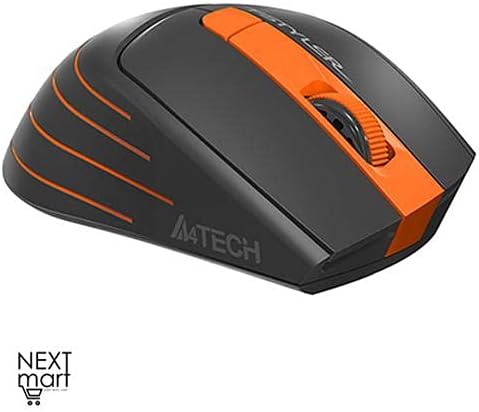
Figure 3.1: Top-down view of the A4Tech Fstyler FG30S Silent Wireless Mouse, highlighting its ergonomic shape and orange design elements.
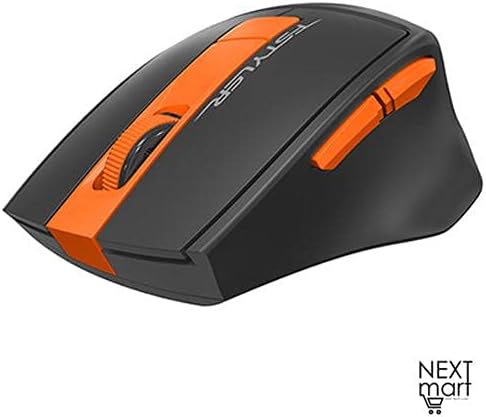
Figure 3.2: Angled view of the A4Tech Fstyler FG30S Silent Wireless Mouse, illustrating the placement of its side buttons and the textured scroll wheel.
4. Operating Instructions
Your A4Tech Fstyler FG30S mouse offers several features for enhanced productivity:
- Silent Clicks: The mouse features silent click technology, reducing noise during use and minimizing disturbance to others.
- DPI Adjustment: The mouse has 3 adjustable DPI levels (1000/1600/2000 DPI). Press the DPI button (usually located near the scroll wheel) to cycle through the sensitivity settings.
- 6 Buttons: In addition to the standard left, right, and scroll wheel buttons, the mouse includes additional buttons for various functions. These can often be customized through software (if available from the manufacturer).
- 16-in-One Shortcut Commands: This feature allows you to assign up to 16 customizable shortcut commands or gestures to specific mouse actions, enhancing workflow efficiency. Refer to the manufacturer's website for any specific software required for customization.
- On/Off Switch: Use the On/Off switch on the underside of the mouse to conserve battery power when the mouse is not in use or during transport.
- Power Saving: The mouse incorporates 4-level adjustable power-saving modes. It will enter sleep mode after 0.2 seconds of inactivity to extend battery life.

Figure 4.1: Feature overview of the A4Tech Fstyler FG30S mouse, detailing DPI settings, button lifespan, programmable gestures, silent operation, power management, and the power switch.
5. Maintenance
To ensure optimal performance and longevity of your mouse:
- Cleaning: Use a soft, dry cloth to clean the mouse surface. For the optical sensor, use a cotton swab lightly dampened with rubbing alcohol, ensuring no liquid enters the mouse.
- Battery Replacement: When the mouse performance degrades or it stops responding, replace the AA battery. Always use a fresh, high-quality alkaline battery.
- Storage: When not in use for extended periods, turn off the mouse using the On/Off switch and consider removing the battery to prevent leakage. Store in a cool, dry place.
6. Troubleshooting
If you encounter issues with your mouse, try the following solutions:
| Problem | Solution |
|---|---|
| Mouse not responding |
|
| Erratic cursor movement |
|
| Short wireless range |
|
7. Specifications
| Feature | Detail |
|---|---|
| Brand | A4Tech |
| Model Number | FG30S |
| Color | Orange |
| Mouse Type | Optical Mouse |
| Connection Type | Wireless (2.4 GHz) |
| Wireless Range | 10-15 meters |
| DPI Levels | 1000 / 1600 / 2000 DPI (Adjustable) |
| Number of Buttons | 6 |
| Receiver Type | Nano USB Receiver |
| Power Source | 1 x AA Alkaline Battery (not included) |
| Battery Life | Up to 12 months |
| Special Features | Silent Clicks, 4-Level Adjustable Power Saving, Anti-slip Side, On/Off Switch, 16-in-One Shortcut Commands |
| Button Lifespan | Up to 5 million clicks |
| Compatible Devices | Desktop PC, Laptop |
| Operating Systems | Linux, Windows XP (and newer versions) |
| Hand Orientation | Ambidextrous |
| Item Weight | 160 grams |
| Dimensions (Package) | 19.6 x 13 x 6.2 cm |
8. Warranty and Support
The A4Tech Fstyler FG30S mouse is designed for durability, with a button lifespan of up to 5 million clicks. For warranty claims or technical support, please refer to the retailer where you purchased the product or visit the official A4Tech website for contact information and further assistance.