
1. Introduction
Thank you for choosing the AULA F809 Wired USB Backlit Gaming Mouse. This manual provides detailed instructions on how to set up, operate, and maintain your new gaming mouse to ensure optimal performance and an enhanced gaming experience. Please read this manual thoroughly before use.
2. Product Overview
The AULA F809 is a high-performance wired gaming mouse designed for precision and comfort. It features adjustable DPI settings, customizable macro programming, and vibrant LED backlighting to suit various gaming styles and preferences.
Key Features:
- Connectivity: Wired USB
- Buttons: 7 Programmable Buttons
- Sensor: Optical Movement Detection
- DPI: Multi-DPI Adjustable Sensitivity
- Lighting: Backlit with LED Color Lights (7-color breathing light)
- Material: Durable Plastic
- Hand Orientation: Ambidextrous Design
- Compatibility: PC & Laptop
Product Components:
The package includes the AULA F809 Wired USB Backlit Gaming Mouse with an integrated USB cable.

The mouse features a comfortable ergonomic design suitable for extended gaming sessions. Its surface is made from durable plastic, ensuring longevity.
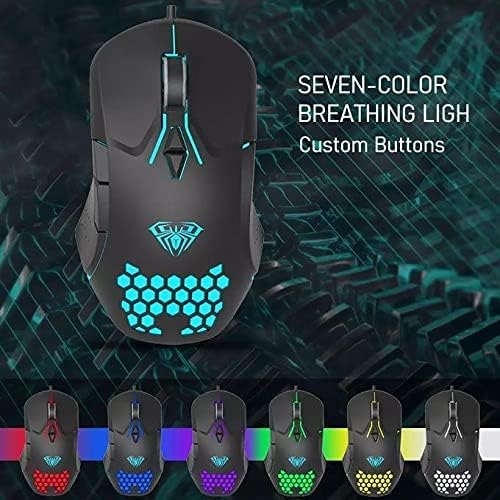
The mouse is equipped with 7 programmable buttons, allowing for personalized control and macro assignments to enhance gameplay efficiency.

3. Setup Instructions
Setting up your AULA F809 Gaming Mouse is a simple plug-and-play process.
- Unpack the Mouse: Carefully remove the mouse from its packaging.
- Locate a USB Port: Identify an available USB port on your computer or laptop.
- Connect the Mouse: Insert the USB connector of the AULA F809 mouse into the USB port.
- Driver Installation: Your operating system will automatically detect and install the necessary drivers. This process may take a few moments.
- Ready for Use: Once the drivers are installed, the mouse will be ready for immediate use. The LED backlighting will illuminate, indicating it is powered on.
4. Operating Instructions
4.1 DPI Adjustment
The AULA F809 mouse features multi-DPI adjustable sensitivity, allowing you to change the cursor speed to match your preference or game requirements. The DPI button is typically located near the scroll wheel. Pressing this button cycles through different DPI settings, often indicated by changes in the LED lighting color or pattern.
- Lower DPI: Ideal for precise movements, such as sniping in first-person shooter games.
- Higher DPI: Suitable for fast-paced action or navigating multiple monitors quickly.
4.2 Macro Programming
The mouse is equipped with 7 programmable buttons. To utilize macro programming, you will typically need to download the specific driver software from the AULA official website. This software allows you to:
- Assign custom functions to each of the 7 buttons.
- Create and save complex macro sequences for in-game actions.
- Adjust other mouse settings such as polling rate and lift-off distance.
Refer to the software's user interface for detailed instructions on creating and assigning macros.
4.3 LED Backlighting
The AULA F809 features dynamic LED backlighting with a 7-color breathing light effect. This lighting enhances the aesthetic appeal of the mouse and can be particularly useful for night gaming. While specific controls for lighting modes are usually managed through the driver software, some mice may have a dedicated button to cycle through effects or turn the lighting on/off.

5. Maintenance
To ensure the longevity and optimal performance of your AULA F809 Gaming Mouse, follow these simple maintenance guidelines:
- Cleaning: Use a soft, dry cloth to wipe the surface of the mouse. For stubborn dirt, slightly dampen the cloth with water or a mild cleaning solution. Avoid harsh chemicals.
- Sensor Care: Keep the optical sensor on the underside of the mouse clean and free from dust or debris. Use a cotton swab or compressed air if necessary.
- Cable Management: Avoid sharply bending or pulling the USB cable to prevent internal damage.
- Storage: When not in use, store the mouse in a clean, dry environment away from extreme temperatures.
6. Troubleshooting
If you encounter any issues with your AULA F809 Gaming Mouse, please refer to the following common troubleshooting steps:
- Mouse Not Responding:
- Ensure the USB cable is securely plugged into a working USB port.
- Try plugging the mouse into a different USB port on your computer.
- Restart your computer.
- LED Lights Not Working:
- Check if the mouse is properly connected and receiving power.
- If using custom software, ensure the lighting effects are enabled.
- Cursor Movement is Erratic:
- Clean the optical sensor on the bottom of the mouse.
- Ensure you are using the mouse on a clean, non-reflective surface or a mouse pad.
- Adjust the DPI settings to a comfortable level.
- Buttons Not Functioning Correctly:
- If buttons are programmed, check the macro software settings.
- Ensure no debris is obstructing the buttons.
If the issue persists after trying these steps, please contact AULA customer support for further assistance.
7. Specifications
| Feature | Specification |
|---|---|
| Brand Name | AULA |
| Model Name | F809 |
| Color | Black |
| Connectivity Technology | USB |
| Movement Detection | Optical |
| Button Quantity | 7 |
| Hand Orientation | Ambidextrous |
| Recommended Uses | Gaming |
| Compatible Devices | Personal Computer, Laptop |
| Special Features | Portable, Backlit, Macro Programming, Multi DPI |
8. Warranty and Support
For warranty information and customer support, please refer to the documentation included with your purchase or visit the official AULA website. Keep your proof of purchase for any warranty claims.


