
1. Introduction
The KCEVE 4-Port HDMI KVM Switch (Model KCEVE401K-IN) allows you to control up to four computers using a single set of HDMI display, USB keyboard, and USB mouse. This device is designed to streamline your workspace by eliminating the need for multiple peripherals, saving both space and cost. It supports high-resolution video up to 4K@60Hz and includes a built-in USB 2.0 hub for sharing additional USB devices.

Image 1.1: KCEVE 4-Port HDMI KVM Switch showcasing its features including 4K@60Hz, HDMI 2.0, HDCP2.2, USB 2.0, metal body, and drive-free operation.
2. Package Contents
Please verify that all items are present and in good condition upon opening the package:
- 1 x KCEVE 4-Port HDMI KVM Switch (Model KCEVE401K-IN)
- 1 x HDMI 1.4 Cable (1.5 meters)
- 4 x USB 2.0 Cables (1.5 meters)
- 1 x User Manual

Image 2.1: Visual representation of the KVM switch and its included accessories: one HDMI 1.4 cable, four USB 2.0 cables, and the user manual.
Note:
- Only one HDMI 1.4 cable is included. For connecting all four computers, additional HDMI cables (preferably HDMI 2.0 or higher for 4K@60Hz) must be purchased separately.
3. Product Features
- 4-Port KVM Functionality: Control up to four computers with a single monitor, keyboard, and mouse.
- High Resolution Support: Supports HDMI 2.0b with full 18Gbps bandwidth, resolutions up to 3840x2160@60Hz (YUV 4:4:4 chroma sampling), 3D, and 1080P or lower resolutions.
- Integrated USB 2.0 Hub: Features 4 USB 2.0 ports for connecting additional USB devices such as printers, scanners, or USB drives, shared among all connected computers.
- Multiple Switching Methods: Switch between connected computers using front panel buttons or keyboard hotkeys.
- Wide Compatibility: Compatible with Windows 10/8.1/8/7/XP/Vista, Mac OS, and Linux systems.
- Plug and Play: No driver installation required for basic functionality.

Image 3.1: Illustration of how the KVM switch enables control of four PCs using a single set of peripherals, promoting a tidy workspace.

Image 3.2: Comparison demonstrating the space-saving benefits of using a KVM switch by consolidating peripherals for multiple computers.

Image 3.3: Visual confirmation of 4K@60Hz resolution support, providing a high-quality visual experience.
4. Product Diagram
Familiarize yourself with the ports and controls on the KVM switch.

Image 4.1: Detailed connection diagram illustrating the input and output ports, including HDMI IN, USB IN, HDMI OUT, and USB HUB ports.
- Front Panel: Power switch, USB 2.0 Hub ports (HUB 1, HUB 2), and PC selection buttons (PC1, PC2, PC3, PC4) with LED indicators.
- Rear Panel: HDMI output port (to monitor), HDMI input ports (HDMI 1-4 from PCs), and USB input ports (USB 1-4 from PCs).
5. Setup Instructions
Follow these steps to connect your KVM switch:
- Connect Display: Connect your HDMI monitor to the HDMI OUT port on the KVM switch.
- Connect Keyboard & Mouse: Connect your USB keyboard and mouse to the dedicated USB ports on the front panel of the KVM switch. These are typically labeled for keyboard and mouse.
- Connect Computers: For each computer (up to four):
- Connect an HDMI cable from the computer's HDMI output to an available HDMI IN port (e.g., HDMI 1) on the KVM switch.
- Connect a USB 2.0 cable from the computer's USB port to the corresponding USB IN port (e.g., USB 1) on the KVM switch. Ensure the USB cable connects the computer to the KVM for both data and power.
- Connect Additional USB Devices (Optional): If you have other USB devices (e.g., printer, USB drive), connect them to the HUB 1 or HUB 2 ports on the front panel.
- Power On: Ensure all computers are powered on. The KVM switch draws power from the connected computers via the USB cables. No external power adapter is typically required if at least one computer is powered on and connected via USB.
Important Considerations:
- For 4K@60Hz resolution, ensure your computers, monitor, and all HDMI cables (from computer to KVM, and KVM to monitor) support HDMI 2.0 or higher.
- The KVM switch requires a stable USB connection to each computer for proper operation of keyboard, mouse, and power.
6. Operating Instructions
The KVM switch offers two methods for switching between connected computers:
6.1. Front Panel Button Switching
Press the corresponding PC1, PC2, PC3, or PC4 button on the front panel of the KVM switch to select the desired computer. The LED indicator above the button will illuminate to show the active computer.
6.2. Keyboard Hotkey Switching
You can switch between computers using specific key combinations on your connected keyboard. Ensure your keyboard and mouse are connected to the dedicated USB ports on the KVM switch for hotkey functionality.
- Hotkey Combination 1: Press the Scroll Lock key twice, then press the number key (1, 2, 3, or 4) corresponding to the desired PC.
Example: Scroll Lock, Scroll Lock, 1 - Hotkey Combination 2 (Alternative): If your keyboard lacks a Scroll Lock key, press the Ctrl key twice, then press the number key (1, 2, 3, or 4) corresponding to the desired PC.
Example: Ctrl, Ctrl, 1
Note:
- Hotkey functionality cannot be disabled.
- After switching, there may be a brief delay (2-3 seconds) for the keyboard and mouse to become fully responsive on the newly selected computer.
7. Compatibility
The KCEVE 4-Port HDMI KVM Switch is compatible with a variety of operating systems:
- Windows 10
- Windows 8.1
- Windows 8
- Windows 7
- Windows XP
- Windows Vista
- Mac OS
- Linux
- Chrome OS
Note:
- Ubuntu system is not officially supported.
- While Mac OS is supported, some users have reported compatibility nuances.

Image 7.1: Icons representing various compatible operating systems including Windows, Mac, and Linux.
8. Troubleshooting
If you encounter issues, refer to the following common troubleshooting steps:
- No Display / Flickering Screen:
- Ensure all HDMI cables are securely connected.
- Use high-quality HDMI 2.0 (or higher) cables, especially for 4K@60Hz resolutions. Lower quality or older HDMI 1.4 cables may cause flickering or no signal at higher resolutions.
- Verify that your monitor and computer graphics card support the selected resolution and refresh rate.
- Try connecting the computer directly to the monitor to rule out cable or computer issues.
- Keyboard/Mouse Not Recognized:
- Ensure the USB cables from the computers to the KVM switch are securely connected.
- Unplug and re-plug the USB cables for the keyboard and mouse from the KVM switch.
- If using a gaming mouse or specialized keyboard, try a standard keyboard/mouse to check compatibility. Some high-speed gaming peripherals may experience glitches.
- Ensure the keyboard and mouse are connected to the dedicated USB ports on the KVM switch for hotkey functionality.
- Hotkey Switching Not Working:
- Confirm the keyboard and mouse are connected to the correct dedicated USB ports on the KVM switch.
- Ensure the active computer is fully booted and responsive.
- Try both hotkey combinations (Scroll Lock x2 + PC number, or Ctrl x2 + PC number).
- USB Hub Device Not Recognized:
- Ensure the device is properly connected to the HUB 1 or HUB 2 port.
- Some high-power USB devices may require an external power source if the KVM's USB power is insufficient.
- Avoid plugging USB storage devices into the dedicated keyboard/mouse ports, as this may cause the KVM to crash. If this occurs, power cycle the KVM using the front power switch.
- General Issues:
- Power cycle the KVM switch by turning it off and on using the front panel switch.
- Restart the connected computers.
9. Specifications
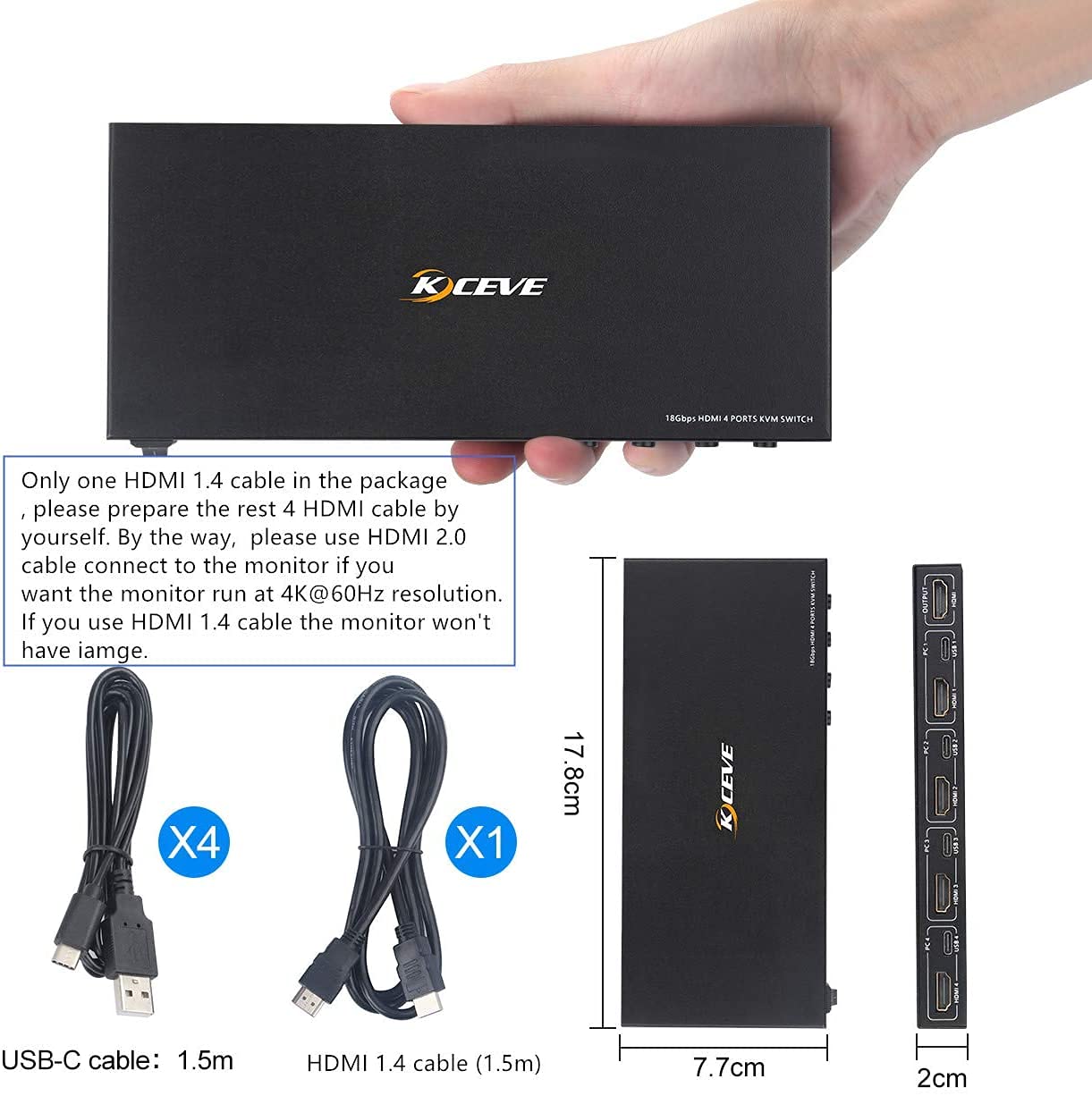
Image 9.1: Physical dimensions of the KVM switch and a visual of the included USB-C and HDMI 1.4 cables.
| Feature | Specification |
|---|---|
| Model Number | KCEVE401K-IN |
| Brand | KCEVE |
| Connectivity Protocol | HDMI, USB |
| HDMI Version | HDMI 2.0b (compatible with HDMI 1.4) |
| Max Resolution | 3840x2160@60Hz (4K@60Hz, YUV 4:4:4) |
| Bandwidth | 18Gbps |
| USB Ports | 4 x USB 2.0 (for keyboard, mouse, and 2 x USB hub) |
| Operating Voltage | 5 Volts |
| Current Rating | 18 Amps (Max) |
| Operation Mode | ON-OFF (Push Button) |
| Material | Metal |
| Color | Black |
| Product Dimensions (LxWxH) | 17.8 x 7.7 x 2 Centimeters |
| Item Weight | 100 g |
| Country of Origin | China |
10. Maintenance
To ensure the longevity and optimal performance of your KVM switch:
- Keep the device in a cool, dry place, away from direct sunlight and excessive heat.
- Avoid exposing the device to moisture or liquids.
- Clean the exterior with a soft, dry cloth. Do not use harsh chemicals or abrasive cleaners.
- Ensure proper ventilation around the device to prevent overheating.
- Handle cables carefully to prevent damage to connectors and ports.
11. Warranty and Support
The KCEVE 4-Port HDMI KVM Switch comes with a one-year guarantee from the date of purchase.
For technical assistance, troubleshooting, or warranty claims, please contact the seller or KCEVE customer service. Refer to your purchase documentation for specific contact details.
Please retain your proof of purchase for warranty validation.


