
realme C21
Contents
realme C21 Smartphone User Manual
Model: C21 | Brand: realme
1. Product Overview
The realme C21 is a 4G/LTE smartphone designed for reliable performance and extended battery life. It features a 6.5-inch display, a 13MP AI triple camera, and a 5000mAh massive battery. This device supports Dual-SIM functionality and includes a dedicated slot for microSDXC expansion, offering 64GB of internal storage and 4GB of RAM.

Figure 1.1: Front and rear view of the realme C21 smartphone, showcasing its design and camera module.
The device runs on Android 10.0 (upgradable to Android 11 as per product description) and is powered by a 1.8 GHz Octa-core processor, ensuring smooth operation for daily tasks. Its robust build and features are certified by TÜV Rheinland for high reliability.
2. Getting Started: Setup
2.1 Package Contents
Before you begin, ensure all items are present in the package:
- realme C21 Smartphone
- Power Adapter
- USB Cable
2.2 SIM Card and microSD Card Installation
The realme C21 supports two Nano-SIM cards and one microSDXC card simultaneously. Locate the SIM tray on the side of the device.

Figure 2.1: Right side view of the realme C21, highlighting the SIM card tray location.
- Insert the SIM ejector tool (not included, use a paperclip if necessary) into the small hole on the SIM tray to eject it.
- Carefully pull out the SIM tray.
- Place your Nano-SIM cards into the designated SIM slots (SIM1 and SIM2) with the gold contacts facing down.
- If using a microSD card for expanded storage, place it into the dedicated microSD slot.
- Gently push the SIM tray back into the phone until it clicks into place.
2.3 Initial Charging and Power On
Before first use, it is recommended to fully charge your device.

Figure 2.2: Top and bottom views of the realme C21, showing the charging port and other interfaces.
- Connect the USB cable to the power adapter.
- Plug the USB cable into the charging port at the bottom of the phone.
- Plug the power adapter into a wall outlet.
- Once sufficiently charged, press and hold the Power button (located on the right side of the phone) until the realme logo appears.
- Follow the on-screen instructions to complete the initial setup, including language selection, Wi-Fi connection, and Google account setup.
3. Operating Your Device
3.1 Buttons and Ports
Familiarize yourself with the physical buttons and ports on your realme C21.

Figure 3.1: Left side view of the realme C21, indicating the location of the volume and power buttons.
- Power Button: Press and hold to power on/off or restart. Press briefly to lock/unlock the screen.
- Volume Buttons: Press to adjust media volume, call volume, or ringtone volume.
- Charging Port: Used for charging the device and connecting to a computer.
- Fingerprint Sensor: Located on the rear of the device for secure unlocking.
3.2 Screen Navigation
The realme C21 features a responsive touchscreen for all interactions.
- Tap: Select an item or open an application.
- Swipe: Scroll through lists or switch between home screens.
- Pinch: Zoom in or out on photos and web pages.
- Long Press: Access contextual menus or move icons.

Figure 3.2: Front view of the realme C21 display, illustrating the user interface.
3.3 Fingerprint Unlock
For quick and secure access, set up the Instant Fingerprint Unlock feature.

Figure 3.3: Rear view of the realme C21, highlighting the circular fingerprint sensor.
- Go to Settings > Fingerprint, Face & Passcode.
- Select Fingerprint and follow the on-screen instructions to register your fingerprint.
- Once registered, you can unlock your phone by placing your finger on the sensor.
3.4 Camera Usage
The realme C21 is equipped with a 13MP AI Triple Camera system.
- Open the Camera application from your home screen or app drawer.
- Select your desired mode (Photo, Video, Portrait, etc.).
- Tap the shutter button to capture a photo or start/stop video recording.
- Use the zoom controls on the screen to adjust magnification.
4. Maintenance
4.1 Cleaning Your Device
To maintain the appearance and functionality of your realme C21:
- Use a soft, lint-free cloth to wipe the screen and body.
- Avoid using harsh chemicals, abrasive cleaners, or aerosol sprays.
- Keep ports free of dust and debris.
4.2 Battery Care
The realme C21 features a 5000mAh non-removable battery. To maximize battery life:
- Avoid extreme temperatures.
- Charge your phone regularly, but avoid leaving it fully charged or fully discharged for extended periods.
- Utilize the Super Power Saving Mode for extended usage when battery is low.
4.3 Software Updates
Periodically check for software updates to ensure your device has the latest features and security patches.
- Go to Settings > Software Update.
- Follow the on-screen prompts to download and install any available updates.
5. Troubleshooting
This section addresses common issues you might encounter with your realme C21.
5.1 Device Not Turning On
- Ensure the battery is charged. Connect the phone to the charger for at least 15 minutes.
- Press and hold the Power button for 10-15 seconds to force a restart.
5.2 Network Connectivity Issues
- Check if your SIM card is properly inserted.
- Verify that mobile data is enabled in Settings > Mobile Network.
- Restart the phone.
- Ensure your network provider supports the phone's frequencies (GSM 850/900/1800/1900, WCDMA 850/900/2100, FDD-LTE 850/900/1800/2100, TDD-LTE 2300/2500/2600).
5.3 Apps Crashing or Freezing
- Close the problematic app and reopen it.
- Clear the app's cache and data in Settings > App Management > [App Name] > Storage Usage.
- Ensure the app is updated to its latest version from the Google Play Store.
- Restart your device.
6. Specifications
Detailed technical specifications for the realme C21 smartphone.
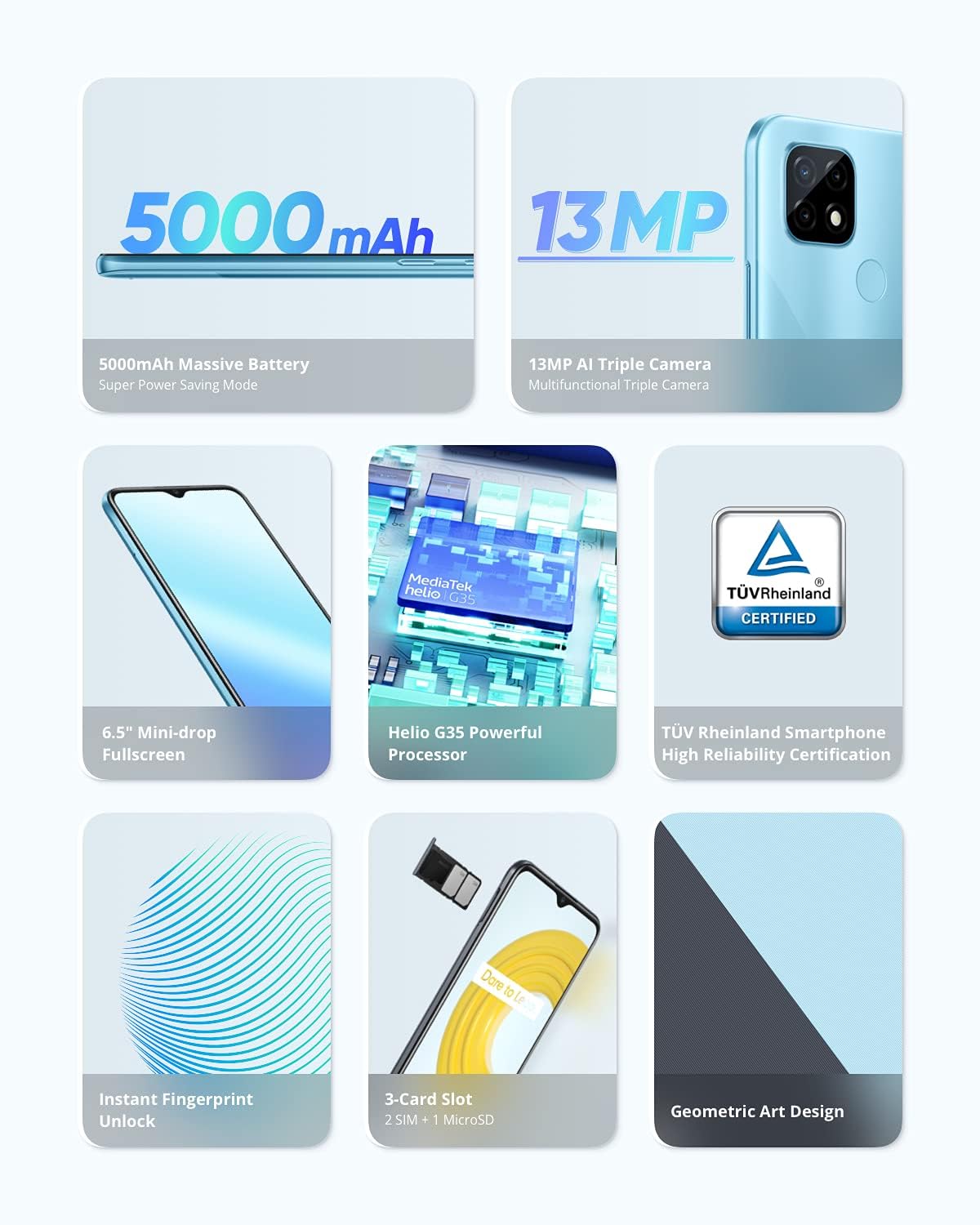
Figure 6.1: Key features and specifications of the realme C21, including battery, camera, display, and processor.
| Feature | Specification |
|---|---|
| Model Name | C21 |
| Operating System | Android 10.0 (Upgradable to Android 11 as per product description) |
| Processor | 1.8 GHz Octa-core (Helio G35) |
| RAM | 4 GB |
| Internal Storage | 64 GB |
| Expandable Storage | microSDXC (dedicated slot) |
| Display Size | 6.5 Inches |
| Resolution | 1080 x 2340 |
| Rear Camera | 13 MP AI Triple Camera |
| Battery Capacity | 5000 mAh (Non-removable) |
| SIM Support | Dual Nano-SIM |
| Network Compatibility | GSM, WCDMA, FDD-LTE, TDD-LTE (Unlocked for All Carriers) |
| Connectivity | Wi-Fi, Bluetooth, Basic GPS |
| Dimensions (L x W x H) | 6.5 x 3.01 x 0.35 inches |
| Item Weight | 6.7 ounces (190 Grams) |
| Color | Cross Blue |
| Audio Jack | No headphone jack |
| What's in the box | Power Adapter, USB Cable |
7. Warranty and Support
For warranty information and customer support, please refer to the documentation provided with your purchase or visit the official realme website. Specific warranty terms and conditions may vary by region and retailer.
For technical assistance or further inquiries, please contact realme customer service through their official channels.
Ask a question about this manual
Ask about setup, troubleshooting, compatibility, parts, safety, or missing instructions. Manuals+ will review the question and use this page’s manual context to help answer it.