
1. Introduction
This manual provides detailed instructions for the setup, operation, maintenance, and troubleshooting of your UF-TOOLS 7-Inch LCD Digital Microscope. Please read this manual thoroughly before using the device to ensure proper functionality and to maximize its lifespan.
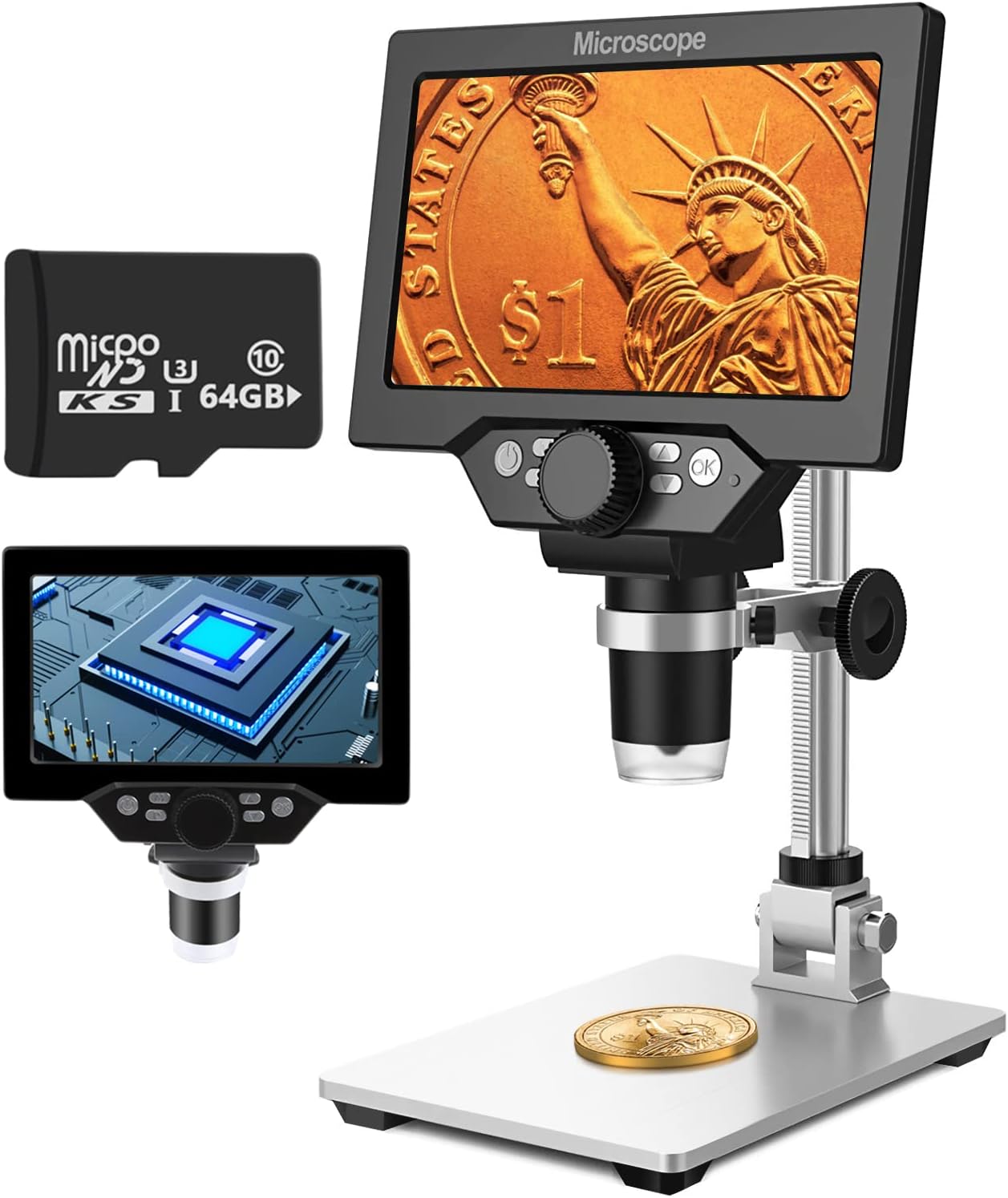
Image 1.1: UF-TOOLS 7-Inch LCD Digital Microscope with included 64GB TF card, showing the main unit and stand.
1.1 Key Features
- 7-Inch LCD Screen: Provides a clear, high-definition display for direct viewing without a computer.
- 10X-1200X Magnification: Continuous zoom capability for observing various objects.
- 12MP Camera: Captures high-resolution images and 1080P video.
- 64GB TF Card: Included for direct storage of photos and videos. Supports up to 128GB.
- 8 Adjustable LED Lights: Ensures optimal illumination for detailed observation.
- Flexible Aluminum Alloy Stand: Allows for 90° angle adjustment and 2-10cm focus distance adjustment.
- Built-in 3000mAh Battery: Offers portability with up to 6 hours of operation on a full charge.
- PC Connectivity: Compatible with Windows 7/8/10 for larger display and data transfer.
2. Package Contents
Verify that all items listed below are present in your package:
- UF-TOOLS 7-Inch LCD Digital Microscope Unit
- Adjustable Aluminum Alloy Stand
- 64GB TF Card
- USB Cable
- Power Adapter (if included)
- User Manual (this document)

Image 2.1: The microscope package includes a 64GB TF card for storage.
3. Setup Guide
3.1 Assembling the Microscope
- Carefully unpack all components from the box.
- Attach the microscope unit to the adjustable aluminum alloy stand. Ensure it is securely fastened using the provided screws or locking mechanisms.
- Insert the 64GB TF card into the designated slot on the microscope unit.
- Place the assembled microscope on a stable, flat surface.

Image 3.1: Product dimensions and adjustable stand features, including 270° rotation and height adjustment.
3.2 Charging the Battery
The microscope has a built-in 3000mAh rechargeable battery. Before first use, fully charge the device.
- Connect the USB cable to the microscope's charge port and the other end to a power adapter or a computer's USB port.
- The charging indicator light will show the charging status.
- A full charge typically provides up to 6 hours of continuous use.

Image 3.2: The microscope features a long-lasting rechargeable battery, charged via USB.
4. Operating Instructions
4.1 Device Overview and Controls

Image 4.1: Overview of the microscope's controls and ports, including charge port, MicroSD slot, light regulation, fixed knob, lifting adjusting bracket knob, and various function buttons.
- Power On/Off: Press and hold the Power button to turn the device on or off.
- Video/Camera Playback: Use dedicated buttons to switch between video recording, photo capture, and playback modes.
- System Key Programming: Access menu settings for various configurations.
- Object Distance Adjustment: Adjust the distance between the lens and the object.
- Page Up/Down: Navigate through menus or captured media.
- Confirm Key/Camera Button: Select options or capture photos/videos.
- Light Regulation: Adjust the brightness of the 8 LED lights.
- Fixed Knob: Secures the microscope unit to the stand.
- Lifting Adjusting Bracket Knob: Adjusts the height of the microscope unit on the stand.
4.2 Adjusting Magnification and Focus
- Place the object you wish to observe on the base plate.
- Adjust the height of the microscope unit using the Lifting Adjusting Bracket Knob to get a rough focus.
- Use the focus wheel on the microscope lens to fine-tune the focus until the image on the 7-inch LCD screen is clear.
- The magnification range is 10X to 1200X. Adjust the distance between the lens and the object, along with the focus wheel, to achieve the desired magnification.

Image 4.2: The microscope features an adjustable screen, free length adjustment, and precise focus control.

Image 4.3: Digital magnification from 10X to 1200X, demonstrating the zoom capability on small objects.
4.3 Using the LED Lights
The microscope is equipped with 8 adjustable LED lights to illuminate your subject. Use the Light Regulation control to increase or decrease brightness as needed for optimal viewing.

Image 4.4: The 8 LED lights provide adequate illumination for observing objects in various lighting conditions.
4.4 Capturing Photos and Videos
With the included 64GB TF card, you can directly save images and videos.
- In photo mode, press the Confirm/Camera button to capture an image.
- In video mode, press the Confirm/Camera button to start recording, and press again to stop.
- Captured media can be reviewed using the playback function.
4.5 PC Connectivity
To view observations on a larger screen or transfer files, connect the microscope to a Windows PC (Windows 7/8/10) using the provided USB cable.
- Connect the microscope to your PC via the USB cable.
- The microscope should be recognized as a storage device or a webcam, depending on the mode selected on the microscope.
- You can then access the stored images/videos or use the microscope as a live camera feed.

Image 4.5: Connect the microscope to a PC for a larger viewing experience and data management.
5. Maintenance
5.1 Cleaning
- Lens: Use a soft, lint-free cloth specifically designed for optical lenses. For stubborn smudges, a small amount of lens cleaning solution can be applied to the cloth, not directly to the lens.
- Screen: Wipe the LCD screen gently with a microfiber cloth. Avoid harsh chemicals.
- Body: Clean the microscope body and stand with a soft, dry cloth. Do not use abrasive cleaners or solvents.
5.2 Storage
- Store the microscope in a cool, dry place away from direct sunlight and extreme temperatures.
- If storing for an extended period, ensure the battery is partially charged (around 50%) to prolong its lifespan.
- Keep the lens covered to prevent dust accumulation.
5.3 Battery Care
- Avoid fully discharging the battery frequently.
- Charge the battery regularly, even if not in use, to maintain its health.
- Do not expose the battery to high temperatures.
6. Troubleshooting
- No Power:
- Ensure the battery is charged. Connect the microscope to a power source and try again.
- Check the power cable connection.
- Blurry Image:
- Adjust the focus wheel carefully.
- Adjust the height of the microscope unit on the stand.
- Ensure the object is properly illuminated by adjusting the LED lights.
- Clean the lens if smudges or dust are present.
- Cannot Capture Photos/Videos:
- Ensure a TF card is inserted and properly formatted.
- Check if the TF card has sufficient storage space.
- Verify the device is in the correct photo or video capture mode.
- PC Not Recognizing Device:
- Ensure the USB cable is securely connected to both the microscope and the PC.
- Try a different USB port on your computer.
- Restart both the microscope and the PC.
- Ensure your PC is running Windows 7/8/10.
7. Specifications
| Feature | Detail |
|---|---|
| Model Name | SUGON-Digital Microscope |
| Screen Size | 7 Inch LCD |
| Magnification | 10X-1200X |
| Camera Resolution | 12MP |
| Video Resolution | 1080P |
| Storage | 64GB TF Card (Max 128GB supported) |
| Illumination | 8 LED Lights |
| Battery Capacity | 3000mAh Lithium Polymer |
| Battery Life | Up to 6 hours (approx.) |
| PC Compatibility | Windows 7/8/10 |
| Material | Metal, Plastic |
| Item Weight | 2.44 pounds (1.11 kg) |
| Package Dimensions | 9.8 x 8.19 x 3.35 inches |
8. Warranty and Support
UF-TOOLS provides the following warranty and support for this product:
- Return Period: 45 days limited product return period.
- Exchange Policy: 18 months exchange for product defects.
For technical support or warranty claims, please contact UF-TOOLS customer service through the retailer where the product was purchased or visit the official UF-TOOLS website for contact information.
Note: Warranty terms may vary based on region and retailer. Please retain your proof of purchase.