
Introduction
The Sengled Wi-Fi Smart LED Bulb offers a comprehensive system for lighting control and energy management. With these bulbs, you can adjust brightness, set schedules, and save energy from any location. This manual provides detailed instructions for setup, operation, and maintenance of your smart bulbs.

Image: Sengled Wi-Fi Smart LED Bulb, E26 base, warm white.
Setup Instructions
Setting up your Sengled Wi-Fi Smart LED Bulbs is a straightforward process. No additional hub or bridge is required as the bulbs connect directly to your 2.4GHz Wi-Fi network.
- Download and Register: Download the Sengled Home app from your smartphone's app store. Create an account and register within the app.
- Install the Bulb: Screw the smart LED bulb into a standard E26 light socket. Ensure the power is turned on.
- Follow In-App Guide: Open the Sengled Home app and follow the on-screen instructions to connect your bulb to your 2.4GHz Wi-Fi network.

Image: Visual guide for the three-step setup process: 1. Download Sengled Home app, 2. Install bulb, 3. Follow in-app instructions.
Important Note:
- These bulbs are not compatible with 5GHz Wi-Fi networks. Ensure your device is connected to a 2.4GHz network during setup.
Operating Instructions
Voice Control
Integrate your Sengled Smart LED Bulbs with smart speakers like Google Home for hands-free control. Use voice commands to turn the lights ON/OFF, adjust brightness, or activate custom mood scenes.

Image: A person using a smartphone with a voice command, demonstrating integration with Google Home and Alexa for hands-free control.
Remote and Group Control
Control your lighting from anywhere using the Sengled Home app on your smartphone. You can turn lights ON/OFF, brighten, or dim them even when you are away from home. This feature provides security benefits and peace of mind if you forget to turn off lights.
The app also allows you to create groups of bulbs for simultaneous control. For example, you can control all lights in a room or on a specific floor with a single command.

Image: An illustration showing multiple rooms with smart bulbs, controlled via a smartphone app for group control.
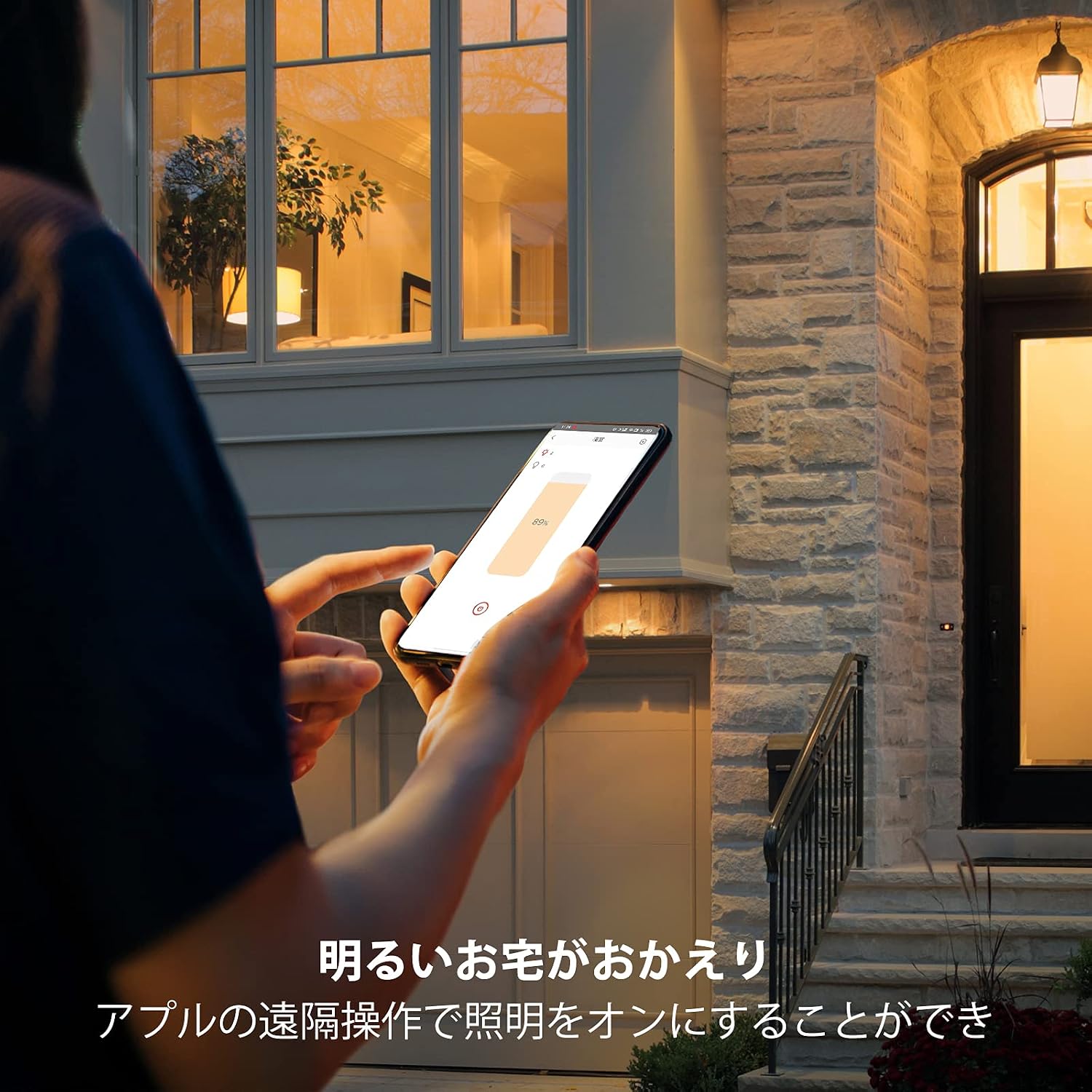
Image: A person remotely turning on lights at home using a smartphone app while approaching the house.
Scheduling Function
Utilize the timer and scheduling features to automate your lighting. Set your bulbs to gradually brighten before your alarm, or dim automatically after bedtime. This allows you to start your day with invigorating light, switch to focused light for work, and relax with soft light in the evening, adapting to your daily routine.

Image: A person interacting with a tablet, while a smartphone displays options to customize scenes and schedules within the Sengled app.
Dimmable and Eye-Friendly Light
The Sengled LED bulbs provide sufficient brightness (800 lumens, equivalent to 60W) and vivid colors (CRI90+). They emit soft, natural light similar to sunlight, which helps prevent eye fatigue during extended periods of work or study, meeting JIS Class AA standards.
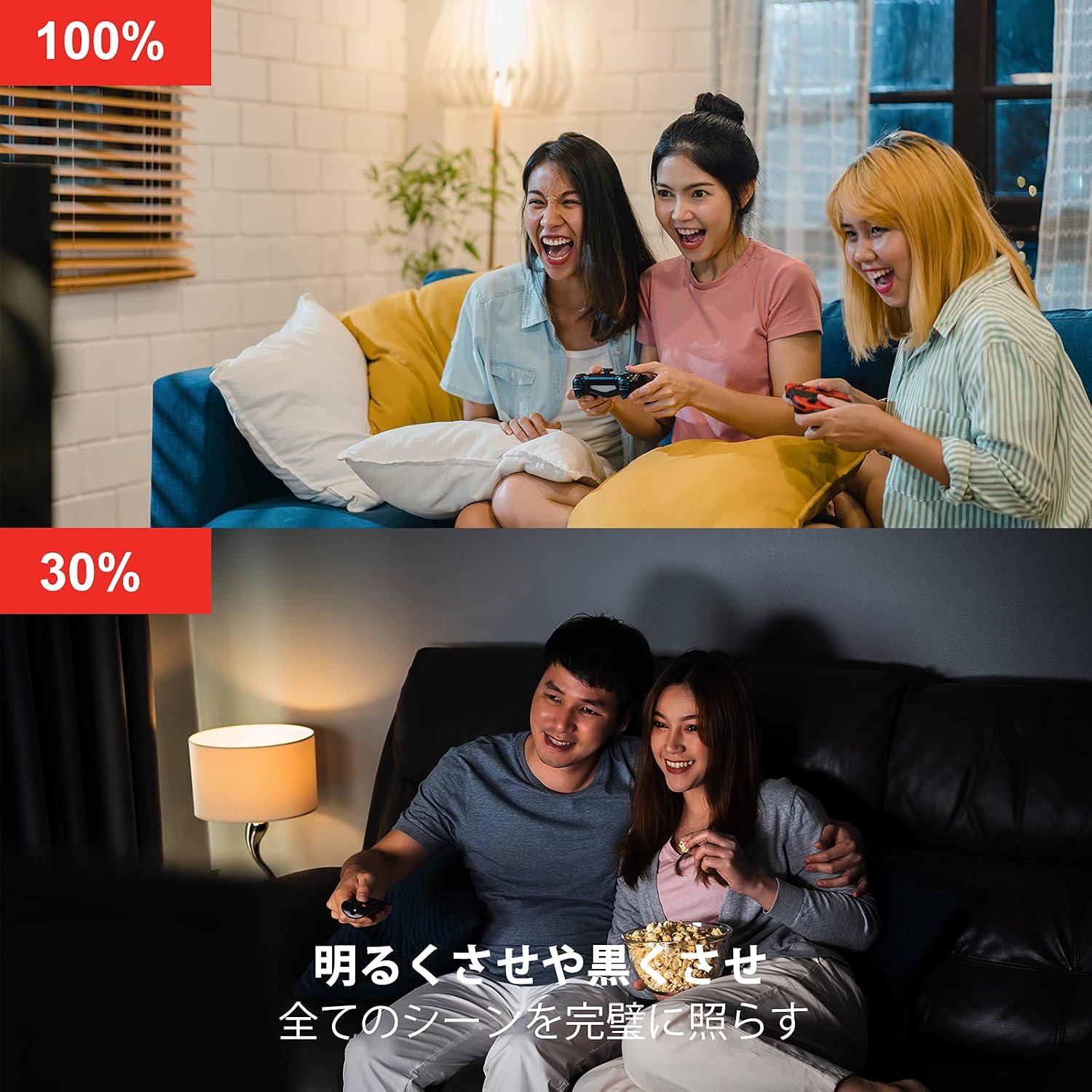
Image: Two scenes demonstrating brightness levels: 100% for a bright environment and 30% for a relaxed, dim setting.
Maintenance
Sengled Smart LED Bulbs are designed for long-term use with minimal maintenance. To ensure optimal performance and longevity:
- Cleaning: Ensure the bulb is off and cool before cleaning. Wipe with a soft, dry cloth. Do not use liquid cleaners or abrasive materials.
- Storage: If storing the bulbs, keep them in a cool, dry place away from direct sunlight and extreme temperatures.
- Firm Connection: Ensure the bulb is securely screwed into the E26 socket to prevent intermittent connection issues or buzzing sounds.
Troubleshooting
- Bulb Not Connecting to Wi-Fi:
- Ensure your Wi-Fi network is 2.4GHz. These bulbs are not compatible with 5GHz networks.
- Check your Wi-Fi signal strength at the bulb's location.
- Restart your Wi-Fi router and try the setup process again.
- Ensure the bulb is within range of your router.
- Voice Control Issues (e.g., with Alexa):
- Verify that the Sengled skill is enabled in your Alexa or Google Home app.
- As of August 2025, some users have reported issues with Alexa integration for certain Sengled Wi-Fi bulbs. If you experience persistent issues, please contact Sengled customer support for the latest information and solutions.
- Buzzing Sound from Bulb:
- Ensure the bulb is screwed in tightly and making a firm connection with the socket.
- If the buzzing persists, try the bulb in a different fixture. If the issue continues, the bulb may be defective.
- Remote Control Not Working:
- Check your smartphone's internet connection.
- Ensure the Sengled Home app is up to date.
- Confirm the bulb is connected to your home Wi-Fi network.
Specifications
| Feature | Specification |
|---|---|
| Brand | Sengled |
| Model Number | W21-J11WFFS4P |
| Light Type | LED |
| Bulb Base | E26 |
| Wattage | 8 W |
| Incandescent Equivalent | 60 Watts |
| Brightness | 800 Lumens |
| Color Temperature | 2700 Kelvin (Warm White) |
| Color Rendering Index (CRI) | 90 |
| Connectivity Protocol | Wi-Fi (2.4GHz only) |
| Controller Type | Amazon Alexa, Google Assistant |
| Operating Life | 20,000 hours |
| Voltage | 100 Volts |
| Indoor/Outdoor Use | Indoor |
| Number of Items | 4 bulbs per pack |
Warranty and Support
Sengled provides a manufacturer's warranty for this product.
- Warranty Period: 2 years from the date of purchase.
- Returns/Exchanges (within 30 days of arrival): For returns or exchanges within 30 days of product arrival, please contact Amazon.JP customer service.
- Exchanges (after 30 days and within 2 years): For exchanges of damaged products after 30 days of arrival and within the 2-year warranty period, please contact Sengled customer support directly.
Customer Support
If you have any questions regarding the use of your Sengled product, please contact us via email:
Email: support_JP@sengled.com
Please note that email inquiries may take some time to receive a response. We appreciate your understanding.

Image: Information on Sengled customer support, 2-year warranty, and 25,000 hours lifespan.


