
TJD M750QU
TJD Android 12 Tablet 7.5-inch User Manual
Model: M750QU
1. Introduction
Thank you for choosing the TJD Android 12 Tablet. This manual provides essential information for setting up, operating, and maintaining your device. Please read it carefully to ensure optimal performance and longevity of your tablet.
Package Contents
Upon unpacking, please ensure all items listed below are present:
- TJD Android 12 Tablet (Model M750QU)
- USB-C Charging Cable
- Power Adapter
- User Manual (this document)

Image: The TJD Android 12 Tablet displaying the YouTube application, highlighting its GMS certification and access to Google Play Store.
2. Setup
2.1 Charging the Tablet
Before first use, fully charge your tablet. Connect the USB-C cable to the tablet's USB-C port and the other end to the power adapter. Plug the adapter into a wall outlet. The battery indicator on the screen will show charging status.
2.2 Powering On/Off
- To Power On: Press and hold the Power button located on the side of the tablet until the TJD logo appears on the screen.
- To Power Off: Press and hold the Power button until a menu appears. Select "Power off" and confirm.
- To Restart: Press and hold the Power button until a menu appears. Select "Restart" and confirm.
2.3 Initial Setup
When you power on the tablet for the first time, you will be guided through an initial setup wizard:
- Language Selection: Choose your preferred language.
- Wi-Fi Connection: Connect to an available Wi-Fi network to access the internet.
- Google Account: Sign in with your Google account or create a new one. This is necessary to download apps from the Google Play Store.
- Date & Time: Set the correct date and time.
- Security: Set up a screen lock (PIN, pattern, or password) for security.
2.4 Inserting a MicroSD Card
The tablet supports MicroSD card expansion up to 512GB. To insert a MicroSD card:
- Locate the MicroSD card slot on the side of the tablet.
- Gently insert the MicroSD card into the slot with the gold contacts facing down until it clicks into place.
- The tablet will detect the card and prompt you to set it up for portable or internal storage.
3. Operating Your Tablet
3.1 Basic Navigation
The TJD tablet uses a capacitive touchscreen for interaction:
- Tap: To select an item or open an app.
- Tap & Hold: To access contextual menus or move icons.
- Swipe: To scroll through pages or lists.
- Pinch: To zoom in or out on images and web pages.
3.2 Connecting to Wi-Fi
To connect to a Wi-Fi network:
- Go to Settings > Network & internet > Wi-Fi.
- Toggle Wi-Fi On.
- Select your desired network from the list.
- Enter the password if prompted, then tap Connect.
3.3 Bluetooth Pairing
To pair with a Bluetooth device (e.g., headphones, keyboard):
- Go to Settings > Connected devices > Bluetooth.
- Toggle Bluetooth On.
- Ensure your Bluetooth device is in pairing mode.
- Select your device from the list of available devices and follow any on-screen prompts to complete pairing.
3.4 Using the Cameras
The tablet features a 2MP front camera and an 8MP rear camera.
- Open the Camera application.
- Tap the camera icon to switch between front and rear cameras.
- Tap the shutter button to take a photo or start/stop video recording.
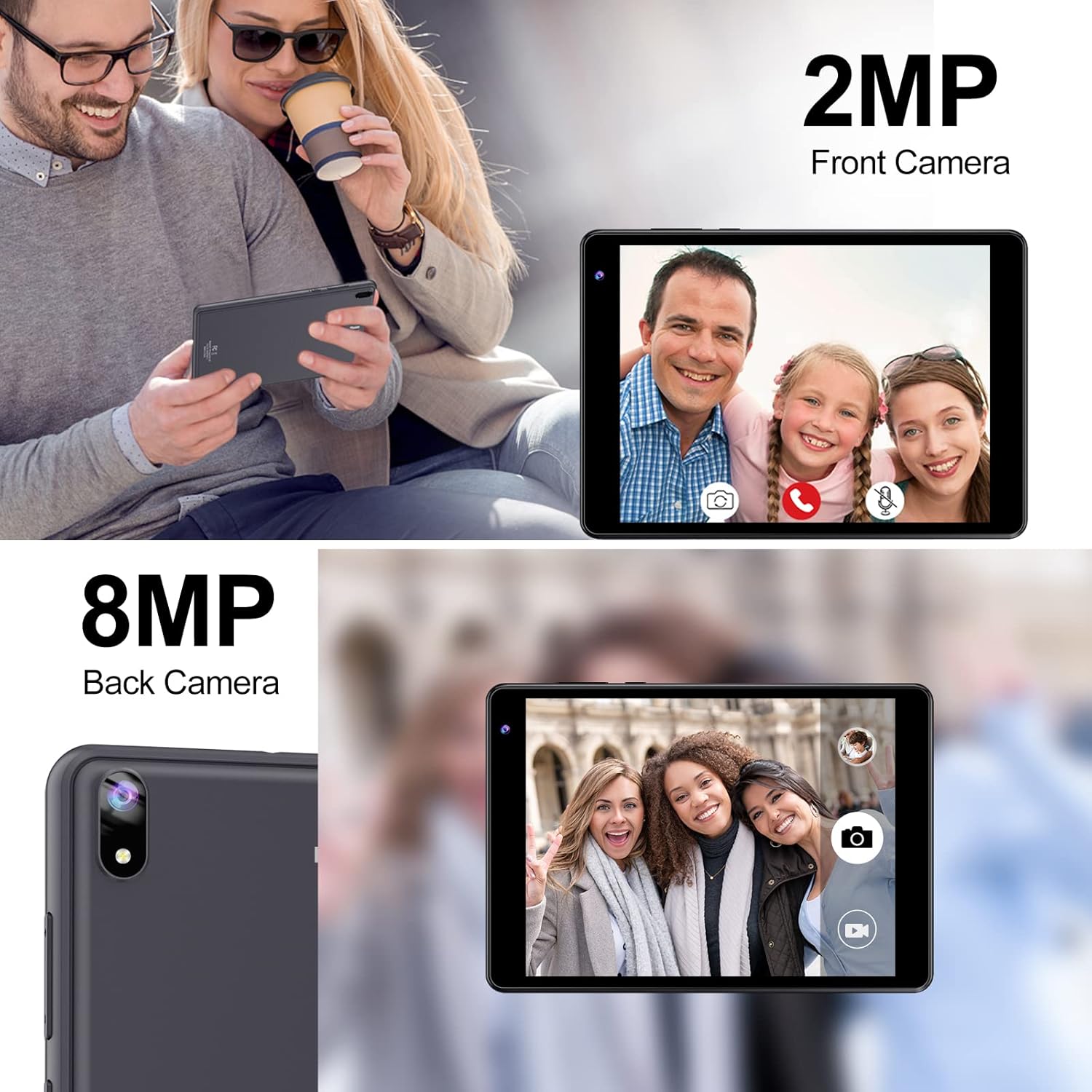
Image: Demonstrates the 2MP front camera and 8MP back camera of the TJD Android 12 Tablet, capturing photos of people.
3.5 Managing Applications
You can download and install applications from the Google Play Store. To do so, you must be signed in with a Google account and connected to the internet.
- Open the Play Store app.
- Search for apps and games.
- Tap Install to download and install an app.
3.6 Audio Features
The tablet is equipped with dual smart speakers for stereo sound and a 3.5mm headphone jack for private listening.
- Volume Control: Use the volume buttons on the side of the tablet to adjust audio levels.
- Headphone Jack: Plug standard 3.5mm headphones into the dedicated port.

Image: The TJD Android 12 Tablet showcasing its box stereo dual speakers, providing high-quality audio output.
4. Maintenance
4.1 Cleaning Your Tablet
- Use a soft, lint-free cloth to clean the screen and body of the tablet.
- Do not use abrasive cleaners, alcohol, or chemical solvents, as these can damage the screen and finish.
- Avoid getting moisture into openings.
4.2 Battery Care
To prolong the life of your tablet's 4000 mAh battery:
- Avoid exposing the tablet to extreme temperatures.
- Do not let the battery completely drain frequently.
- If storing the tablet for an extended period, charge it to about 50% before turning it off.
4.3 Software Updates
Regular software updates can improve performance and security. To check for updates:
- Ensure your tablet is connected to Wi-Fi.
- Go to Settings > System > System update.
- Follow the on-screen instructions to download and install any available updates.
5. Troubleshooting
This section addresses common issues you might encounter with your TJD tablet.
| Issue | Solution |
|---|---|
| Tablet won't turn on | Ensure the battery is charged. Connect the charger and wait a few minutes before attempting to power on again. If it still doesn't turn on, try holding the power button for 10-15 seconds. |
| Wi-Fi connection issues | Check if Wi-Fi is enabled in Settings. Restart your Wi-Fi router. Forget the network and reconnect. Ensure you are within range of the Wi-Fi signal. |
| Slow performance or apps crashing | Close unused apps. Clear app caches (Settings > Apps > [App Name] > Storage > Clear cache). Restart the tablet. If issues persist, consider a factory reset (backup your data first). |
| Screen is unresponsive | Restart the tablet by holding the power button. Ensure the screen is clean and dry. If the issue persists, contact customer support. |
| Cannot download apps from Play Store | Ensure you are connected to Wi-Fi and signed into your Google account. Check your Google account payment methods if trying to download paid apps. Clear the cache and data for the Google Play Store app. |
6. Technical Specifications
Below are the detailed specifications for the TJD Android 12 Tablet 7.5-inch (Model M750QU):
| Feature | Specification |
|---|---|
| Model Number | M750QU |
| Operating System | Android 12 |
| Display | 7.5-inch IPS, 1440 x 1080 pixels |
| Processor | Quad-Core 1.6 GHz (RK3326) |
| RAM | 4 GB |
| Internal Storage (ROM) | 64 GB |
| Expandable Storage | MicroSD card up to 512 GB |
| Rear Camera | 8 MP |
| Front Camera | 2 MP |
| Battery | 4000 mAh Lithium-ion |
| Connectivity | Wi-Fi (802.11b/g/n 2.4G), Bluetooth 4.0 |
| Ports | USB-C, 3.5mm Headphone Jack, MicroSD Card Slot |
| Audio | Dual Stereo Speakers, Built-in Microphone |
| Dimensions (L x W x H) | 18.8 x 12.95 x 1.02 cm (7.4 x 5.1 x 0.4 inches) |
| Weight | 330 grams (0.73 lbs) |
7. Warranty and Support
7.1 Warranty Information
Specific warranty details for the TJD Android 12 Tablet (Model M750QU) were not provided in the product data. Please refer to the warranty card included with your product or contact TJD customer support for detailed warranty terms and conditions.
7.2 Customer Support
If you encounter any issues not covered in this manual or require further assistance, please contact TJD customer support. Contact information can typically be found on the manufacturer's official website or on the product packaging.
Ask a question about this manual
Ask about setup, troubleshooting, compatibility, parts, safety, or missing instructions. Manuals+ will review the question and use this page’s manual context to help answer it.