
Argon Forty Argon IR Remote B091F3XSF6
Argon IR Remote Instruction Manual
Model: B091F3XSF6
Introduction
This instruction manual provides comprehensive guidance for the setup, operation, and maintenance of your Argon IR Remote. Designed specifically for use with Raspberry Pi 4 and compatible Argon cases, this remote enhances your multimedia experience and offers convenient control over your system.
The Argon IR Remote is compatible with:
- Raspberry Pi 4
- Argon ONE V2 Case
- Argon ONE M.2 Case
- Argon EON Case
Product Overview
The Argon IR Remote is an ergonomic, black remote control featuring essential buttons for navigating your Raspberry Pi system. It includes a power button, a directional pad for navigation, and dedicated buttons for menu, home, back, and volume control. Its programmable buttons offer enhanced customization for various applications.

Figure 1: Front view of the Argon IR Remote. This image displays the remote's sleek design and the layout of its buttons, including the power, directional, menu, home, back, and volume controls.
Setup
1. Battery Installation
The Argon IR Remote requires two (2) AAA batteries (not included) for operation. Follow these steps to install the batteries:
- Locate the battery compartment cover on the back of the remote.
- Slide the cover downwards to open the compartment.
- Insert two AAA batteries, ensuring the positive (+) and negative (-) terminals align with the markings inside the compartment.
- Slide the cover back into place until it clicks securely.
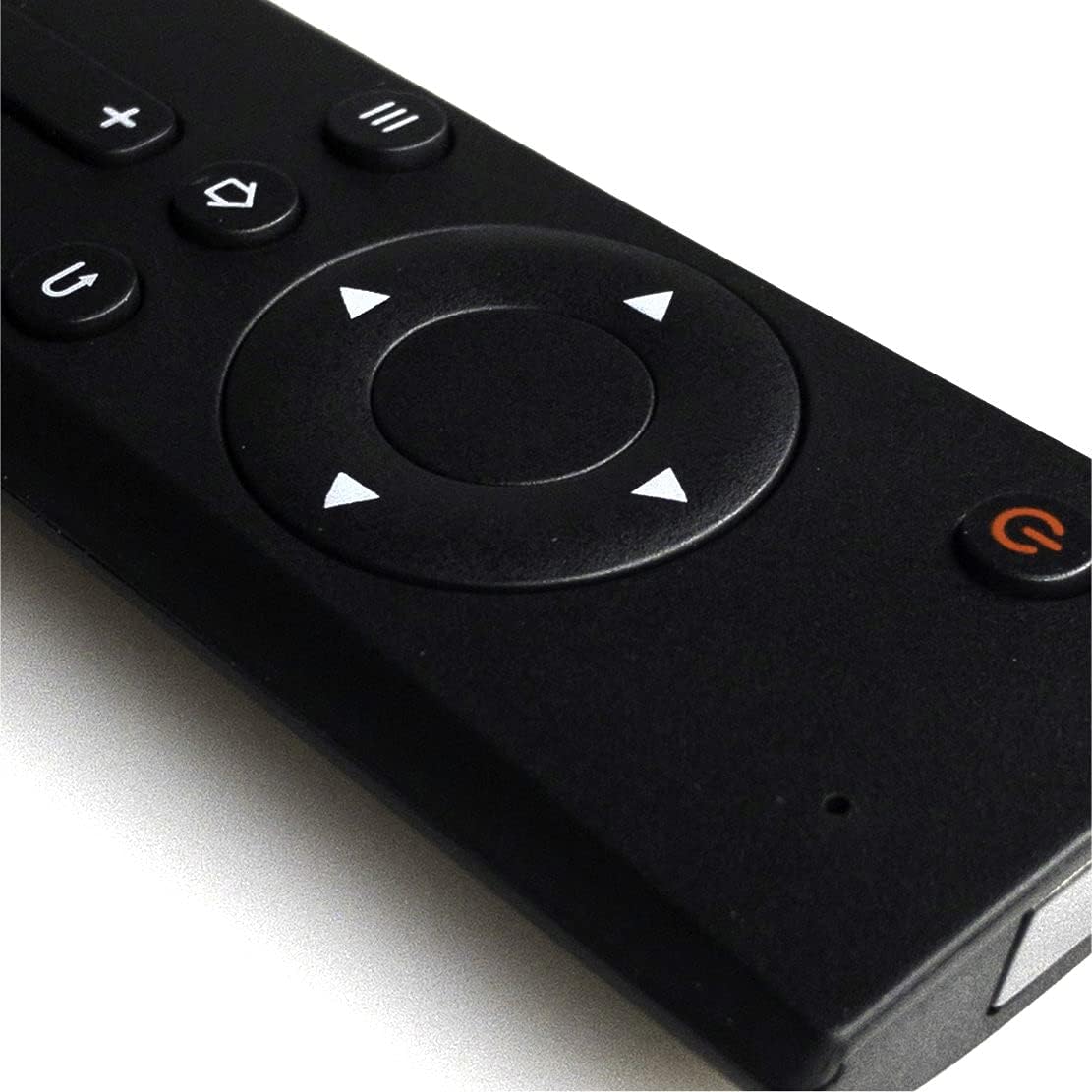
Figure 2: Battery compartment of the Argon IR Remote. This image shows the open compartment, indicating where to insert the two AAA batteries and their correct orientation.
2. Software Configuration
For the Argon IR Remote to function correctly with your Raspberry Pi, specific software configuration is required on your operating system. The remote works best with LibreElec OS for Kodi and Raspberry Pi OS.
Please refer to the official Argon Forty documentation or community forums for detailed instructions on setting up IR remote support for your chosen Raspberry Pi operating system.

Figure 3: Compatibility note for Argon IR Remote. This image highlights that the remote is optimized for use with LibreElec OS (for Kodi) and Raspberry Pi OS, indicating the primary software environments for optimal performance.
Operating the Remote
Basic Functions
- Power Button (●): Used to power on/off or send a shutdown signal to your Raspberry Pi (requires proper software configuration).
- Directional Pad (Up, Down, Left, Right, OK): For navigating menus and selecting items.
- Menu Button (≡): Accesses context-sensitive menus.
- Home Button (⌂): Returns to the main home screen.
- Back Button (↵): Navigates back to the previous screen or menu.
- Volume Buttons (+ / -): Adjusts audio volume.
Programmable Buttons
The Argon IR Remote features buttons that can be programmed for custom functions within Raspberry Pi OS. This allows users to assign specific actions or shortcuts, extending the remote's utility beyond standard multimedia control.

Figure 4: Programmable buttons on the Argon IR Remote. This close-up view emphasizes the buttons that can be customized by the user for specific functions within the Raspberry Pi operating system.
For detailed instructions on programming these buttons, please consult the Argon Forty documentation or relevant Raspberry Pi OS guides.
Maintenance
To ensure the longevity and optimal performance of your Argon IR Remote, follow these simple maintenance guidelines:
- Cleaning: Wipe the remote with a soft, dry cloth. Do not use liquid cleaners or abrasive materials, as they may damage the surface or internal components.
- Battery Replacement: Replace batteries when the remote's response becomes sluggish or stops working. Always use fresh AAA batteries and dispose of old batteries responsibly.
- Storage: Store the remote in a cool, dry place away from direct sunlight and extreme temperatures.
Troubleshooting
If you encounter issues with your Argon IR Remote, refer to the following common problems and their solutions:
| Problem | Possible Cause | Solution |
|---|---|---|
| Remote not responding | Dead or incorrectly installed batteries. | Check battery polarity; replace with fresh AAA batteries. |
| Limited range or intermittent response | Obstruction between remote and IR receiver; low batteries. | Ensure clear line of sight to the Raspberry Pi's IR receiver; replace batteries. |
| Specific buttons not working | Software configuration issue; button malfunction. | Verify software setup for button mapping; if issue persists, contact support. |
| Safe shutdown not working | Incorrect software configuration for safe shutdown script. | Ensure the safe shutdown script is correctly installed and configured on your Raspberry Pi OS. Refer to Argon Forty documentation. |
Specifications
| Feature | Detail |
|---|---|
| Brand | Argon Forty |
| Model | Argon IR Remote (ASIN: B091F3XSF6) |
| Special Feature | Ergonomic |
| Color | Black |
| Max Number of Supported Devices | 1 |
| Compatible Devices | Raspberry Pi 4, Argon ONE V2, M.2, EON Case |
| Power Source | 2 x AAA Batteries (not included) |
Warranty and Support
For information regarding product warranty, please refer to the documentation provided at the time of purchase or visit the official Argon Forty website. Warranty terms and conditions may vary.
If you require technical assistance or have questions not covered in this manual, please contact Argon Forty customer support through their official channels. Ensure you have your product model (ASIN: B091F3XSF6) available when seeking support.
Official Argon Forty Store: Argon Forty Store on Amazon
Related documentsArgon IR Remote B091F3XSF6

Ask a question about this manual
Ask about setup, troubleshooting, compatibility, parts, safety, or missing instructions. Manuals+ will review the question and use this page’s manual context to help answer it.