
1. Introduction
This manual provides instructions for the installation, configuration, and operation of the Fortinet FortiAP U231F. The FortiAP U231F is an enterprise-class Wi-Fi 6 (802.11ax) indoor access point designed for high-performance wireless connectivity. It features three radios, OFDMA support, and dual 1 Gbps Ethernet ports with Power over Ethernet (PoE) diversity.
For optimal performance and to ensure safe operation, please read this manual thoroughly before using the device and retain it for future reference.
2. Package Contents
Verify that all items are present and in good condition. If any items are missing or damaged, contact your vendor.
- FortiAP U231F Access Point
- Mounting Bracket (typically included for installation)
- Quick Start Guide (typically included)
The product includes a "Band" component, which refers to its tri-band capability.
3. Physical Overview
The FortiAP U231F features a compact design with indicator LEDs and various ports for connectivity.
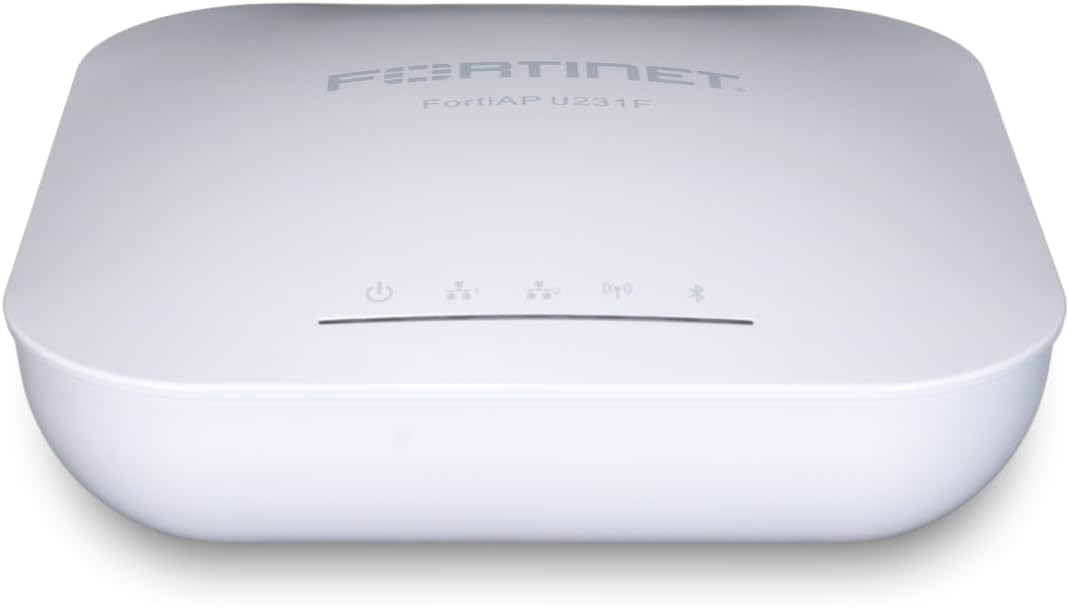
Figure 3.1: Top view of the FortiAP U231F showing the Fortinet logo and indicator LEDs.
This image displays the top surface of the FortiAP U231F, highlighting the Fortinet branding and the row of status indicator lights. These LEDs provide visual feedback on the device's operational status, including power, Wi-Fi activity, and network connectivity.

Figure 3.2: FortiAP U231F highlighting key Wi-Fi 6 features.
This image shows the FortiAP U231F alongside icons representing its key features: 802.11ax Wi-Fi 6, 4x4 MU-MIMO, OFDMA, and Enhanced Target Wake Time. These features contribute to improved wireless performance, efficiency, and battery life for connected devices.
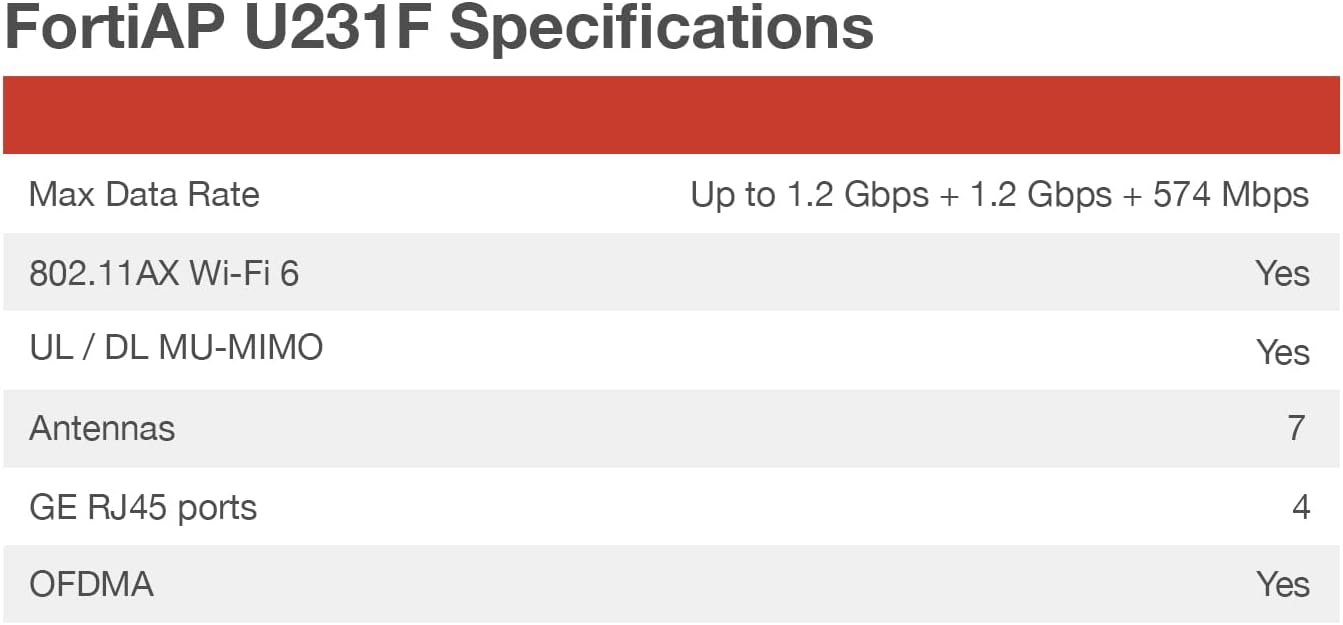
Figure 3.3: Rear view of the FortiAP U231F displaying connectivity ports.
This image provides a detailed view of the rear panel of the FortiAP U231F. Visible ports include LAN1/PoE, LAN2, a DC power input, a USB port, and a Console port. The LAN1/PoE port supports Power over Ethernet for simplified installation.
LED Indicators
The FortiAP U231F includes several LED indicators to provide status information:
- Power LED: Indicates power status.
- Wi-Fi LED: Indicates wireless activity.
- Network LED: Indicates network connectivity status.
- Bluetooth LED: Indicates Bluetooth Low Energy (BLE) activity.
4. Installation and Setup
This section outlines the steps for physically installing and initially setting up your FortiAP U231F.
4.1 Mounting the Access Point
The FortiAP U231F can be mounted on a wall or ceiling. Use the provided mounting bracket and hardware. Ensure the mounting location is central to the desired coverage area and away from obstructions or sources of interference.
- Secure the mounting bracket to the desired surface using appropriate screws.
- Align the FortiAP U231F with the mounting bracket and slide it into place until it clicks securely.
4.2 Powering the Device
The FortiAP U231F supports Power over Ethernet (PoE) or can be powered via a DC power adapter (sold separately).
- PoE: Connect an Ethernet cable from a PoE-enabled switch or injector to the LAN1/PoE port on the FortiAP.
- DC Power: Connect a compatible DC power adapter to the power input port on the FortiAP, then plug the adapter into a power outlet.
Upon successful power-up, the Power LED will illuminate.
4.3 Network Connection
Connect the FortiAP U231F to your network infrastructure.
- Connect an Ethernet cable from your network switch or router to either the LAN1/PoE or LAN2 port on the FortiAP.
- If using PoE, ensure the LAN1/PoE port is used for both power and data.
5. Initial Configuration and Operation
The FortiAP U231F is typically managed by a FortiGate firewall or FortiManager. Refer to the FortiGate or FortiManager documentation for detailed configuration steps.
5.1 Management Modes
The FortiAP U231F supports various management modes:
- Tunnel Mode: All wireless traffic is encapsulated and sent to the FortiGate.
- Bridge Mode: Wireless traffic is bridged directly to the local network segment.
- Mesh Mode: Allows the AP to connect wirelessly to other APs to extend network coverage.
5.2 Wireless Network Configuration
Configure SSIDs (Service Set Identifiers), security settings (WPA2/WPA3), and other wireless parameters through your FortiGate or FortiManager interface. The FortiAP U231F supports tri-band operation, allowing for flexible deployment of 2.4 GHz and dual 5 GHz networks.
The integrated BLE radio can be utilized for beaconing and location-based applications, configured via the management interface.
6. Maintenance
Regular maintenance ensures the longevity and optimal performance of your FortiAP U231F.
6.1 Firmware Updates
Keep the FortiAP firmware updated to the latest version. Firmware updates often include performance enhancements, security patches, and new features. Updates are typically managed through the connected FortiGate or FortiManager.
6.2 Cleaning
Periodically clean the exterior of the access point with a soft, dry cloth. Do not use liquid or aerosol cleaners, as they may damage the device.
6.3 Environmental Considerations
Ensure the operating environment remains within specified temperature and humidity ranges to prevent damage and ensure stable operation.
7. Troubleshooting
This section provides solutions to common issues you might encounter with your FortiAP U231F.
7.1 No Power
- Check Power Source: Ensure the power adapter is securely plugged into the device and a working electrical outlet, or that the PoE switch/injector is providing power to the Ethernet cable connected to LAN1/PoE.
- Verify Cables: Ensure all power and Ethernet cables are properly connected.
7.2 No Network Connectivity
- Check Ethernet Connection: Verify the Ethernet cable is securely connected to the FortiAP's LAN port and the network switch/router.
- Verify Network Configuration: Ensure the FortiAP is correctly configured on your FortiGate or FortiManager, and that it has obtained an IP address.
- Firewall Rules: Check if any firewall rules are blocking communication between the FortiAP and the management device or network resources.
7.3 Poor Wireless Performance
- Location: Ensure the AP is mounted in an optimal location, free from physical obstructions and sources of interference (e.g., microwaves, cordless phones).
- Channel Interference: Use a Wi-Fi analyzer to identify and select less congested wireless channels.
- Firmware: Ensure the FortiAP has the latest firmware installed.
- Client Devices: Verify that client devices support Wi-Fi 6 (802.11ax) for optimal performance.
8. Specifications
Detailed technical specifications for the Fortinet FortiAP U231F.

Figure 8.1: Visual representation of FortiAP U231F key specifications.
This image presents a table summarizing the core specifications of the FortiAP U231F, including Max Data Rate, Wi-Fi standard, MU-MIMO support, number of antennas, GE RJ45 ports, and OFDMA support. This provides a quick overview of the device's capabilities.
| Feature | Detail |
|---|---|
| Model Name | FortiAP U231F |
| Wireless Communication Standard | 802.11ax (Wi-Fi 6) |
| Frequency Band Class | Tri-Band (2.4 GHz, 5 GHz, 5 GHz) |
| Max Data Rate | Up to 1.2 Gbps + 1.2 Gbps + 574 Mbps (Aggregate) |
| Antennas | Internal, 7 total |
| GE RJ45 Ports | 2 (with PoE diversity on LAN1/PoE) |
| OFDMA | Yes |
| MU-MIMO | Yes (UL / DL MU-MIMO) |
| Special Feature | Access Point Mode, Integrated BLE radio |
| Connectivity Technology | USB, Wi-Fi, Ethernet |
| Compatible Devices | Laptop, Personal Computer, Smartphone, Tablet |
| Package Dimensions | 7 x 7 x 2 inches |
| Item Weight | 1.5 lbs |
| Manufacturer | Fortinet |
9. Safety Information
Observe the following safety precautions to prevent damage to the device and ensure personal safety.
- Do not expose the device to water or excessive humidity.
- Do not open or attempt to repair the device. Refer all servicing to qualified personnel.
- Use only the power adapter supplied or approved by Fortinet, or a compliant PoE source.
- Ensure proper ventilation around the device to prevent overheating.
10. Warranty and Support
For warranty information and technical support, please refer to the official Fortinet website or contact your authorized Fortinet reseller.
- Fortinet Support: https://support.fortinet.com
- Fortinet Website: https://www.fortinet.com
Protection plans are available for purchase separately, offering extended coverage for your device. These plans are provided by third-party services and can be found on the product's retail page.


