
1. Introduction
Thank you for choosing the LB-Link BL-WN150AH Long-Range USB Adapter. This device is designed to provide your desktop computer with high-speed wireless connectivity, extending your Wi-Fi range and improving signal stability. This manual will guide you through the installation, operation, and maintenance of your new adapter.
2. Package Contents
Please check the package carefully to ensure all items are present. If any item is missing or damaged, please contact your retailer.
- LB-Link BL-WN150AH Long-Range USB Adapter
- Detachable High-Gain Antenna (5dBi)
- Resource CD (Drivers and User Manual)
- Quick Installation Guide
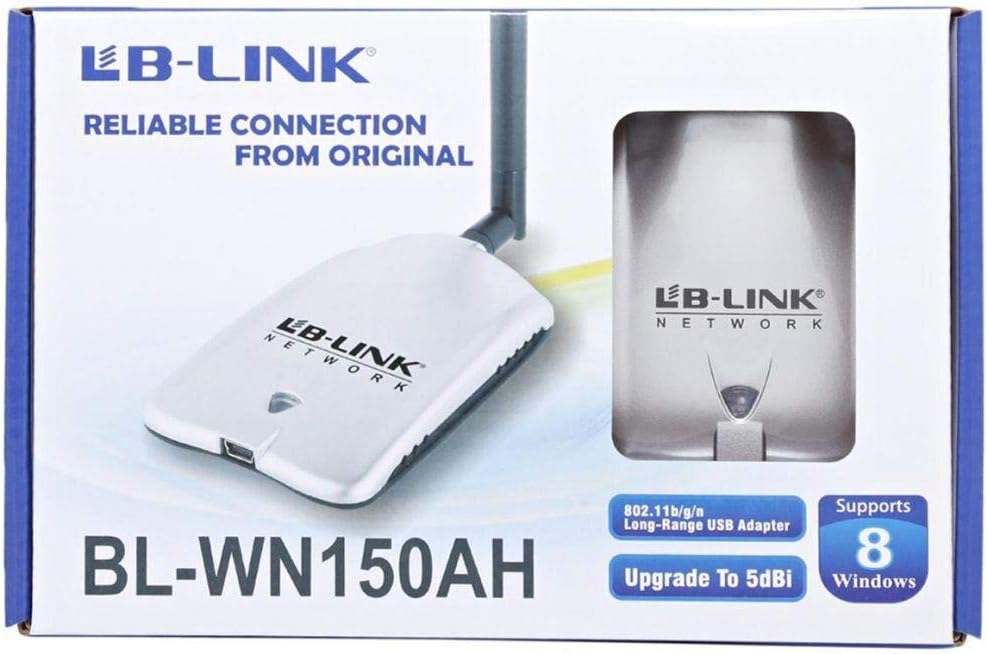
Figure 2.1: Product packaging showing the adapter and its features.
3. Product Overview
The BL-WN150AH is a compact USB adapter with an external antenna for enhanced signal reception. Familiarize yourself with its components:
- USB Connector: Used to connect the adapter to your computer's USB port.
- Antenna Connector: For attaching the detachable high-gain antenna.
- LED Indicator: Lights up when the adapter is powered on and blinks during data transmission.
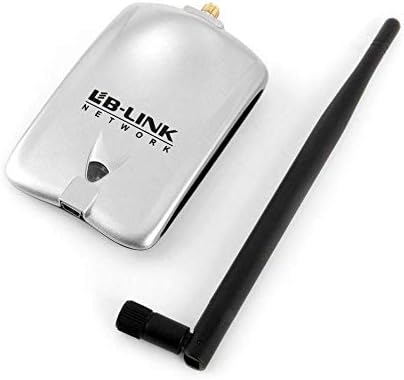
Figure 3.1: The BL-WN150AH adapter and its detachable antenna.
4. Setup
4.1 Driver Installation
Before connecting the adapter, install the necessary drivers from the provided Resource CD or download the latest drivers from the official LB-Link website.
- Insert the Resource CD into your computer's CD/DVD drive.
- Follow the on-screen instructions to run the setup wizard.
- Select the appropriate driver for your operating system (Windows XP/Vista/7/8, Mac OSX, Linux).
- Complete the installation process. You may be prompted to restart your computer.

Figure 4.1: Supported operating systems including Windows XP, Vista, 7, 8, Mac OSX, and Linux.
4.2 Hardware Connection
- Attach the detachable antenna to the antenna connector on the adapter by screwing it clockwise until secure.
- Plug the LB-Link BL-WN150AH USB Adapter into an available USB port on your desktop computer.
- The LED indicator on the adapter should light up, indicating it is powered on.
4.3 Connecting to a Wi-Fi Network
- Once the drivers are installed and the adapter is connected, your computer should detect the new wireless adapter.
- Open your computer's wireless network settings (e.g., Wi-Fi icon in the system tray for Windows).
- Select your desired Wi-Fi network from the list of available networks.
- Enter the network security key (password) if prompted.
- Click 'Connect'. The adapter's LED will blink rapidly during data transmission.
5. Operating Instructions
After successful connection, the adapter will automatically maintain the wireless link. You can monitor the connection status through your operating system's network utility.
- Signal Strength: The network utility will display the current signal strength, which is influenced by distance from the router and obstacles.
- Network Speed: The adapter supports up to 150Mbps wireless N speeds. Actual speeds may vary based on network conditions.
6. Maintenance
To ensure optimal performance and longevity of your LB-Link BL-WN150AH USB Adapter, follow these maintenance guidelines:
- Cleaning: Use a soft, dry cloth to clean the adapter. Do not use liquid or aerosol cleaners.
- Storage: Store the adapter in a cool, dry place away from direct sunlight and extreme temperatures.
- Handling: Avoid dropping or subjecting the adapter to strong impacts.
- Antenna Care: Ensure the antenna is securely attached but do not overtighten. Avoid bending or forcing the antenna.
7. Troubleshooting
If you encounter issues with your LB-Link BL-WN150AH USB Adapter, refer to the following common problems and solutions:
- No Wi-Fi Networks Detected:
Solution: Ensure the adapter is properly plugged into a USB port. Verify that the drivers are correctly installed. Check if your router is powered on and broadcasting a Wi-Fi signal. - Cannot Connect to a Network:
Solution: Double-check the Wi-Fi password. Ensure your router's security settings (WPA/WPA2) are compatible. Try restarting your computer and router. - Slow Connection Speed:
Solution: Move closer to your wireless router. Ensure there are no major obstructions (e.g., thick walls, metal objects) between the adapter and the router. Update the adapter's drivers to the latest version. - Adapter Not Recognized by Computer:
Solution: Try plugging the adapter into a different USB port. Reinstall the drivers. Check Device Manager (Windows) to see if the adapter is listed without errors.
8. Specifications
Detailed technical specifications for the LB-Link BL-WN150AH Long-Range USB Adapter:
| Feature | Description |
|---|---|
| Model | BL-WN150AH |
| Brand | LB-Link |
| Hardware Interface | USB |
| Wireless Standards | IEEE 802.11b/g/n |
| Data Rate | Up to 150Mbps (802.11n) |
| Antenna Type | Detachable 5dBi Omni-directional Antenna |
| Compatible Devices | Desktop PC |
| Supported Operating Systems | Windows XP, Windows Vista, Windows 7, Windows 8, Mac OSX, Linux |
| Manufacturer | LB-Link |

Figure 8.1: Product specifications listed on the side of the packaging.
9. Warranty and Support
LB-Link products are designed for reliability and performance. This product comes with a standard manufacturer's warranty. Please refer to the warranty card included in your package for specific terms and conditions.
For technical support, driver updates, or further assistance, please visit the official LB-Link website or contact their customer service. Keep your purchase receipt for warranty claims.
UPC: 7966241501344


