
1. Introduction
This manual provides instructions for the proper use and maintenance of your Mocute 053 Bluetooth Gamepad. Please read this manual thoroughly before operating the device to ensure optimal performance and longevity.
2. Package Contents
The Mocute 053 Bluetooth Gamepad package typically includes:
- Mocute 053 Bluetooth Gamepad
- USB Charging Cable (may vary)
- User Manual (this document)
3. Product Overview
Familiarize yourself with the various components and controls of your Mocute 053 Bluetooth Gamepad.

Figure 3.1: Front view of the Mocute 053 Bluetooth Gamepad, showing the dual analog sticks, D-pad, action buttons (A, B, X, Y), START, SELECT, and M buttons.

Figure 3.2: Top view of the Mocute 053 Bluetooth Gamepad, highlighting the shoulder buttons (L1, R1) and trigger buttons (L2, R2).
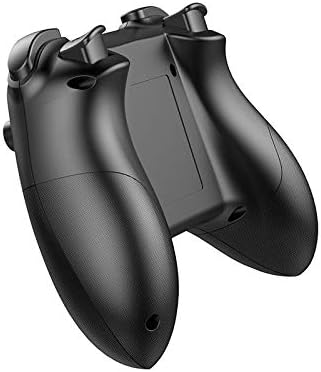
Figure 3.3: Back view of the Mocute 053 Bluetooth Gamepad, showing the ergonomic grips and the battery compartment/charging port area.
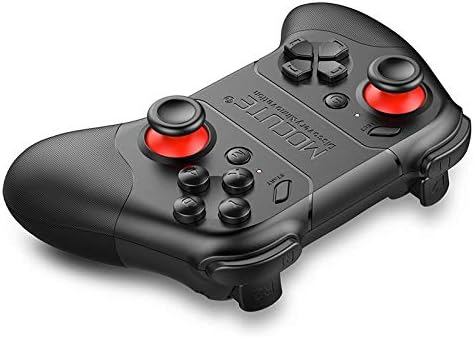
Figure 3.4: Angled view of the Mocute 053 Bluetooth Gamepad, illustrating its overall design and button layout from a different perspective.
Key Components:
- Analog Sticks: For precise 360-degree movement.
- D-Pad: Directional pad for digital input.
- Action Buttons (A, B, X, Y): For in-game actions.
- Shoulder Buttons (L1, R1) & Triggers (L2, R2): Additional control inputs.
- START/SELECT Buttons: Standard gamepad functions.
- M Button: Mode switching or special function button.
- Power Button: To turn the gamepad on/off.
- LED Indicators: For connection status, charging, and mode.
- Phone Holder: Integrated bracket to secure a mobile device.
- Charging Port: For recharging the internal battery.
4. Setup
4.1. Charging the Gamepad
- Connect the provided USB charging cable to the gamepad's charging port.
- Connect the other end of the USB cable to a USB power source (e.g., computer, USB wall adapter).
- The LED indicator will typically show a charging status (e.g., red light) and turn off or change color when fully charged.
- A full charge provides approximately 40 hours of operation.
4.2. Pairing with Android Devices
- Ensure the gamepad is sufficiently charged.
- Press and hold the Power button (and potentially a specific mode button, refer to gamepad markings) to turn on the gamepad and enter pairing mode. The LED indicator will flash rapidly.
- On your Android device, go to Settings > Bluetooth.
- Turn on Bluetooth and scan for available devices.
- Select "Mocute-053" or a similar name from the list of available devices.
- Once paired, the LED indicator on the gamepad will stop flashing and remain solid.
4.3. Pairing with iPhone Devices
- Ensure the gamepad is sufficiently charged.
- Press and hold the Power button (and potentially a specific mode button for iOS, refer to gamepad markings) to turn on the gamepad and enter pairing mode. The LED indicator will flash rapidly.
- On your iPhone, go to Settings > Bluetooth.
- Turn on Bluetooth.
- Select "Mocute-053" or a similar name from the list of available devices.
- Once paired, the LED indicator on the gamepad will stop flashing and remain solid.
4.4. Mounting a Mobile Device
The Mocute 053 features an integrated bracket for holding your smartphone.
- Gently extend the phone holder bracket located on the top of the gamepad.
- Carefully place your smartphone into the bracket, ensuring it is securely held without excessive force.
- Adjust the angle for optimal viewing during gameplay.
5. Operating Instructions
5.1. Power On/Off
- To Power On: Press and hold the Power button until the LED indicator lights up.
- To Power Off: Press and hold the Power button until the LED indicator turns off. The gamepad will also automatically power off after a period of inactivity to conserve battery.
5.2. Mode Switching (if applicable)
Some games or applications may require different operating modes. The Mocute 053 may support various modes (e.g., standard gamepad mode, mouse mode, media control mode). Refer to the specific instructions provided with your gamepad or experiment with the 'M' button or combinations of buttons (e.g., Power + A, Power + B) to switch modes. The LED indicators often change to reflect the current mode.
5.3. Gameplay
Once paired and in the correct mode, your gamepad is ready for use with compatible games and applications. The functionality of each button and stick will depend on the specific game's controls. Most modern games automatically detect and configure gamepads.
- Use the Analog Sticks for movement and camera control.
- Use the D-Pad for directional input, especially in retro games or menu navigation.
- Utilize the Action Buttons (A, B, X, Y) for primary in-game actions like jumping, attacking, or interacting.
- The Shoulder Buttons (L1, R1) and Triggers (L2, R2) are commonly used for secondary actions, aiming, or firing.
6. Maintenance
6.1. Cleaning
- Wipe the gamepad with a soft, dry cloth.
- For stubborn dirt, slightly dampen the cloth with water or a mild, non-abrasive cleaner.
- Do not use harsh chemicals, solvents, or abrasive materials, as these can damage the surface.
- Ensure no liquid enters the device through button gaps or ports.
6.2. Storage
- Store the gamepad in a cool, dry place away from direct sunlight and extreme temperatures.
- Avoid placing heavy objects on the gamepad.
- If storing for an extended period, ensure the battery is partially charged (around 50%) to prolong its lifespan.
6.3. Battery Care
- The gamepad uses a built-in lithium rechargeable battery.
- Avoid fully discharging the battery frequently.
- Charge the battery regularly, even if not in use, to maintain its health.
- Do not attempt to replace the battery yourself. Contact support if battery issues arise.
7. Troubleshooting
7.1. Gamepad Does Not Power On
- Ensure the battery is charged. Connect the gamepad to a power source and allow it to charge for at least 30 minutes before attempting to power on again.
- Verify that the power button is being pressed and held correctly.
7.2. Unable to Pair with Device
- Make sure Bluetooth is enabled on your mobile device.
- Ensure the gamepad is in pairing mode (LED flashing rapidly). If not, power off and then power on again, holding the appropriate button combination for pairing.
- Move the gamepad closer to your device.
- Forget or unpair any previously connected Mocute-053 devices from your phone's Bluetooth settings and try pairing again.
- Restart both your mobile device and the gamepad.
7.3. Gamepad Connects but Does Not Respond in Game
- Check if the game you are playing supports external gamepads.
- Ensure the gamepad is in the correct operating mode for the game (e.g., Android standard mode, iOS mode). Refer to the game's settings or the gamepad's specific mode switching instructions.
- Some games may require specific mapping or configuration within their settings.
- Try disconnecting and reconnecting the gamepad.
7.4. Buttons or Sticks Not Responding Correctly
- Perform a factory reset on the gamepad if available (check for a small reset button or specific button combination).
- Ensure the gamepad is clean and free from debris that might obstruct button movement.
- If the issue persists, it may indicate a hardware malfunction.
8. Specifications
| Feature | Detail |
|---|---|
| Model | Mocute 053 |
| Connectivity | Bluetooth |
| Compatibility | Android and iPhone systems |
| Battery Type | Lithium rechargeable battery |
| Battery Capacity | 400 mAh |
| Operating Time | Up to 40 hours (on a full charge) |
| Integrated Feature | Internal bracket to hold phones |
| Package Dimensions | 210 x 130 x 60 cm |
| Weight | 200 g |
9. Warranty and Support
For warranty information or technical support, please refer to the documentation provided at the time of purchase or contact your retailer. Keep your proof of purchase for any warranty claims.
