
NETUM NT-1809
NETUM Bluetooth Receipt Printer
Model: NT-1809
Portable 58mm Mini Thermal POS Printer
Introduction
Thank you for choosing the NETUM Bluetooth Receipt Printer, Model NT-1809. This portable 58mm thermal printer is designed for efficient and convenient receipt printing in various environments. It offers seamless connectivity via Bluetooth and USB, making it compatible with a wide range of devices including Android, iOS, Windows, and Linux systems. This manual provides detailed instructions on setting up, operating, maintaining, and troubleshooting your printer to ensure optimal performance.

The NETUM Bluetooth Receipt Printer, showcasing its compact design and a sample receipt indicating NFC and Bluetooth connectivity.
Key Features
- Excellent Compatibility: Supports Loyverse (Android), iReap, Pozool, Kyte, CasierStock, PAYPAL (Android), Vyapar (Android), Fair Crat, Kasse Speedy, Tab Shop Lite, Orderlyze, Breakforyou. Compatible with Android & iOS operating systems, Windows, and Linux.
- Cost-Effective: Utilizes thermal printing technology, eliminating the need for ink, ribbons, or cartridges. Only requires 58x30mm thermal paper.
- Wide Applications: Ideal for TAXI bill printing, administrative fees, post receipts, restaurant ordering, online payment information, and other outdoor working environments.
- Long Standby Time: Equipped with a built-in 2000mAh rechargeable battery, offering up to 7 days of standby time. Features auto-sleep and auto-awake functions for power saving.
- High-Speed Printing: Achieves print speeds of up to 70mm/sec with a resolution of 203DPI.
- Compact and Lightweight Design: Easy to carry and use in various settings.

The compact and lightweight design of the printer, with dimensions of 118 x 83 x 59mm and a weight of 260g, highlighting its portability.
Package Contents
Upon opening the package, please ensure all the following items are present:
- NETUM Bluetooth Receipt Printer (Model NT-1809)
- Thermal Paper Roll (58mm width)
- USB Charging Cable
- User Manual (this document)
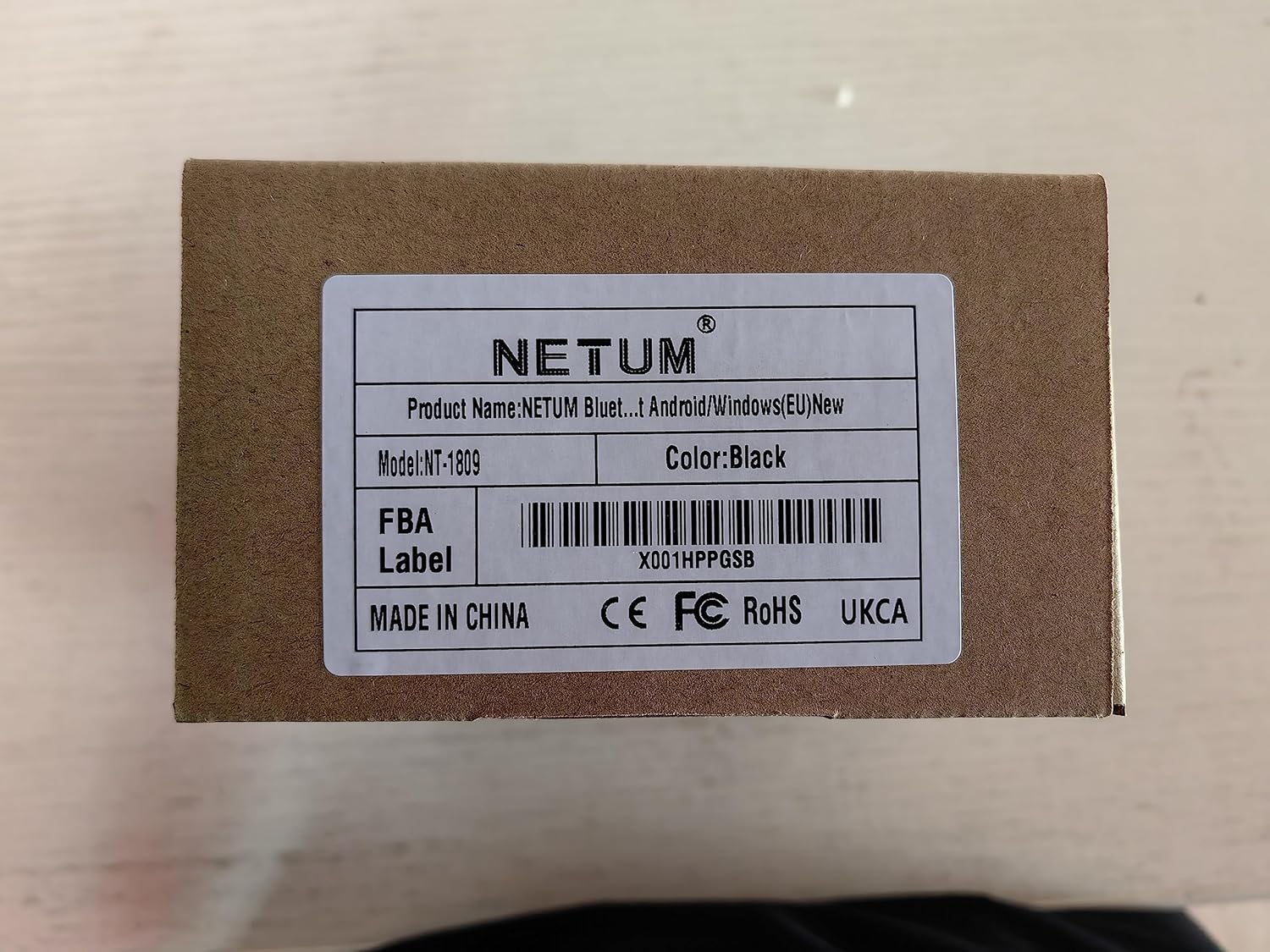
The product packaging, indicating the model number NT-1809 and other product details.
Setup Guide
- Charge the Printer: Before first use, ensure the printer is fully charged. Connect the provided USB charging cable to the printer's charging port and a compatible USB power adapter (DC 5V/2A). The "CHARGE" indicator light will show charging status.
- Remove Battery Insulating Tape: For safety during storage and transportation, a piece of insulating tape is placed on the metal contacts of the Li-ion battery. Please open the battery compartment and remove this tape before turning on the printer for the first time.
- Load Thermal Paper:
- Open the paper compartment cover by sliding the latch or pressing the release button.
- Insert the 58mm thermal paper roll with the printing side facing the thermal print head. Ensure the paper feeds smoothly.
- Close the paper compartment cover firmly until it clicks into place. Leave a small amount of paper protruding from the slot.
- Power On: Press and hold the power button (⑁) until the indicator lights illuminate.

The printer's indicators, including the charge status, and a visual representation of its 2000mAh battery capacity and 6-hour continuous operation.
Operation
The NETUM NT-1809 printer supports both Bluetooth and USB connectivity for versatile use.
Bluetooth Connection (Recommended for Mobile Devices)
- Install a Compatible Application: The printer cannot be discovered directly by your device's built-in Bluetooth function. You must use a compatible printing application (e.g., Loyverse, iReap, Pozool, Kyte, etc.) to search for and establish the connection.
- Enable Bluetooth: Ensure Bluetooth is enabled on your smartphone or tablet.
- Search for Printer: Open your chosen printing application. Navigate to the printer settings or connection section within the app. Search for available Bluetooth devices.
- Select and Pair: Select "58mm Printer" or a similar device name from the list. The application will handle the pairing process.
- Test Print: Once connected, perform a test print from the application to confirm functionality.

Instructions on how to connect the printer via Bluetooth, illustrating that a dedicated POS application is required for discovery and pairing, not the device's native Bluetooth settings.
USB Connection (Recommended for PC/Laptop)
- Connect Cable: Use the provided USB cable to connect the printer to your computer's USB port.
- Install Driver: For Windows and Linux systems, you may need to install the appropriate printer driver. Drivers are typically available on the NETUM official website or included on a mini-CD (if provided with your package).
- Set as Default Printer: After driver installation, set the NETUM printer as your default printer in your operating system's settings.
- Print: You can now print directly from any application on your PC or laptop.

The printer's broad compatibility with different operating systems and devices, including iOS, Android, Windows, and Linux, supporting both Bluetooth and USB modes.
Maintenance
- Cleaning the Print Head: Regularly clean the thermal print head with an alcohol swab or a specialized print head cleaning pen. Ensure the printer is off and cooled down before cleaning.
- Paper Handling: Use only high-quality 58mm thermal paper. Store paper rolls in a cool, dry place away from direct sunlight to prevent fading.
- Battery Care: To prolong battery life, avoid fully discharging the battery frequently. Charge the printer regularly, even if not in constant use.
- General Cleaning: Wipe the exterior of the printer with a soft, dry cloth. Avoid using harsh chemicals or abrasive materials.
Troubleshooting
| Problem | Possible Cause | Solution |
|---|---|---|
| Printer does not power on. | Low battery; Insulating tape on battery; Power button not pressed long enough. | Charge the printer; Remove insulating tape from battery; Press and hold power button for 3-5 seconds. |
| Cannot connect via Bluetooth. | Not using a compatible POS application; Bluetooth not enabled; Printer out of range. | Use a supported POS application for connection; Ensure Bluetooth is on; Move printer closer to device. |
| No print output / Blank paper. | Paper loaded incorrectly (upside down); No paper; Print head dirty. | Re-load paper with printing side facing print head; Load new paper roll; Clean print head. |
| Print quality is poor. | Print head dirty; Low battery; Poor quality thermal paper. | Clean print head; Charge printer; Use recommended thermal paper. |
| "ERROR" indicator light is on. | Paper out; Print head overheating; Cover open. | Load paper; Allow printer to cool down; Ensure paper cover is closed properly. |
Technical Specifications
| Feature | Detail |
|---|---|
| Model Name | NT-1809 |
| Printing Technology | Thermal Line Printing |
| Print Speed | 70mm/sec |
| Resolution | 203DPI (8 dots/mm) |
| Print Width | 48mm |
| Paper Type | Thermal Roll Paper |
| Paper Width | 57.5 ± 0.5mm |
| Paper Roll Diameter | φ ≤ 40mm |
| Paper Thickness | 0.06-0.08mm |
| Interfaces | USB / Bluetooth 4.0 |
| Print Command | ESC/POS |
| Battery | 7.4VDC/2000mAh Lithium Polymer |
| Charging Mode | DC 5V/2A |
| Standby Time | Up to 4 days (after fully charged) |
| Continuous Printing | 120 pieces Thermal Roll (for fully charged battery) |
| Compatible Systems | Android, iOS, Windows, Linux |
| Product Dimensions | 5.55 x 7.09 x 2.83 inches (14.1 x 18.0 x 7.2 cm) |
| Item Weight | 11.3 ounces (320 grams) |
Warranty and Support
NETUM products are designed for reliability and performance. For any technical assistance, warranty claims, or product inquiries, please contact NETUM customer support through the official channels provided with your purchase or visit the NETUM Brand Store on Amazon. Please retain your proof of purchase for warranty purposes.

The official NETUM brand logo.
Ask a question about this manual
Ask about setup, troubleshooting, compatibility, parts, safety, or missing instructions. Manuals+ will review the question and use this page’s manual context to help answer it.