
PTHTECHUS 4G 2021
PTHTECHUS 4G Smartwatch Phone for Children - User Manual
Model: 4G 2021
Brand: PTHTECHUS
Introduction
This manual provides comprehensive instructions for the setup, operation, and maintenance of your PTHTECHUS 4G Smartwatch Phone for Children. Please read this manual thoroughly before using the device to ensure proper functionality and safety.
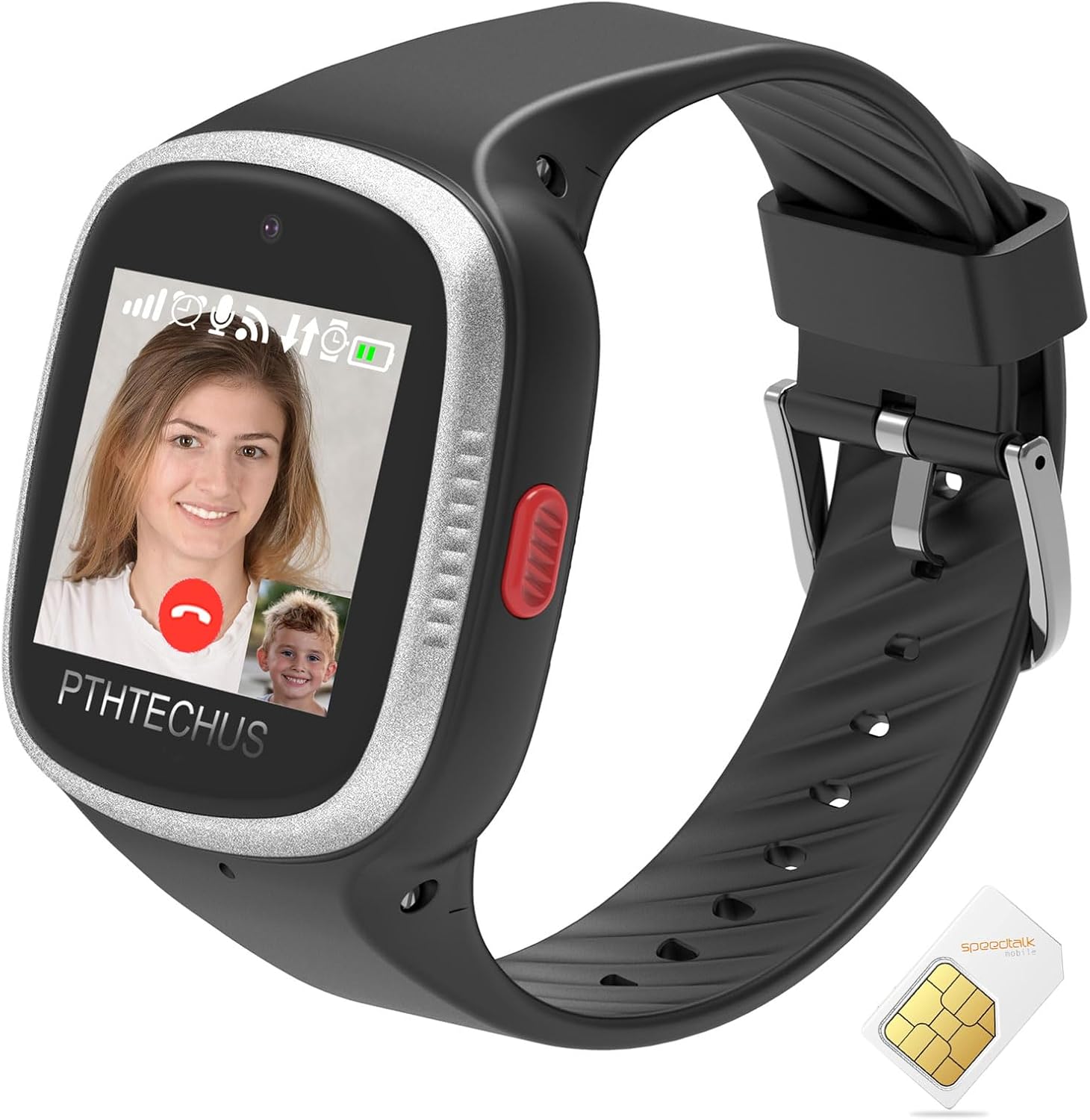
Figure 1: PTHTECHUS 4G Smartwatch Phone (Black model)
Package Contents
Upon opening the package, verify that all items listed below are present:
- 1 x 4G Kids Smart Watch
- 1 x Data Line (Charging Cable)
- 1 x SIM Install Card (Tool for SIM insertion)
- 1 x Instruction Manual (This document)
Video 1: PTHTECHUS 4G 2021 Smartwatch Unboxing Video. This video demonstrates the contents of the product package.
Setup
1. SIM Card Installation
The smartwatch requires a Nano SIM card with a data plan and call function for full functionality. Please ensure the watch is powered off before inserting the SIM card.
- Turn off the smartwatch completely.
- Locate the SIM card slot on the side or back of the watch (refer to Figure 2 for typical location).
- Carefully insert the Nano SIM card into the slot using the provided SIM install card or a similar tool, ensuring correct orientation.
- Securely close the SIM slot cover to maintain water resistance.
- Power on the watch and check for network signal reception.

Figure 2: Product Specifications and SIM Card Slot Location.
Video 2: PTHTECHUS 4G 2021 Kids Smartwatch How to Insert SIM Card. This video provides a visual guide for SIM card installation.
2. Charging the Smartwatch
Before initial use, fully charge the smartwatch. Use the provided data line and a compatible USB power adapter (not included).
- Connect the charging cable to the charging port on the smartwatch. Ensure the metal contacts align properly.
- Plug the USB end of the cable into a power source (e.g., computer USB port, wall adapter).
- The watch screen will indicate charging status. Allow sufficient time for a full charge.
Video 3: PTHTECHUS 4G 2021 Kids GPS Smartwatch How to Charging. This video demonstrates the correct charging procedure.
3. App Download and Registration
To manage the smartwatch features and communicate with the device, download the dedicated mobile application. The recommended app is "SeTracker".
- Scan the QR code provided in the user guide (or on the watch itself) to download the "SeTracker" app.
- Register an account within the app. When registering, select "North America Area" or the correct region for your location.
- Follow the in-app instructions to bind the smartwatch to your account.
Operating Instructions
Basic Functions Overview
The PTHTECHUS 4G Smartwatch offers a range of features designed for children's safety and communication:
- Real-Time GPS Position: Track the watch's location via the app.
- Two-Way Call: Make and receive calls from pre-approved contacts.
- SOS Function: Pressing the SOS button for 5 seconds will trigger an emergency call to pre-set family numbers and send a message to guardians.
- Voice Message: Send and receive short voice messages.
- Flashlight: Built-in flashlight for convenience.
- Camera & Photo Album: Capture photos and view them on the watch.
- Alarm Clock: Set reminders.
- Class Mode: Disable certain functions during school hours to prevent distractions.
- Safety Fence: Set virtual boundaries and receive alerts if the watch leaves or enters the designated area.
- Pedometer: Track steps and activity.
- Historical Route: View past location data.

Figure 3: Overview of Smartwatch Features.
Making and Receiving Calls
The smartwatch supports two-way calling with contacts saved in the app. Ensure a working SIM card is installed and has an active call function.
- To make a call: Navigate to the 'Phone' or 'Contact' application on the watch, select a contact, and initiate the call.
- To receive a call: The watch will ring when an incoming call is received. Tap the green answer button to accept.
Video 4: Dial Test Watch Signal. This video demonstrates how to dial a number from the smartwatch to test the signal.
Video Calls and Voice Messages
The smartwatch supports high-definition video calls and voice messages, providing convenient communication between the child and guardians.
- Video Calls: Initiate video calls through the dedicated 'Video Call' app on the watch. Requires a 4G network connection.
- Voice Messages: Use the 'Voice Chat' feature to send and receive short audio messages.

Figure 4: High-definition video calling feature.

Figure 5: Voice message communication.
GPS Location and Safety Features
The smartwatch integrates GPS, LBS, and Wi-Fi positioning for accurate location tracking. Safety features include SOS calling and geofencing.
- GPS/LBS/Wi-Fi Locator: Monitor the child's location in real-time through the companion app.
- SOS Calling: In an emergency, pressing and holding the SOS button for more than 5 seconds will automatically dial pre-set emergency contacts and send an alert message.
- Safety Fence (Geofence): Define safe zones (e.g., home, school) on the app. You will receive notifications if the watch enters or exits these areas.

Figure 6: GPS + WiFi + LBS Location Tracking.
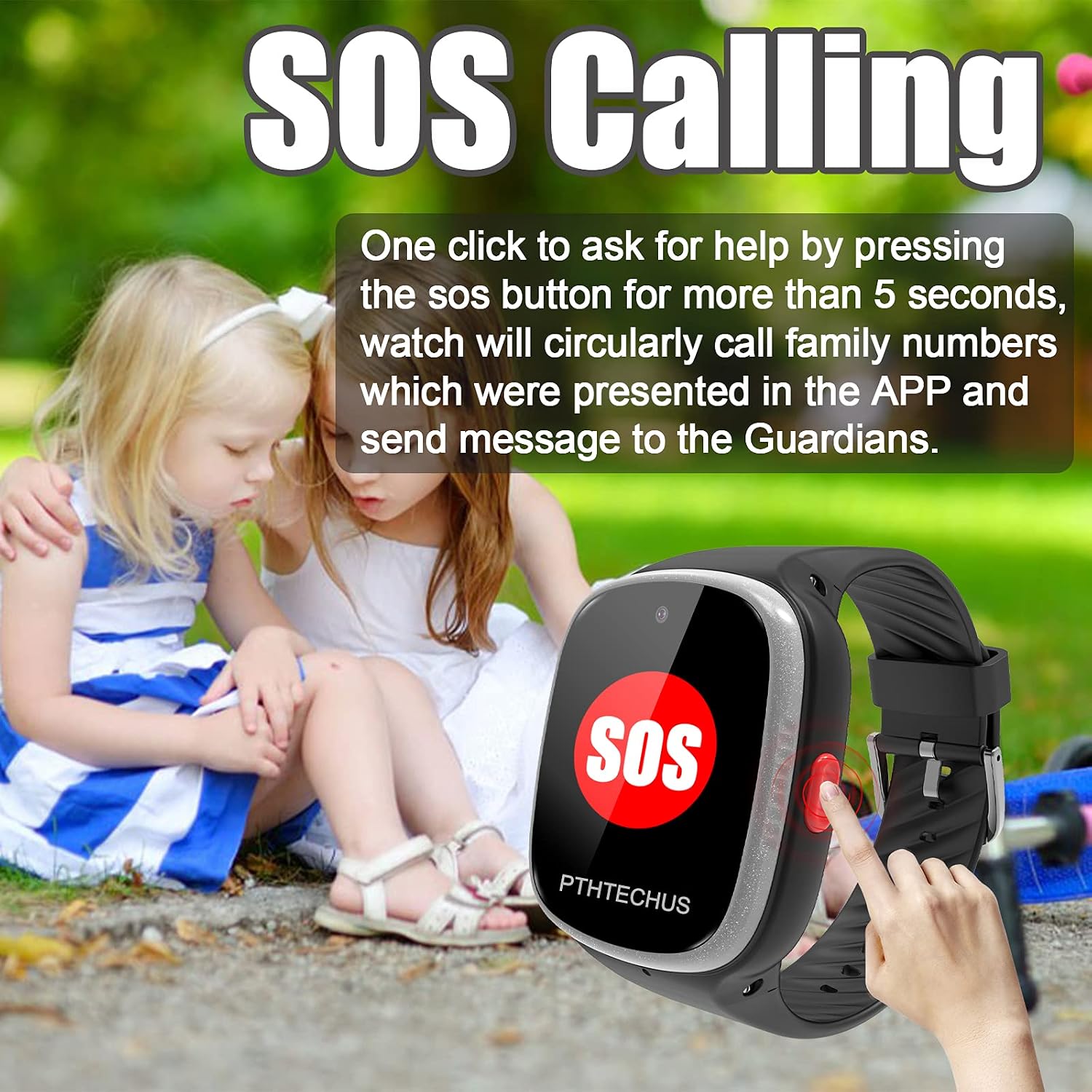
Figure 7: SOS Calling feature for emergencies.
Camera and Photo Album
The smartwatch is equipped with a 2.0MP camera, allowing children to capture moments and view them in the photo album.

Figure 8: HD Camera and Photo Album.
Pedometer and Activity Tracking
The built-in pedometer tracks steps, distance, and can monitor sleep, providing insights into the child's daily activity levels.

Figure 9: Fitness Tracker and Pedometer.
Class Mode (Do Not Disturb)
Parents can set specific "Do Not Disturb" periods, such as class time, during which certain watch functions are restricted to ensure the child's focus in school.

Figure 10: Class Mode settings.
Connecting to Wi-Fi
The smartwatch can connect to Wi-Fi networks for data communication, which can be useful in areas with limited cellular coverage or to conserve cellular data.
- From the watch's main screen, swipe to find and tap the 'Settings' icon.
- In the Settings menu, select 'Wi-Fi'.
- Toggle the Wi-Fi switch to 'On'. The watch will scan for available networks.
- Select your desired Wi-Fi network from the list and enter the password if prompted.
- Once connected, the watch will display 'Connected' next to the network name.
Video 5: PTHTECHUS 4G 2021 Kids Smartwatch How to Connect WIFI. This video guides you through connecting the smartwatch to a Wi-Fi network.
User Interface Overview
Familiarize yourself with the smartwatch's user interface to easily navigate through its various applications and settings.
Video 6: 2021 NEW 4G Kids GPS Smartwatch Phone UI Operation Interface. This video provides a walkthrough of the smartwatch's user interface.
Maintenance
Water Resistance
The smartwatch is rated IP67 waterproof, meaning it is resistant to splashes and brief immersion in water. However, it is not steam-proof and should not be used in hot water or for prolonged swimming.
- Ensure the SIM card slot cover is tightly closed to maintain water resistance.
- Do not put the watch in hot water.
- Avoid prolonged submersion (e.g., over 30 minutes) or depths greater than 0.5 meters.
- Remove the watch before taking a shower, especially with hot water, as steam can damage the device.

Figure 11: IP67 Waterproof Design.
Cleaning and Care
To ensure the longevity of your smartwatch, follow these cleaning and care guidelines:
- Wipe the watch regularly with a soft, damp cloth.
- Avoid using harsh chemicals or abrasive cleaners.
- Keep the charging contacts clean and dry.
- Store the watch in a cool, dry place when not in use.
Troubleshooting
This section addresses common issues you might encounter with your PTHTECHUS 4G Smartwatch. If the problem persists, please contact customer support.
No Network Signal / SIM Card Not Detected
- Check SIM Card: Ensure the Nano SIM card is correctly inserted and fully seated in the slot. Power off and restart the watch after re-inserting.
- SIM Card Compatibility: Verify that your SIM card is a smartphone SIM (not a smartwatch specific SIM) and has an active data plan and call function. Supported networks include 4G LTE bands 1, 2, 3, 4, 5, 6; 3G WCDMA: B1/B2/B4/B5/B8; 2G GSM: 850/900/1800/1900.
- APN Settings: If the internet is not working, you may need to manually configure the APN settings. Refer to your SIM card provider's instructions or the watch's user guide for specific APN codes to send via text message from your phone to the watch.
- Carrier Restrictions: Some carriers may require specific activation steps or may not fully support the device. For US customers, T-Mobile or SpeedTalk SIM cards are recommended. Verizon is also supported.
Inaccurate GPS Location
- Signal Strength: GPS accuracy can be affected by signal strength. Ensure the watch is in an open area with clear sky view for best GPS performance.
- Wi-Fi/LBS: The watch uses Wi-Fi and LBS (Location Based Service) for indoor or weak GPS signal areas. Ensure Wi-Fi is enabled for better indoor positioning.
- App Synchronization: Ensure the companion app on your phone is up-to-date and properly synchronized with the watch.
Battery Drains Quickly
- Network Usage: Frequent calls, video calls, or continuous GPS tracking can consume battery rapidly.
- Screen Brightness: Reduce screen brightness to conserve battery.
- Background Apps: Close unnecessary applications running in the background on the watch.
- Charging Connection: Ensure the charging cable is securely connected and the watch is receiving a charge.
App Issues (Contacts Disappearing, Responsiveness)
- App Updates: Ensure your "SeTracker" app is updated to the latest version.
- Re-sync: Try logging out and back into the app, or re-binding the watch if issues persist.
- Server Region: Double-check that you selected the correct server region (e.g., North America) during app registration.
Specifications
| Feature | Detail |
|---|---|
| Model Number | 4G 2021 |
| Product Dimensions | 8.66 x 1.57 x 0.79 inches |
| Item Weight | 2.12 ounces (60 Grams) |
| Screen Size | 1.54 Inches (Visible diagonal: 2" / 4 cm) |
| Memory Storage Capacity | 4 GB |
| RAM Memory Installed Size | 512 MB |
| Operating System | Wear OS |
| Battery Capacity | 800 mAh (Lithium Polymer) |
| Connectivity Technology | Cellular (4G LTE, 3G WCDMA, 2G GSM), Bluetooth, Wi-Fi, GPS |
| Special Features | Alarm Clock, Camera, Phone Call, GPS, Pedometer, SOS |
| Water Resistance | IP67 (Splash and brief immersion resistant) |
Warranty and Support
For warranty information and customer support, please refer to the documentation included with your purchase or visit the official PTHTECHUS brand store on Amazon.
Official PTHTECHUS Store: https://www.amazon.com/stores/PTHTECHUS/page/EC00E453-ED87-4ED1-8637-3011A92106CB
For technical assistance or troubleshooting not covered in this manual, please contact the seller directly through Amazon's messaging system.
Related documents4G 2021

Ask a question about this manual
Ask about setup, troubleshooting, compatibility, parts, safety, or missing instructions. Manuals+ will review the question and use this page’s manual context to help answer it.