
Introduction
This manual provides comprehensive instructions for the installation and maintenance of your ivoler Tempered Glass Screen Protector and Camera Lens Protectors for the Samsung Galaxy Tab S7 FE 5G 12.4 Inch tablet. Please read these instructions carefully before installation to ensure optimal protection and performance.

Image: Overview of the ivoler screen protector kit, including screen protectors, alignment frame, and camera lens protectors.
Package Contents
The ivoler screen protector kit includes the following items:
- 2x Tempered Glass Screen Protectors
- 2x Rear Camera Lens Protectors
- 1x Alignment Frame
- Wet/Dry Wipes
- Dust Removal Stickers
- Installation/User Guide (this document)
Compatibility
This product is specifically designed for the Samsung Galaxy Tab S7 FE 5G 12.4-inch tablet (Models T730 / T736B). It is not compatible with the Samsung Galaxy Tab S7 11-inch model or any other tablet models.

Image: Compatibility information for the screen protector, indicating it is only for the 12.4-inch Samsung Galaxy Tab S7 FE 5G.
Key Features
- 9H Hardness: Manufactured from premium tempered glass with 0.33mm thickness and rounded edges, offering extreme hardness (up to 9H) to resist scratches from sharp objects and protect against accidental impacts.
- Complete Protection: Provides comprehensive protection for your tablet's screen and rear camera lenses.
- High Transparency: Features a 99.99% light transmission rate, ensuring a clear 1080P HD display with vibrant colors and reduced glare.
- High Responsiveness: The ultra-thin 0.3mm design maintains the original touch sensitivity of your tablet's screen for quick and accurate responses.
- Oleophobic Coating: A hydrophobic and oleophobic coating repels fingerprints, sweat, and oil residues, making the screen easy to clean and maintain clarity.
- Anti-Shatter Design: Undergoes over 4 hours of high-temperature tempering, achieving a compression resistance of up to 125 MPa, which is 5 times higher than standard glass.
- Case-Friendly: Designed with a slight gap around the edges to ensure compatibility with most tablet cases, preventing interference with the screen protector.
Setup and Installation
Follow these steps for a bubble-free installation of your screen and camera lens protectors.
Preparation:
- Ensure your tablet is powered off.
- Work in a clean, dust-free environment with good lighting.
- Gather all items from the package contents.
Screen Protector Installation:
- Clean the Screen: Use the provided wet wipe to thoroughly clean your tablet's screen, removing all dirt, oil, and smudges.
- Dry the Screen: Use the dry wipe to dry the screen completely. Ensure no moisture remains.
- Remove Dust: Use the dust removal stickers to dab the screen and lift any remaining dust particles. Inspect the screen carefully under light to ensure it is perfectly clean.
- Position the Alignment Frame: Place the alignment frame onto your tablet. It is designed to fit precisely, guiding the screen protector into the correct position.
- Apply the Screen Protector: Carefully peel off the protective film from the adhesive side of one tempered glass screen protector. Align the protector with the top edge of the alignment frame, then gently lower it onto the screen. The protector will automatically adhere to the screen.
- Remove Bubbles: If small bubbles appear, gently push them towards the edges of the screen using a clean cloth or the provided squeegee (if included). Most bubbles will disappear automatically within 24-48 hours.
- Remove Alignment Frame: Once the screen protector is applied, carefully remove the alignment frame.
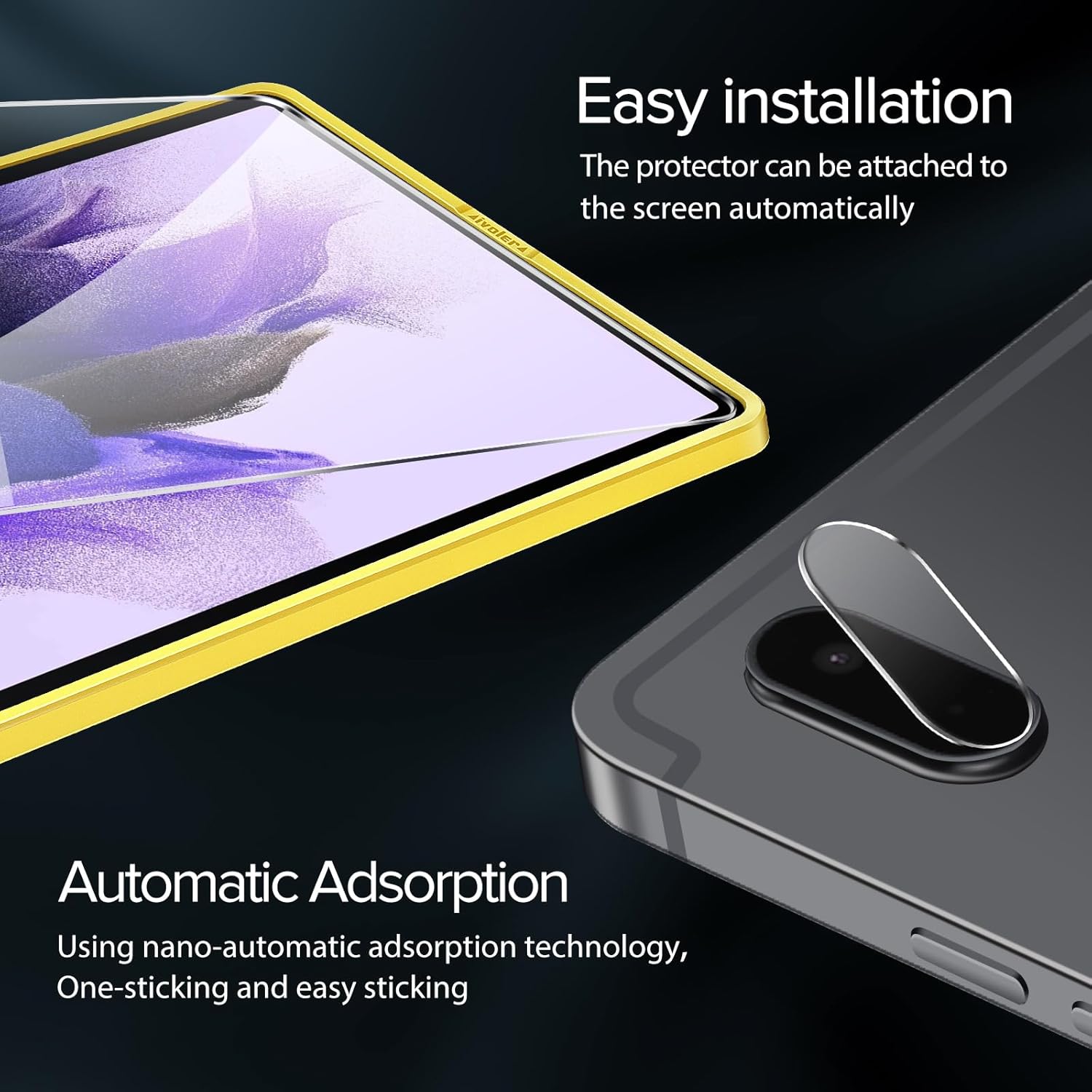
Image: Illustration of the easy installation process using the alignment frame for the screen protector and the application of the camera lens protector.
Camera Lens Protector Installation:
- Clean the Camera Lenses: Use a clean cloth or the provided wet/dry wipes to clean the rear camera lenses thoroughly.
- Remove Dust: Use a dust removal sticker to ensure no dust particles remain on the camera lenses.
- Apply the Camera Protector: Carefully peel off the backing from one camera lens protector. Align it precisely over the camera lenses and gently press down to adhere.

Image: The tablet with both screen and camera lens protectors installed, demonstrating comprehensive device protection.
Operating (Usage)
Once installed, the ivoler tempered glass screen protector and camera lens protectors operate seamlessly with your Samsung Galaxy Tab S7 FE 5G. No special operation is required beyond normal tablet use.
- Touch Sensitivity: The protector is designed to maintain the original touch sensitivity of your tablet's screen.
- Display Clarity: Enjoy full HD clarity and vibrant colors without distortion.
- Camera Functionality: The camera lens protectors do not interfere with photo or video quality.

Image: A tablet screen showcasing high definition and smooth touch response after screen protector application.

Image: The screen protector maintains crystal clear display quality, ensuring a flawless viewing experience.
Maintenance
To ensure the longevity and clarity of your screen and camera lens protectors, follow these maintenance guidelines:
- Cleaning: Use a soft, lint-free cloth to gently wipe the screen. For stubborn smudges or fingerprints, a slightly damp cloth (with water or a screen-safe cleaner) can be used, followed by a dry cloth.
- Avoid Harsh Chemicals: Do not use abrasive cleaners, alcohol, or solvents, as these can damage the oleophobic coating.
- Protection: While the protector offers significant scratch resistance, avoid placing your tablet with sharp objects (keys, coins) in the same bag or pocket to prevent potential damage.
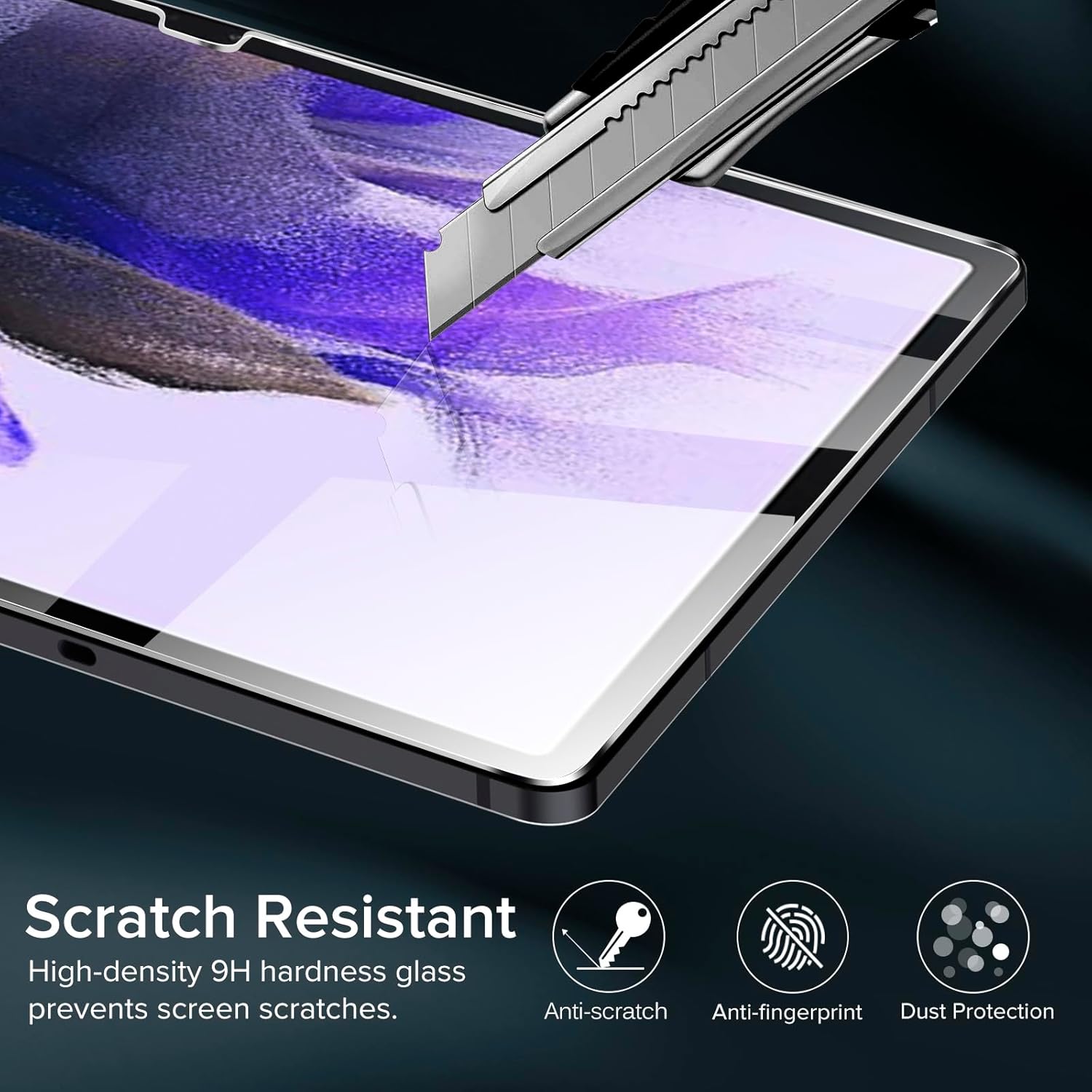
Image: The screen protector's 9H hardness provides robust scratch resistance, along with anti-fingerprint and dust protection features.

Image: The camera lens protector offers strong resistance against scratches and provides full coverage for the tablet's camera.
Troubleshooting
Here are solutions to common issues encountered during or after installation:
- Bubbles After Installation:
- Small Bubbles: Most small bubbles will naturally disappear within 24-48 hours as the adhesive settles.
- Large Bubbles/Dust Trapped: If a large bubble persists or you see dust trapped underneath, gently lift the nearest corner of the screen protector (using a thin card if necessary) and use a dust removal sticker to lift the dust. Reapply the protector slowly.
- Misalignment: If the protector is significantly misaligned, gently lift it from one corner and reapply, using the alignment frame if available. Be careful not to bend the glass excessively.
- Edges Not Sticking: Ensure the screen edges are perfectly clean and free of dust or oil. If the issue persists, it might be due to a case interfering with the protector; try removing the case temporarily.
- Reduced Touch Sensitivity: While rare, if touch sensitivity is affected, ensure the screen protector is fully adhered without air gaps. Restarting the tablet can sometimes resolve minor software-related issues.
Specifications
| Brand | ivoler |
| Model Number | MPA-NX6-0001099 |
| Compatible Device | Samsung Galaxy Tab S7 FE 5G (12.4 Inches) |
| Material | Tempered Glass |
| Item Hardness | 9H |
| Thickness | 0.33 mm |
| Finish Type | Glossy |
| Transparency | 99.99% |
Warranty and Support
ivoler provides quality pre-sale and after-sale service. If you have any questions or encounter issues with your product, please do not hesitate to contact ivoler customer support. Refer to the product packaging or the retailer's website for specific contact information.
