
Picun P80-XH
Picun P80-XH Bluetooth Gaming Headset User Manual
Model: P80-XH
Introduction
Thank you for choosing the Picun P80-XH Bluetooth Gaming Headset. This manual provides detailed instructions for setting up, operating, and maintaining your headset to ensure optimal performance and longevity. The P80-XH offers a versatile audio experience with both wireless Bluetooth 5.0 and wired 3.5mm audio cable connectivity, dual dynamic drivers for immersive sound, a detachable noise-canceling microphone, and customizable RGB lighting.

Figure 1: Picun P80-XH Bluetooth Gaming Headset
What's in the Box
- Picun P80-XH Gaming Headset
- Detachable Boom Microphone
- 3.5mm Audio Cable
- USB Charging Cable (Type-C)
- User Manual (this document)
Product Overview
Key Features
- Superior Hi-Fi Stereo Vibration Sound: Dual 40mm dynamic drivers and dual 30mm vibration drivers for crystal clear audio and deep bass.
- Low Latency Game Mode: Optimized for gaming with reduced audio delay.
- CVC 8.0 Noise-Canceling Boom Mic: Ensures clear communication by reducing background noise.
- Bluetooth 5.0 & Wired Connectivity: Seamless wireless connection and option for 3.5mm wired use.
- Dual Connection Support: Connect to two devices simultaneously (e.g., phone and gaming console).
- Long Battery Life: Up to 30 hours of playtime on a single charge.
- Ergonomic Design: Soft protein earmuffs, stretchable headband, and lightweight construction for comfort.
- Colorful RGB Light: Customizable lighting effects on the earcups.
Headset Components

Figure 2: Headset Controls Layout
- Power/Multifunction Button: Used for power on/off, play/pause, answer/end calls.
- Volume Up / Next Track Button: Increases volume, skips to next track.
- Volume Down / Previous Track Button: Decreases volume, skips to previous track.
- Vibrating Gaming Mode Button: Activates/deactivates vibration effect.
- Microphone Port: For connecting the detachable boom microphone.
- 3.5mm Audio Port: For wired connection.
- USB-C Charging Port: For charging the headset.
- RGB Light: Illuminated logo and ring on earcups.
Setup
1. Charging the Headset
Before first use, fully charge the headset. Connect the USB charging cable to the headset's USB-C port and the other end to a USB power source (e.g., computer USB port, wall adapter). The LED indicator will show charging status and turn off when fully charged. A full charge takes approximately 1.5-2 hours.

Figure 3: Long-Lasting Battery Life
2. Attaching the Detachable Microphone
Insert the 3.5mm jack of the boom microphone firmly into the microphone port on the left earcup until it clicks into place. Ensure it is fully inserted for proper function.

Figure 4: Detachable Boom Microphone Connection
3. Bluetooth Pairing (Wireless Mode)
- Ensure the headset is charged and powered off.
- Press and hold the Power/Multifunction button for approximately 3-5 seconds until the LED indicator flashes blue and red, indicating pairing mode.
- On your device (smartphone, tablet, laptop), enable Bluetooth and search for available devices.
- Select "Picun P80-XH" from the list. Once connected, the LED indicator will turn solid blue.
4. Wired Connection (3.5mm Audio Cable)
For devices without Bluetooth or when the battery is depleted, use the included 3.5mm audio cable. Plug one end into the headset's 3.5mm audio port and the other end into your device's audio jack. In wired mode, the headset functions as passive headphones, and the RGB lights and vibration feature will not be active.
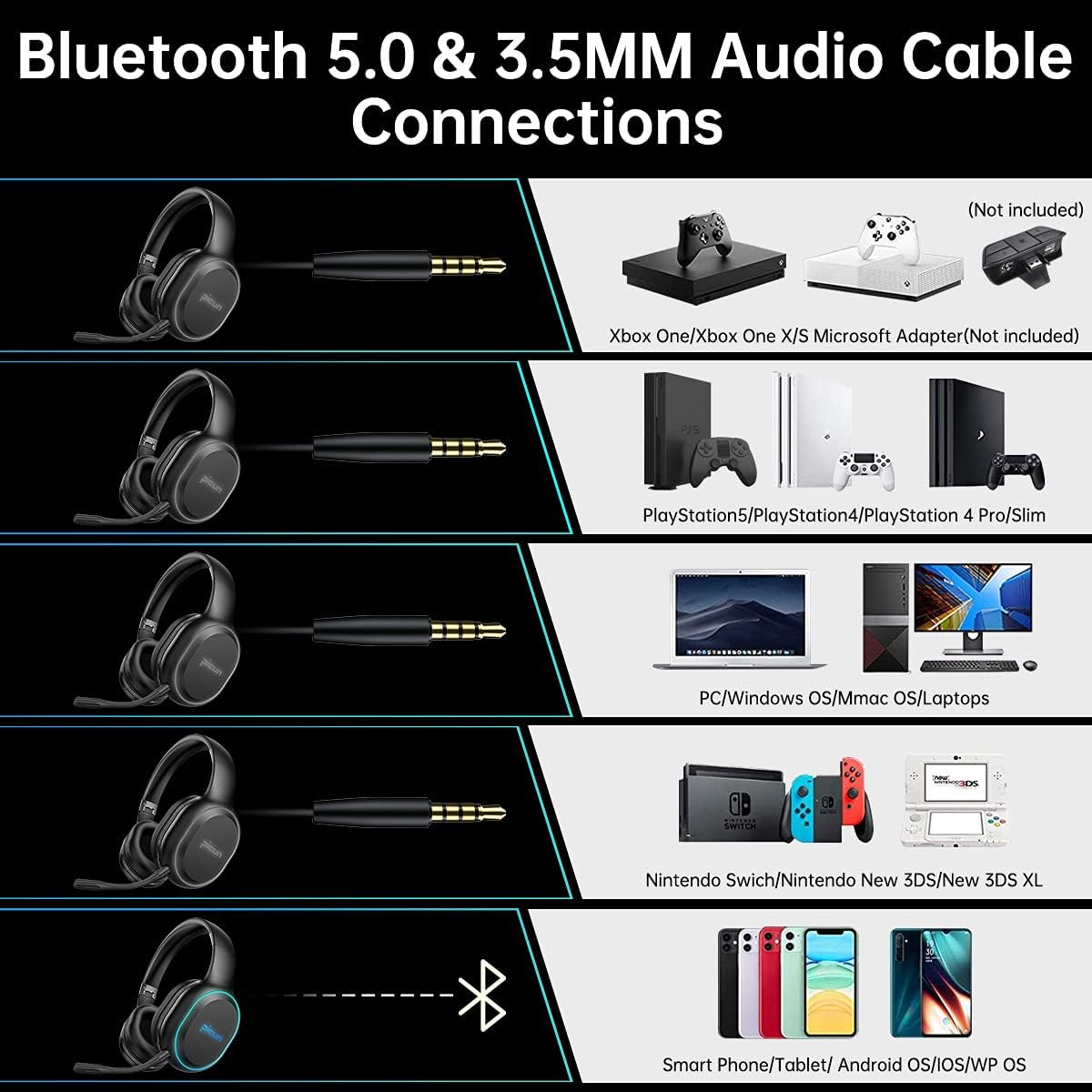
Figure 5: Bluetooth and 3.5mm Audio Cable Connections
Operating Instructions
Power On/Off
- Power On: Press and hold the Power/Multifunction button for 3 seconds.
- Power Off: Press and hold the Power/Multifunction button for 3 seconds.
Music Playback
- Play/Pause: Short press the Power/Multifunction button.
- Next Track: Long press the Volume Up button.
- Previous Track: Long press the Volume Down button.
Volume Control
- Volume Up: Short press the Volume Up button.
- Volume Down: Short press the Volume Down button.
Call Management
- Answer/End Call: Short press the Power/Multifunction button.
- Reject Call: Long press the Power/Multifunction button.
- Redial Last Number: Double press the Power/Multifunction button.
Vibrating Gaming Mode
Press the dedicated Vibrating Gaming Mode button to activate or deactivate the immersive vibration effect, enhancing deep bass and gaming immersion.

Figure 6: Immersive Vibration Sound and CVC 8.0 Noise Cancelling
RGB Light Control
To turn on or off the RGB lights, press the Volume Up and Volume Down buttons simultaneously. This function is only available when connected via Bluetooth.

Figure 7: Colorful RGB Light Feature
Maintenance
Cleaning
- Wipe the headset with a soft, dry cloth.
- Do not use abrasive cleaners, alcohol, or chemical solvents.
- Keep the charging port and audio jacks free of dust and debris.
Storage
- Store the headset in a cool, dry place away from direct sunlight and extreme temperatures.
- When not in use for extended periods, charge the headset at least once every three months to preserve battery life.
Battery Care
- Avoid fully discharging the battery frequently.
- Do not expose the battery to high temperatures or dispose of it in fire.
Troubleshooting
| Problem | Possible Cause | Solution |
|---|---|---|
| Headset won't power on. | Low battery. | Charge the headset fully. |
| Cannot pair via Bluetooth. | Headset not in pairing mode; Device Bluetooth off; Too far from device. | Ensure headset is in pairing mode (flashing blue/red). Turn on device Bluetooth. Move headset closer to device (within 10m). |
| No sound in wireless mode. | Not connected; Volume too low; Incorrect audio output selected on device. | Ensure headset is connected. Increase headset and device volume. Check device's audio output settings. |
| Microphone not working. | Microphone not fully inserted; Muted; Incorrect input selected on device. | Ensure microphone is fully inserted. Check if microphone is muted (if applicable). Select headset microphone as input device in settings. |
| RGB lights not working. | Not in Bluetooth mode; Lights turned off. | Ensure headset is connected via Bluetooth. Press Volume Up and Volume Down simultaneously to toggle lights. |
Specifications
| Feature | Detail |
|---|---|
| Model Name | P80-XH |
| Connectivity Technology | Wireless (Bluetooth 5.0), Wired (3.5mm Jack) |
| Audio Driver Type | Dual Dynamic Drivers (40mm), Dual Vibration Drivers (30mm) |
| Frequency Range | 20 Hz - 20 kHz |
| Impedance | 32 Ohm |
| Noise Control | Sound Isolation, CVC 8.0 Noise-Canceling Microphone |
| Battery Life | Up to 30 hours playtime |
| Charging Time | Approx. 1.5-2 hours |
| Material | Plastic, Lightweight Metal, Fabric/Faux Leather |
| Item Weight | 14.4 ounces |
| Compatible Devices | iPhone, Android phones, Laptops, PS4, PS5, Xbox (with adapter), Nintendo Switch |
Warranty and Support
Picun products are designed and manufactured to the highest quality standards. For specific warranty information and customer support, please refer to the warranty card included with your product or visit the official Picun website. Keep your purchase receipt as proof of purchase for any warranty claims.
For further assistance, you may contact Picun customer support through their official channels. Please provide your product model (P80-XH) and a detailed description of the issue when seeking support.
Ask a question about this manual
Ask about setup, troubleshooting, compatibility, parts, safety, or missing instructions. Manuals+ will review the question and use this page’s manual context to help answer it.