
Garmin 010-02430-01
Contents
Garmin Venu 2 Smartwatch User Manual
Model: 010-02430-01
Brand: Garmin
Introduction
The Garmin Venu 2 is a GPS smartwatch designed to help you better understand your mind and body through advanced health monitoring and fitness features. It offers a bright AMOLED display, long battery life, and a wide array of built-in sports apps and smart functionalities.
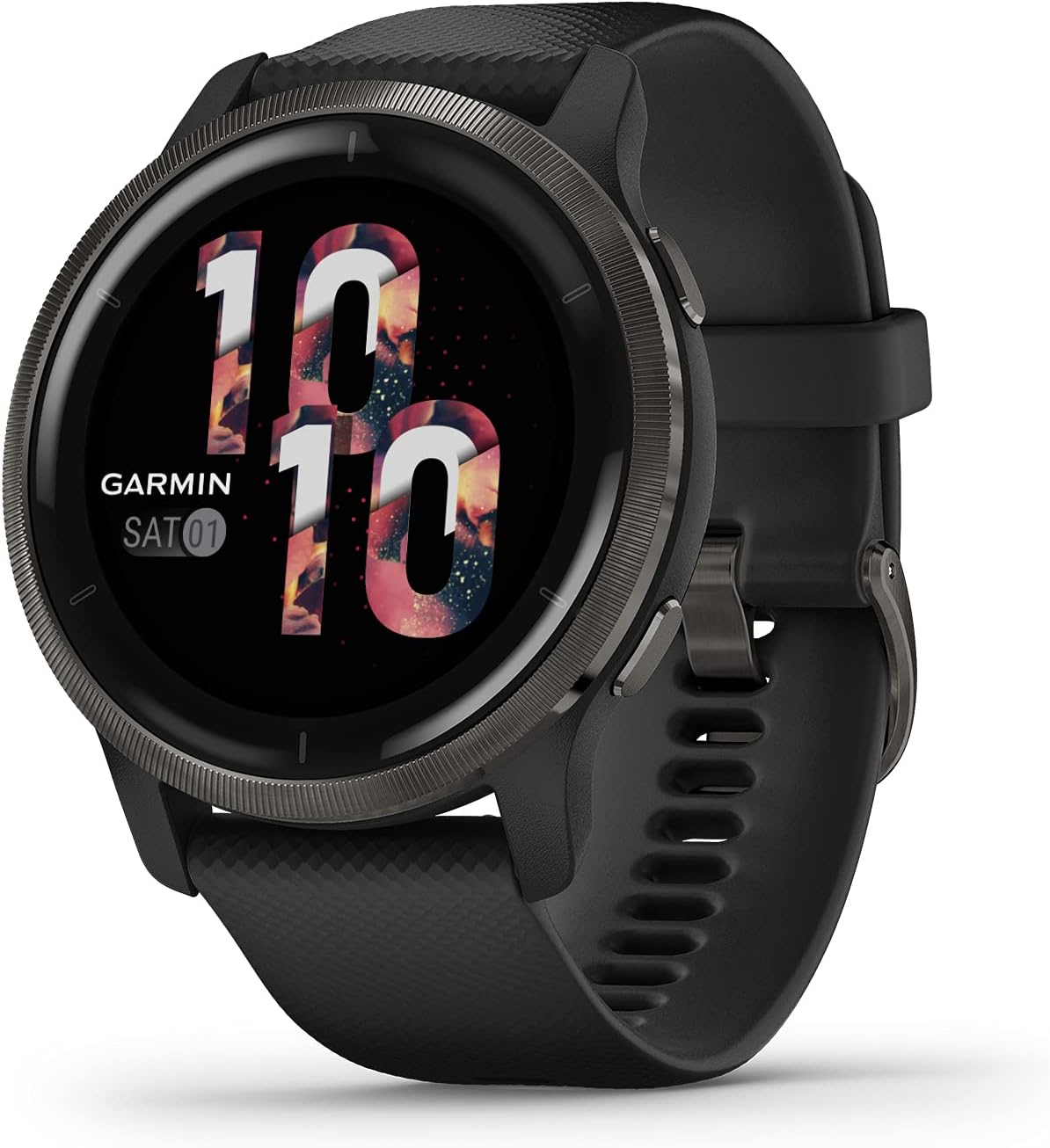
Image: Garmin Venu 2 Smartwatch, Slate Bezel with Black Case and Silicone Band.
Setup Guide
Follow these steps to set up your Garmin Venu 2 smartwatch:
- Charging the Device: Connect the charging/data cable to your Venu 2 and a USB power source. The watch features rapid recharging.
- Power On: Press and hold the top right button to power on the device.
- Initial Setup: Follow the on-screen prompts to select your language, time format, and other basic settings.
- Pairing with Smartphone:
- Download the Garmin Connect app from your smartphone's app store (available for Android and Apple smartphones).
- Open the app and create an account or log in.
- Follow the app's instructions to pair your Venu 2. Ensure Bluetooth is enabled on your phone.
- Music Setup: Download up to 650 songs to your watch, including playlists from Spotify, Amazon Music, or Deezer. A premium subscription may be required for some services. Connect wireless headphones (not included) for phone-free listening.
- Garmin Pay Setup: With a supported country and payment network, set up Garmin Pay in the Garmin Connect app to enable contactless payments directly from your wrist.

Image: Garmin Venu 2 displaying music service logos for easy setup.
Operating Instructions
Your Garmin Venu 2 is designed for intuitive use. Here's how to operate its key features:
- Navigation: Use the touchscreen and side buttons to navigate through menus, select options, and access features. The bright AMOLED display ensures clear visibility.
- Health Monitoring:
The Venu 2 provides extensive health monitoring features:
- Health Snapshot: Record a 2-minute session to log key stats like heart rate, heart rate variability, Pulse Ox, respiration, and stress.
- Body Battery Energy Levels: Monitor your body's energy reserves throughout the day to find optimal times for activity and rest.
- Sleep Score & Advanced Sleep Monitoring: Get a score for your sleep quality and insights into how to improve. Track sleep stages, heart rate, stress, Pulse Ox, and respiration during sleep.
- Stress Tracking: Monitor your stress levels and receive relaxation reminders to perform short breathing activities when feeling stressed.
- Women's Health Tracking: Use the Garmin Connect app to track menstrual cycles or pregnancy, log symptoms, and access exercise and nutrition education.

Image: Health monitoring features on the Venu 2 display.
- Fitness Tracking & Workouts:
Engage in various activities with over 25 built-in indoor and GPS sports apps, including walking, running, cycling, HIIT, swimming, and golf.
- Preloaded & Animated Workouts: Access easy-to-follow animated cardio, strength, yoga, Pilates, and high-intensity interval training (HIIT) workouts directly on your watch.
- Garmin Coach: Utilize free adaptive training plans to prepare for your next 5K, 10K, or half-marathon.
- Custom Workouts: Create your own workouts from over 1,400 exercises in the Garmin Connect app and download them to your watch.

Image: On-screen animated workouts and sports apps available on the Venu 2.
- Smart Notifications: Receive calls, texts, and social media alerts directly on your wrist when paired with a compatible smartphone. Android users can also respond to texts.
- Safety and Tracking Features: When paired with your smartphone, send a message with your live location to emergency contacts manually or automatically during select outdoor activities with built-in incident detection.
- Garmin Pay: Make contactless payments at participating providers by simply tapping your wrist at checkout.

Image: Smart notifications displayed on the Venu 2 screen.
Maintenance
- Battery Life: The Venu 2 offers up to 11 days of battery life in smartwatch mode and up to 8 hours in GPS mode with music. Utilize battery saver mode to extend usage.
- Charging: Recharge your device using the provided charging/data cable.
- Cleaning: Regularly clean your watch and band to prevent buildup of sweat and debris. Use a soft, damp cloth. Avoid harsh chemicals.
- Storage: Store the device in a cool, dry place when not in use.
Troubleshooting
If you encounter issues with your Garmin Venu 2, try the following steps:
- Device Not Responding: Try restarting the device by holding down the top right button until the screen turns off, then press it again to power on.
- Pairing Issues: Ensure Bluetooth is enabled on your smartphone and the Garmin Connect app is open. Try unpairing and re-pairing the device.
- GPS Accuracy: Ensure you have a clear view of the sky for optimal GPS signal reception during outdoor activities.
- Battery Draining Quickly: Check for background apps or features that might be consuming excessive power. Adjust display brightness or disable features like always-on display if not needed.
- Syncing Problems: Verify your internet connection and ensure the Garmin Connect app is up to date.
- Further Assistance: Refer to the official Garmin support resources or contact customer service for more complex issues.
Specifications
| Feature | Detail |
|---|---|
| Brand | Garmin |
| Model Name | Venu 2 |
| Item Model Number | 010-02430-01 |
| Product Dimensions | 1.8 x 1.8 x 0.48 inches |
| Item Weight | 8 ounces (0.5 Pounds) |
| Screen Size | 1.3 Inches (AMOLED Display) |
| Operating System | Android (Compatible with Android and Apple smartphones) |
| Connectivity Technology | GPS, Wi-Fi, Bluetooth |
| Battery Type | 1 Lithium Polymer battery (included) |
| Battery Life (Smartwatch Mode) | Up to 11 days |
| Battery Life (GPS + Music Mode) | Up to 8 hours |
| Special Features | GPS, Music Player, Notifications, Sleep Monitor, Stress Tracking, Activity Tracker, Garmin Pay |
Warranty and Support
For detailed warranty information and product support, please refer to the official documentation or visit the manufacturer's website.
- Official User Manual: Download User Manual (PDF)
- Official User Guide: Download User Guide (PDF)
- Manufacturer Support: Visit the Garmin Store on Amazon for additional resources and contact information.
Documents and downloads
Ask a question about this manual
Ask about setup, troubleshooting, compatibility, parts, safety, or missing instructions. Manuals+ will review the question and use this page’s manual context to help answer it.