
1. Introduction
The EARISE Vigorowl T65 is a portable PA system designed for both indoor and outdoor use, featuring powerful audio output, Bluetooth connectivity, and wireless microphones. This manual provides comprehensive instructions for setting up, operating, and maintaining your T65 PA system to ensure optimal performance and longevity.
2. What's in the Box
Please check the package contents upon unboxing to ensure all items are present:
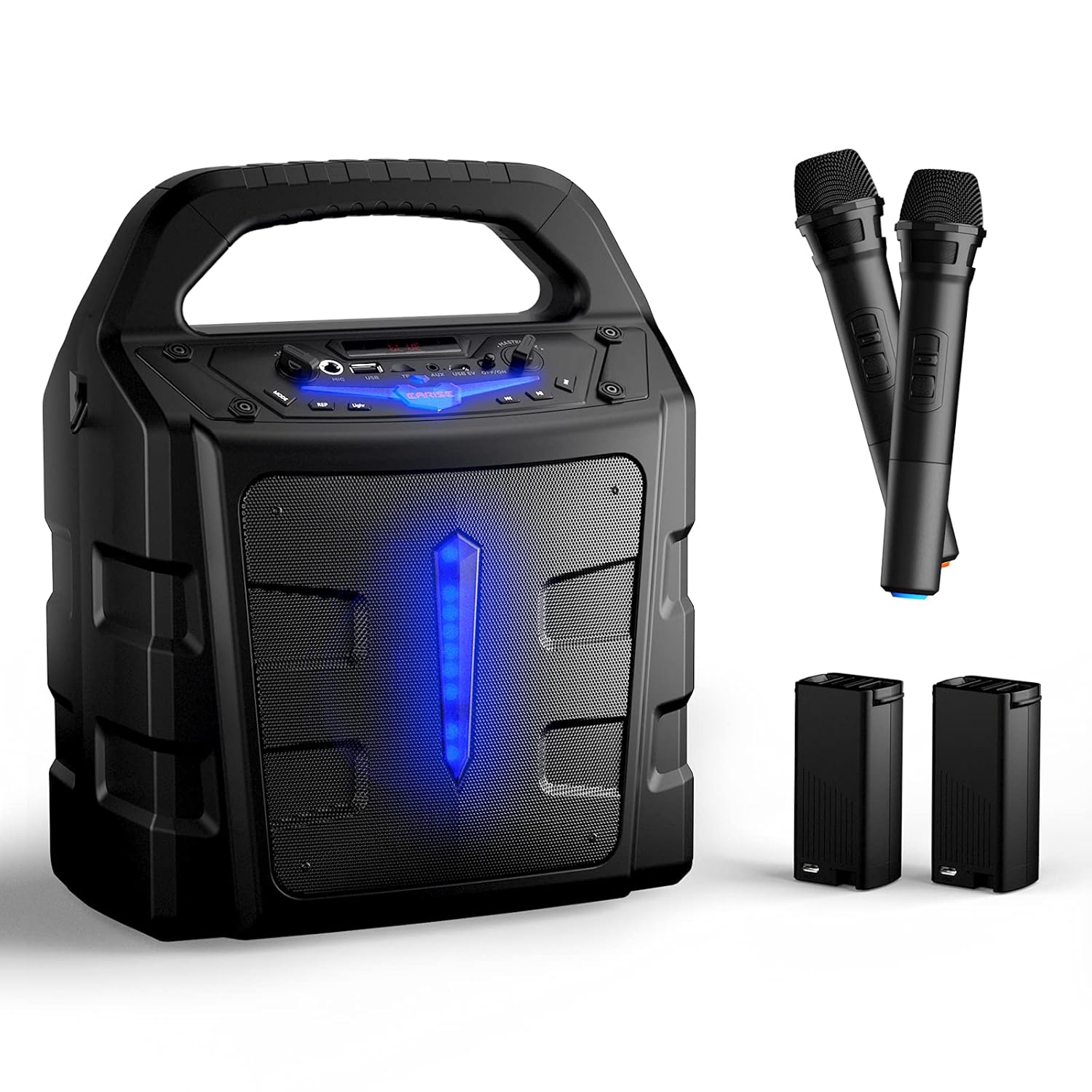
- 1 x T65 PA Speaker
- 2 x Wireless Microphones (Batteries not included for microphones)
- 2 x External Li-ion Batteries
- 1 x USB Charging Cable (Adapter not included)
- 1 x User Manual

3. Product Overview
Familiarize yourself with the various controls and ports on your T65 PA system:

- Master Volume Control: Adjusts the overall sound output level.
- Power Switch: Turns the unit ON or OFF.
- USB 5V Input Port: For charging the unit.
- AUX In: 3.5mm audio input for external devices.
- TF Card Slot: For playing audio from a TF (Micro SD) card.
- USB Flash Slot: For playing audio from a USB flash drive.
- Mic In: 6.35mm input for wired microphones.
- Mic Volume Control: Adjusts the volume of the microphones independently.
- Mode Button: Switches between Bluetooth, FM Radio, AUX, USB, and TF card modes.
- Light Button: Controls the LED light effects.
- REP (Repeat) Button: Repeats the current track or playlist.
- Previous Song Button: Skips to the previous track.
- Play/Pause Button: Plays or pauses the current track.
- Next Song Button: Skips to the next track.
4. Setup
4.1 Charging the Unit
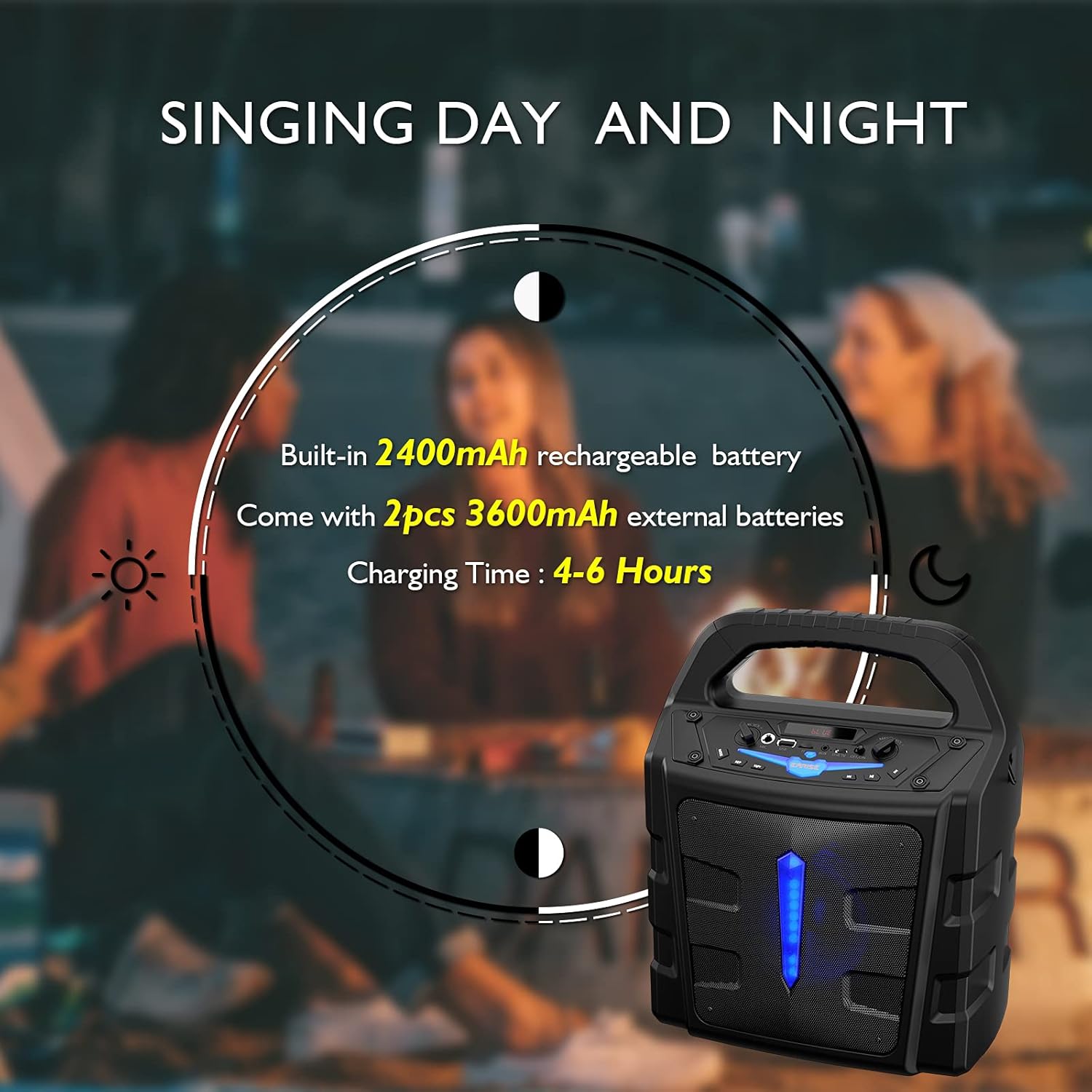
The T65 PA system comes with a built-in 2400mAh Li-ion battery and two external 3600mAh Li-ion batteries. Before first use, it is recommended to fully charge the unit.
- Connect the provided USB charging cable to the USB 5V input port on the T65.
- Connect the other end of the USB cable to a standard USB power adapter (not included) or a powered USB port.
- The charging indicator light will illuminate. A full charge typically takes 4-6 hours.
4.2 Battery Installation (Wireless Microphones)
The wireless microphones require 2 x AA batteries each (not included). To install:
- Unscrew the bottom part of the microphone handle.
- Insert two AA batteries, ensuring correct polarity (+/-).
- Screw the bottom part back on securely.
5. Operating Instructions
5.1 Power On/Off
Press and hold the Power Switch button on the control panel to turn the unit ON or OFF.
5.2 Bluetooth Connection
To connect your mobile device via Bluetooth:
- Turn on the T65 PA system. It will automatically enter Bluetooth pairing mode, indicated by a flashing 'BLUE' on the display.
- Enable Bluetooth on your mobile device (smartphone, tablet, PC, laptop).
- Search for available devices and select "EARISE T65" from the list.
- Once connected, the 'BLUE' indicator will stop flashing, and you can play audio from your device through the T65.

5.3 Using Microphones
The T65 comes with two wireless microphones for karaoke or public speaking. You can also connect a wired microphone to the 'Mic In' port.
- Turn on the wireless microphones using their respective ON/OFF switches. They will automatically pair with the T65 unit.
- Adjust the microphone volume using the Mic Volume Control knob on the T65 control panel.
- Adjust the overall sound level using the Master Volume Control.


5.4 USB/TF Card Playback
Insert a USB flash drive or TF (Micro SD) card (up to 32GB) into the respective slot. The unit will automatically switch to USB/TF mode and begin playing compatible audio files.
- Use the Previous Song, Play/Pause, and Next Song buttons to control playback.
- Press the REP button to cycle through repeat modes (e.g., repeat one, repeat all).
5.5 AUX Input
Connect an external audio device (e.g., MP3 player, CD player) to the AUX In port using a 3.5mm audio cable. Press the Mode button until 'AUX' is displayed.
5.6 FM Radio Mode
Press the Mode button repeatedly until 'FM' is displayed. The unit will enter FM radio mode.
- Press and hold the Play/Pause button to auto-scan and save available FM stations.
- Use the Previous Song and Next Song buttons to navigate between saved stations.
5.7 Light Effects
Press the Light button to toggle the LED light effects on the front panel.
6. Maintenance
- Cleaning: Use a soft, dry cloth to clean the exterior of the unit. Do not use abrasive cleaners or solvents.
- Battery Care: To prolong battery life, fully charge the unit before long periods of storage. If storing for extended periods, recharge every 3 months.
- Storage: Store the unit in a cool, dry place away from direct sunlight and extreme temperatures.
- Water Exposure: This unit is not waterproof. Avoid exposure to rain, splashes, or high humidity.
7. Troubleshooting
If you encounter any issues with your T65 PA system, please refer to the following table for common problems and solutions:
| Problem | Possible Cause | Solution |
|---|---|---|
| No power | Battery is depleted. | Charge the unit using the USB charging cable. |
| No sound output | Volume is too low or muted. Incorrect input mode. | Increase Master Volume. Press Mode button to select correct input (Bluetooth, AUX, USB, TF, FM). |
| Microphones not working | Microphone batteries are low or incorrectly installed. Microphone is off. Mic Volume is too low. | Replace AA batteries in microphones, ensuring correct polarity. Turn on microphone power switch. Increase Mic Volume Control. |
| Bluetooth not connecting | Unit is not in Bluetooth mode. Device is too far. Interference. | Press Mode button until 'BLUE' is displayed. Ensure device is within 10 meters. Move away from other electronic devices. |
| Poor FM radio reception | Weak signal. | Relocate the unit to an area with better reception. Perform auto-scan again. |
8. Specifications
Detailed technical specifications for the EARISE Vigorowl T65 Portable PA System:
| Feature | Specification |
|---|---|
| Peak Power Output | 30W |
| R.Frequency | 90Hz-20KHz |
| Built-in Li-ion Battery | 3.7V / 2400mAh |
| External Li-ion Battery | 2pcs 3.7V / 3600mAh |
| Drive Unit | 5.25" 3Ω |
| S/N Ratio | ≥60dB |
| DC Input | USB 5V |
| Power Supply | AC 100-240V |
| Dimensions (L x W x H) | 280mm x 200mm x 340mm (11" x 7.9" x 13.4") |
| Item Weight | 2.72 kg |
| Connectivity Technology | Bluetooth, USB |
| Compatible Devices | iPhone, smartphone, tablet, PC |
| Media Type Supported | Micro SD, USB |
9. Warranty and Support
For warranty information or technical support, please refer to the contact details provided with your purchase documentation or visit the official EARISE website. Keep your purchase receipt as proof of purchase for any warranty claims.


