Introduction
This manual provides comprehensive instructions for the installation, operation, and maintenance of your Zemismart Tuya Zigbee Smart Light Switch. This 2-gang smart switch is designed for modern smart homes, offering convenient control over your lighting. It requires a Tuya Zigbee Hub for smart functionalities and does not require a neutral wire for installation, making it compatible with a wider range of existing electrical setups.
Key features include manual control, app control via Tuya Smart Life, and voice control compatibility with Amazon Alexa and Google Assistant.

Image: Overview of the Zemismart Zigbee Smart Wall Light Switch highlighting its key control methods: Voice, APP, Timer, Manual, and Zigbee.
Safety Information
Important: Please read all safety warnings and instructions carefully before installation and operation. Failure to follow these instructions may result in electric shock, fire, or serious injury.
- Professional Installation Recommended: Installation should be performed by a qualified electrician.
- Power Off Before Installation: Always ensure the power supply to the circuit is turned off at the circuit breaker before beginning any installation or maintenance work.
- Indoor Use Only: This device is designed for indoor use in dry locations only.
- Operating Voltage: Ensure your electrical system matches the switch's rated voltage (AC100-240V~, 50/60Hz).
- Load Capacity: Do not exceed the maximum load capacity (LED: Max 150W per gang, Incandescent: Max 600W per gang).
- Keep out of reach of children.
Setup and Installation
This smart switch requires a Tuya Zigbee Hub to enable smart features like app control and voice control. Ensure you have a compatible Zigbee hub set up before proceeding with the smart features configuration.
1. Physical Installation (Wiring)
Caution: Ensure the power is OFF at the circuit breaker before wiring.
- Turn off the main power supply to the light circuit at your home's circuit breaker. Verify that the power is off using a voltage tester.
- Remove your existing wall switch from the wall box.
- Identify the Live wire (L-IN) and the Load wire (L1 for Gang 1, L2 for Gang 2, etc.) from your wall box. This switch does not require a neutral wire.
- Connect the wires according to the diagram below:
- Connect the Live wire from the wall box to the L-IN terminal on the smart switch.
- Connect the Load wire for Gang 1 to the L1 terminal on the smart switch.
- (For 2-gang model) Connect the Load wire for Gang 2 to the L2 terminal on the smart switch.
- Carefully push the wired switch into the wall box and secure it with screws. Attach the faceplate.
- Restore power at the circuit breaker. The switch indicator light should illuminate.

Image: Circuit Connection Diagram. This diagram illustrates how to connect the Live wire to the L-IN terminal and the load wire (e.g., to L1) for the light fixture. Note: The diagram shows a neutral wire connection to the light bulb, but the switch itself does not require a neutral wire for its operation.
2. Pairing with Tuya Zigbee Hub and App
Before proceeding, ensure you have the Tuya Smart Life app installed on your smartphone and a Tuya Zigbee Hub configured and connected to the app.
- Open the Tuya Smart Life app on your smartphone.
- Navigate to your Zigbee Hub in the app.
- Put the Zigbee Hub into pairing mode (refer to your hub's manual if unsure).
- On the smart switch, press and hold any button for approximately 5-10 seconds until the indicator light starts blinking rapidly, indicating it's in pairing mode.
- In the Tuya Smart Life app, initiate the device search. The app should discover the smart switch.
- Once discovered, add the device and assign it a name (e.g., "Living Room Light").
- You can now control the switch via the app.
Operating Instructions
1. Manual Control
The smart switch can be operated manually just like a traditional light switch. Simply press the touch panel to toggle the connected light(s) on or off.
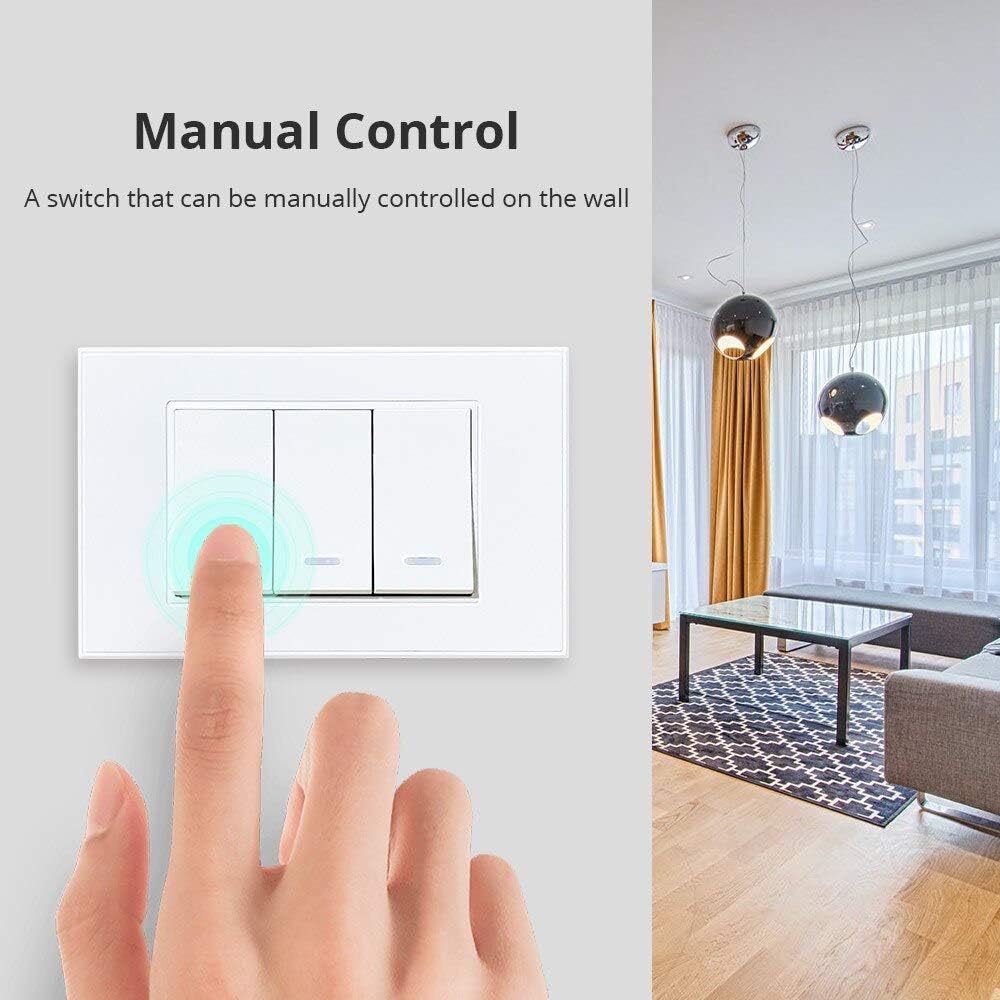
Image: Manual Control. A user's finger is shown interacting with the smart switch, indicating direct manual operation.
The switch features an LED indicator. It illuminates when the light is off (e.g., in the evening) and turns off when the light is on (e.g., during the daytime) to provide visual feedback and help locate the switch in the dark.

Image: Evening and Daytime Indicator. This image illustrates the behavior of the LED indicator: it is illuminated in the evening for visibility and off during the day.
2. App Control (Tuya Smart Life)
Once paired with the Tuya Smart Life app, you can control your lights from anywhere with an internet connection.
- Remote Control: Tap the switch icon in the app to turn lights on or off.
- Scheduling: Set schedules or timers for your lights to turn on or off automatically at specific times (e.g., "Turn off the light at 5:16 AM", "Turn on the light at 6:17 PM").
- Scenes and Automations: Create custom scenes or automations based on conditions like sunrise/sunset, temperature, or other smart devices.

Image: APP Control. This image demonstrates the scheduling feature within the Tuya Smart Life app, allowing users to set specific times for lights to turn on or off.
3. Voice Control (Alexa & Google Assistant)
Integrate your smart switch with Amazon Alexa or Google Assistant for hands-free voice control. Ensure your Tuya Smart Life account is linked to your Alexa or Google Home app.
- Link Accounts: In the Alexa or Google Home app, search for the "Tuya Smart" or "Smart Life" skill/service and link your account.
- Discover Devices: Once linked, ask your voice assistant to "Discover devices" or manually add the switch.
- Voice Commands: Use commands like:
- "Alexa, turn on [Light Name]"
- "Hey Google, turn off [Light Name]"
- "Alexa, set [Light Name] to 50%" (if dimmable light is connected and supported)

Image: Voice Control. This diagram illustrates the connectivity path for voice control, showing the smart switch, Zigbee hub, Wi-Fi router, and compatibility with Alexa and Google Assistant.
Maintenance
- Cleaning: To clean the switch, gently wipe the glass panel with a soft, damp cloth. Do not use abrasive cleaners or solvents. Ensure the power is off before cleaning.
- Firmware Updates: Periodically check the Tuya Smart Life app for any available firmware updates for your switch. Updates can improve performance and add new features.
- Avoid Water: Do not expose the switch to water or excessive humidity.
Troubleshooting
| Problem | Possible Cause | Solution |
|---|---|---|
| Switch not responding to manual touch. | No power to the switch; Incorrect wiring; Faulty switch. | Check circuit breaker. Verify wiring according to the diagram (ensure Live wire is connected). If issues persist, contact support. |
| Cannot pair with Tuya Zigbee Hub. | Switch not in pairing mode; Hub not in pairing mode; Too far from hub; Interference. | Ensure switch indicator is blinking rapidly. Put hub into pairing mode. Move switch closer to hub temporarily. Reduce Wi-Fi/Zigbee interference. |
| App control not working. | No internet connection; Hub offline; Switch offline in app; Incorrect app settings. | Check your home internet connection. Verify Zigbee hub status in app. Ensure switch is online in app. Re-add switch if necessary. |
| Voice control not working. | Tuya/Smart Life skill not linked; Incorrect device name; Voice assistant not connected. | Ensure Tuya/Smart Life skill is enabled and linked in Alexa/Google Home app. Use the exact device name. Check voice assistant device's internet connection. |
| LED indicator not behaving as expected. | Normal operation; Power issue. | The LED is designed to be on when the light is off (for visibility) and off when the light is on. If it's completely off when it should be on, check power. |
Specifications
| Parameter | Value |
|---|---|
| Model | T821 (2-Gang) |
| Brand | Zemismart |
| Power Supply Mode | No Neutral Wire Required |
| Rated Voltage | AC100-240V~, 50/60Hz |
| Max Load (LED) | Max 150W per gang |
| Max Load (Incandescent) | Max 600W per gang |
| Wireless Standard | IEEE802.15.4 (Zigbee) |
| Wireless Frequency | 2.412-2.484MHz |
| Encryption Type | WEP/AES/TKIP |
| Static Power Loss | ≤0.5W |
| Working Environment Temperature | -20°C ~ 75°C |
| Working Humidity | <95% |
| Product Material | Glass Panel |
| Product Size | 119mm x 75mm x 28mm (Depth 39mm including back) |

Image: Product Parameters. This image provides a visual representation of the switch's dimensions and a summary table of its technical specifications.
Warranty and Support
For warranty information and technical support, please refer to the manufacturer's official website or contact their customer service directly. Keep your purchase receipt as proof of purchase for warranty claims.
Manufacturer: Zemismart