Introduction
This manual provides comprehensive instructions for the safe and effective use of your Osaka XD 77 3-Axis Handheld Mobile Gimbal Stabilizer. Please read this manual thoroughly before operating the device to ensure optimal performance and to prevent damage.
Product Overview
The Osaka XD 77 is a 3-axis handheld mobile gimbal stabilizer designed to capture smooth, stable video footage and sharp photos with your smartphone. It features a 360° pan-tilt head, various shooting modes, and app control capabilities for enhanced functionality.

Image: The Osaka XD 77 gimbal stabilizer with a smartphone securely mounted, ready for use.
Package Contents
Verify that all items are present in your package:
- Osaka XD 77 3-Axis Handheld Mobile Gimbal Stabilizer
- Mini Tripod
- USB Charging Cable
- Storage Pouch
- User Manual (this document)

Image: The complete package contents of the Osaka XD 77 gimbal stabilizer, laid out for inspection.
Components and Controls
Familiarize yourself with the various parts and controls of your gimbal:

Image: Side view of the Osaka XD 77 gimbal, highlighting the control panel with buttons and joystick.
- Smartphone Holder: Securely holds your smartphone.
- Pan Axis Motor: Controls horizontal rotation.
- Tilt Axis Motor: Controls vertical rotation.
- Roll Axis Motor: Controls rotation along the phone's long axis.
- Control Panel: Contains joystick, mode button, power button, and zoom/focus slider.
- Handle: Ergonomic grip for comfortable holding.
- 1/4" Screw Mount: Located at the bottom for attaching the mini tripod or other accessories.

Image: The Osaka XD 77 gimbal demonstrating its 360-degree rotation capability, ensuring flexible shooting angles.
Setup
1. Charging the Gimbal
Before first use, fully charge the gimbal. Connect the USB charging cable to the gimbal's charging port and a USB power adapter (not included). The indicator light will show charging status and turn off when fully charged.
2. Attaching the Mini Tripod (Optional)
For stable tabletop use or as an extended grip, screw the mini tripod onto the 1/4" screw mount at the bottom of the gimbal handle.
Image: The Osaka XD 77 gimbal stabilizer with its included mini tripod attached, providing a stable base.
3. Mounting Your Smartphone
- Extend the smartphone holder.
- Carefully place your smartphone into the holder, ensuring it is centered and secure.
- Ensure the phone's camera is not obstructed.
4. Balancing the Gimbal
Proper balancing is crucial for optimal performance and battery life. With the smartphone mounted:
- Adjust the phone's position within the holder until it remains level when the gimbal is powered off.
- If the phone tilts to one side, slide it slightly in the opposite direction until it balances horizontally.
5. App Installation (Recommended)
For full functionality, including face tracking, smooth zoom control, and advanced shooting modes, download the dedicated Osaka gimbal application from your smartphone's app store. Refer to the app's instructions for pairing and usage.
Operating Instructions
1. Power On/Off
- Power On: Press and hold the power button until the indicator light illuminates and the gimbal initializes.
- Power Off: Press and hold the power button until the indicator light turns off.
2. Gimbal Modes
The gimbal offers several operational modes, selectable via the mode button on the control panel:

Image: Visual representation of the different operational modes available on the Osaka XD 77 gimbal.
- Pan Following Mode: The tilt and roll axes are locked, and the pan axis follows the handle's movement.
- Locking Mode: All three axes are locked, and the camera remains fixed in its current orientation.
- Following Mode: The pan and tilt axes follow the handle's movement, while the roll axis remains locked.
- Vertical Mode: Orients the smartphone vertically for portrait shooting.
3. Zoom and Focus Control
When connected to the smartphone application, use the shifter lever on the control panel to adjust zoom and focus:
- Push the lever up to zoom in.
- Push the lever down to zoom out.
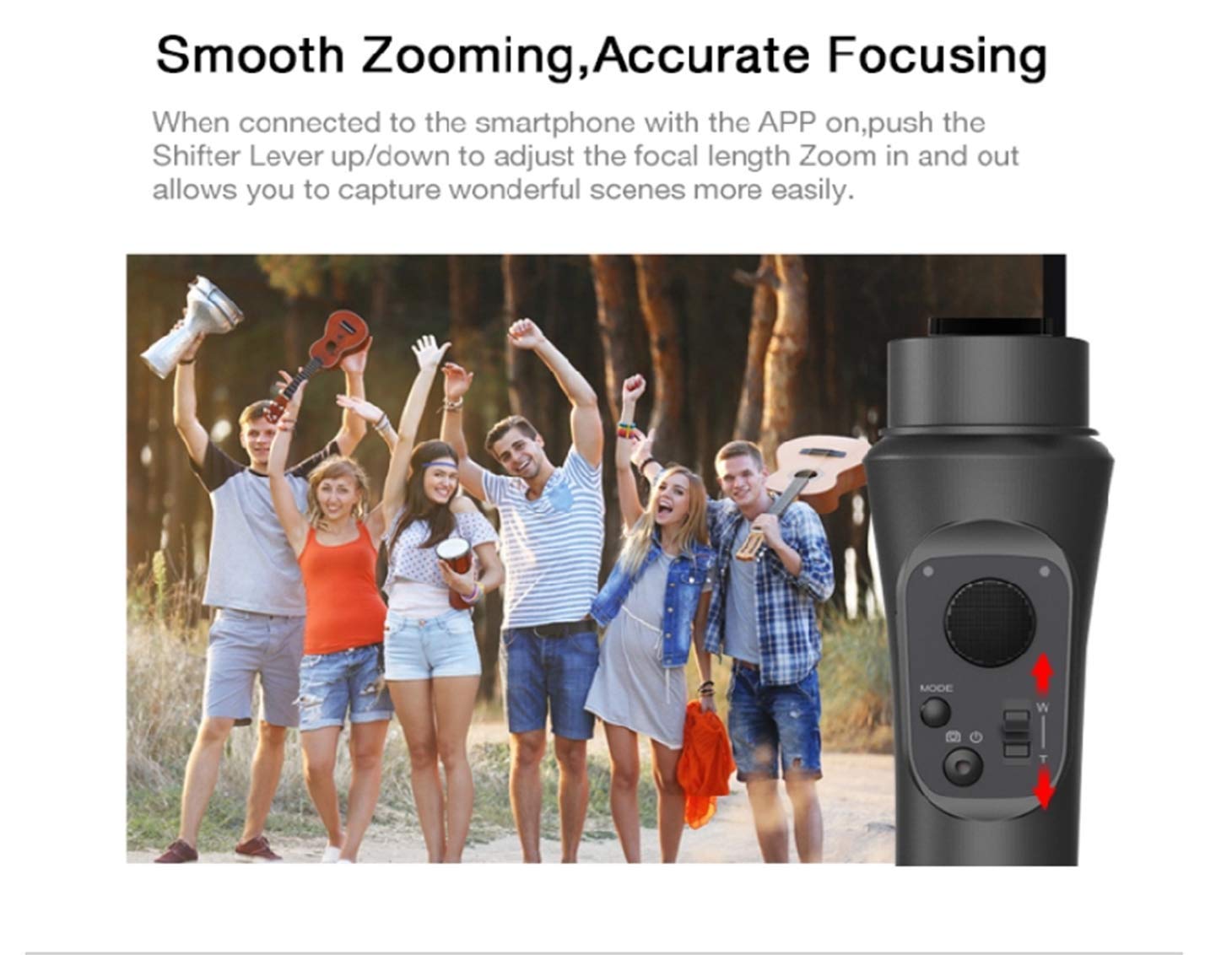
Image: Illustration of the gimbal's control panel, highlighting the shifter lever for smooth zoom and accurate focusing.
4. Multi-Functions (via App)
The Osaka gimbal application unlocks various advanced shooting functions:
- Picture: Standard photo capture.
- Video: Standard video recording.
- Long Exposure: For capturing light trails or low-light scenes.
- Slow Motion: Records video at a higher frame rate for slow-motion playback.
- Time-lapse: Captures a sequence of images over time to create a sped-up video.
- Motion Time-lapse: Combines time-lapse with programmed gimbal movement.
- Face Tracking: Automatically follows a detected face.
Maintenance
- Cleaning: Use a soft, dry cloth to clean the gimbal. Do not use liquid cleaners or solvents.
- Storage: Store the gimbal in its protective pouch in a cool, dry place away from direct sunlight and extreme temperatures.
- Battery Care: If storing for extended periods, charge the battery to approximately 50% every three months to prolong battery life.
Troubleshooting
| Problem | Possible Cause | Solution |
|---|---|---|
| Gimbal not powering on. | Low battery. | Charge the gimbal fully. |
| Gimbal vibrates or makes noise. | Improper balancing; phone not securely mounted. | Ensure the smartphone is balanced correctly and securely mounted. |
| App not connecting to gimbal. | Bluetooth not enabled; app not open; gimbal not in pairing mode. | Enable Bluetooth on your phone, open the app, and ensure the gimbal is powered on and discoverable. Restart both devices if necessary. |
| Unresponsive controls. | Firmware issue; temporary glitch. | Restart the gimbal. If the issue persists, check for firmware updates via the app. |
Specifications
| Brand | Osaka |
| Model | XD 77 |
| Product Dimensions | 37 x 18 x 6 cm |
| Item Weight | 600 g |
| Compatible Devices | Smartphones (Apple, Android, Samsung, etc.) |
| Folded Size | 16 inches (h) |
| Maximum Load Capacity (Tripod) | 2.5 KG |
Warranty and Support
For warranty claims and support, please contact the seller "Soniaphoto" or "Appario Business" on Amazon.in. Ensure your purchase is from an authorized seller to validate your warranty. Products purchased from unauthorized sellers or non-recommended fitments are not eligible for warranty.
For further assistance, refer to the official Osaka brand store on Amazon: Osaka Store


