
LALISU LALISULALITTB04
LALISU Metal Desk Lamp User Manual
Model: LALISULALITTB04
Metal Desk Lamp With Wireless Charging, Touch Reading Light, 3 Way Dimmable for Bedroom, Study Room and Office - USB Charging Ports (Touch-White)
Product Overview
The LALISU Metal Desk Lamp is a versatile lighting solution designed for various environments such as bedrooms, study rooms, and offices. It features a modern design with a flexible gooseneck, touch control for dimming, and multiple charging options including wireless charging, a USB port, and an AC outlet.

Figure 1: LALISU Metal Desk Lamp with touch control and charging capabilities.
Setup
Setting up your LALISU Metal Desk Lamp is straightforward:
- Unpack: Carefully remove all components from the packaging. Ensure the lamp, power cord, and included 9W LED bulb are present.
- Install Bulb: Screw the included E26 LED bulb into the lamp's socket.
- Placement: Place the lamp on a stable, flat surface such as a desk, bedside table, or office workstation.
- Connect Power: Plug the lamp's power cord into a standard 120V AC electrical outlet.

Figure 2: Detailed view of the lamp's base, highlighting the AC outlet, touch control, and E26 bulb socket.
Operating Instructions
Light Control (3-Way Dimmable Touch Lamp)
The lamp features a touch-sensitive control for adjusting brightness levels:
- To Turn On/Adjust Brightness: Tap the sturdy base of the lamp. Each tap cycles through the brightness settings:
- First tap: Low light (ideal for steady sleep or nursing).
- Second tap: Medium light (suitable for daily use).
- Third tap: High light (bright enough for reading and working).
- Fourth tap: Turns the lamp off.
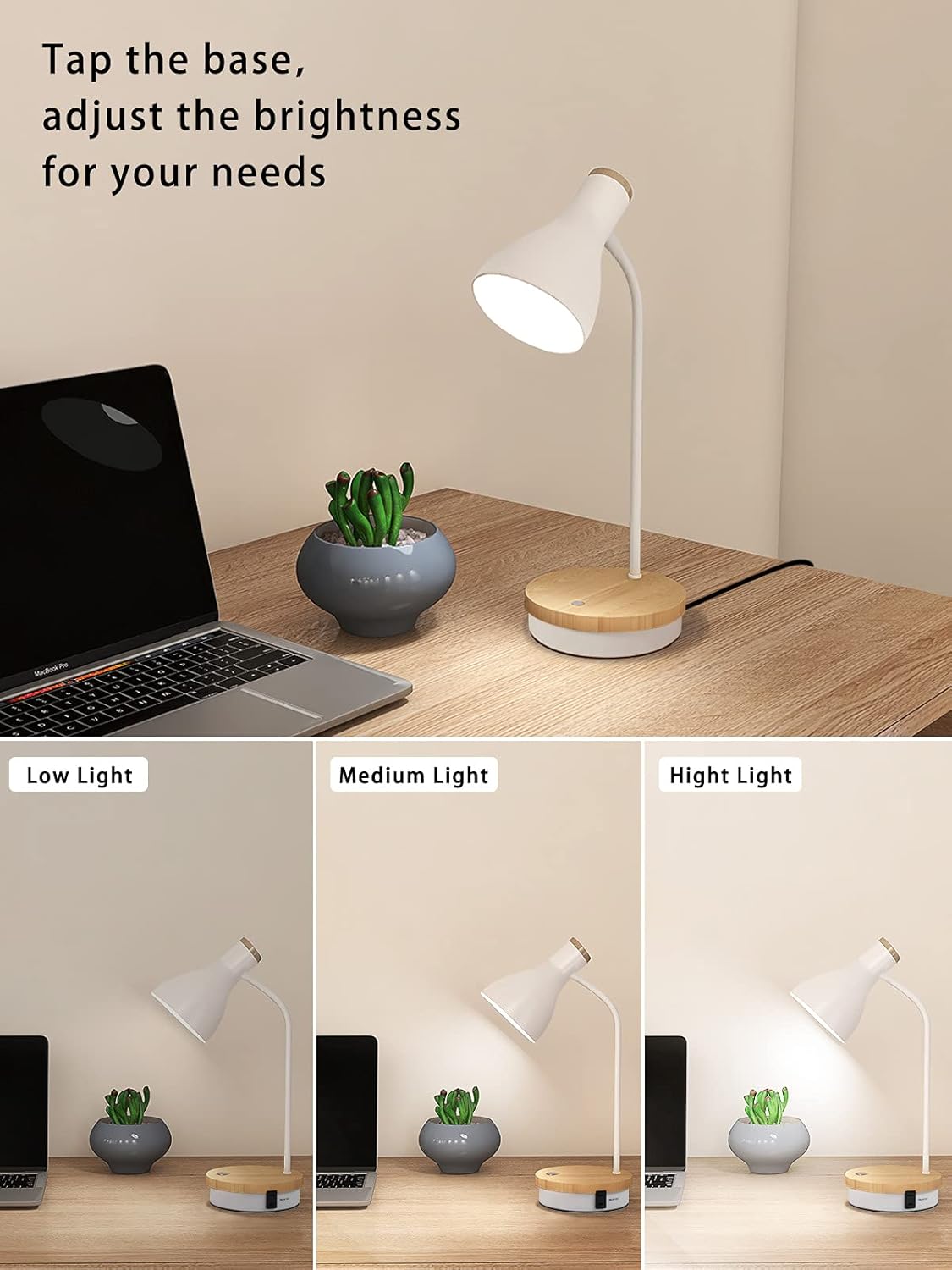
Figure 3: Demonstrating the three dimmable light settings: Low, Medium, and High.
Flexible Gooseneck Adjustment
The lamp features a 180° flexible gooseneck, allowing you to direct the light precisely where needed without noise. This makes it ideal for various tasks like reading, working, or studying.

Figure 4: Illustration of the lamp's flexible gooseneck, capable of 180-degree adjustment.
Charging Features
The lamp is equipped with multiple charging options:
- Wireless Charging Pad: Place your Qi-compatible smartphone or device on the wooden base of the lamp to initiate wireless charging. Ensure the device is centered on the charging symbol for optimal performance.
- USB Charging Port: Connect your mobile phone, tablet, Kindle reader, or other electronic devices to the USB port located on the lamp base for convenient charging.
- AC Outlet: The lamp includes an AC outlet on its base, allowing you to plug in and power other electronic devices. This outlet functions regardless of whether the lamp light is on or off.

Figure 5: The lamp's wireless charging pad in use, providing convenient power for mobile devices.
Maintenance
To ensure the longevity and optimal performance of your LALISU Metal Desk Lamp, follow these simple maintenance guidelines:
- Cleaning: Disconnect the lamp from the power outlet before cleaning. Use a soft, dry cloth to wipe down the lamp's surfaces. Avoid using abrasive cleaners, solvents, or harsh chemicals, as these may damage the finish.
- Bulb Replacement: When replacing the bulb, ensure the lamp is unplugged and the bulb has cooled down. Use an E26 base LED bulb, with a maximum wattage of 9W.
- Storage: If storing the lamp for an extended period, ensure it is clean and dry. Store it in a cool, dry place away from direct sunlight and extreme temperatures.
Troubleshooting
If you encounter any issues with your LALISU Metal Desk Lamp, refer to the following common troubleshooting tips:
| Problem | Possible Cause | Solution |
|---|---|---|
| Lamp does not turn on. | Not plugged in; power outage; faulty bulb. | Ensure the lamp is securely plugged into a working outlet. Check your home's power supply. Replace the bulb if necessary. |
| Touch control is unresponsive or inconsistent. | Interference; dirty touch sensor; internal issue. | Ensure the lamp base is clean and dry. Avoid placing other electronic devices directly on or very close to the touch sensor. Try unplugging and replugging the lamp. |
| Wireless charging is slow or not working. | Device not Qi-compatible; improper placement; thick phone case. | Verify your device supports Qi wireless charging. Ensure the device is centered on the charging symbol. Remove thick phone cases. Ensure the lamp is powered on. |
| USB port or AC outlet not providing power. | Lamp not plugged in; device cable faulty. | Confirm the lamp is plugged into a live electrical outlet. Test with a different charging cable or device to rule out cable issues. |
If problems persist, please contact LALISU customer support for further assistance.
Specifications
| Feature | Detail |
|---|---|
| Brand | LALISU |
| Model Number | LALISULALITTB04 |
| Product Dimensions | 5.9"D x 4.7"W x 17"H |
| Item Weight | 2.25 Pounds |
| Material | Wood, Metal |
| Finish Type | Painted |
| Color | Touch-White |
| Light Source Type | LED, Incandescent |
| Bulb Base | E26 |
| Wattage | 9 watts (included bulb) |
| Voltage | 120 Volts |
| Switch Type | Touch Control (3-way dimmable) |
| Special Feature | Dimmable, Wireless Charging, USB Charging Port, AC Outlet, Flexible Gooseneck |
| Included Components | Bulb |

Figure 6: Key dimensions and ETL certification details for the lamp.
Warranty and Support
For information regarding warranty coverage, product registration, or technical support, please refer to the official LALISU website or contact their customer service directly. Contact details are typically found on the product packaging or the manufacturer's official online presence.
Always retain your proof of purchase for warranty claims.
Ask a question about this manual
Ask about setup, troubleshooting, compatibility, parts, safety, or missing instructions. Manuals+ will review the question and use this page’s manual context to help answer it.