
ABKO K560
ABKO Hacker K560 Mechanical Gaming Keyboard User Manual
Model: K560
1. Introduction
Thank you for purchasing the ABKO Hacker K560 Mechanical Gaming Keyboard. This keyboard is designed for an enhanced gaming and typing experience, featuring hotswappable mechanical switches, vibrant Rainbow Moving LED lighting, and durable dual injection keycaps. This manual provides detailed instructions for setup, operation, maintenance, and troubleshooting to ensure optimal performance and longevity of your device.
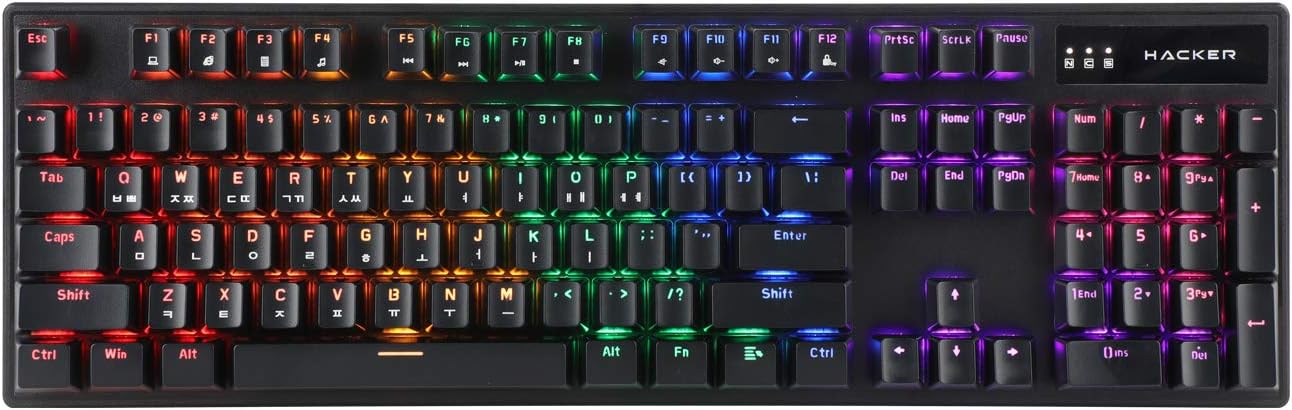
Figure 1.1: ABKO Hacker K560 Mechanical Gaming Keyboard (Top View)
This image displays the full layout of the ABKO Hacker K560 keyboard from a top-down perspective, showcasing its 104-key design and the vibrant rainbow LED backlighting illuminating each key. The Korean-English layout is visible on the keycaps.
2. Key Features
- Viki Type: Unique keycap profile for comfortable typing.
- Rainbow Moving LED: Dynamic and customizable RGB lighting effects.
- Mechanical Switch: Equipped with durable and responsive mechanical switches (Brown Switch variant).
- Cherry Stabilizer: Enhanced stability for larger keys like Spacebar, Shift, and Enter.
- 104 Keys Layout: Full-size keyboard layout for comprehensive functionality.
- Double Injection Keycaps: Legends are molded into the keycap, preventing wear and fading.
- Hotswap Capability: Allows for easy replacement of switches without soldering.
- Water Resistant: Designed to withstand minor spills.

Figure 2.1: ABKO Hacker K560 Keyboard (Angled View)
This image provides an angled perspective of the keyboard, showcasing the ergonomic Viki Type keycap profile and the vibrant illumination of the Rainbow Moving LED backlighting from the side.
3. Setup Guide
3.1. Package Contents
Before proceeding, ensure all items are present in the package:
- ABKO Hacker K560 Mechanical Gaming Keyboard
- User Manual (this document)
- Keycap Puller (may be included for hotswap functionality)
- Switch Puller (may be included for hotswap functionality)
3.2. Connecting the Keyboard
- Locate an available USB port on your computer (PC, Laptop, Gaming Console).
- Plug the USB connector of the ABKO Hacker K560 keyboard into the USB port.
- The operating system will automatically detect and install the necessary drivers. This process may take a few moments.
- Once installation is complete, the keyboard's LED lighting will illuminate, indicating it is ready for use.
4. Operating Instructions
4.1. Basic Usage
The ABKO Hacker K560 functions as a standard 104-key keyboard. Simply begin typing or using the keys as you would with any other keyboard.
4.2. LED Lighting Control (Rainbow Moving LED)
The keyboard features various dynamic LED lighting modes. Use the following key combinations to control the lighting:
- Fn + F1-F12: (Specific functions may vary, refer to keyboard legends for media controls, volume, etc.)
- Fn + Scroll Lock: Cycle through different Rainbow Moving LED lighting effects.
- Fn + Print Screen: Adjust LED brightness (usually multiple levels).
- Fn + Pause Break: Change LED lighting direction or speed (for moving effects).
- Fn + Arrow Keys: Some models allow fine-tuning of specific lighting zones or effects.
Experiment with these combinations to find your preferred lighting mode and brightness.
4.3. Hotswap Switch Replacement
The ABKO Hacker K560 supports hotswappable mechanical switches, allowing you to change switches without soldering. This feature is useful for customizing typing feel or replacing faulty switches.
- Power Off: Disconnect the keyboard from your computer before attempting any switch replacement.
- Remove Keycap: Use the included keycap puller to gently remove the desired keycap.
- Remove Switch: Use the included switch puller to carefully grip the top and bottom clips of the switch and pull it straight up.
- Insert New Switch: Align the pins of the new switch with the holes on the PCB. Gently push the switch down until it clicks into place. Ensure the pins are not bent.
- Replace Keycap: Press the keycap onto the new switch until it is firmly seated.
- Test: Reconnect the keyboard and test the new switch.
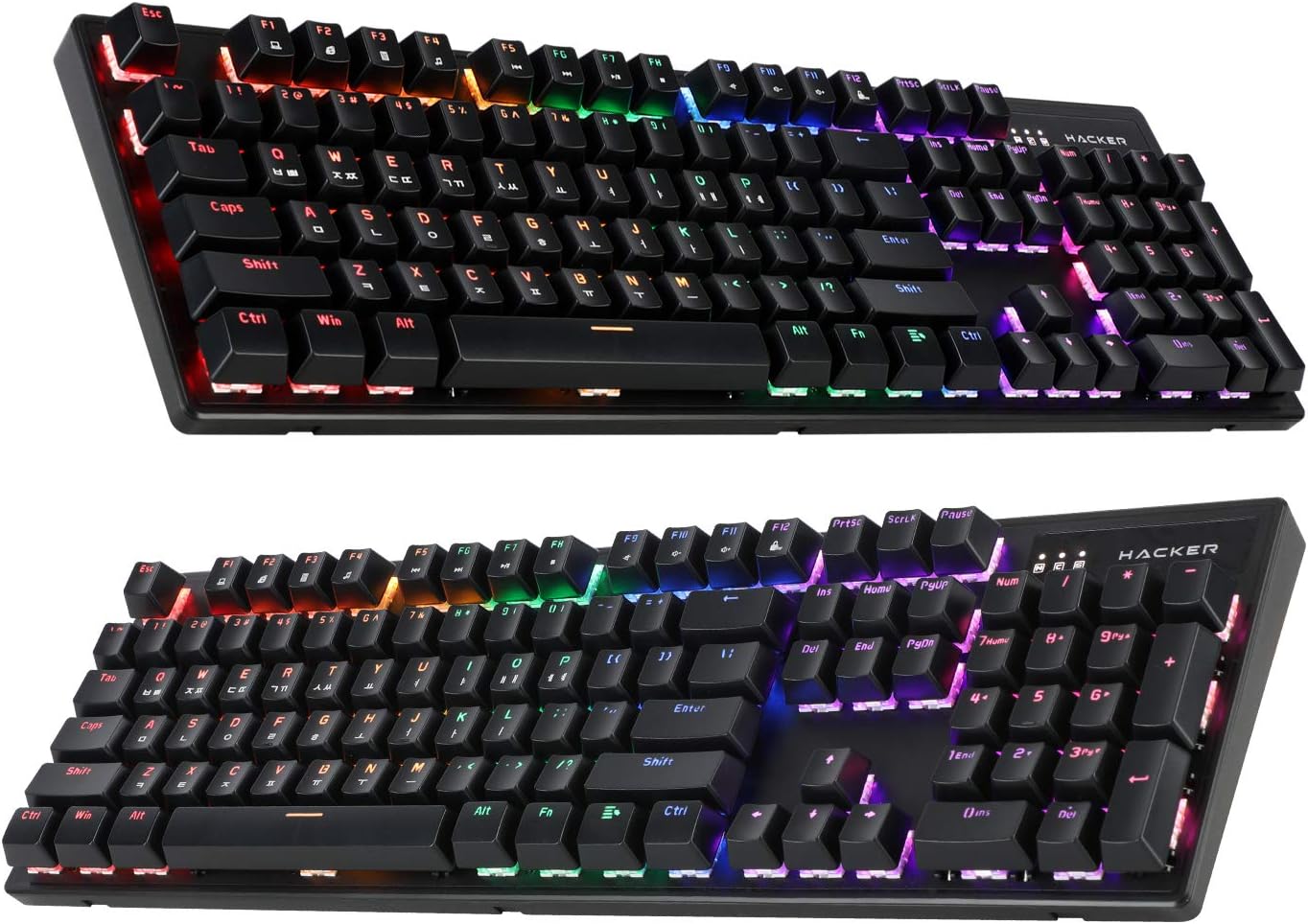
Figure 4.1: ABKO Hacker K560 Keyboard (Dual Angled View)
This image presents two different angled views of the ABKO Hacker K560 keyboard, providing a comprehensive look at its full 104-key layout and the distinct dual injection keycap design, which contributes to its durability and aesthetic.
5. Maintenance
5.1. Cleaning the Keyboard
Regular cleaning helps maintain the keyboard's appearance and functionality.
- Dust Removal: Use a can of compressed air to blow away dust and debris from between the keycaps.
- Surface Cleaning: Wipe the surface of the keycaps and frame with a soft, slightly damp, lint-free cloth. Avoid excessive moisture.
- Deep Cleaning (Optional): For thorough cleaning, keycaps can be removed using a keycap puller and washed with mild soap and water. Ensure they are completely dry before reattaching.
Caution: Always disconnect the keyboard from your computer before cleaning. Do not immerse the keyboard in water, despite its water-resistant feature, as this is for minor spills, not submersion.
5.2. Storage
When not in use for extended periods, store the keyboard in a cool, dry place away from direct sunlight and extreme temperatures.
6. Troubleshooting
If you encounter issues with your ABKO Hacker K560 keyboard, refer to the following common solutions:
| Problem | Possible Cause | Solution |
|---|---|---|
| Keyboard not responding / No input | Loose USB connection, faulty USB port, driver issue. |
|
| LED lights are off or not working correctly | LED mode turned off, brightness set to minimum, software conflict. |
|
| Specific key not working | Debris under keycap, faulty switch. |
|
If the problem persists after trying these solutions, please contact customer support.
7. Specifications
| Feature | Detail |
|---|---|
| Model Name | Hacker K560 |
| Brand | ABKO |
| Keyboard Type | Mechanical Gaming Keyboard |
| Switch Type | Tactile (Brown Switch) |
| Layout | 104 Keys (Full-size, Korean-English Layout) |
| Keycap Material | Double Injection |
| Backlighting | Rainbow Moving LED (RGB) |
| Connectivity | Wired (USB) |
| Special Features | Hotswappable Switches, Cherry Stabilizer, Viki Type Keycaps, Water Resistant |
| Compatible Devices | Laptop, Gaming Console, PC, Tablet, Smartphone |
8. Warranty and Support
ABKO products are manufactured to the highest quality standards. For information regarding warranty coverage, technical support, or service inquiries, please refer to the warranty card included with your product or visit the official ABKO website.
Please retain your proof of purchase for warranty claims.
Ask a question about this manual
Ask about setup, troubleshooting, compatibility, parts, safety, or missing instructions. Manuals+ will review the question and use this page’s manual context to help answer it.