
Introduction
Welcome to the Creative T60 2.0 Hi-Fi Compact PC Speakers user manual. This guide provides essential information for setting up, operating, maintaining, and troubleshooting your speakers to ensure an optimal audio experience.
The Creative T60 speakers are designed to deliver powerful acoustic performance with versatile connectivity options, including USB-C, Bluetooth 5.0, and 3.5mm AUX input. Enhance your audio with Clear Dialog and immersive Surround modes, and communicate effectively using the SmartComms Kit features like VoiceDetect and NoiseClean.
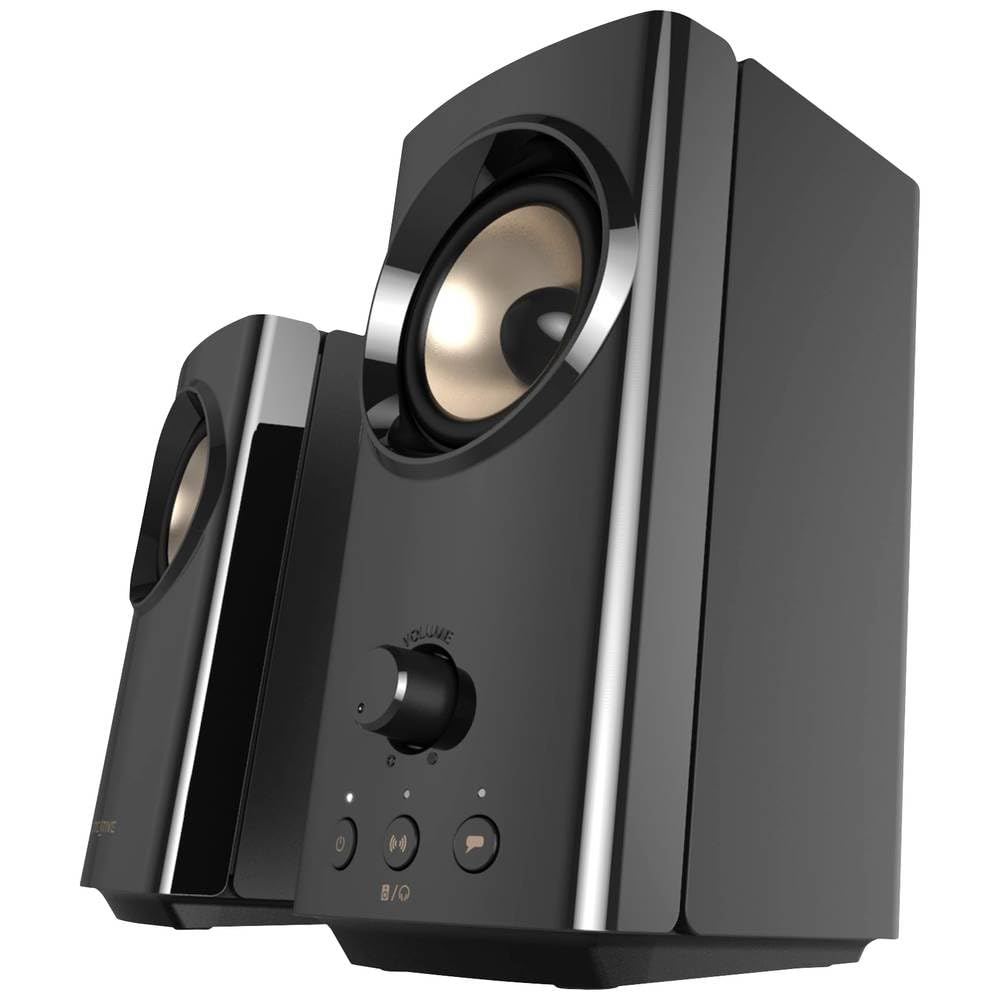
Image: Creative T60 2.0 Hi-Fi Compact PC Speakers set up on a desk next to a computer monitor.
Setup
Before you begin, ensure all components are present in the box:
- Creative T60 Speakers (Left and Right)
- AC Power Adapter (18V 2A)
- AC Plugs (Interchangeable for various regions)
- 3.5mm Stereo-to-Stereo Cable
- Headphone Extension Cable
- USB-C to USB-A Adapter

Image: All components included with the Creative T60 speakers, laid out on a surface, including the speakers, power adapter with interchangeable plugs, and various cables.
Connection Instructions
- Power Connection: Connect the AC power adapter to the power input on the rear of the right speaker, then plug the adapter into a wall outlet. Use the appropriate interchangeable AC plug for your region.
- Speaker Interconnection: Connect the left speaker to the right speaker using the integrated cable.
- USB-C Audio: For digital audio, connect the USB-C cable from the right speaker to your computer's USB-C port. If your computer only has USB-A, use the provided USB-C to USB-A adapter.
- Bluetooth 5.0: Power on the speakers. Press and hold the Bluetooth button on the right speaker until the LED indicator flashes blue. On your device (smartphone, tablet, computer), search for 'Creative T60' in the Bluetooth settings and pair.
- 3.5mm AUX Input: Connect the 3.5mm stereo-to-stereo cable from the right speaker's AUX-in port to your audio source's headphone jack or line-out port.
- Headphone and Microphone Ports: Connect your headphones or an external microphone to the respective 3.5mm ports on the front of the right speaker for private listening or communication.
Operating

Image: Close-up view of the control panel on the right Creative T60 speaker, showing the volume knob, power button, Bluetooth button, and Clear Dialog/Surround buttons.
- Power On/Off: Press the Power button (
 ) on the right speaker to turn the unit on or off.
- Volume Control: Rotate the large Volume knob on the right speaker clockwise to increase volume and counter-clockwise to decrease it.
- Source Selection: Briefly press the Power button to cycle through available input sources (USB-C, Bluetooth, AUX). The LED indicator will change color to reflect the active source.
- Clear Dialog Mode: Press the Clear Dialog button (
 ) to enhance spoken vocals in movies and games, making dialogue clearer and more prominent.
- Surround Mode: Press the Surround button (often combined with Clear Dialog, indicated by a different LED state) to activate an immersive audio experience, expanding the soundstage for a wider listening experience.
- SmartComms Kit: This suite of communication features is accessible via the Creative App when the speakers are connected to your computer via USB. It includes:
- VoiceDetect: Automatically mutes and unmutes your microphone based on voice activity, ensuring you're only heard when speaking.
- NoiseClean: Reduces static background noise from both incoming and outgoing audio, providing clearer communication during calls or online meetings.

Image: A laptop screen displaying the Creative SmartComms Kit software interface, with the Creative T60 speaker visible next to it.
Maintenance
Proper care ensures the longevity and performance of your Creative T60 speakers:
- Cleaning: To clean the speaker surfaces, use a soft, dry, lint-free cloth. Avoid using abrasive cleaners, solvents, or chemical sprays, as these can damage the finish.
- Environment: Do not expose the speakers to excessive moisture, direct sunlight, or extreme temperatures. Ensure adequate ventilation around the speakers.
- Handling: Handle the speaker domes with care as they are delicate and can be easily damaged by direct contact or pressure.
Troubleshooting
If you encounter issues with your Creative T60 speakers, refer to the following common troubleshooting steps:
- No Sound:
- Ensure the speakers are powered on and the volume knob is not at its minimum setting.
- Verify that the correct audio source (USB-C, Bluetooth, or AUX) is selected. Briefly press the power button to cycle through sources.
- Check all cable connections (power, speaker interconnection, audio input) are secure and fully inserted.
- Ensure your connected device's volume is also turned up and not muted.
- Bluetooth Pairing Issues:
- Make sure the speakers are in Bluetooth pairing mode (the Bluetooth LED indicator should be flashing blue).
- Ensure your device's Bluetooth is enabled and within the effective range (up to 10 meters).
- Try forgetting 'Creative T60' from your device's Bluetooth list and then re-pairing.
- If connecting to multiple devices, ensure the speakers are not already connected to another device.
- Poor Sound Quality:
- For Bluetooth connections, ensure your device is close to the speakers to avoid signal interference.
- Check the quality of your audio source. Lower quality audio files or streaming services may result in less clear sound.
- If using the AUX input, ensure the 3.5mm cable is not damaged and is fully inserted into both the speaker and your audio source.
- Firmware Updates: Creative periodically releases firmware updates to enhance product performance and add features. For instructions on how to check for and apply the latest firmware, please visit the official Creative support website. Note that the update process may require specific steps and software.
- Bluetooth Multipoint Functionality: The Creative T60 supports Bluetooth 5.0. For specific details on how multipoint functionality works and how to switch between connected devices, please consult the Creative support website or the Creative App documentation.
For further assistance, refer to the Creative Worldwide Support page.
Specifications
| Feature | Specification |
|---|---|
| Brand | CREATIVE |
| Model Name | T60 (51MF1705AA001) |
| Speaker Type | Multimedia, 2.0 Channel |
| Connectivity Technology | Auxiliary (3.5mm), Bluetooth 5.0, USB-C |
| Maximum Speaker Output Power | 60 Watts (Peak) |
| Audio Output Mode | Stereo |
| Special Features | Bass Amplification, Integrated Microphone, USB Port, Clear Dialog, Surround |
| Recommended Uses | For computer, desktop, laptop, TV, gaming console, smartphone, tablet |
| Control Method | Push Button, Rotary Knob |
| Bluetooth Range | 10 Meters |
| Driver Size | 2.75 Inches (Full-range) |
| Item Weight | 1900 Grams |
| Dimensions (L x W x H) | 1.47 x 3.4 x 3.05 meters (approximate, based on provided data) |
| Power Source | Corded Electric |
Warranty and Support
Warranty: The Creative T60 speakers come with a 2-year manufacturer's limited warranty. Please retain your proof of purchase for warranty claims.
Support: For technical support, product registration, or additional resources, please visit the official Creative Worldwide Support page for the Creative T60. You can find comprehensive FAQs, driver downloads, and contact information there.

Image: Screenshot of the Creative Worldwide Support page, showing the selection for the Creative T60 product.
Additional documentation, including a detailed user manual and safety information, can also be found on the product's Amazon page under the 'Documents' section.