
X88 MXQ PRO
MXQ PRO 5G Android TV Box User Manual
Model: MXQ PRO | Brand: X88
Introduction
This user manual provides comprehensive instructions for setting up, operating, maintaining, and troubleshooting your MXQ PRO 5G Android TV Box. This device is designed to transform your television into a smart entertainment hub, offering access to various streaming services, applications, and media content. Please read this manual thoroughly to ensure optimal performance and longevity of your device.
What's in the Box
Upon unboxing, please verify that all the following items are included:
- TV box
- HD cable
- Remote control
- AC adapter
- Mini keyboard
- User guide

Image: All components included in the MXQ PRO 5G TV Box package.
Product Overview
The MXQ PRO 5G Android TV Box features a compact design with essential ports for connectivity. It comes with a standard remote control and a wireless mini keyboard for enhanced navigation and input.

Image: Front view of the MXQ PRO 5G TV Box, its standard remote, and the included wireless mini keyboard.

Image: Physical dimensions of the MXQ PRO 5G TV Box.

Image: Detailed view of all available ports on the MXQ PRO 5G TV Box.
Setup Guide
Follow these simple steps to set up your MXQ PRO 5G Android TV Box:
- Connect TV Box to TV: Use the provided HD cable (HDMI) to connect the TV Box to an available HDMI port on your television. Ensure the TV is set to the correct HDMI input.
- Connect to Power: Plug the AC adapter into the Power Port on the TV Box and then into a wall outlet. The device should power on automatically or can be turned on using the remote control.
- Connect to Internet:
- Wi-Fi: Navigate to the network settings on the TV Box interface, select your Wi-Fi network, and enter the password. The device supports dual-band 2.4G/5.8G Wi-Fi for stable and fast connections.
- Ethernet: For a wired connection, connect an Ethernet cable from your router to the LAN Port on the TV Box.
- Initial Setup: Follow the on-screen prompts to complete the initial setup, including language selection, time zone, and Google account login (optional, but recommended for app access).
- Pair Mini Keyboard: Insert the USB dongle for the mini keyboard into any available USB port on the TV Box. The keyboard should automatically pair.
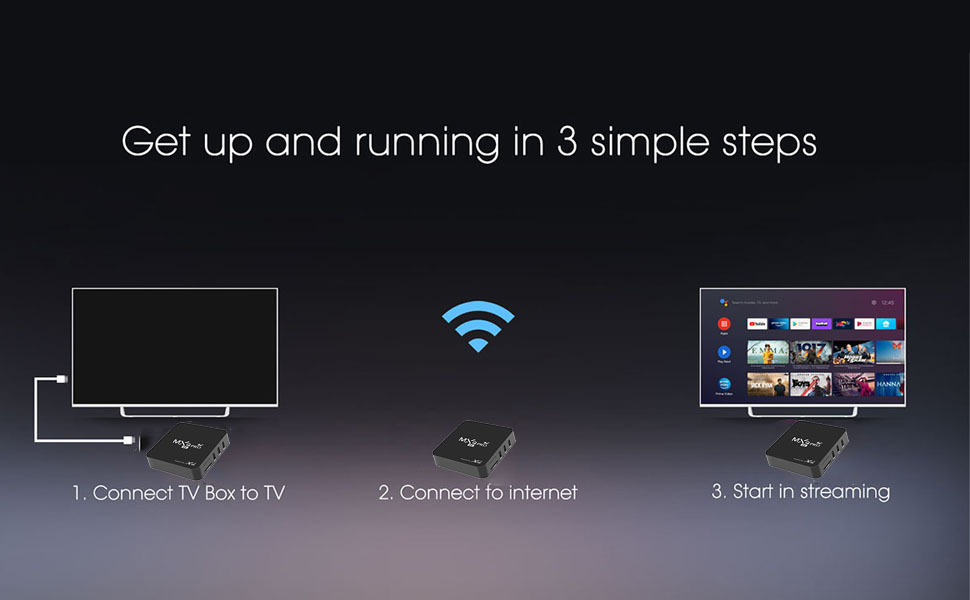
Image: Visual guide for the three-step setup process.
Video Guide: MXQ PRO 5G Android TV Box Overview
Video: An official overview of the MXQ PRO 5G Android TV Box, demonstrating its features and components.
Operating Instructions
Navigating the Interface
The MXQ PRO 5G runs on Android 13.1, providing a user-friendly interface. Use the standard remote control or the mini keyboard to navigate menus, select applications, and control media playback.
- Standard Remote: Use the directional pad for navigation, 'OK' button for selection, and dedicated buttons for Home, Back, Volume, and Media controls.
- Mini Keyboard: This multifunctional device combines a QWERTY keyboard, air mouse, and remote control.
- Keyboard: Type text for searches, logins, and other inputs.
- Air Mouse: Activate the air mouse function to control a cursor on the screen by moving the keyboard in the air.
- Remote Functions: Includes basic media control and navigation buttons.

Image: The wireless mini keyboard and standard remote control.
Key Features and Usage
- Android 13.1 OS: Access the Google Play Store to download and install a wide range of applications, including streaming services (e.g., YouTube, Netflix), games, and utilities.
- 4K & 3D Support: Enjoy high-definition content with support for 4K ultimate HD video and 3D video playback. Ensure your TV and content are also 4K/3D compatible.
- Dual Wi-Fi (2.4G/5.8G): Connect to your home network using either 2.4GHz or 5.8GHz bands for stable and fast streaming. The 5.8GHz band offers faster speeds with less interference, ideal for high-bandwidth activities.
- Media Playback: The device supports H.265 video decoding, providing efficient compression for high-quality video with reduced bandwidth requirements. You can play local media files from USB drives or SD/MMC cards.
- Miracast: Utilize the Miracast feature to mirror content from compatible mobile devices directly to your TV screen.
Maintenance
Proper maintenance ensures the longevity and optimal performance of your MXQ PRO 5G Android TV Box:
- Cleaning: Use a soft, dry cloth to clean the exterior of the TV box. Avoid liquid cleaners or abrasive materials.
- Ventilation: Ensure the TV box is placed in a well-ventilated area. Do not cover ventilation openings or place the device in an enclosed space to prevent overheating.
- Software Updates: Periodically check for system updates in the device settings. Keeping the software updated can improve performance, add new features, and enhance security.
- Power Off Properly: Always power off the device using the remote or by selecting the shutdown option from the system menu before unplugging it.
- Avoid Extreme Conditions: Do not expose the device to extreme temperatures, humidity, or direct sunlight.
Troubleshooting
If you encounter issues with your MXQ PRO 5G Android TV Box, refer to the following common problems and solutions:
| Problem | Possible Cause | Solution |
|---|---|---|
| Device does not power on. | Power cable loose, power adapter faulty, power outlet issue. | Check power connections. Try a different power outlet. Ensure the power adapter is functioning correctly. |
| No display on TV. | Incorrect HDMI input selected, loose HDMI cable, TV Box not powered on. | Verify TV input source matches the HDMI port used. Reconnect HDMI cable. Ensure TV Box is powered on. |
| Remote control not responding. | Dead batteries, line of sight blocked, remote not paired (for mini keyboard). | Replace batteries. Ensure no obstructions between remote and TV Box. For mini keyboard, ensure USB dongle is inserted and try re-pairing if necessary. |
| Slow performance or freezing. | Too many apps running, insufficient memory, poor internet connection. | Close unused applications. Clear cache. Check internet speed and connection stability. Restart the device. |
| Wi-Fi connection issues. | Incorrect password, router issues, signal interference. | Double-check Wi-Fi password. Restart your router. Move the TV Box closer to the router or use an Ethernet connection. |
Specifications
Detailed technical specifications for the MXQ PRO 5G Android TV Box:
| Feature | Detail |
|---|---|
| Brand Name | X88 |
| Model Name | MXQ PRO |
| Operating System | Android 13.1 (as per product description, though some images show Android 10.0/12.0, 13.1 is the latest stated) |
| RAM | 2GB |
| ROM | 16GB eMMC |
| Processor | Quad-Core 64-bit CPU (ARM Cortex-A53 up to 2GHz) |
| GPU | Penta-core ARM Mali-450 |
| Connectivity Technology | Dual Wi-Fi 2.4G+5G, HDMI, Ethernet, USB 2.0 |
| Video Decoding | H.265 |
| Resolution Support | 4K (60Hz), 3D |
| Special Features | Miracast, Wireless Mini Keyboard included |
| Item Weight | 10.6 ounces |
| Product Dimensions | 4.12 x 4.12 x 0.74 inches |
| Color | Black |
Warranty Information
Specific warranty details for the MXQ PRO 5G Android TV Box are typically provided at the point of purchase or within the included user guide. For information regarding manufacturer's warranty, please refer to the documentation supplied with your product or contact the seller directly. Extended protection plans may also be available from your retailer.
Customer Support
For further assistance or technical support, please contact the seller or manufacturer through the contact information provided with your purchase. When contacting support, please have your product model (MXQ PRO) and purchase details ready.
Ask a question about this manual
Ask about setup, troubleshooting, compatibility, parts, safety, or missing instructions. Manuals+ will review the question and use this page’s manual context to help answer it.