
1. Introduction
This manual provides detailed instructions for the setup, operation, and maintenance of your ASUS ProArt Display PA32UCG-K 32-inch 4K HDR Monitor. Please read this manual thoroughly before using your monitor to ensure proper functionality and to maximize its performance.
Key Features
- 32-inch Mini LED Backlight: Features 1,152 zones of local dimming, providing 1600 nits peak brightness and 1000 nits full screen sustained brightness for superior contrast.
- Multiple HDR Format Support: Compatible with Dolby Vision, HDR-10, and HLG for a lifelike visual experience.
- Variable Refresh Rate (VRR): Offers a 48~120 Hz variable refresh rate with FreeSync2 HDR, ideal for game developers and video editors.
- True 10-bit Color with Quantum-dot Technology: Ensures exceptional color fidelity across DCI-P3, Rec. 2020, Adobe RGB, and sRGB color spaces.
- Advanced Color Accuracy: Achieves a world-leading ΔE < 1 color performance, supported by ASUS ProArt Hardware Calibration Technology for optimal color accuracy, uniformity, and color profile write-back.
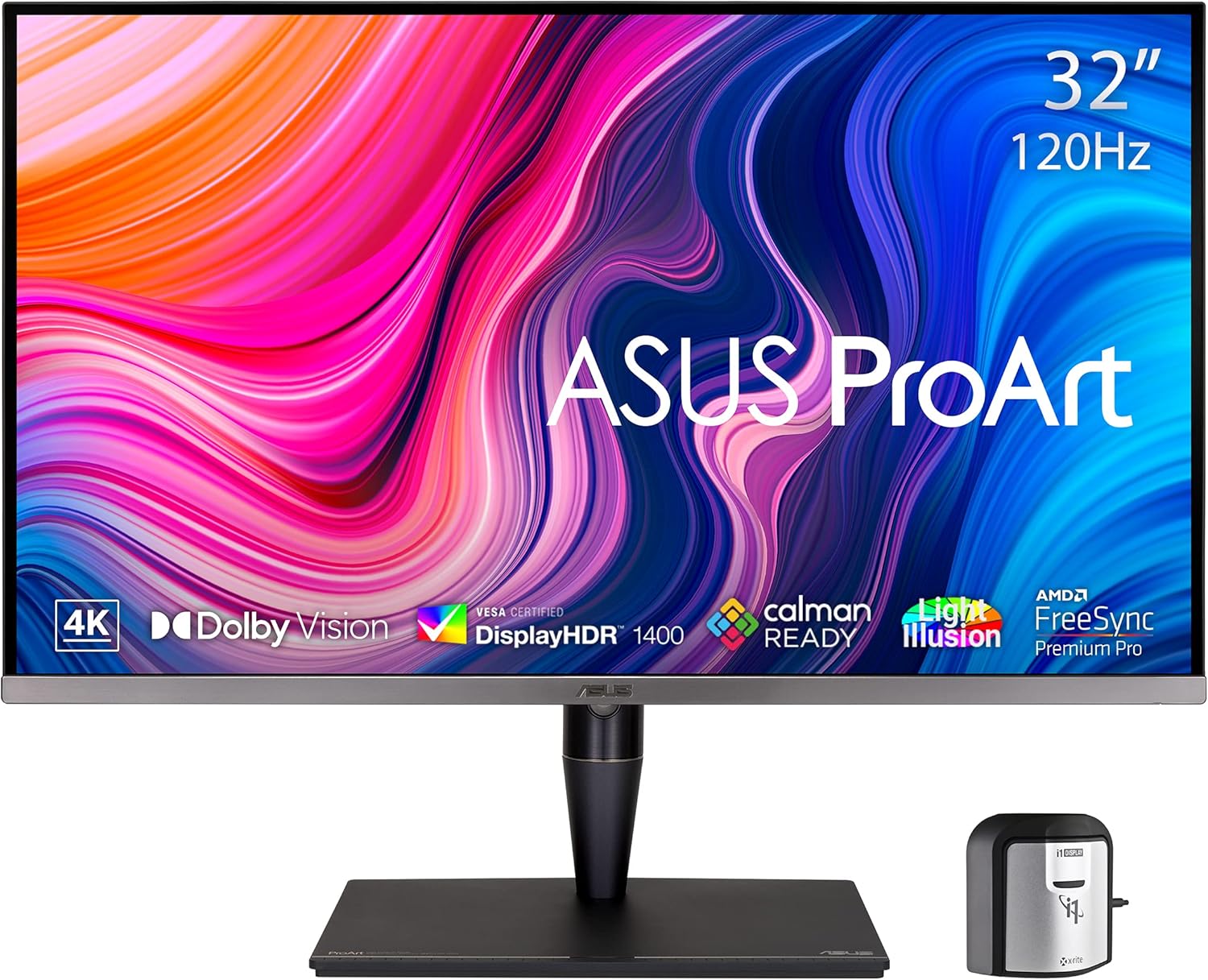
Front view of the ASUS ProArt Display PA32UCG-K monitor, showcasing its vibrant display and sleek design.

Illustration of the monitor's 1152-zone Mini LED IPS Panel, highlighting its ability to produce deep blacks and bright whites.
2. What's in the Box
Please check the contents of your product packaging. If any items are missing or damaged, contact your retailer or ASUS support.
- PA32UCG-K Monitor
- HDMI cable
- DisplayPort cable
- USB cable
- Power cord
- Thunderbolt 3 mission bridge cable
- Calibration report
- Monitor Hood
- X-rite i1 Display Pro Calibrator
- Quick Start Guide
- Warranty Card

All items included in the ASUS ProArt Display PA32UCG-K packaging.
3. Setup Instructions
3.1 Monitor Assembly
- Carefully remove the monitor and stand components from the packaging.
- Attach the stand base to the stand neck, securing it with the provided screw.
- Connect the assembled stand to the back of the monitor until it clicks into place.
- Place the monitor on a stable, flat surface.
3.2 Connecting the Monitor
The ASUS ProArt Display PA32UCG-K offers various connectivity options. Choose the appropriate cable for your device.
- Power Connection: Connect the power cord to the monitor's power input and then to a power outlet.
- Video Input:
- HDMI: Use the included HDMI 2.1 cable for high-resolution video and audio. The monitor has one HDMI 2.1 port and two HDMI 2.0 ports.
- DisplayPort: Use the included DisplayPort cable for DisplayPort 1.4 connectivity.
- Thunderbolt 3 (USB-C): Connect compatible devices using the Thunderbolt 3 USB-C cable for video, data, and power delivery. The monitor features two Thunderbolt 3 USB-C ports.
- USB Hub: Connect the USB upstream cable (USB-C to USB-A) from your computer to the monitor to enable the monitor's USB-A ports (x3).

Overview of the monitor's connectivity options, including HDMI, DisplayPort, Thunderbolt 3, and USB-A ports.
4. Operating Your Monitor
4.1 Power On/Off
Press the power button located on the bottom right of the monitor bezel to turn the monitor on or off.
4.2 On-Screen Display (OSD) Navigation
Use the joystick and buttons on the rear of the monitor to navigate the OSD menu. The OSD allows you to adjust various settings such as brightness, contrast, color modes, and input selection.
4.3 Color Calibration
The ASUS ProArt Display PA32UCG-K includes an X-rite i1 Display Pro Calibrator and supports ASUS ProArt Hardware Calibration Technology. This ensures precise color accuracy and uniformity.
- Install the ASUS ProArt Calibration software on your computer.
- Connect the X-rite i1 Display Pro Calibrator to your computer and place it on the designated area of the screen.
- Follow the on-screen instructions in the ProArt Calibration software to perform a hardware calibration.

The monitor's Quantum Dot technology delivers exceptional color accuracy, with Delta E < 1, 98% DCI-P3, 100% Rec. 709, and True 10-bit color.

The monitor supports flexible calibration with an X-rite calibrator for precise color parameter profiles.
4.4 HDR Modes
The monitor supports multiple High Dynamic Range (HDR) formats, including Dolby Vision, HDR-10, and HLG. These modes enhance contrast and color for compatible content. Select the desired HDR mode through the OSD menu or allow your operating system to manage it automatically.
4.5 Variable Refresh Rate (VRR)
With a 48~120 Hz variable refresh rate and FreeSync2 HDR support, the monitor dynamically adjusts its refresh rate to match the frame rate of your content, reducing screen tearing and stuttering for a smoother visual experience, particularly beneficial for gaming and video editing.

The monitor's 120Hz Variable Refresh Rate and AMD FreeSync Premium Pro make it ideal for game developers and video editors.
4.6 Eye Care Features
The ASUS ProArt Display PA32UCG-K incorporates ASUS Eye Care technologies to reduce eye strain during prolonged use. These features include a Blue Light Filter and Flicker-Free technology.
This video demonstrates the benefits of ASUS Eye Care monitors, including anti-glare screens, blue light filters, and flicker-free technology, designed to protect eye health during extended use.
5. Maintenance and Care
5.1 Cleaning the Screen
To clean the screen, gently wipe it with a soft, lint-free cloth. For stubborn marks, lightly dampen the cloth with water or a mild, non-abrasive screen cleaner. Avoid using alcohol-based cleaners, ammonia, or abrasive materials.
5.2 General Care
- Keep the monitor away from direct sunlight, excessive heat, or cold.
- Ensure proper ventilation around the monitor to prevent overheating.
- Avoid placing heavy objects on the monitor or its cables.
- Unplug the monitor from the power outlet during lightning storms or when it will be unused for extended periods.
6. Troubleshooting
If you encounter issues with your monitor, refer to the following common problems and solutions:
| Problem | Possible Solution |
|---|---|
| No image on screen | Ensure the power cable is securely connected. Check that the video cable (HDMI, DisplayPort, or Thunderbolt 3) is properly connected to both the monitor and your computer. Verify the correct input source is selected via the OSD menu. |
| Image is blurry or distorted | Check the display resolution settings on your computer and ensure they match the monitor's native resolution (3840 x 2160). Adjust the monitor's sharpness settings in the OSD menu. |
| Colors appear incorrect | Perform a color calibration using the included X-rite calibrator and ProArt Calibration software. Check the color mode settings in the OSD menu. |
| Screen flickering | Ensure Flicker-Free technology is enabled in the OSD menu. Check your graphics card drivers for updates. If using VRR, ensure your graphics card and software support it correctly. |
| USB ports not working | Verify that the USB upstream cable (USB-C to USB-A) is connected from your computer to the monitor. Check your computer's device manager for any USB driver issues. |
If the problem persists after trying these solutions, please contact ASUS customer support.
7. Technical Specifications
| Feature | Specification |
|---|---|
| Model Name | PA32UCG-K |
| Screen Size | 32 Inches |
| Resolution | 4K UHD (3840 x 2160 Pixels) |
| Panel Type | Mini-LED IPS |
| Peak Brightness | 1600 nits |
| Sustained Brightness | 1000 nits |
| Refresh Rate | 120Hz (Variable) |
| Color Depth | True 10-bit |
| Color Accuracy | ΔE < 1 |
| HDR Support | Dolby Vision, HDR-10, HLG |
| Connectivity | HDMI (v2.1) x1, HDMI (v2.0) x2, DisplayPort1.4 x1, Thunderbolt™ 3 USB-C x2, USB-A x3 |
| Item Weight | 32.3 pounds |
| Product Dimensions (LxWxH) | 18.5 x 28.62 x 9.45 inches |
8. Warranty and Support
8.1 Product Warranty
Your ASUS ProArt Display PA32UCG-K monitor is covered by a limited manufacturer's warranty. Please refer to the included Warranty Card for specific terms, conditions, and duration of coverage in your region. Keep your proof of purchase for warranty claims.
8.2 Customer Support
For technical assistance, troubleshooting beyond this manual, or warranty service, please contact ASUS customer support:
- ASUS Support Website: Visit the official ASUS support website for drivers, FAQs, and contact information.
- Online Resources: Explore the ASUS Store on Amazon for additional product information and resources.