1. Introduction
Welcome to the user manual for your ANYQOO Stylus Pen C6. This guide provides essential information for the proper setup, operation, and maintenance of your stylus pen. Please read this manual thoroughly to ensure optimal performance and longevity of your device.

Image: The ANYQOO Stylus Pen C6, shown in purple, accompanied by three replacement tips.
2. Compatibility
The ANYQOO Stylus Pen C6 is designed for specific iPad models released from 2018 to 2025. It is not compatible with pre-2018 iPads, iPhones, or Android devices. Please verify your iPad model number before use.
- iPad Pro: 13-inch (M4/M3), 12.9-inch (3rd/4th/5th/6th Gen), 11-inch (All Generations)
- iPad Air: 13-inch (M3/M2), 11-inch (M3/M2), 5th/4th/3rd Gen
- iPad: 11th/10th/9th/8th/7th/6th Gen
- iPad Mini: A17 Pro/6th/5th Gen
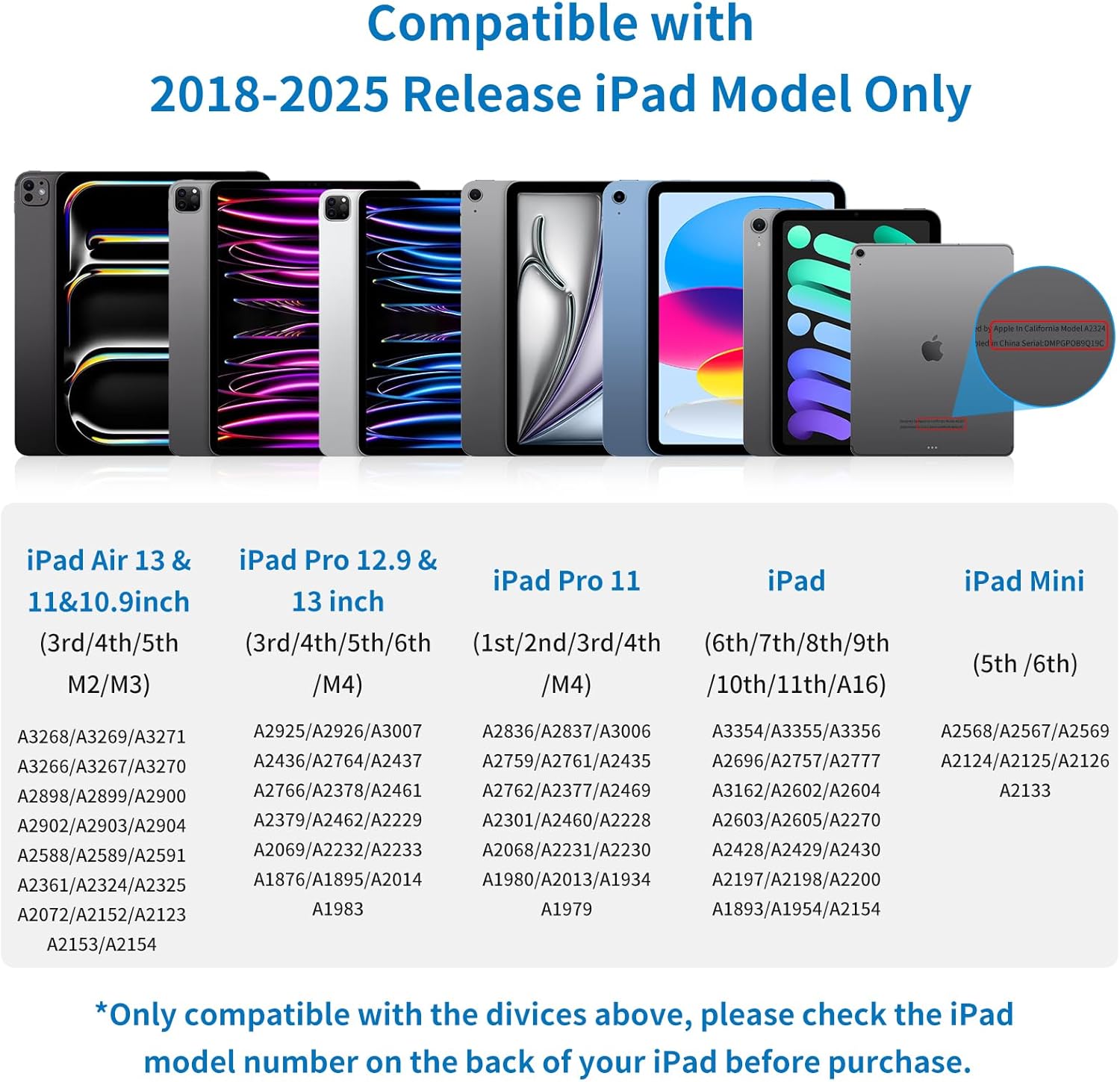
Image: A detailed chart illustrating the compatibility of the stylus pen with various iPad models and their specific model numbers.
To find your iPad's model number, check the back of your device. It typically starts with the letter 'A' followed by four digits (e.g., A2324).
3. Package Contents
Upon opening your ANYQOO Stylus Pen C6 package, you should find the following items:
- 1x ANYQOO Stylus Pen C6
- 3x Replacement Tips
- 1x USB-C Charging Cable
- 1x User Manual (this document)

Image: The complete contents of the ANYQOO Stylus Pen C6 package, laid out for clear viewing.
4. Setup
4.1 Initial Charging
Before first use, fully charge your ANYQOO Stylus Pen C6. Connect the provided USB-C charging cable to the pen's charging port and a compatible USB power source. The indicator lights on the pen will show charging status.
4.2 Power On/Off
To power on the stylus, simply double-tap the cap. Double-tap again to power it off. The pen will automatically enter sleep mode after 10 minutes of inactivity to conserve battery life.
4.3 Pairing (No Bluetooth Required)
The ANYQOO Stylus Pen C6 does not require Bluetooth pairing or any special app installation. Once powered on, it is ready for immediate use with compatible iPad models.
5. Operating Instructions
5.1 Palm Rejection Technology
The stylus features advanced palm rejection technology, allowing you to rest your hand comfortably on the iPad screen while writing or drawing, without creating unintended marks. This provides a natural writing experience.
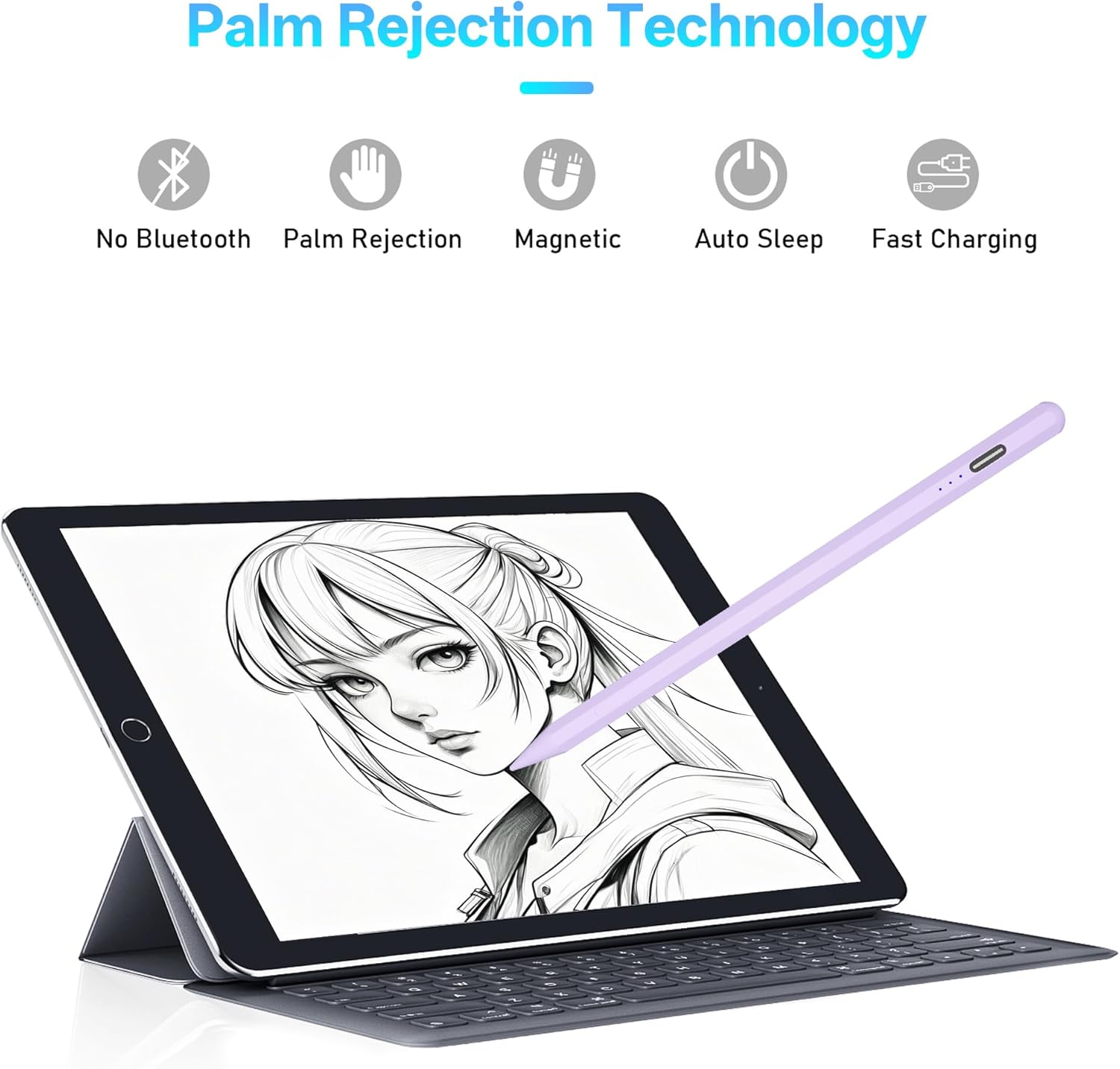
Image: A user drawing on an iPad with the stylus, demonstrating the palm rejection feature.
5.2 Tilt Control
The ANYQOO Stylus Pen C6 supports tilt sensitivity. By adjusting the angle at which you hold the pen, you can create lines of varying thickness, similar to using a traditional pencil. This feature is ideal for shading and artistic applications.

Image: A visual representation of how tilt sensitivity works, showing line variations based on pen angle.
5.3 Magnetic Adsorption
The stylus can magnetically attach to the side of compatible iPad models for convenient storage and to prevent loss. This feature ensures your pen is always within reach when not in use.

Image: The stylus pen shown adhering magnetically to the side of an iPad.
6. Maintenance
6.1 Replacing the Pen Tip
The ANYQOO Stylus Pen C6 comes with three replacement tips. If the pen tip becomes worn or damaged, follow these steps to replace it:
- Gently twist the old tip counter-clockwise to remove it from the pen.
- Select a new replacement tip.
- Carefully twist the new tip clockwise onto the pen until it is securely fastened. Do not overtighten.

Image: An exploded view demonstrating the process of replacing the stylus pen tip.
6.2 Cleaning
To clean your stylus pen, wipe it with a soft, dry, lint-free cloth. Avoid using abrasive materials or harsh chemicals, as these can damage the pen's finish.
7. Troubleshooting
| Problem | Solution |
|---|---|
| Pen does not turn on. | Ensure the pen is charged. Double-tap the cap to power on. |
| Pen does not write or draw. | Verify iPad compatibility. Ensure the pen is powered on. Check if the pen tip is securely attached and not worn. |
| Inaccurate or intermittent response. | Ensure the iPad screen is clean. Replace the pen tip if it appears worn. Restart your iPad. |
| Palm rejection not working. | Ensure your iPad model supports palm rejection with third-party styluses. Some apps may have specific settings for stylus input. |
8. Specifications
- Model: C6
- Brand: ANYQOO
- Material: Aluminum
- Item Weight: 0.32 ounces (approx. 9 grams)
- Package Dimensions: 8.23 x 2.36 x 0.67 inches
- Battery Type: Lithium-Ion Polymer
- Batteries: 1 Lithium Polymer battery (included)
- Charging Port: USB-C
- Features: Palm Rejection, Tilt Control, Magnetic Adsorption, Auto Sleep
9. Warranty and Support
ANYQOO provides a 12-month warranty for the Stylus Pen C6, covering manufacturing defects from the date of purchase. For any inquiries, technical assistance, or warranty claims, please contact our customer support team.
- Customer Service: Available 24 hours.
- Support Location: US-based customer support.
Please refer to your purchase documentation for specific contact details or visit the official ANYQOO website for the most up-to-date support information.


