
Picun B12
Picun B12 Wireless Headphones User Manual
Model: B12 | Brand: Picun
1. Product Overview
The Picun B12 Wireless Headphones deliver an immersive audio experience with HD stereo sound and deep bass, powered by 40MM high magnetic NdFeB drivers. Designed for comfort, they feature soft earmuffs that simulate human skin texture and an adjustable, foldable headband for portability. Equipped with Bluetooth 5.2 for stable connections and a high-definition omnidirectional noise reduction built-in microphone, these headphones are versatile for various uses including travel, sports, and daily listening. They offer up to 20 hours of playtime and support both wireless and wired connections.

Figure 1: Picun B12 Wireless Headphones - Front View
These over-ear headphones feature a sleek black design with illuminated earcups.
2. Setup Guide
2.1 Charging the Headphones
Before first use, fully charge your Picun B12 headphones. A full charge takes approximately 1.5-2 hours and provides up to 20 hours of music playing time.
- Locate the USB Charging port on the headphone earcup.
- Connect the provided Micro USB charging cable to the headphone's charging port.
- Connect the other end of the USB cable to a compatible USB power source (e.g., computer USB port, wall adapter).
- The LED indicator light will show charging status (refer to the LED indicator section for details).

Figure 2: Headphones connected for charging, illustrating wireless freedom and wired backup options.
2.2 Bluetooth Pairing
Pair your Picun B12 headphones with your Bluetooth-enabled device for wireless audio.
- Ensure the headphones are charged and powered off.
- Press and hold the Power On/Off button until the Bluetooth indicator light starts flashing (usually blue and red, indicating pairing mode).
- On your device (smartphone, tablet, laptop), enable Bluetooth and search for available devices.
- Select "Picun B12" from the list of found devices.
- Once connected, the Bluetooth indicator light on the headphones will typically turn solid blue or stop flashing. A voice prompt will confirm successful pairing.

Figure 3: Bluetooth indicator light showing connectivity range of 10 meters.
3. Operating Instructions
3.1 Controls Overview
The Picun B12 headphones feature intuitive controls located on the earcup for easy management of audio playback and calls.

Figure 4: Detailed diagram of headphone controls including TF port, Bluetooth indicator, 3.5mm Audio port, Microphone port, USB Charging port, On/Off, Volume/Track controls, and Mode Switch.
- Power On/Off: Press and hold the On/Off button.
- Volume Up/Next Track: Short press for Volume+, Long press for Next Track.
- Volume Down/Previous Track: Short press for Volume-, Long press for Previous Track.
- Play/Pause/Answer Call: Press the Mode Switch button.
- End Call: Press the Mode Switch button during a call.
- Reject Call: Press and hold the Mode Switch button.
- Mode Switch: Press the Mode Switch button to switch between Bluetooth, TF card, and AUX modes.
3.2 Wired Connection (AUX Mode)
When the battery runs out or for devices without Bluetooth, use the included 3.5mm audio cable for a wired connection.
- Connect one end of the 3.5mm audio cable to the 3.5mm Audio port on the headphone.
- Connect the other end to the audio output jack of your device (e.g., computer, tablet, laptop).
- The headphones will automatically switch to wired mode.
3.3 RGB Lighting Feature
The Picun B12 headphones feature dynamic RGB lights on the earcups for a stylish look. These lights cycle through various colors automatically.

Figure 5: Earcups illuminated with RGB lights, enhancing the aesthetic appeal.
4. Comfort and Design
The Picun B12 headphones are engineered for extended wear comfort and portability.
- Soft Earmuffs: The earmuffs are made from a material that simulates human skin texture, providing a soft and comfortable fit for long listening sessions.
- Adjustable Headband: The headband is adjustable to fit various head sizes, ensuring a secure and comfortable fit for adults, kids, and teens.
- Foldable Design: The headphones can be easily folded for compact storage and portability, making them ideal for travel.

Figure 6: User demonstrating the comfortable fit of the headphones.
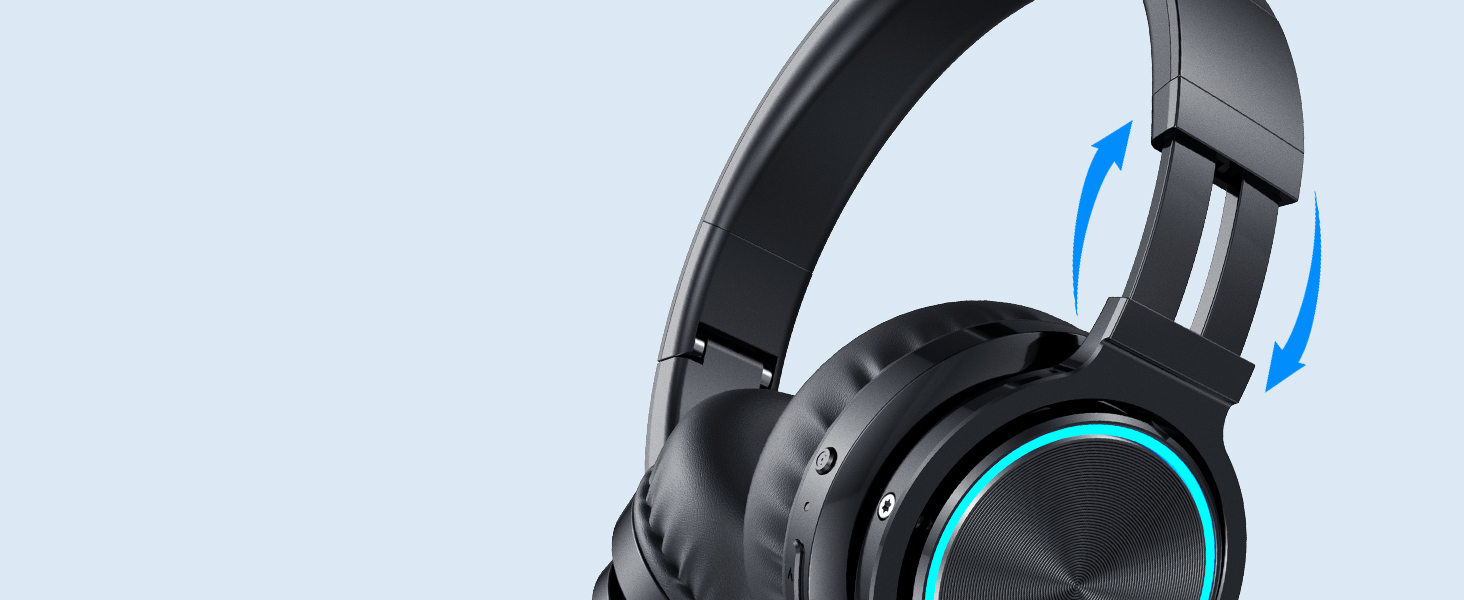
Figure 7: Illustration of the adjustable headband for a customized fit.
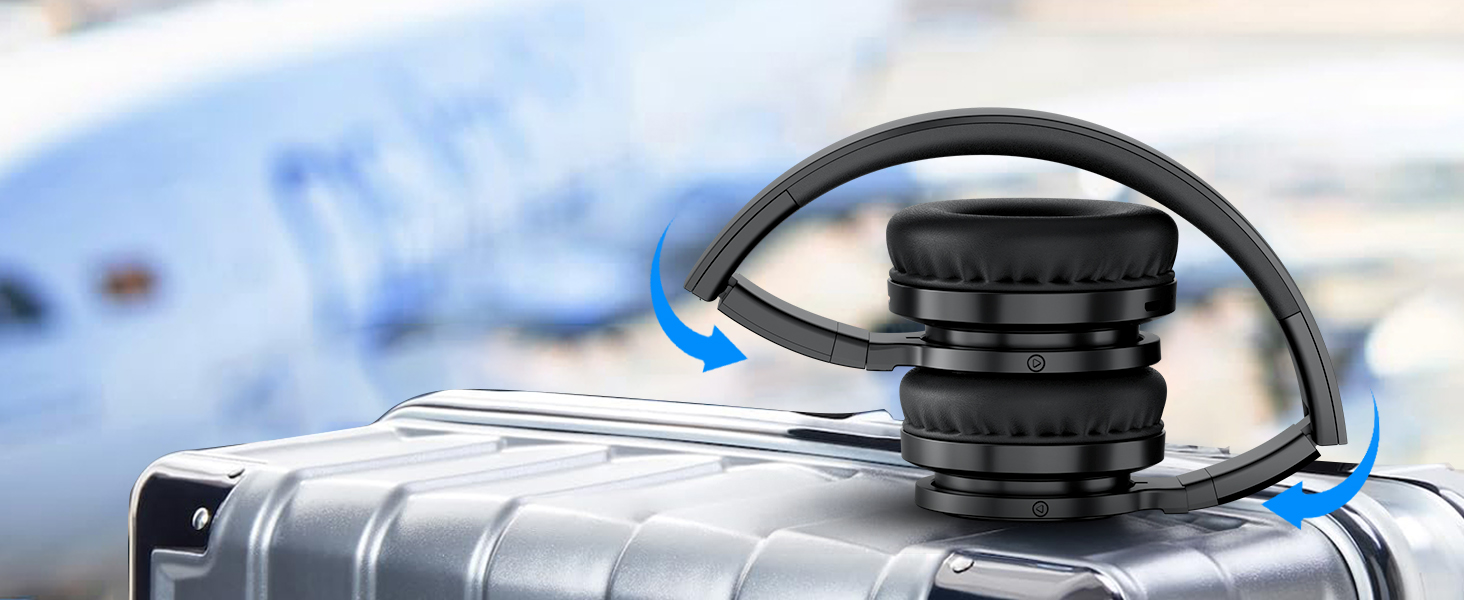
Figure 8: Headphones folded compactly for easy storage and travel.
5. Maintenance and Care
Proper maintenance ensures the longevity and optimal performance of your headphones.
- Cleaning: Use a soft, dry cloth to wipe the headphones. For earmuffs, a slightly damp cloth can be used, but ensure they are completely dry before use. Avoid harsh chemicals or abrasive materials.
- Storage: When not in use, store the headphones in a cool, dry place. Utilize their foldable design to save space and protect them from damage.
- Battery Care: To prolong battery life, avoid fully discharging the headphones frequently. Charge them regularly, even if not in constant use.
- Cable Management: Handle the audio and charging cables with care. Avoid sharp bends or excessive pulling to prevent internal wire damage.
6. Troubleshooting
If you encounter issues with your Picun B12 headphones, refer to the following common solutions:
- Headphones won't power on:
- Ensure the headphones are fully charged.
- Press and hold the Power On/Off button for a few seconds.
- Cannot pair with device:
- Ensure Bluetooth is enabled on your device and the headphones are in pairing mode (flashing indicator light).
- Make sure the headphones are within 10 meters of your device.
- Forget the device from your Bluetooth list and try pairing again.
- Restart both the headphones and your device.
- No sound or low volume:
- Check the volume levels on both the headphones and your connected device.
- Ensure the headphones are properly paired or the 3.5mm audio cable is securely connected.
- Try playing audio from a different source or application.
- Microphone not working:
- Ensure the headphones are connected via Bluetooth (microphone functionality is typically limited in wired mode).
- Check microphone settings on your device to ensure the Picun B12 is selected as the input device.
7. Specifications
| Feature | Description |
|---|---|
| Model Name | B12 |
| Brand | Picun |
| Connectivity Technology | Wireless+Wired+Bluetooth 5.2 |
| Wireless Communication Technology | Bluetooth |
| Headphones Jack | 3.5 mm Jack |
| Noise Control | Sound Isolation (for microphone) |
| Battery Life | 20 Hours |
| Charging Time | 1.5-2 Hours |
| Earpiece Shape | Over Ear |
| Material | Plastic |
| Item Weight | 11.7 ounces (0.73 Pounds) |
| Frequency Range | 20 Hz - 20 kHz |
| Included Components | Ear Cushions, User Manual, Headband, Cable |
8. Warranty and Support
For warranty information and customer support, please refer to the documentation included in your product packaging or visit the official Picun website. Keep your purchase receipt for any warranty claims.
Related documentsB12


Ask a question about this manual
Ask about setup, troubleshooting, compatibility, parts, safety, or missing instructions. Manuals+ will review the question and use this page’s manual context to help answer it.