
Sonos ROAM1US1BLK
Sonos Roam Wireless Portable Bluetooth Speaker Instruction Manual
Model: ROAM1US1BLK | Brand: Sonos
1. Product Overview
The Sonos Roam is a portable smart speaker designed for versatile listening experiences. It offers both Wi-Fi connectivity for home use and Bluetooth for on-the-go audio streaming. Its compact and durable design makes it suitable for various environments.

Figure 1: Front view of the Sonos Roam speaker.
Key Features:
- Dual Connectivity: Stream music over Wi-Fi at home or via Bluetooth on the go.
- Portability: Lightweight and compact design for easy transport.
- Durability: Waterproof (IP67 rated) and drop-resistant construction.
- Long Battery Life: Up to 10 hours of continuous playback.
- Voice Control: Integrated microphone for voice assistant compatibility (e.g., Amazon Alexa, Google Assistant).
- Automatic Trueplay™: Adapts sound to the environment for optimal listening.
- Multi-Room Audio: Seamless integration with existing Sonos systems.
- Intuitive Controls: Physical buttons for playback, volume, and microphone control.

Figure 2: At a glance features of the Sonos Roam.
2. Setup
2.1 Unboxing and Initial Charge
Upon unboxing, ensure all components are present:
- Sonos Roam Speaker
- USB-C Cable
Before first use, fully charge your Sonos Roam using the included USB-C cable and a compatible USB power adapter (not included). The speaker has a battery life of up to 10 hours on a full charge, with a charging time of approximately 10 hours for a complete recharge.

Figure 3: Sonos Roam with its USB-C charging cable.
2.2 Connecting to Wi-Fi (Sonos App)
- Download the Sonos app from your device's app store.
- Open the Sonos app and follow the on-screen instructions to set up your new Roam.
- The app will guide you through connecting the speaker to your home Wi-Fi network.
2.3 Bluetooth Pairing
To use the Sonos Roam with Bluetooth:
- Ensure the speaker is powered on.
- Press and hold the power button on the back of the speaker for approximately 2 seconds until you hear a second tone, and the status light begins flashing blue. This indicates Bluetooth pairing mode.
- On your mobile device, go to Bluetooth settings and select "Sonos Roam" from the list of available devices.
- Once paired, the status light will turn solid blue.
3. Operating the Sonos Roam
3.1 Controls and Indicators
The Sonos Roam features intuitive physical buttons on its top panel:
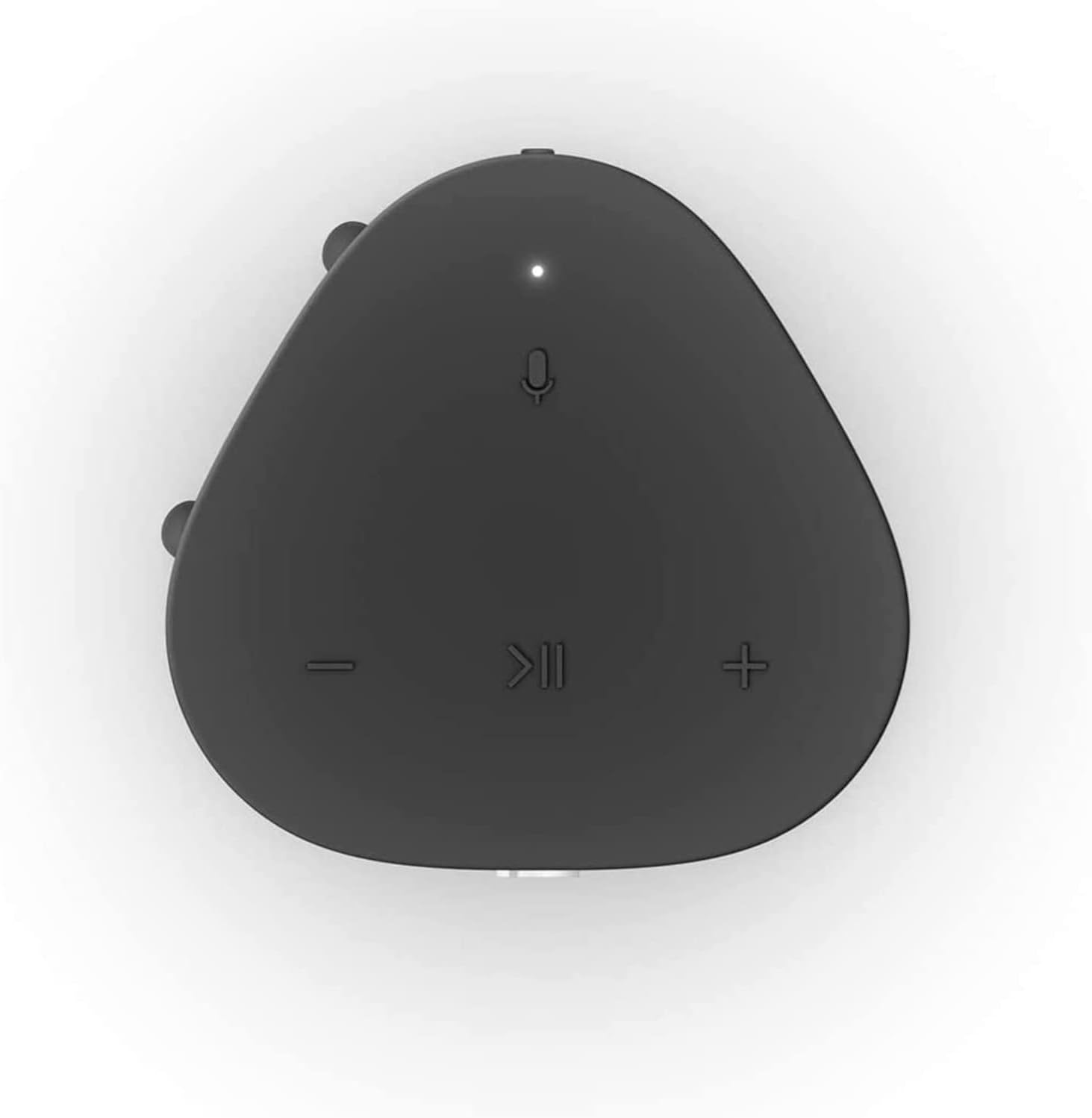
Figure 4: Top panel controls of the Sonos Roam.
- Play/Pause: Press once to play or pause audio.
- Volume Up (+): Press to increase volume.
- Volume Down (-): Press to decrease volume.
- Microphone: Press to toggle the microphone on/off for voice control.
- Power Button (Rear): Press and hold for 5 seconds to power on/off. A short press puts it into sleep mode.
3.2 Switching Between Wi-Fi and Bluetooth
The Sonos Roam automatically connects to your Wi-Fi network when in range. To switch to Bluetooth mode, ensure the speaker is powered on and press and hold the power button until the status light flashes blue. To switch back to Wi-Fi, simply bring the speaker back into range of your configured Wi-Fi network.

Figure 5: The Sonos Roam offers seamless connectivity.
3.3 Automatic Trueplay™
The Sonos Roam features Automatic Trueplay, which uses the speaker's microphone to detect the environment and automatically adjust the sound for optimal audio performance. This feature works in both Wi-Fi and Bluetooth modes.
3.4 Speaker Placement
The Sonos Roam can be placed either vertically or horizontally. Placing it vertically saves surface space, while laying it horizontally provides added stability. The speaker's sound adapts to its orientation for the best listening experience.
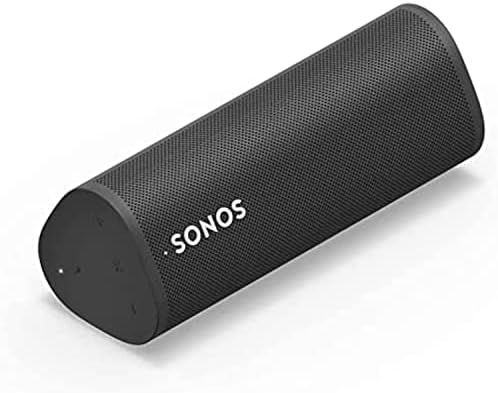
Figure 6: Sonos Roam in horizontal orientation.
4. Maintenance
4.1 Cleaning
To clean your Sonos Roam, use a soft, dry cloth. Avoid using harsh chemicals or abrasive materials, as these may damage the speaker's finish or internal components. Ensure the charging port is free of debris.
4.2 Water and Dust Resistance
The Sonos Roam is rated IP67, meaning it is dustproof and can withstand immersion in up to one meter of water for up to 30 minutes. While designed for rugged use, it is recommended to dry the speaker thoroughly after exposure to water to prevent long-term damage to the charging port or internal electronics.

Figure 7: The Sonos Roam is built for rugged durability.
4.3 Battery Care
To maximize battery lifespan, avoid fully discharging the speaker frequently. For long-term storage, charge the battery to about 50% before storing it in a cool, dry place.
5. Troubleshooting
5.1 Common Issues and Solutions
- No Power: Ensure the speaker is charged. Connect it to a power source using the USB-C cable.
- Cannot Connect to Wi-Fi:
- Verify your Wi-Fi network is active and the password is correct.
- Restart your router and the Sonos Roam.
- Ensure the speaker is within range of your Wi-Fi router.
- Check the Sonos app for network diagnostics.
- Bluetooth Pairing Issues:
- Ensure the Sonos Roam is in Bluetooth pairing mode (flashing blue light).
- Forget "Sonos Roam" from your device's Bluetooth settings and try pairing again.
- Move closer to the speaker and ensure no other devices are interfering.
- No Sound or Low Volume:
- Check the volume levels on both the speaker and your connected device.
- Ensure the correct input source is selected in the Sonos app.
- If using Wi-Fi, check the Sonos app for any playback errors.
5.2 Factory Reset
If you experience persistent issues, a factory reset may resolve them. Warning: A factory reset will erase all settings and data from your speaker. You will need to set it up again as a new device.
- Unplug the Sonos Roam from its power source.
- Press and hold the Play/Pause button while simultaneously plugging the power cable back in.
- Continue holding the Play/Pause button until the status light flashes orange and white.
- Release the button. The light will flash green when the reset is complete and the speaker is ready for setup.
6. Specifications

Figure 8: Sonos Roam dimensions.
| Feature | Detail |
|---|---|
| Brand | Sonos |
| Model Name | Sonos Roam - Black (ROAM1US1BLK) |
| Color | Black |
| Product Dimensions | 2.44"D x 2.32"W x 6.61"H |
| Item Weight | 7.1 ounces (200 Grams) |
| Material | Polycarbonate (PC) |
| Connectivity Technology | Bluetooth, USB, Wi-Fi, Airplay, NFC |
| Battery Life | Up to 10 Hours |
| Charging Time | Approx. 10 Hours |
| Waterproof Rating | IP67 |
| Control Method | App, Voice, Buttons |
| Included Components | Sonos Roam - Black, USB C Cable |
| UPC | 840136801467 |
7. Warranty and Support
7.1 Limited Warranty
The Sonos Roam comes with a Limited Warranty. For specific terms and conditions, please refer to the warranty information provided in the product packaging or visit the official Sonos website.
7.2 Customer Support
For further assistance, technical support, or to register your product, please visit the Sonos support website or contact their customer service. Keep your purchase receipt and product serial number handy for any warranty claims.
Official Sonos Website: www.sonos.com
Related documentsROAM1US1BLK


Ask a question about this manual
Ask about setup, troubleshooting, compatibility, parts, safety, or missing instructions. Manuals+ will review the question and use this page’s manual context to help answer it.