
1. Introduction
This manual provides essential information for the safe and effective use of your TCP Smart RGBW IP20 3M Light Strip Extension Kit. This smart indoor lighting solution offers color-changing capabilities and can be controlled via the TCP Smart application, Amazon Alexa, Google Home, and Siri. It is designed to enhance your indoor ambiance with customizable lighting.
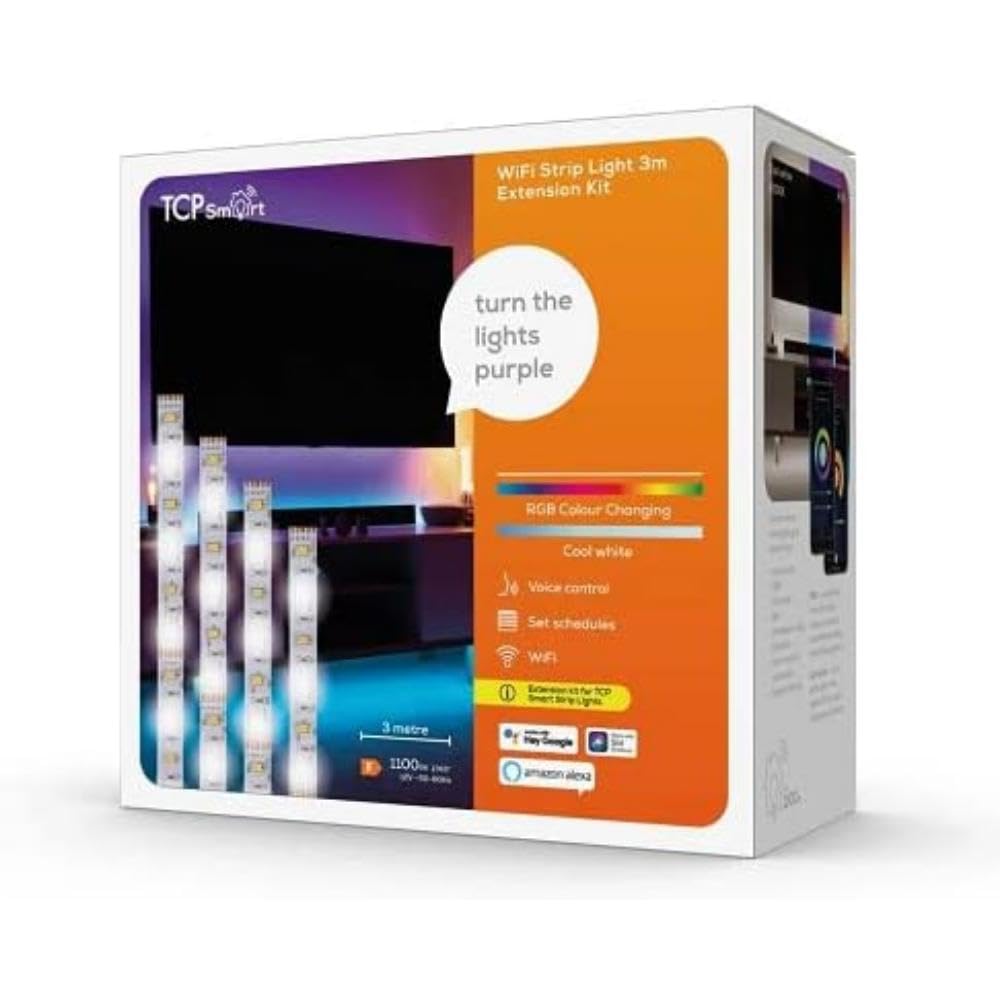
Image 1.1: TCP Smart RGBW IP20 3M Light Strip Extension Kit. This image displays the light strip and its associated components, illustrating the product's design and form factor.
2. Safety Information
- Indoor Use Only: This product is rated IP20 and is intended for indoor use only. Do not expose to water or high humidity.
- Power Source: Use only the provided power adapter. Ensure the power source matches the requirements specified on the adapter.
- Installation: Do not cut the light strip unless specifically instructed and equipped with appropriate connectors. Improper cutting can damage the product and void the warranty.
- Heat: Do not cover the light strip with materials that may trap heat. Ensure adequate ventilation.
- Children: Keep out of reach of children.
- Damage: Do not operate if the product or power cable is damaged. Contact customer support for assistance.
3. Package Contents
Verify that all components are present in the package:
- 1 x TCP Smart RGBW IP20 3M Light Strip Extension
- 1 x Power Plug/Adapter
4. Setup
Follow these steps to set up your TCP Smart Light Strip:
- Prepare the Surface: Ensure the surface where you intend to install the light strip is clean, dry, and smooth.
- Install the Light Strip: Carefully peel off the adhesive backing from the light strip and firmly press it onto the desired surface. Avoid bending the strip sharply.
- Connect Power: Connect the light strip to the provided power plug/adapter. Then, plug the adapter into a standard electrical outlet.
- Download the TCP Smart App: Download the TCP Smart application from your smartphone's app store (available for iOS and Android).
- Connect to Wi-Fi: Open the TCP Smart app and follow the on-screen instructions to add your new device. Ensure your Wi-Fi network is 2.4GHz, as 5GHz networks are not supported. The app will guide you through connecting the light strip to your home Wi-Fi network.
- Integrate with Voice Assistants (Optional): Once connected to the TCP Smart app, you can link your account to Amazon Alexa, Google Home, or Siri for voice control. Refer to the respective voice assistant's app for specific integration steps.
5. Operating Instructions
Control your TCP Smart Light Strip using the TCP Smart app or voice commands.
5.1. Using the TCP Smart Application
- On/Off Control: Tap the power icon in the app to turn the light strip on or off.
- Color and Brightness Adjustment: Select from a wide range of RGBW colors and adjust the brightness level to suit your preference.
- Timers and Schedules: Set specific times for the light strip to automatically turn on or off. Create schedules for different days of the week.
- Geofencing: Enable location-based control. The light strip can automatically turn on when you approach your home or turn off when you leave.
- Remote Control: Control your light strip from anywhere with an internet connection via the TCP Smart app.
5.2. Voice Control
After integrating with Amazon Alexa, Google Home, or Siri, use voice commands to control your light strip. Examples:
- "Alexa, turn on the living room light strip."
- "Hey Google, set the light strip to blue."
- "Siri, dim the light strip to 50%."
6. Maintenance
To ensure the longevity and optimal performance of your light strip:
- Cleaning: Disconnect power before cleaning. Use a soft, dry cloth to wipe the light strip. Do not use liquid cleaners or abrasive materials.
- Storage: If storing the light strip for an extended period, ensure it is clean, dry, and stored in a cool, dark place.
- Adhesion: If the adhesive begins to weaken, ensure the surface is clean. Additional adhesive solutions may be required for long-term securement.
7. Troubleshooting
| Problem | Possible Cause | Solution |
|---|---|---|
| Light strip does not turn on. | No power, loose connection, faulty power adapter. | Check power outlet, ensure all connections are secure. Try a different outlet. |
| Cannot connect to Wi-Fi. | Incorrect Wi-Fi password, 5GHz network, too far from router. | Ensure correct 2.4GHz Wi-Fi network and password. Move closer to the router. Restart router and light strip. |
| Some sections of the light strip are not working. | Damage to the strip, internal fault. | Inspect the strip for visible damage. If a section is permanently off, contact customer support. |
| Light strip makes a slight buzzing noise. | Minor electrical interference or component noise. | This can sometimes occur with LED drivers. If the noise is excessive or concerning, contact customer support. |
| Poor adhesion of the light strip. | Dusty or uneven surface, old adhesive. | Clean the surface thoroughly before application. For existing installations, consider using additional mounting clips or stronger adhesive tape. |
8. Specifications
| Feature | Detail |
|---|---|
| Model Number | SMARTLRGBWIP203MEXT |
| Length | 3 Meters |
| Color | RGBW (Multicolor) |
| Ingress Protection (IP) Rating | IP20 (Indoor Use Only, Non-waterproof) |
| Light Source Type | LED |
| Power Source | Cable Electric |
| Wattage | 3 Watts |
| Connectivity Protocol | Wi-Fi (2.4GHz) |
| Control Method | TCP Smart App, Voice Control (Alexa, Google Home, Siri) |
| Special Features | Timer, Geofencing |
| Material | Plastic |
| Product Dimensions (L x W x H) | 500 x 1 x 0.2 cm |
| Item Weight | 250 grams |
9. Warranty and Support
For warranty information and customer support, please refer to the documentation provided with your purchase or visit the official TCP Smart website. Keep your proof of purchase for any warranty claims.