
Introduction
This manual provides essential information for the safe and efficient use of your LG G Pad 5 10.1-inch LTE Unlocked Tablet. Please read this manual thoroughly before operating your device to ensure proper setup, operation, and maintenance. Keep this manual for future reference.
1. Initial Setup
1.1 Package Contents
Verify that your package contains the following items:
- LG G Pad 5 10.1-inch Tablet
- USB-C Charging Cable
- Power Adapter
- Stylus Pen (if included in bundle)
- Protective Case (if included in bundle)
- 64GB SD Card (if included in bundle)
- Quick Start Guide
1.2 Charging the Battery
Before initial use, fully charge the tablet's battery. Connect the USB-C cable to the tablet's charging port and the power adapter. Plug the adapter into a wall outlet. The charging indicator will appear on the screen.
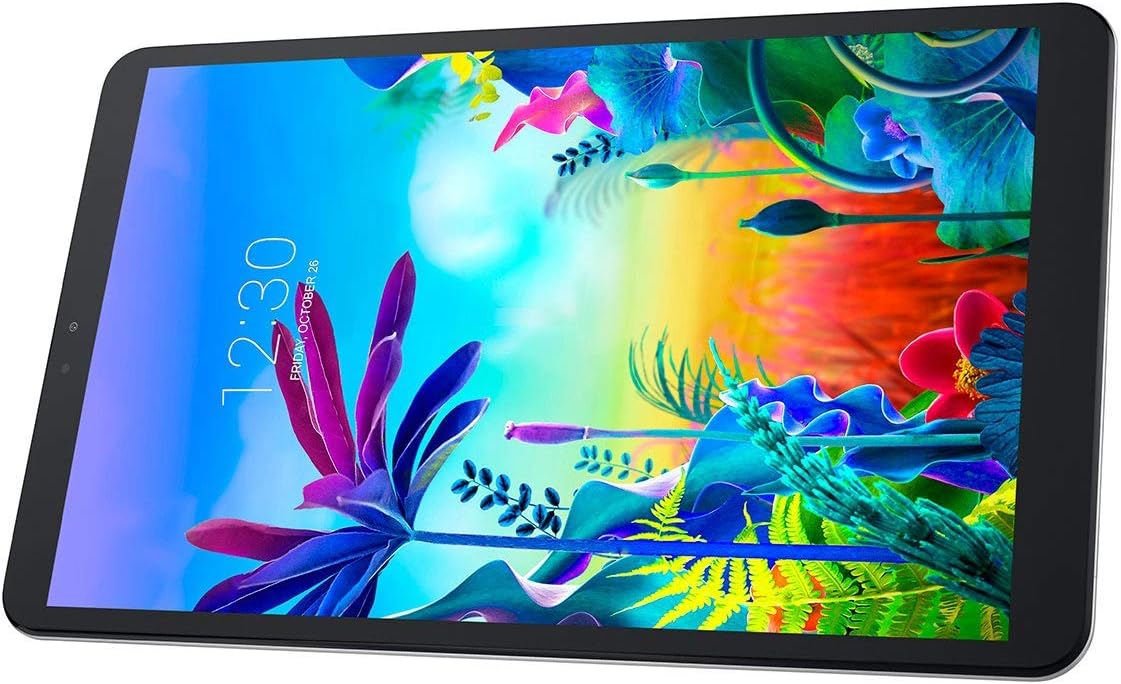
Image: Front view of the LG G Pad 5 tablet, showing the display and slim bezels. This illustrates the device during initial power-on or charging.
1.3 Powering On/Off
- To Power On: Press and hold the Power/Lock button on the side of the tablet until the LG logo appears.
- To Power Off: Press and hold the Power/Lock button, then select "Power off" from the options on the screen.
- To Restart: Press and hold the Power/Lock button, then select "Restart" from the options.
1.4 SIM Card and microSD Card Installation
Your LG G Pad 5 supports a Nano-SIM card for LTE connectivity and a microSD card for expandable storage.
- Locate the SIM/microSD card tray on the side of the tablet.
- Use the provided ejection tool (or a small paper clip) to gently press into the small hole on the tray to eject it.
- Place the Nano-SIM card and/or microSD card into the tray with the gold contacts facing down, ensuring they are correctly oriented.
- Carefully reinsert the tray into the tablet until it clicks into place.
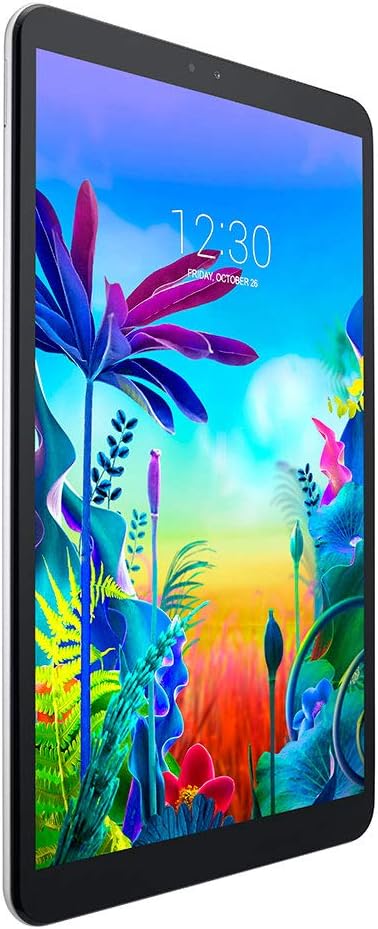
Image: Side profile of the LG G Pad 5 tablet, highlighting the location of physical buttons and the card tray for SIM and microSD installation.
1.5 Initial Configuration
Upon first power-on, follow the on-screen prompts to:
- Select your language.
- Connect to a Wi-Fi network.
- Sign in with your Google account or create a new one.
- Set up screen lock (PIN, pattern, password, or fingerprint).
- Review and accept terms and conditions.
2. Operating Your Tablet
2.1 Basic Navigation
- Home Screen: Swipe left or right to access different home screens.
- App Drawer: Swipe up from the bottom of the screen to view all installed applications.
- Notifications Panel: Swipe down from the top of the screen to view notifications and quick settings.
- Recent Apps: Tap the square icon (or swipe up and hold from the bottom if using gesture navigation) to see recently used applications.
2.2 Display and Sound Settings
Customize your tablet's display and audio experience:
- Go to Settings > Display to adjust brightness, screen timeout, font size, and night light.
- Go to Settings > Sound to adjust media volume, ringtone, notification sounds, and enable Dolby Atmos for enhanced audio.
2.3 Using the Camera
Your tablet features an 8 MP rear camera and a 5 MP front camera.
- Open the Camera application.
- Tap the shutter button to take a photo.
- Switch between front and rear cameras using the camera switch icon.
- Select video mode to record videos (FHD 1080p supported).

Image: Rear view of the LG G Pad 5 tablet, illustrating the placement of the main camera and the LG branding.
2.4 Connecting to Networks
- Wi-Fi: Go to Settings > Network & internet > Wi-Fi. Turn Wi-Fi on and select your desired network, then enter the password if required.
- Mobile Data (LTE): Ensure a valid Nano-SIM card is installed. Go to Settings > Network & internet > Mobile network and enable Mobile data.
- Bluetooth: Go to Settings > Connected devices > Bluetooth. Turn Bluetooth on, then select a device from the list to pair.
2.5 Using the Stylus Pen
If your bundle includes a stylus pen, it can be used for precise input on the touchscreen.
- The stylus features a replaceable high-precision clear disk and a micro-knit hybrid fiber tip for smooth interaction.
- Use the stylus for drawing, writing notes, or navigating with greater accuracy than a finger.
- Ensure the protective cap is removed before use.

Image: Detailed diagram of the stylus pen, illustrating its various parts including the protective cap, precision disk, rubber grip, aluminum body, and fiber tip.
2.6 Using the Protective Case
The included protective case helps shield your tablet from scratches and minor impacts. It also functions as a stand.
- Carefully insert your tablet into the case, ensuring all ports and buttons are accessible.
- The foldable cover can be adjusted to provide two viewing angles: approximately 65 degrees for viewing and 30 degrees for typing.

Image: LG G Pad 5 tablet securely placed within its black protective case, demonstrating how the case provides protection and can be used as a stand.

Image: Visual representation of the protective case's functionality, showing how it can be folded to support the tablet at a 65-degree viewing angle and a 30-degree typing angle.
3. Maintenance
3.1 Battery Care
- Avoid exposing the tablet to extreme temperatures.
- Do not allow the battery to fully discharge frequently. Charge it before it drops below 20%.
- Use only the original charger and cable provided with your device.
3.2 Software Updates
Regularly check for and install software updates to ensure optimal performance and security.
- Go to Settings > System > System update.
- Follow the on-screen instructions to download and install any available updates.
3.3 Cleaning Your Tablet
- Use a soft, lint-free cloth to clean the screen and body of the tablet.
- For stubborn smudges, slightly dampen the cloth with water or a screen cleaner specifically designed for electronics.
- Avoid using harsh chemicals, abrasive materials, or excessive moisture.
4. Troubleshooting
4.1 Common Issues and Solutions
| Problem | Solution |
|---|---|
| Tablet does not power on. | Ensure the battery is charged. Connect the charger and wait a few minutes before attempting to power on again. |
| Cannot connect to Wi-Fi. | Check if Wi-Fi is enabled in Settings. Restart your router and the tablet. Verify the Wi-Fi password. |
| Mobile data not working. | Ensure a Nano-SIM card is properly installed and activated. Check Mobile data settings and APN settings. Contact your service provider. |
| Tablet is slow or unresponsive. | Close unnecessary apps. Clear cache. Restart the tablet. Check for software updates. |
| Apps are crashing. | Clear the cache and data for the problematic app (Settings > Apps & notifications > App info). Reinstall the app if necessary. |
4.2 Factory Data Reset
If you experience persistent issues, a factory data reset can resolve many software-related problems. Warning: This will erase all data on your tablet. Back up important data before proceeding.
- Go to Settings > System > Reset options.
- Select Erase all data (factory reset).
- Confirm your decision and enter your PIN/pattern/password if prompted.
- The tablet will restart and begin the reset process.
5. Specifications
| Feature | Detail |
|---|---|
| Model Name | LM-T600 |
| Display | 10.1-inch IPS LCD, 1920 x 1200 pixels (WUXGA) |
| Processor | Qualcomm Snapdragon 821 (MSM8996) 2.34 GHz Quad-Core |
| RAM | 4 GB |
| Internal Storage | 32 GB |
| Expandable Storage | microSD card slot (up to 2TB) |
| Operating System | Android 9.0 (Pie) |
| Rear Camera | 8 MP |
| Front Camera | 5 MP |
| Battery Capacity | 8200 mAh (up to 10 hours average life) |
| Connectivity | Wi-Fi 802.11ac, Bluetooth 4.2, 4G LTE (unlocked) |
| Ports | USB-C, 3.5mm headphone jack |
| Sensors | Fingerprint Sensor |
| Audio | Dual front speakers with Dolby Atmos, single microphone |
| Dimensions | 9.73" (H) × 5.93" (W) × 0.31" (D) |
| Weight | 1.10 lbs (approx. 499g) |
6. Warranty and Support
6.1 Product Warranty
Your LG G Pad 5 tablet comes with a standard manufacturer's warranty. Please refer to the warranty card included in your product packaging for specific terms, conditions, and duration. Keep your proof of purchase for warranty claims.
For extended warranty options, please consult your retailer or LG's official website.
6.2 Customer Support
For technical assistance, troubleshooting, or service inquiries, please contact LG Customer Support:
- Website: Visit the official LG website for support resources, FAQs, and contact information.
- Phone: Refer to your regional LG support contact details.
When contacting support, please have your tablet's model number (LM-T600) and serial number ready.


