1. Introduction
This manual provides comprehensive instructions for the Ducky ONE 2 Phantom Full Size Mechanical Keyboard. The Ducky ONE 2 Phantom offers the reliable performance and utility functions expected from Ducky keyboards, presented in a professional and elegant design without traditional LED backlighting for keycaps.

Figure 1.1: Ducky ONE 2 Phantom Full Size Mechanical Keyboard (Top View)
This image displays the Ducky ONE 2 Phantom keyboard from a top-down perspective, highlighting its full-size layout with all standard keys, including the numeric keypad. The keycaps are black, and the overall design is sleek and minimalist.

Figure 1.2: Ducky ONE 2 Phantom Mechanical Keyboard (Angled View)
This image presents an angled view of the Ducky ONE 2 Phantom keyboard, providing a better sense of its profile and keycap curvature. The full-size layout and clean aesthetic are clearly visible.
2. Key Features
- Double Shot PBT Keycaps: Experience enhanced comfort and clarity with Ducky's double-shot molded keycaps, crafted from durable PBT material. This construction ensures legends will not fade over time.
- USB N-Key Rollover (NKRO): The keyboard supports N-Key Rollover, allowing for any number of simultaneous key presses to be registered accurately. This feature can also be switched to 6-Key Rollover (6KRO) if preferred.
- Ducky Macro V2.0: Customize your keyboard layout by remapping keys and saving up to 6 distinct profiles. The Macro V2.0 system offers 3 implementation options and 6 record options for advanced personalization.
- World-Renowned Build Quality: Constructed with a dual-layer PCB (Printed Circuit Board), SMD RGB lights soldered from the back, and robust PBT plastics, the keyboard provides a solid and durable unit with an extended lifespan.
- Two-Stage Adjustable Feet: The keyboard features two-stage adjustable feet with rubber stoppers, providing a stable platform and allowing users to set their preferred typing angle for ergonomic comfort.
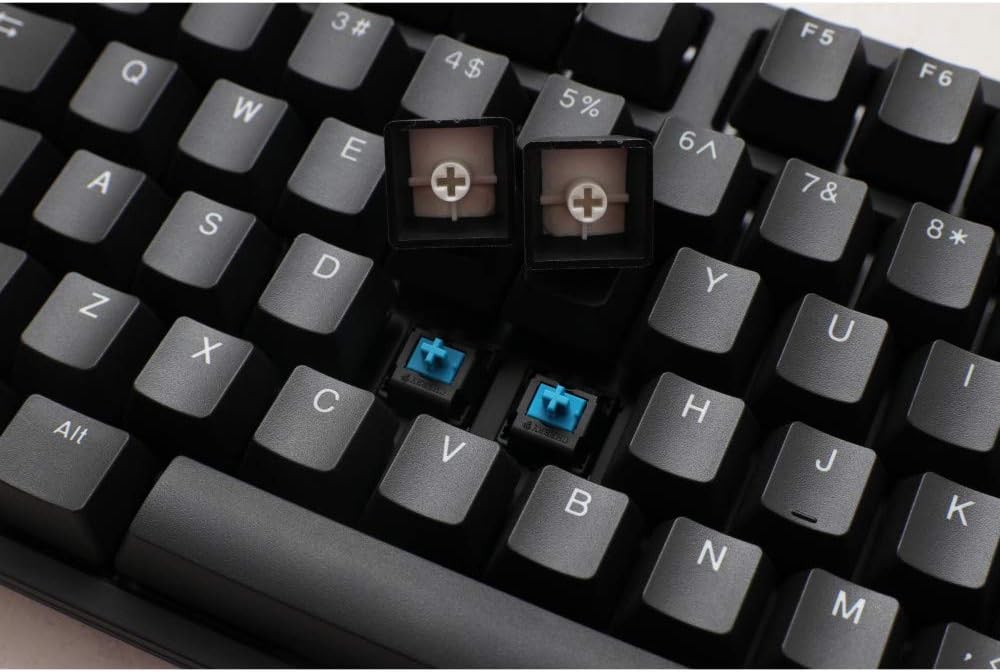
Figure 2.1: Double Shot PBT Keycaps and Mechanical Switches
This image provides a close-up of the keyboard, showing two keycaps removed to expose the mechanical switches beneath. This illustrates the double-shot PBT keycap construction and the type of switches used, which contribute to the keyboard's tactile feedback and durability.
3. Setup Instructions
- Unpack the Keyboard: Carefully remove the Ducky ONE 2 Phantom keyboard and its accessories (USB-C cable, keycap puller) from the packaging.
- Connect the USB Cable: Insert the USB-C end of the provided cable into the USB-C port on the back of the keyboard. Connect the other end (USB-A) to an available USB port on your computer (Laptop or PC).
- System Compatibility: The keyboard is compatible with Windows 10 operating systems and various hardware platforms including Laptops and PCs.
- Adjust Keyboard Angle: Utilize the two-stage adjustable feet located on the underside of the keyboard to set your preferred typing angle. Ensure the rubber stoppers are engaged for stability.

Figure 3.1: Adjustable Feet and Side Profile
This image shows a side profile of the Ducky ONE 2 Phantom keyboard, highlighting the adjustable feet in their extended position. The Ducky logo is visible on the side, emphasizing the brand's design and build quality.
4. Operating Instructions
4.1. USB N-Key Rollover (NKRO) and 6-Key Rollover (6KRO)
The Ducky ONE 2 Phantom supports full N-Key Rollover (NKRO) by default, meaning every key press is registered independently, even when multiple keys are pressed simultaneously. For specific applications or older systems that may require it, you can switch to 6-Key Rollover (6KRO) mode. Refer to the keyboard's specific function key combinations for toggling between NKRO and 6KRO modes.
4.2. Ducky Macro V2.0
Ducky Macro V2.0 allows for advanced customization of your keyboard. You can remap individual keys, create complex macros, and save these configurations into up to 6 different profiles. This system provides 3 implementation options and 6 record options, offering flexibility for various user needs. Detailed instructions for creating and managing macros are typically found in the full Ducky manual available on the manufacturer's website.
5. Maintenance
Proper maintenance ensures the longevity and optimal performance of your Ducky ONE 2 Phantom keyboard.
- General Cleaning: Regularly clean the keyboard surface with a soft, dry, lint-free cloth. For dust and debris between keycaps, use compressed air.
- Keycap Removal: Use the included keycap puller to carefully remove keycaps for deeper cleaning or customization. Gently pull the keycap straight up to avoid damaging the switch. Reinstall by aligning the keycap with the switch stem and pressing down firmly.
- Avoid Liquids: Do not expose the keyboard to liquids. In case of accidental spills, immediately disconnect the keyboard from your computer and allow it to dry completely before reconnecting.
6. Troubleshooting
If you encounter issues with your Ducky ONE 2 Phantom keyboard, try the following basic troubleshooting steps:
- Keyboard Not Responding:
- Ensure the USB cable is securely connected to both the keyboard and your computer.
- Try connecting the keyboard to a different USB port on your computer.
- Test the keyboard on another computer to rule out system-specific issues.
- Specific Keys Not Working:
- Carefully remove the keycap using the keycap puller and check for any obstructions or debris around the switch.
- Ensure the keycap is properly seated on the switch stem.
- Macro Issues:
- Verify that you are using the correct macro profile.
- Consult the detailed Ducky Macro V2.0 guide on the official Ducky website for specific programming instructions.
7. Product Specifications
| Brand | Ducky |
| Model Number | DKON1808-RUSPDAABW |
| Keyboard Description | Mechanical |
| Connectivity Technology | USB-C |
| Compatible Devices | Laptop, PC |
| Operating System | Windows 10 |
| Product Dimensions (L x W x H) | 45 x 14 x 4 cm (1.5 kg) |
| Colour | Black |
| Special Feature | Backlit (Note: Refers to internal SMD RGB lights for build quality, not traditional keycap backlighting for this Phantom model as per product description.) |
| Included Components | Keycap Puller, USB Cable |
8. Warranty and Support
For detailed warranty information and technical support, please refer to the official Ducky website or contact your authorized Ducky retailer. Keep your proof of purchase for warranty claims.
Manufacturer: Ducky
Website: www.duckychannel.com.tw (Please note: This is a general Ducky website, specific support links may vary by region.)