
1. Introduction
The Adastra A22 is a compact digital stereo PA amplifier designed for background music, announcements, or alerts. It features a built-in media player with USB/microSD, FM tuner, and Bluetooth connectivity, alongside multiple auxiliary inputs. This manual provides detailed instructions for the proper setup, operation, and maintenance of your A22 amplifier.
2. Safety Instructions
Please read and follow these safety instructions carefully to prevent damage and ensure safe operation.
- Power Supply: Connect the unit only to a mains outlet with the specified voltage (230 VAC, 50 Hz). Ensure the power cord is not damaged or pinched.
- Moisture: Do not expose the unit to rain or moisture. Avoid placing liquids near the unit.
- Ventilation: Ensure adequate ventilation. Do not block ventilation openings.
- Servicing: Do not attempt to service this product yourself. Refer all servicing to qualified personnel. Opening the casing may expose you to dangerous voltages.
- Placement: Place the unit on a stable, level surface. Avoid extreme temperatures, direct sunlight, and strong vibrations.
- Cleaning: Disconnect from power before cleaning. Use a soft, dry cloth. Do not use liquid cleaners.
3. Package Contents
Verify that your package contains the following items:
- Adastra A22 Stereo PA Amplifier
- IR Remote Control
- 4 x Mounting Brackets
- Power Cable (IEC)
- User Manual
4. Controls and Features
4.1 Front Panel
The front panel provides access to the main controls and media player functions.
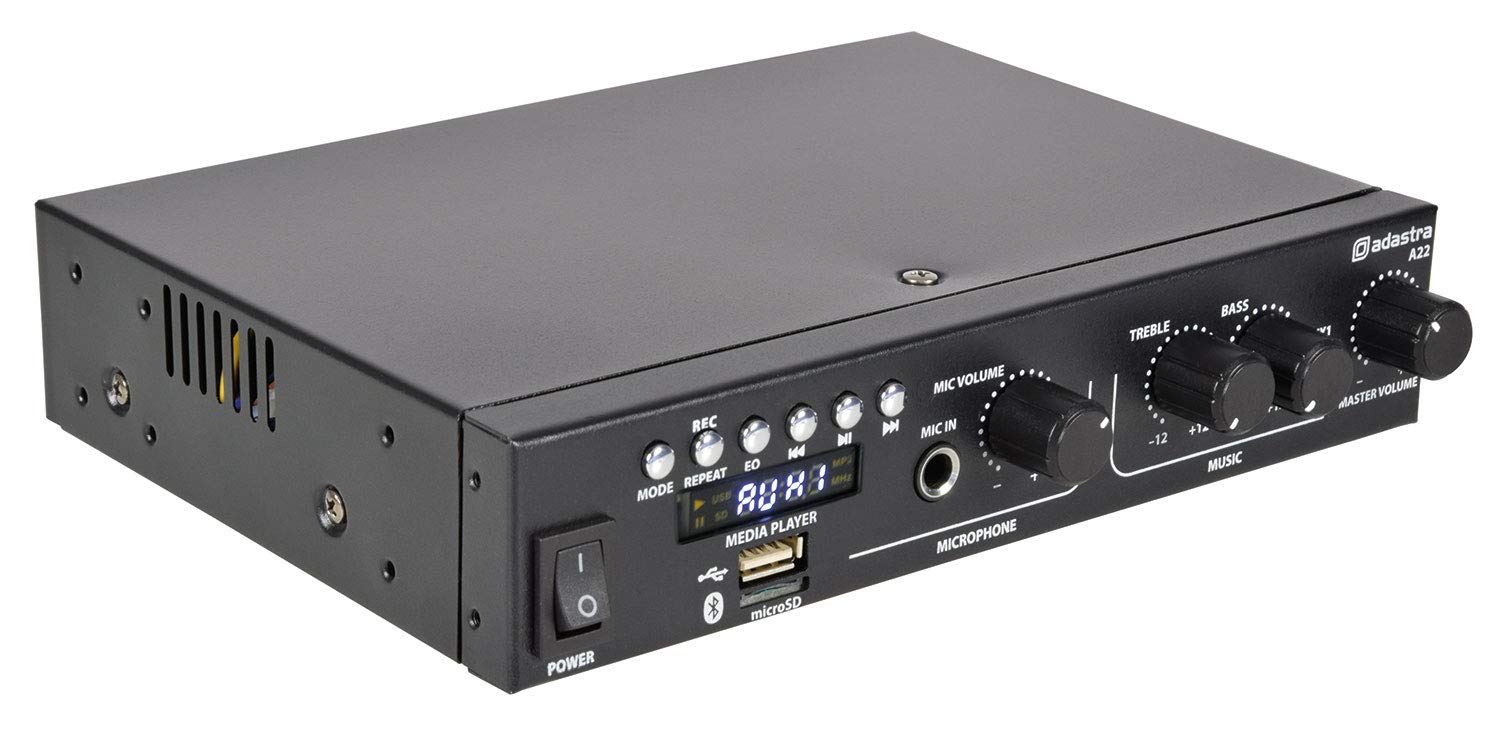
Image: Front panel of the Adastra A22 amplifier, showing the power switch, media player controls, microphone input and volume, treble, bass, auxiliary input, and master volume knobs.
- POWER Switch: Toggles the amplifier on or off.
- Media Player Controls: Buttons for REC, MODE, REPEAT, EQ, Previous Track, Play/Pause, Next Track.
- USB Port: For connecting USB flash drives for media playback.
- microSD Card Slot: For inserting microSD cards for media playback.
- Display: Shows current mode, track information, and FM frequency.
- MIC VOLUME: Adjusts the volume level of the microphone input.
- MIC IN (6.3mm Jack): Connects a microphone.
- TREBLE: Adjusts the high-frequency response of the music.
- BASS: Adjusts the low-frequency response of the music.
- AUX1 (3.5mm Jack): Front panel auxiliary input for external audio devices.
- MASTER VOLUME: Controls the overall output volume of the amplifier.
4.2 Rear Panel
The rear panel houses all input and output connections.

Image: Rear panel of the Adastra A22 amplifier, showing RCA line outputs, RCA auxiliary inputs (AUX2, AUX3), FM antenna connector, speaker output terminals, and the IEC power inlet with fuse.
- LINE OUT (L+R RCA): Stereo RCA outputs for connecting to another amplifier or recording device.
- AUX2 INPUTS (L+R RCA): Stereo RCA inputs for external audio sources.
- AUX3 INPUTS (L+R RCA): Stereo RCA inputs for external audio sources.
- FM ANTENNA: F-type connector for connecting an FM antenna.
- SPEAKER OUTPUT (CH1, CH2): Screw terminals for connecting passive speakers (4-8 Ohms).
- IEC Power Inlet with Fuse Holder: Connects the supplied power cable. Contains a replaceable fuse.
4.3 Remote Control
The included IR remote control provides convenient access to media player functions and input selection.

Image: The remote control for the Adastra A22 amplifier, featuring power, mode, channel selection, EQ, playback controls, and a numeric keypad.
The remote control includes buttons for power, mode selection, channel/track navigation, equalizer presets, playback control (play/pause, skip), and a numeric keypad for direct track or station selection.
5. Setup
Follow these steps to set up your Adastra A22 amplifier.
5.1 Mounting (Optional)
The A22 amplifier can be mounted under a counter or against a wall using the four supplied mounting brackets for a discreet installation.

Image: Four black L-shaped mounting brackets, used for securing the Adastra A22 amplifier to a surface.

Image: The Adastra A22 amplifier mounted discreetly under a wooden desk, showing its front panel controls.

Image: An angled view of the Adastra A22 amplifier mounted under a wooden desk, highlighting its compact size and integrated appearance.
Attach the brackets to the sides of the amplifier using appropriate screws, then secure the amplifier to your desired surface.
5.2 Connecting Speakers
Connect your passive speakers to the SPEAKER OUTPUT terminals on the rear panel. Ensure correct polarity (+ to + and - to -) for each channel. The amplifier supports speakers with an impedance of 4 to 8 Ohms.
5.3 Connecting Audio Sources
- RCA Inputs (AUX2, AUX3): Use RCA cables to connect external audio devices like CD players, DVD players, or mixers to the AUX2 or AUX3 inputs.
- 3.5mm Input (AUX1): Use a 3.5mm stereo jack cable to connect portable devices like smartphones or tablets to the front panel AUX1 input.
- USB/microSD: Insert a USB flash drive or microSD card into the respective slot on the front panel for media playback.
- FM Antenna: Connect an FM antenna to the F-type connector on the rear panel for radio reception.
5.4 Power Connection
Connect the supplied IEC power cable to the IEC inlet on the rear panel of the amplifier, then plug the other end into a suitable mains power outlet.
6. Operating Instructions
6.1 Powering On/Off
Press the POWER switch on the front panel to turn the amplifier on or off. The display will illuminate when the unit is powered on.
6.2 Input Selection
Press the MODE button on the front panel or remote control to cycle through the available input sources: USB/microSD, FM Tuner, Bluetooth, AUX1, AUX2, AUX3. The selected mode will be shown on the display.
6.3 Bluetooth Pairing
- Select Bluetooth mode using the MODE button. The display will show "BLUE" and the Bluetooth indicator will flash.
- On your mobile device, search for Bluetooth devices and select "Adastra A22".
- Once paired, the Bluetooth indicator will stop flashing and remain solid. You can now play audio from your device through the amplifier.
6.4 USB/microSD Playback
Insert a USB flash drive or microSD card containing MP3 audio files into the corresponding slot. The amplifier will automatically switch to USB/SD mode and begin playback. Use the media player controls (Previous, Play/Pause, Next) to manage playback. The REPEAT button cycles through repeat modes (e.g., repeat one, repeat all).
6.5 FM Tuner
In FM mode, the display will show the current frequency. Use the Previous/Next buttons to scan for stations. Press and hold these buttons to auto-scan. The EQ button can be used to cycle through equalizer presets.
6.6 Microphone Usage
Connect a microphone to the MIC IN jack. Adjust the microphone volume using the MIC VOLUME knob. This allows for announcements or vocal performances over background music.
6.7 Tone and Master Volume Controls
- TREBLE: Rotate the TREBLE knob to increase or decrease the high frequencies of the music.
- BASS: Rotate the BASS knob to increase or decrease the low frequencies of the music.
- MASTER VOLUME: Adjust the MASTER VOLUME knob to control the overall output level of all audio sources.
7. Maintenance
Proper maintenance ensures the longevity and optimal performance of your amplifier.
- Cleaning: Regularly wipe the unit with a soft, dry cloth. Do not use abrasive cleaners or solvents.
- Ventilation: Keep the ventilation openings clear of dust and debris to prevent overheating.
- Fuse Replacement: If the unit does not power on, check the fuse located in the IEC power inlet on the rear panel. Replace it with a fuse of the same type and rating (F3.15A 250V). Always disconnect the power cable before replacing the fuse.
- Storage: If storing the unit for an extended period, disconnect it from power and store it in a cool, dry place.
8. Troubleshooting
If you encounter issues with your Adastra A22 amplifier, refer to the following common problems and solutions:
| Problem | Possible Cause | Solution |
|---|---|---|
| No power | Power cable disconnected, power switch off, blown fuse | Check power cable connection, ensure power switch is on, replace fuse if necessary. |
| No sound output | Master volume too low, incorrect input selected, speaker connections loose, faulty audio source | Increase Master Volume, select correct input, check speaker wiring, test with a different audio source. |
| Bluetooth not connecting | Not in Bluetooth mode, device too far, previously paired with another device | Ensure amplifier is in Bluetooth mode, bring device closer, unpair from other devices, try re-pairing. |
| USB/microSD not playing | Incorrect file format, corrupted media, not in USB/SD mode | Ensure files are MP3 format, try a different USB/microSD, select USB/SD mode. |
| Poor FM reception | Antenna not connected, weak signal | Connect FM antenna, reposition antenna for better signal. |
If the problem persists after trying these solutions, please contact qualified service personnel.
9. Specifications
| Model Number | 953.422 |
| Power Supply | 230 VAC, 50 Hz (IEC) |
| Output Impedance | 4 to 8 Ohms (each channel) |
| Power Output (8 Ohms) | 2 x 25 W RMS / 2 x 40 W max (@ 1 kHz 10% THD) |
| Power Output (4 Ohms) | 2 x 35 W RMS / 2 x 55 W max (@ 1 kHz 10% THD) |
| Inputs | AUX1 (3.5mm), AUX2 (L+R RCA), AUX3 (L+R RCA), MIC (6.3mm jack), USB, microSD, FM Antenna |
| Outputs | LINE OUT (L+R RCA), Speaker Output (screw terminals) |
| Audio Source | USB/microSD player, FM tuner, Bluetooth receiver |
| Dimensions (W x D x H) | 215 x 180 x 43 mm |
| Weight | 1.1 kg |
| Connectivity Technology | Auxiliary, Bluetooth, USB |
| Tuning Technology | FM |
10. Warranty and Support
Information regarding product warranty and customer support was not available in the provided data. Please refer to the manufacturer's official website or contact your retailer for details on warranty coverage and support services for your Adastra A22 amplifier.


