1. Introduction
This manual provides detailed instructions for the Efolen 4G Kids Smartwatch Model A21. Please read this guide carefully to ensure proper setup, operation, and maintenance of your device. This smartwatch is designed to offer communication, location tracking, and various educational and entertainment features for children, while providing peace of mind for parents.
2. Product Overview
The Efolen 4G Kids Smartwatch Model A21 is a feature-rich device equipped with 4G connectivity, GPS, Wi-Fi, and LBS positioning for accurate location tracking. It supports two-way video calls, voice chat, and an SOS emergency function. The watch features a 1.4-inch HD touch screen and is IP67 waterproof for daily use.

Image: The Efolen 4G Kids Smartwatch Model A21, showcasing its design and screen.
Key Features:
- 4G Connectivity: For reliable communication and data transfer.
- GPS+WiFi+LBS Positioning: Provides accurate real-time location tracking.
- Video Call & Voice Chat: Two-way communication with approved contacts.
- SOS Function: Emergency button to alert pre-set contacts.
- IP67 Waterproof: Resistant to splashes and rain (not for swimming or showering).
- 1.4-inch HD Touch Screen: Clear and responsive display.
- Pedometer: Tracks daily steps.
- Class Mode: Disables certain functions during school hours.
- Alarm Clock: Set reminders for daily activities.
- Early Education & Fast Learning Games: Engaging activities for children.

Image: An overview of the smartwatch's various functions, including 4G, GPS, SOS, video call, waterproof rating, pedometer, alarm, camera, settings, Bluetooth, class mode, voice chat, and Wi-Fi.
3. Setup Instructions
3.1 SIM Card Installation
The Efolen 4G Kids Smartwatch requires a Nano SIM card for full functionality, including calls and data. Ensure the watch is powered off before inserting the SIM card.
- Power Off: Turn off the smartwatch completely.
- Locate SIM Slot: Identify the SIM card slot on the side of the watch. You may need to gently unscrew a cover.
- Insert Nano SIM: Carefully insert the Nano SIM card into the slot with the chip facing upwards and the notched corner oriented correctly. Push until it clicks into place.
- Secure Cover: If applicable, replace and secure the SIM card slot cover.
- Power On: Turn on the smartwatch. The network signal should appear on the screen after a few moments.
Important: When requesting a SIM card from your operator, specify it is for a regular smartphone or tablet, not explicitly for a watch, as this 4G smartwatch functions like a phone. Ensure 4G data, call, and SMS services are activated on the SIM card.

Image: A visual guide demonstrating the correct method for inserting a Nano SIM card into the smartwatch, showing the watch's components and the SIM card orientation.
3.2 App Pairing (Setracker 2)
To manage the smartwatch and access its full features, download the 'Setracker 2' application on your smartphone (available for Android and iOS).
- Download App: Search for 'Setracker 2' in your smartphone's app store and install it.
- Register Account: Open the app and register a new account.
- Bind Device: Scan the QR code located on the back of the watch or in its settings menu to bind the smartwatch to your account. Follow the on-screen prompts to complete the pairing process.
- Set Contacts: Add emergency contacts, family numbers, and whitelist numbers through the app.
4. Operating Instructions
4.1 Making and Receiving Calls
The smartwatch supports two-way voice and video calls with contacts saved in the 'Setracker 2' app.
- To Make a Call: Navigate to the 'Contacts' or 'Phone' app on the watch, select a contact, and tap the call icon.
- To Receive a Call: When a call comes in, tap the green answer icon on the watch screen.
- Video Calls: Select the 'Video Call' option from the watch menu or within a contact's details to initiate a video call.

Image: Illustration of the two-way calling feature, showing a child on the smartwatch screen and a parent on a smartphone.

Image: A visual representation of the video call function between the smartwatch and a smartphone.
4.2 Voice Messaging
The smartwatch allows for short voice messages to be sent and received between the watch and the paired smartphone app.
- To Send a Voice Message: Go to the 'Messages' app on the watch, tap the microphone icon, hold to record your message, and release to send.
- To Listen to a Voice Message: Tap on a received message in the 'Messages' app.

Image: Depiction of the voice message function, showing a message being sent from the smartwatch to a smartphone.
4.3 GPS Tracking
The smartwatch uses a combination of GPS, Wi-Fi, and LBS to provide accurate location tracking, which can be viewed through the 'Setracker 2' app.
- Real-time Location: Open the 'Setracker 2' app on your smartphone to view the current location of the smartwatch on a map.
- Historical Tracking: The app also allows you to review the watch's location history.
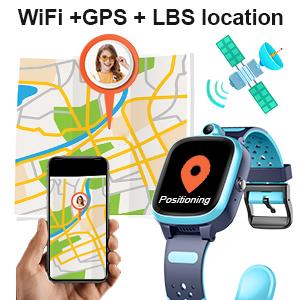
Image: An illustration showing the smartwatch's WiFi+GPS+LBS location tracking capability, with a child's location displayed on a map in the app.
4.4 SOS Function
In an emergency, the child can press and hold the SOS button on the watch to initiate an emergency call sequence.
- Activate SOS: Press and hold the SOS button (usually the power button) for 3 seconds.
- Emergency Dialing: The watch will automatically dial three pre-set emergency contacts in a cycle until one answers.
- SOS Alert: An SOS alert will also be sent to the 'Setracker 2' app on the parent's smartphone.

Image: A visual guide explaining the SOS function, showing a child activating the SOS button and an emergency call appearing on a smartphone.
4.5 Class Mode (Do Not Disturb)
Parents can set 'Class Mode' through the 'Setracker 2' app to prevent distractions during school hours.
- Set Schedule: In the 'Setracker 2' app, navigate to the 'Class Mode' settings.
- Define Times: Set specific time periods during which the watch will enter 'Do Not Disturb' mode. During these times, only the SOS function will remain active.
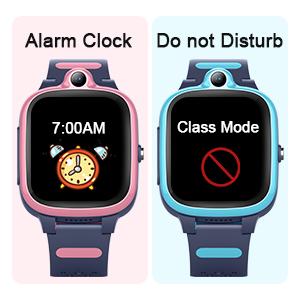
Image: Displays the smartwatch screen showing an alarm clock setting and the 'Class Mode' (Do Not Disturb) icon.
4.6 Other Functions
- Pedometer: Access the pedometer app on the watch to view daily step counts.
- Alarm Clock: Set multiple alarms via the 'Setracker 2' app to remind your child of various activities.
- Camera & Photo Album: The watch has a built-in camera for taking photos, which are saved in the photo album.
- Fast Learning Game: Engage with pre-installed educational games.
5. Maintenance
5.1 Water Resistance (IP67)
The Efolen 4G Kids Smartwatch is rated IP67 waterproof, meaning it is resistant to splashes, rain, and brief immersion in shallow water. It is suitable for washing hands or wearing in rainy conditions.
Caution: Do not immerse the watch in water for extended periods, wear it while swimming, or expose it to hot water or steam (e.g., during a shower), as this can damage the device.

Image: The smartwatch being splashed with water, illustrating its IP67 waterproof rating. A note advises against showering with the watch due to hot water and steam.
5.2 Cleaning and Care
- Cleaning: Wipe the watch regularly with a soft, dry cloth. For stubborn dirt, a slightly damp cloth can be used, ensuring no moisture enters ports.
- Avoid Chemicals: Do not use harsh chemicals, cleaning solvents, or strong detergents, as these may damage the watch's finish or internal components.
- Charging: Use the provided charging cable. Ensure the charging contacts are clean and dry before connecting.
6. Troubleshooting
If you encounter issues with your Efolen 4G Kids Smartwatch, refer to the following common solutions:
| Problem | Possible Solution |
|---|---|
| Watch not connecting to network. | Ensure the Nano SIM card is correctly inserted and activated with 4G data, call, and SMS services. Restart the watch. Check network coverage in your area. |
| GPS location is inaccurate. | Ensure the watch has a clear view of the sky for GPS signals. Location accuracy can be affected by buildings, dense foliage, or indoor environments. Wi-Fi and LBS provide supplementary positioning. |
| Cannot make/receive calls. | Verify the SIM card has active call services and sufficient balance. Check if the numbers are correctly saved in the app's whitelist. Ensure the watch is not in 'Class Mode'. |
| Battery drains quickly. | Frequent GPS updates, video calls, and high screen brightness can consume more power. Adjust settings in the app to optimize battery life. Ensure the watch is fully charged. |
| App cannot bind the watch. | Ensure the watch is powered on and has network connectivity. Double-check the QR code or manual input for the correct ID. Try restarting both the watch and the smartphone app. |
7. Specifications
| Feature | Detail |
|---|---|
| Brand | Efolen |
| Model Number | A21 |
| Operating System | Android, iOS (compatible) |
| Screen Size | 1.4 Inches |
| Connectivity | 4G Cellular, GPS, Wi-Fi |
| Special Features | Phone Call, Video Call, GPS Tracking, SOS, IP67 Waterproof |
| Battery | 1 Lithium-polymer (included) |
| Water Resistance | IP67 (Splash and rain resistant) |
| Target Audience | Boys, Girls (Children) |
8. Warranty and Support
Information regarding specific warranty details for the Efolen 4G Kids Smartwatch Model A21 is not available in the provided product data. For warranty claims, technical support, or further assistance, please refer to the product packaging or contact the retailer or manufacturer directly.