
Introduction
This manual provides essential instructions for the setup, operation, and maintenance of your Accutime iTime Kids Smart Watch (Model ITK2005BLK). Please read this manual thoroughly before using the device to ensure proper function and longevity.

Figure 1: Front view of the Accutime iTime Kids Smart Watch displaying its main application icons.
1. Setup
1.1 Charging the Device
Before initial use, fully charge the smart watch. Connect the provided USB charging cable to the watch's charging port and a compatible USB power source (e.g., computer USB port or a 5V USB wall adapter). A full charge typically takes at least one hour for optimal performance.

Figure 2: The USB charging cable used to power the smart watch.
1.2 Powering On/Off
- To Power On: Press and hold the power button located on the side of the watch until the screen illuminates.
- To Power Off: Press and hold the power button until a power-off option appears on the screen, then confirm.
1.3 Setting Time and Date
Upon first power-on or after a factory reset, you may need to set the correct time and date. Navigate to the 'Settings' menu on the watch, then select 'Time & Date' to adjust these parameters.
2. Operating Instructions
2.1 Navigating the Interface
The smart watch features a touchscreen display. Swipe left or right to browse through applications. Tap an icon to open an application. Use the physical buttons on the side for power control and sometimes for back/home functions, depending on the application.
2.2 Camera Function
The built-in camera allows for taking photos and recording videos. Tap the 'Camera' icon on the home screen to access. Use the on-screen button to capture images or start/stop video recording. Captured media can be viewed in the 'Album Viewer'.
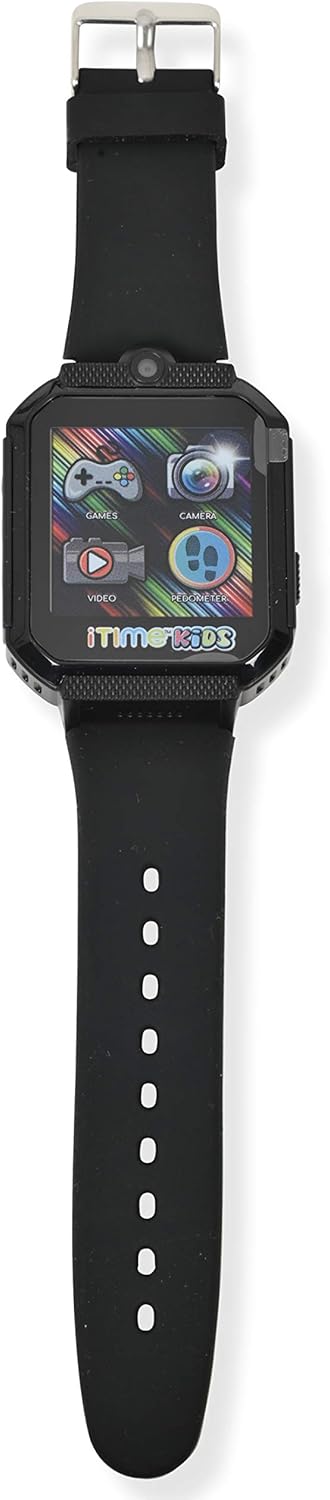
Figure 3: The smart watch, highlighting the integrated camera lens.
2.3 Games
The watch comes preloaded with 26 games. Access these by tapping the 'Games' icon. Select a game from the list to begin playing.
2.4 Pedometer and Fitness Features
Track physical activity using the integrated pedometer, calorie counter, and distance counter. Access these features via their respective icons. The stopwatch function is also available for timing activities.
2.5 Music Player
The watch includes a music player and speaker. To play music, transfer audio files to the watch's internal storage (connection via USB to a computer may be required, refer to advanced settings for file transfer instructions). Tap the 'Music Player' icon to access your music library.
2.6 Body Temperature Sensor
The watch is equipped with a real-time body temperature sensor. To use, ensure the watch is worn snugly on the wrist. Access the temperature application to view readings.
2.7 Additional Features
- Voice Recorder: Record audio memos.
- Album Viewer: Browse photos and videos taken with the watch camera.
- Flashlight: Activate a small LED light for illumination.
- Stopwatch: A basic timer function.
- Alarm: Set multiple alarms.
- Calendar: View dates and schedule events.
3. Maintenance
3.1 Cleaning
Wipe the watch screen and body with a soft, dry, lint-free cloth. For stubborn marks, slightly dampen the cloth with water. Avoid using harsh chemicals or abrasive materials, as these can damage the watch's finish or screen.
3.2 Battery Care
- Charge the watch regularly to maintain battery health.
- Avoid completely draining the battery frequently.
- Do not expose the watch to extreme temperatures, as this can degrade battery performance.
3.3 Storage
When not in use for extended periods, store the watch in a cool, dry place away from direct sunlight and moisture. Ensure the battery has some charge before storing.
4. Troubleshooting
| Problem | Possible Cause | Solution |
|---|---|---|
| Watch does not turn on. | Battery is depleted. | Charge the watch for at least one hour using the provided USB cable. |
| Screen is unresponsive. | Software glitch or temporary freeze. | Perform a soft reset by holding the power button for 10-15 seconds until the watch restarts. |
| Battery drains quickly. | Frequent use of power-intensive features (games, camera) or background processes. | Reduce usage of power-intensive apps. Ensure no apps are running unnecessarily in the background. Fully charge the watch before use. |
| Cannot transfer music files. | Incorrect connection mode or driver issues. | Ensure the watch is connected to a computer via USB and recognized as a storage device. Check computer's device manager for driver issues. |
5. Specifications
- Model: ITK2005BLK
- Power Input: 5V=500mA
- Display: Touchscreen
- Features: Camera, Speaker, Body Temperature Sensor, Pedometer, Step Counter, Stopwatch, Music Player, Calendar, Voice Recorder, Album Viewer, Flashlight, 26 Preloaded Games.
- Connectivity: USB for charging and data transfer.
- Date First Available: August 17, 2021
- Parent ASIN: B09CWKXCX8

Figure 4: Rear view of the smart watch, displaying regulatory information and model number.
6. Warranty and Support
For warranty information or technical support, please refer to the product packaging or contact the manufacturer directly. Keep your purchase receipt as proof of purchase.


