
1. Introduction
The JVC KW-M560BT is a digital multimedia receiver designed for in-car entertainment and connectivity. This unit features a 6.75-inch capacitive touchscreen display and fits double-DIN dash openings. It offers seamless smartphone integration with Apple CarPlay and Android Auto, along with built-in Bluetooth for hands-free calling and audio streaming. This manual provides essential information for the proper installation, operation, and maintenance of your JVC KW-M560BT multimedia player.
This product is professionally inspected and tested to ensure it functions and appears like new. It supports various audio and video features, including a 13-band equalizer and digital time alignment for optimized sound. The unit also includes multiple input and output options for expandability, such as a rear USB input, rear A/V input, and backup camera input.
2. Key Features
- 6.75" Capacitive Touchscreen Display: Provides a responsive and intuitive user interface.
- Built-in Bluetooth: Enables hands-free calling and audio streaming with dual phone connection capability.
- Apple CarPlay & Android Auto Compatibility: Integrates your smartphone for navigation, music, messages, and more via a wired USB connection.
- USB Mirroring for Android Phones: Allows mirroring of your Android phone's screen onto the receiver display.
- Rapid Smartphone Charging: USB port provides up to 1.5A for quick device charging.
- Advanced Audio Features: Includes a 13-band equalizer, digital time alignment, and subwoofer level/phase/crossover controls.
- Digital File Playback: Supports playback of various digital audio and video files from USB memory devices. (Note: This unit does not play CDs.)
- Expandability: SiriusXM ready (tuner sold separately), rear USB input, rear A/V input (mini), backup camera input, rear video output (RCA), and 6-channel preamp outputs (2-volt front, rear, subwoofer).
- Steering Wheel Control Compatibility: Works with most factory steering wheel audio controls (adapter required, sold separately).
- Built-in Amplifier: Delivers 21 watts RMS/45 peak x 4 channels.
3. Setup and Installation
Proper installation is crucial for optimal performance and safety. It is recommended that installation be performed by a qualified professional.
3.1 Wiring Connections
Ensure all wiring connections are secure and correctly matched to your vehicle's electrical system. Refer to the detailed wiring diagram provided with your unit for specific connections.

Figure 1: Rear wiring connections for the JVC KW-M560BT. This image displays the various ports for power, speakers, RCA outputs, USB, and SiriusXM input, crucial for proper installation.
3.2 Parking Brake Connection
A wired connection to the parking brake is required to access certain settings and video display features for safety reasons. The parking brake must be engaged for these functions to operate.
3.3 Initial Power-Up
After installation, turn on your vehicle's ignition to power up the unit. The initial setup may involve setting the clock and basic preferences.
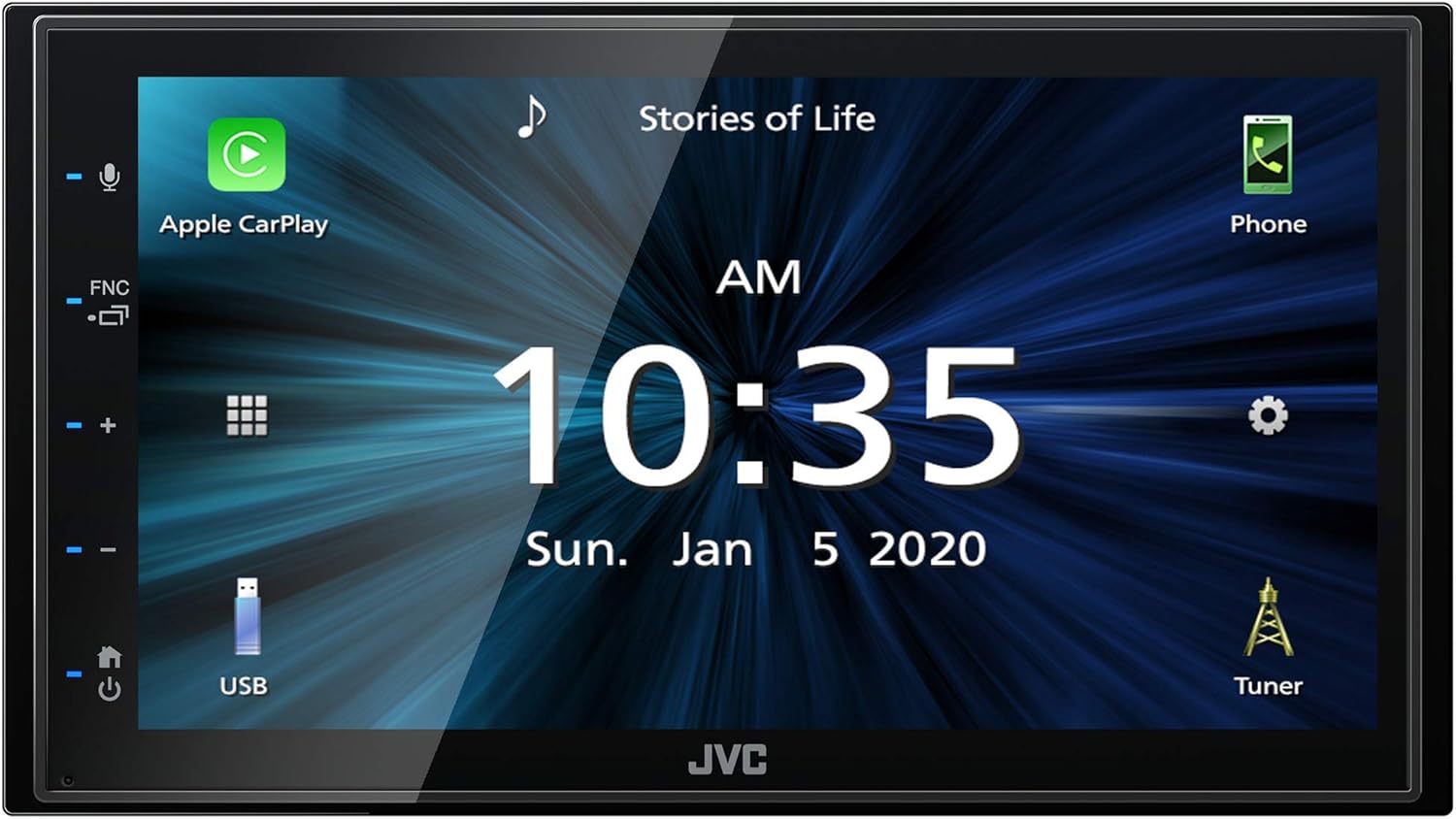
Figure 2: The main display of the JVC KW-M560BT showing the clock and primary function icons after initial power-up.
4. Operating Instructions
4.1 Apple CarPlay and Android Auto
Connect your compatible smartphone to the unit via the USB port to activate Apple CarPlay or Android Auto. This allows you to access navigation, make calls, send messages, and listen to music directly from your phone's interface displayed on the receiver screen.

Figure 3: The Apple CarPlay interface displayed on the JVC KW-M560BT, showing various application icons for seamless smartphone integration.

Figure 4: Demonstrating a smartphone connected to the JVC KW-M560BT for Apple CarPlay, highlighting the wired connection.
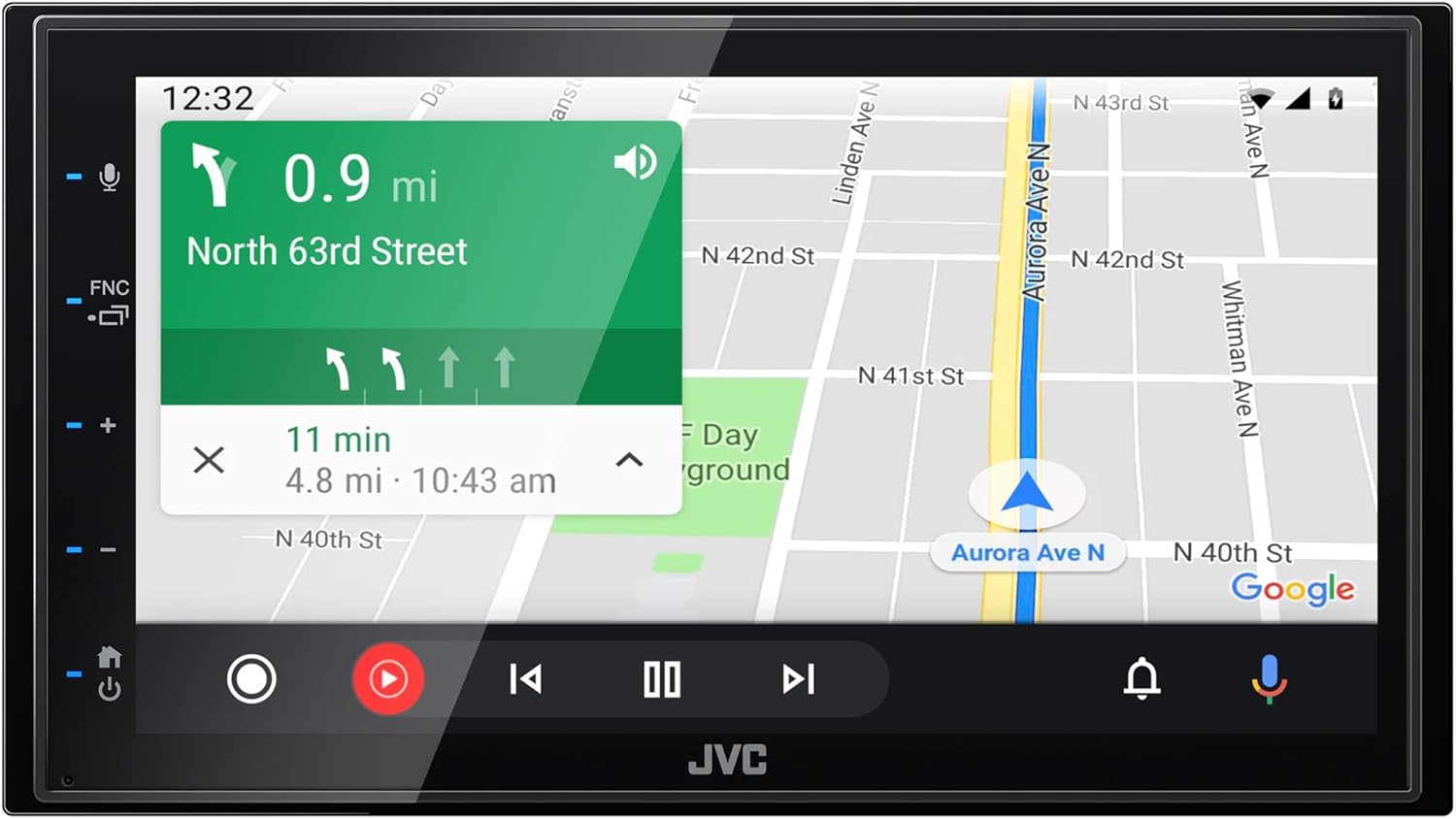
Figure 5: The Android Auto interface on the JVC KW-M560BT, showing Google Maps for navigation.
4.2 Bluetooth Connectivity
Pair your Bluetooth-enabled device with the KW-M560BT for wireless audio streaming and hands-free calling. The unit supports dual phone connection, allowing two phones to be paired simultaneously.
4.3 USB Mirroring (for Android Phones)
For Android users, the USB Mirroring feature allows you to display your phone's screen directly on the multimedia player. Note that for safety, video playback via USB mirroring may be restricted while the vehicle is in motion.
4.4 Audio and Video Controls
Access the audio settings to customize your listening experience. The 13-band equalizer allows for precise sound tuning. Digital time alignment helps optimize sound staging, and dedicated controls are available for subwoofer level, phase, and low-pass crossover settings.
4.5 Rear Camera Input
Connect a backup camera (sold separately) to the dedicated input for enhanced safety when reversing. The display will automatically switch to the camera view when the vehicle is in reverse gear.
5. Maintenance
To ensure the longevity and optimal performance of your JVC KW-M560BT, follow these general maintenance guidelines:
- Cleaning the Screen: Use a soft, dry cloth to gently wipe the touchscreen. Avoid abrasive cleaners or solvents that could damage the display.
- Software Updates: Periodically check the JVC website for any available firmware updates to ensure your unit has the latest features and bug fixes.
- Connection Checks: Ensure all cables and connections are secure and free from damage. Loose connections can lead to intermittent issues.
6. Troubleshooting
If you encounter issues with your JVC KW-M560BT, refer to the following common troubleshooting steps:
- No Power: Check the power connections and the vehicle's fuse box. Ensure the ignition is on.
- No Sound: Verify speaker connections, volume levels, and audio source selection. Check equalizer settings.
- Bluetooth Connection Issues: Ensure Bluetooth is enabled on both the unit and your smartphone. Try unpairing and re-pairing the devices.
- Apple CarPlay/Android Auto Not Activating: Ensure your phone is compatible and connected via a high-quality USB cable. Check phone settings for CarPlay/Android Auto permissions.
- Video Playback Restricted: Confirm the parking brake is engaged. This is a safety feature.
For more detailed troubleshooting, consult the full owner's manual or contact JVC customer support.
7. Specifications
| Feature | Detail |
|---|---|
| Product Dimensions | 8.9 x 7.2 x 6.3 inches |
| Item Weight | 3.78 pounds |
| Item Model Number | JVC KW-M560BT |
| Brand | JVC |
| Connectivity Technology | Bluetooth |
| Controller Type | Android |
| Special Feature | Equalizer |
| Compatible Devices | Smartphone, Speaker |
| Connector Type | USB |
| Audio Output Mode | Stereo |
| Surround Sound Channel Configuration | 5.1.2 |
| Video Encoding | H.264 |
| Color | Black |
8. Official Product Videos
Watch these official videos for a quick overview of the JVC KW-M560BT's features.
Video 1: JVC KW-M560BT Sizzle Video. This short video highlights the main features and benefits of the multimedia player, including its display and connectivity options.
9. Warranty and Support
Your JVC KW-M560BT multimedia player is covered by a manufacturer's warranty. Please refer to the warranty card included in your product packaging for specific terms and conditions.
For technical support, service, or further inquiries, please visit the official JVC website or contact their customer service department. Keep your purchase receipt and model number handy when seeking support.
This product is eligible for replacement or refund under the Amazon Renewed Guarantee if you are not satisfied with your purchase.